Export Diagnostics
You can export and download the diagnostic report of an asset or an asset group that shows false positives or has any other issue. You can share this report with the Tenable Support for a detailed analysis.
Export an Asset Diagnostics Report
To export the diagnostics report:
In the left navigation bar, go to Inventory > All Assets.
The All Assets page appears.
In the All Assets table, select one or several assets to export in the diagnostics report.
Do one of the following:
For a single asset: In the upper-right corner, click Actions > Export Diagnostics.
For multiple assets: In the upper-right corner, click Bulk Actions > Export Diagnostics.
Tenable One OT Exposure downloads the diagnostics report for the selected asset or assets. The diagnostics report is a tar.gz file and includes the asset details in a .json file.
The diagnostics report name includes the name of the asset, timestamp, and the Tenable One OT Exposure version. Examples:
For a single asset: TOTS_Rouge_3.19.15_2024-06-03T07_05_27.tar.gz
For multiple assets: TOTS_AssetsReport_3.19.15_2024-06-03T07_17_54.tar.gz
Extract the diagnostics report and share it with Tenable Support for further analysis.
Export Tenable One OT Exposure Diagnostic Report (Tenable Core)
You can generate and export an Tenable One OT Exposure-specific diagnostic report from Tenable Core for troubleshooting.
Before you Begin
Make sure you have Administrative access.
To generate the diagnostic report:
Log in to Tenable Core.
In the left navigation bar, click Tenable One OT Exposure.
The Tenable One OT Exposure page appears.
In the OT Diagnostics section, click Collect New OT Security Diagnostic Report.
The system generates the diagnostic report.
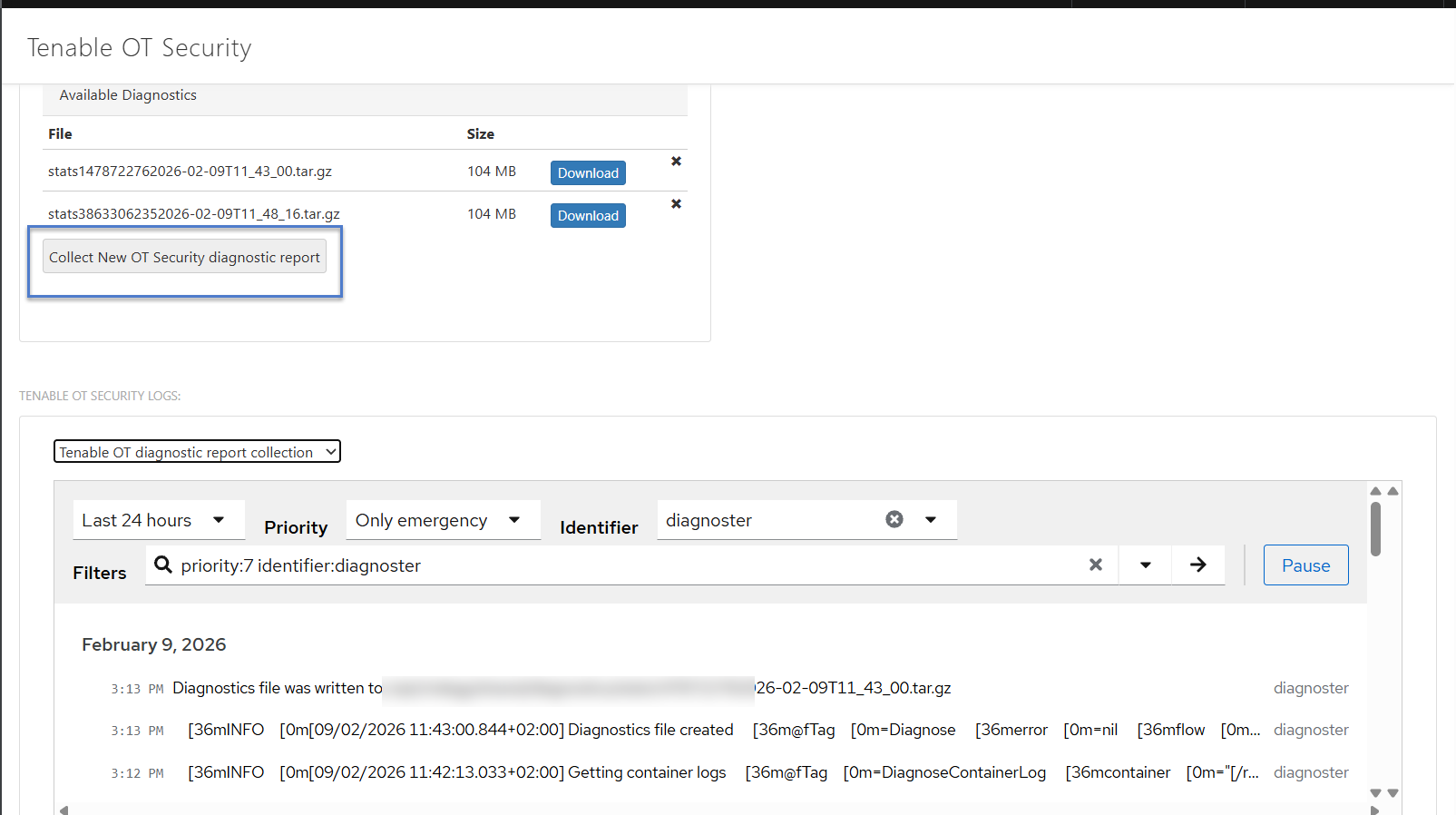
Click Download next to the report that you want to download.
Tenable Core downloads the report to your system. After Tenable Core generates the logs, it may take several minutes before the data appears in the debug logs.