Configure SAML Integration for Tenable One
Configure SAML on your Tenable One instance to access Tenable One OT Exposure using SSO.
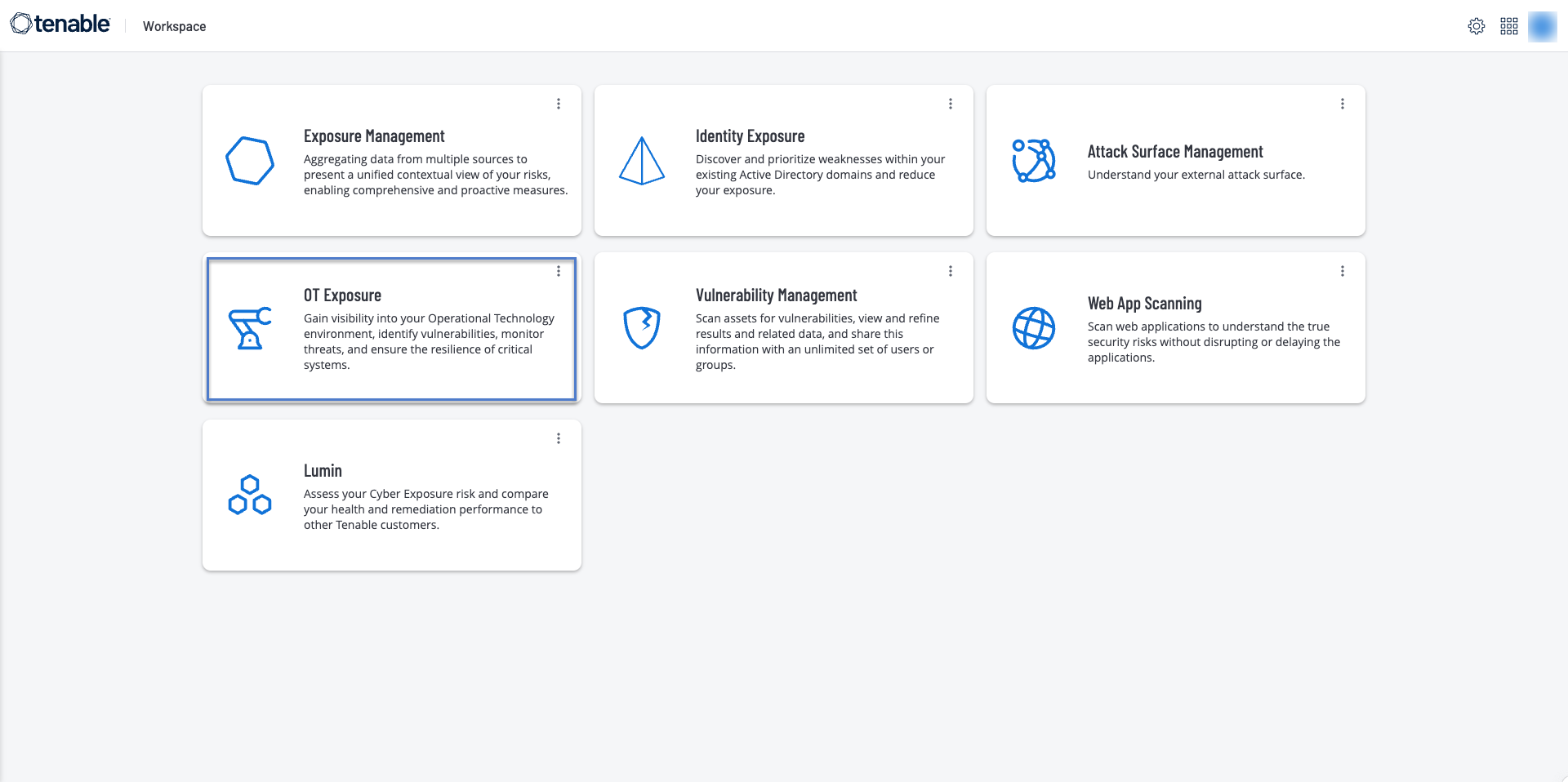
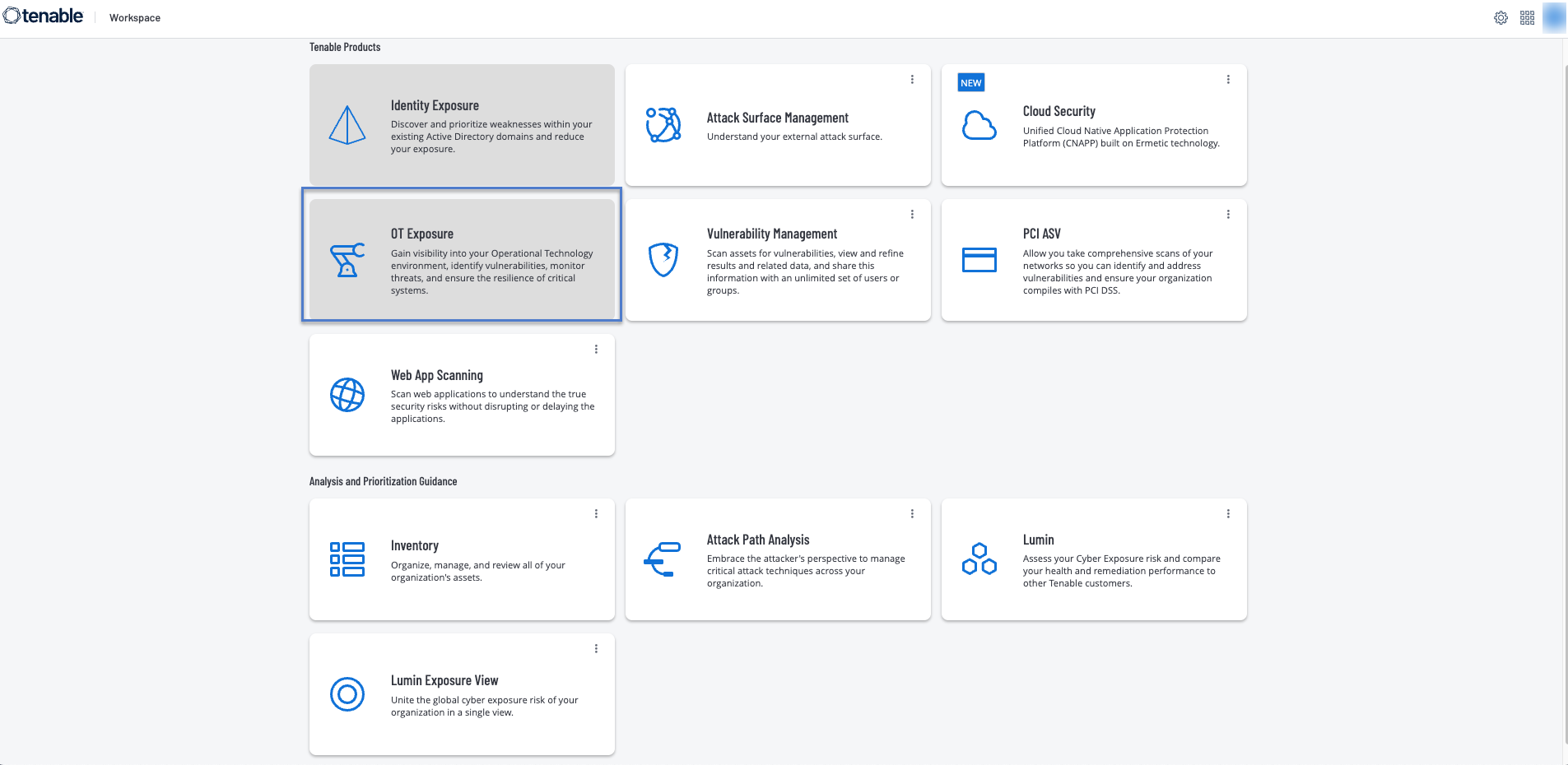
The OT Exposure tile on the Tenable One Workspace page is disabled by default. To enable the OT Exposure tile, you must first configure SAML for Tenable One.
Before you Begin
-
Make sure you have a valid Tenable One and Tenable One OT Exposure license.
To configure SAML for Tenable One OT Exposure:
-
Retrieve SAML Identity Provider (IDP) details and group object IDs from Tenable One:
-
In a supported browser, log into https://cloud.tenable.com to access the Workspace page.
-
In the upper-right corner, click the
 button.
The Settings page appears.
-
Click the SAML tile.
The SAML page appears.
-
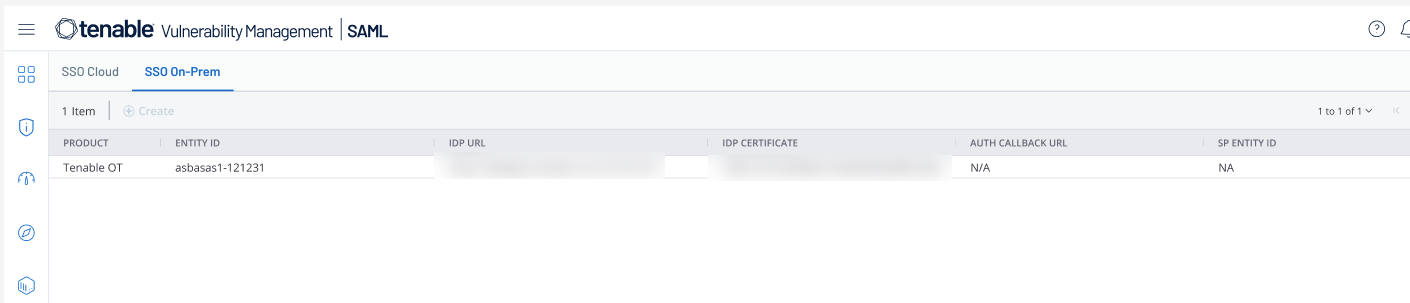
Click the SSO On-Prem tab.
The SSO On-Prem page appears with the SSO configuration for Tenable One OT Exposure.
-
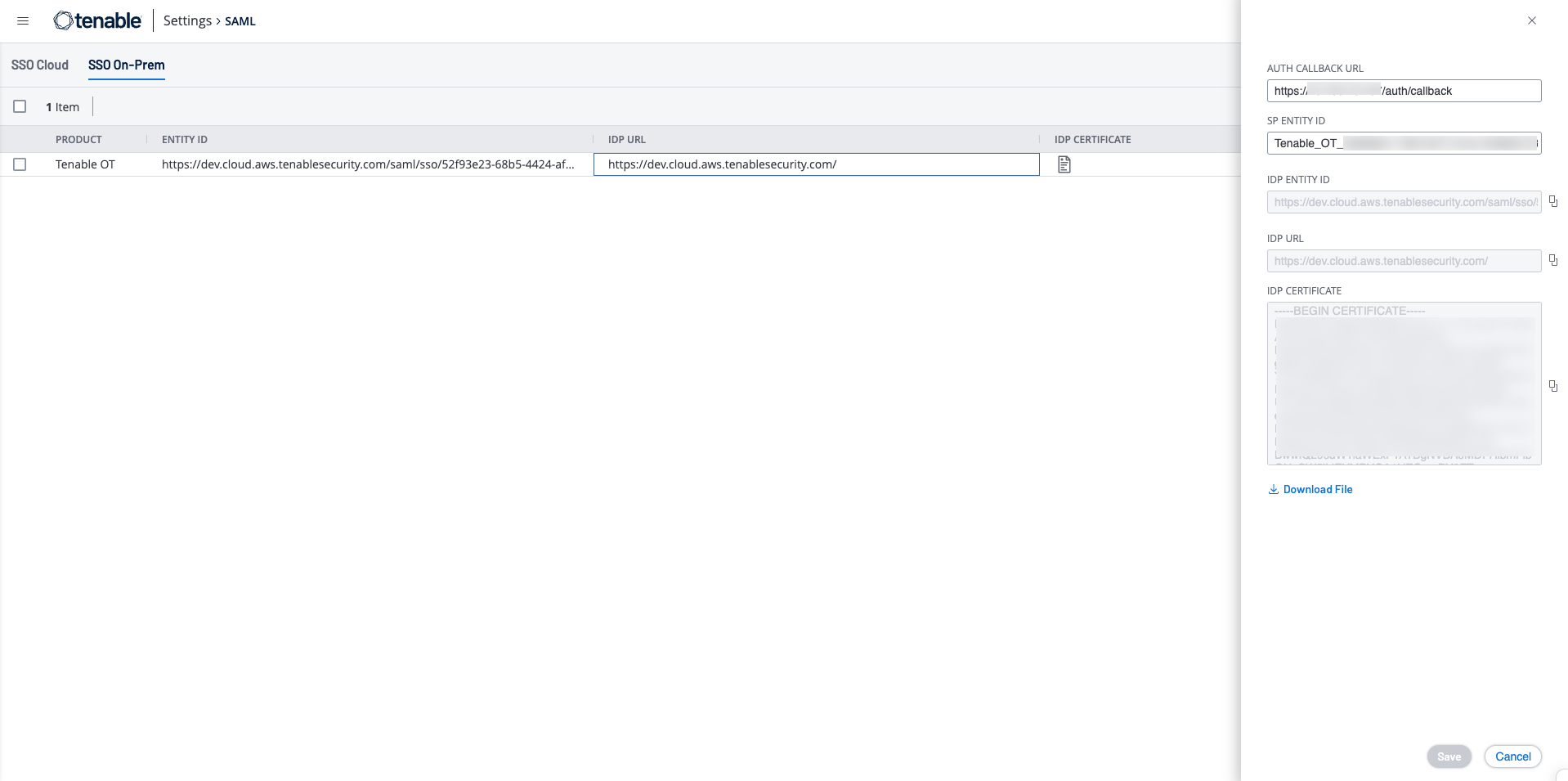
Hover over and click the Tenable One OT Exposure row.
The IDP details panel appears on the right.
-
Use the
 button to copy these details.
- IDP Entity ID
-
IDP URL
-
IDP Certificate
-
Click
 Download File to download the certificate to your local system.
 -
Retrieve the mapping data for groups. To find the group object ID information, go to Settings > Access Control > Groups and find or add the relevant groups.
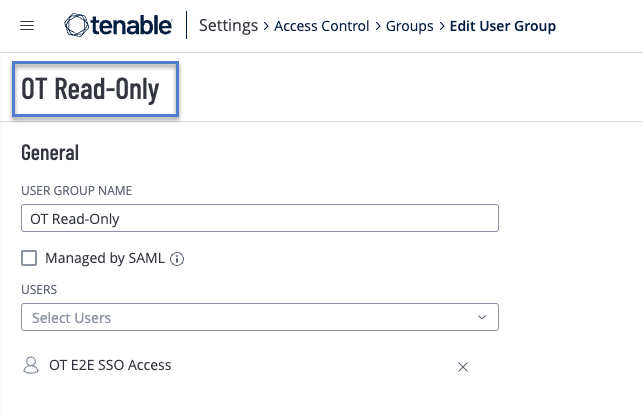
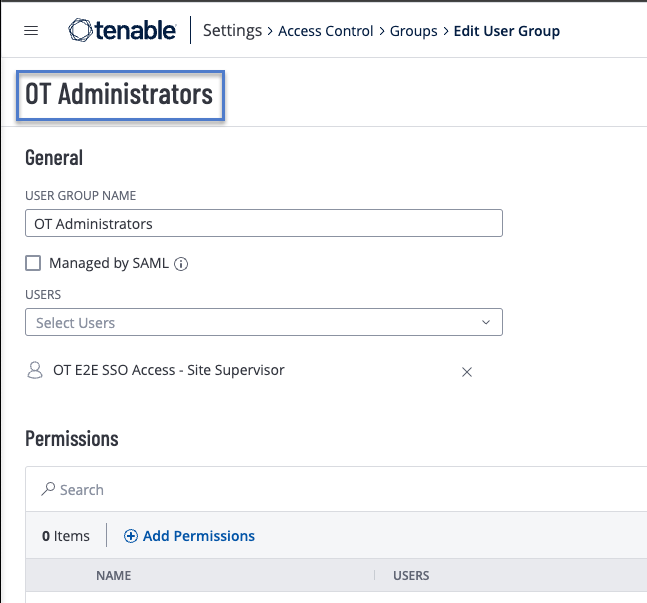
For example: In Tenable One, create two groups: OT Administrators and OT Read-Only. To map them to the user roles in Tenable One OT Exposure, add the group names to the respective Administrators Group Object ID and Read-Only Users Group Object ID fields in the Tenable One OT Exposure SAML page.
-
-
Configure SAML in Tenable One OT Exposure:
-
Log into Tenable One OT Exposure.
-
Go to Settings > User Management > SAML.
The SAML page appears.
-
Click Configure or Edit if you are editing an existing configuration.
The Configure SAML page appears.
-
Provide the following details that you copied from Tenable One SAML > SSO On-Prem page:
-
In the IDP ID box, paste the IDP Entity ID copied from the Tenable One SAML page.
-
In the IDP URL box, type the IDP URL copied from the Tenable One SAML page.
-
In the Certificate Data box, browse to the location where you downloaded the certificate file and upload it.
-
In the Username Attribute box, type:
http://schemas.xmlsoap.org/ws/2005/05/identity/claims/emailaddress
-
In the Group Attribute box, type groups (it must be in lower case and not Groups).
-
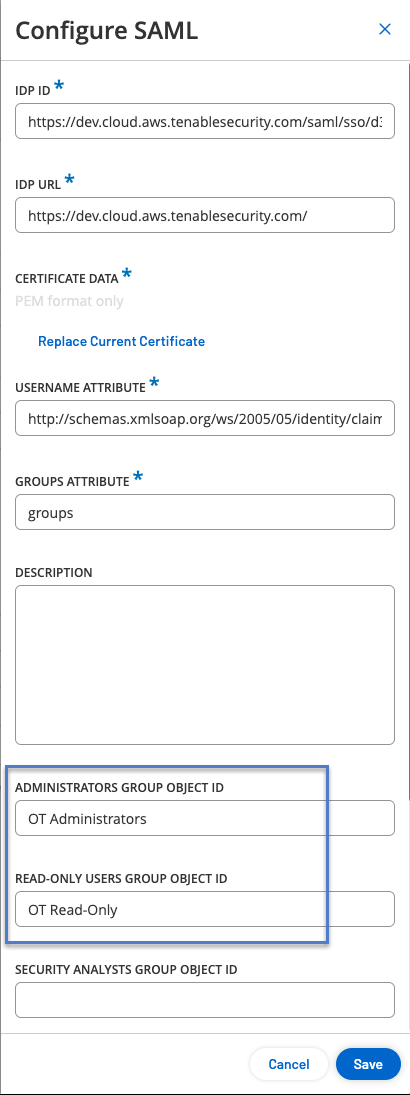
Provide the group object ID information that you retrieved from Tenable One.
For example: In step h, you created two groups in Tenable One: OT Administrators and OT Read-Only. Add these group names to the corresponding Administrators Group Object ID and Read-Only Users Group Object ID fields in the Configure SAML page.
-
Click Save.
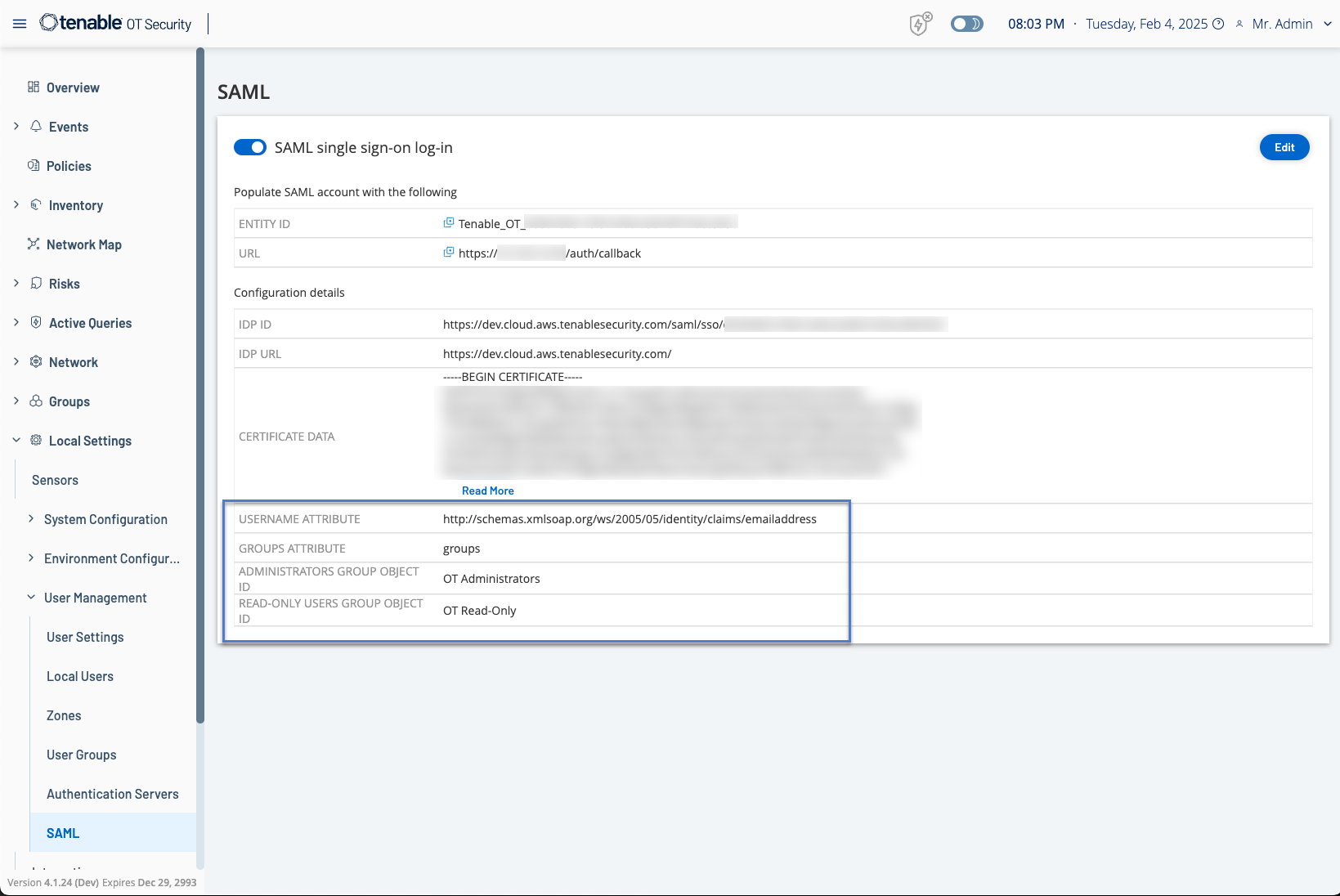
Tenable One OT Exposure saves the configuration and displays the following information:
 Important: Do not reboot after saving the configuration. Only reboot after you complete the configuration steps on both Tenable One OT Exposure and Tenable One.
 -
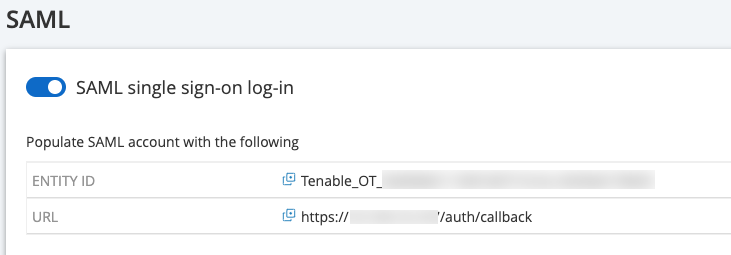
On the SAML page, copy the following values. You need these values for the final configuration on Tenable One.
-
Entity ID
-
URL
-
-
-
-
Complete the final configuration on Tenable One:
-
In Tenable One, navigate to the Settings > SAML> SSO On-Prem page.
The SSO On-Prem page appears with the SSO configuration for Tenable One OT Exposure.
-
Click the Tenable One OT Exposure row.
The Tenable One OT Exposure configuration details panel appears.
-
Provide the Auth Callback URL and SP Entity ID details copied from the Tenable One OT Exposure SAML page.
Note: If the Auth Callback URL is accessible only from your internal network, you must connect to your internal network or VPN to access the Tenable One OT Exposure tile in Tenable One.Important: The Auth Callback URL that you enter must match the first URLthat appears on the Tenable One OT Exposure SAML page (as described in Step 2h).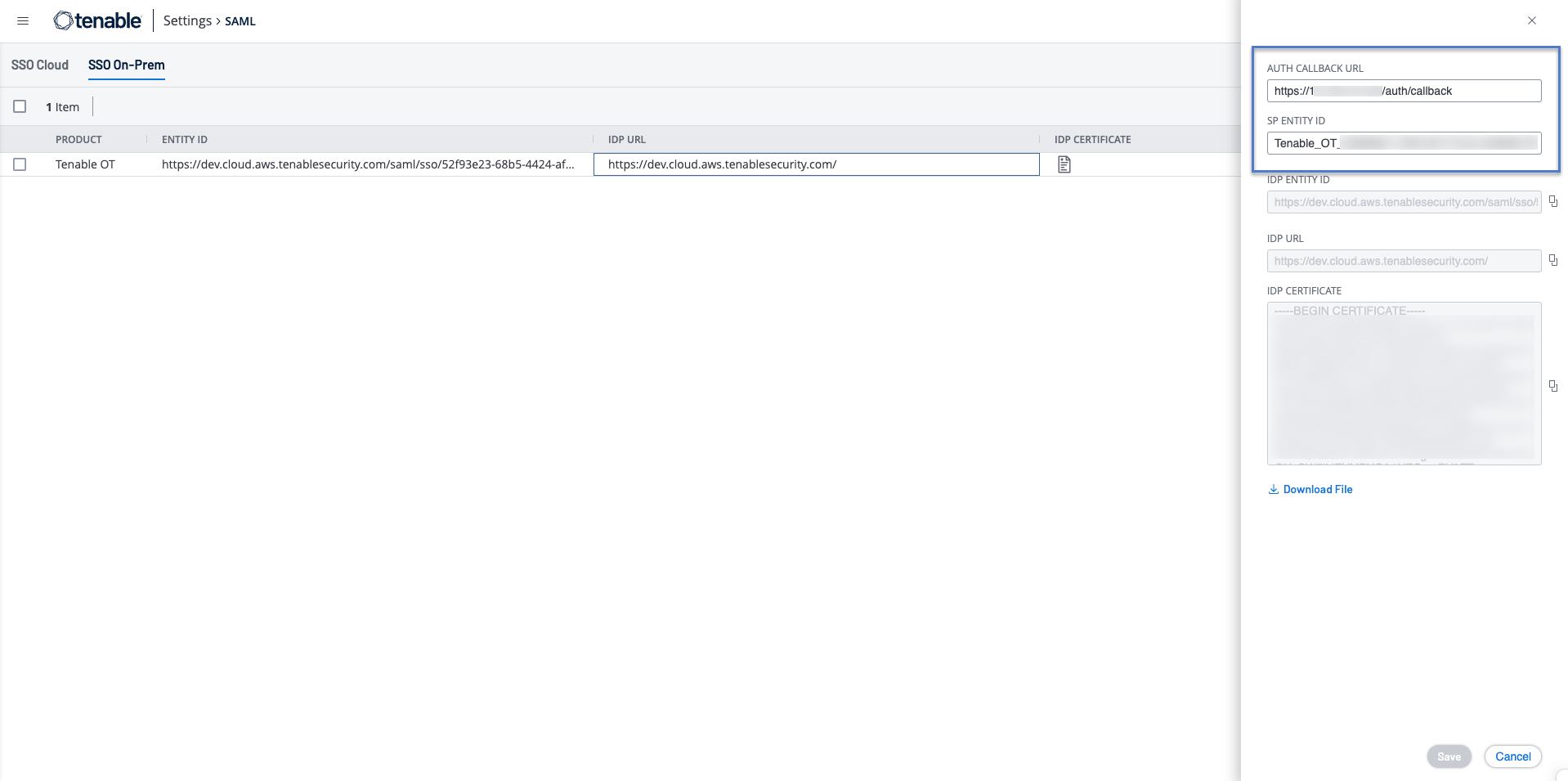
-
Click Save.
Tenable One OT Exposure saves the SAML configuration.
-
-
Click the SAML single sign-on log in toggle to enable SAML.
Tenable One OT Exposure prompts you to restart.
-
Restart Tenable One OT Exposure.
Tenable enables the OT Exposure tile on the Workspace page. Click the OT Exposure tile and access Tenable One OT Exposure.