Sessions
The Sessions tab within Tenable One AI Exposure gives you an at-a-glance overview of each individual session between your users and their AI applications. Here, you can also view information about their AI use over time, the topics they are discussing, and which users in your organization are using AI the most actively.
To access the Sessions tab:
-
In the left navigation menu, click Explorer.
The Explorer page appears. By default, the Sessions tab is selected.
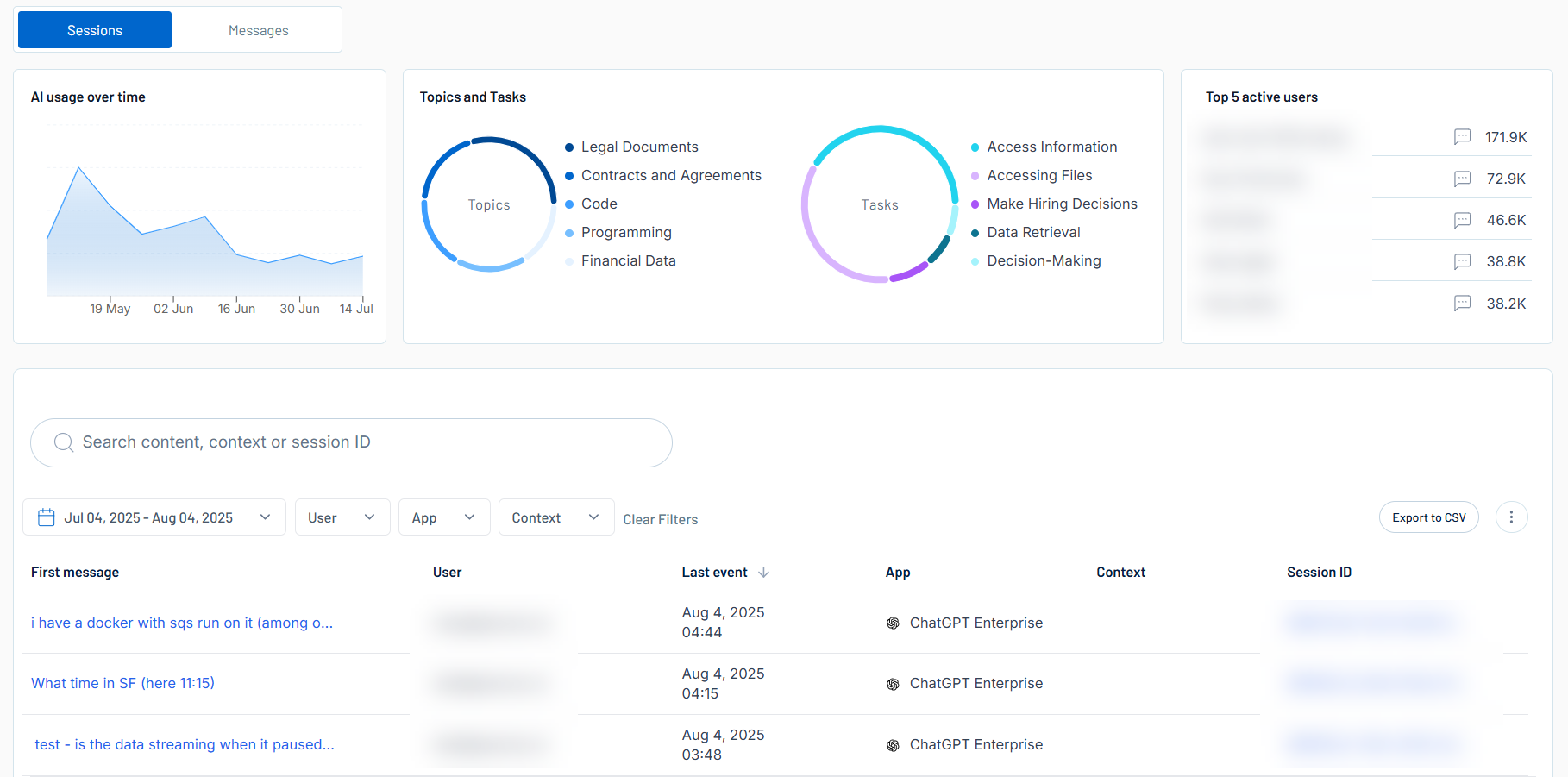
The Sessions tab includes the following sections:
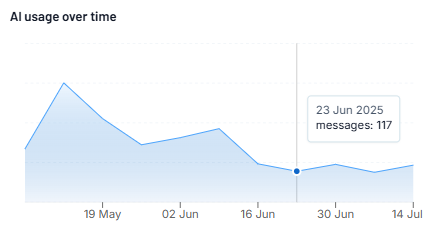
AI usage over time
The AI usage Over Time section includes a graphical representation of the total messages sent per week by all users within your Tenable One AI Exposure container.
Topics and Tasks
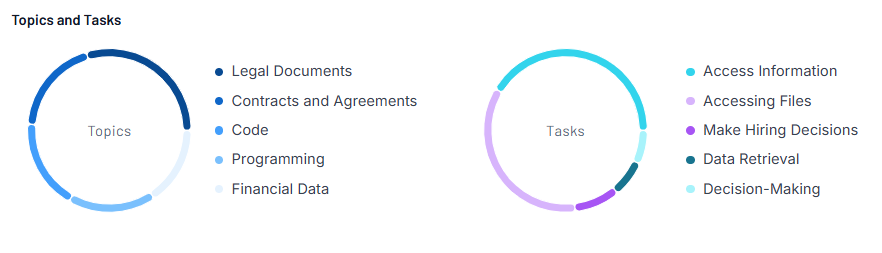
The Topics and Tasks section includes graphical representations of:
-
The top 5 topics discussed within your Tenable One AI Exposure user's messages to AI applications.
-
The top 5 tasks your Tenable One AI Exposure users ask their AI applications to perform.
Top 5 active users
The Top 5 active users section highlights the top 5 Tenable One AI Exposure users in your container that use AI applications the most frequently.
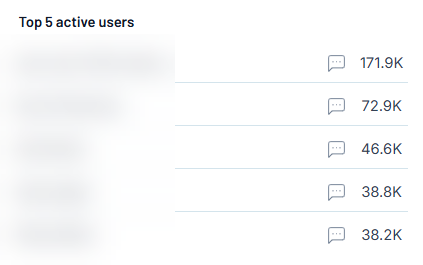
Here, you can view the following information:
-
The name of the user.
-
The number of messages the user has sent to an AI application.
Sessions List
At the bottom of the Sessions tab, you can view a list of all sessions between your Tenable One AI Exposure users and AI applications.
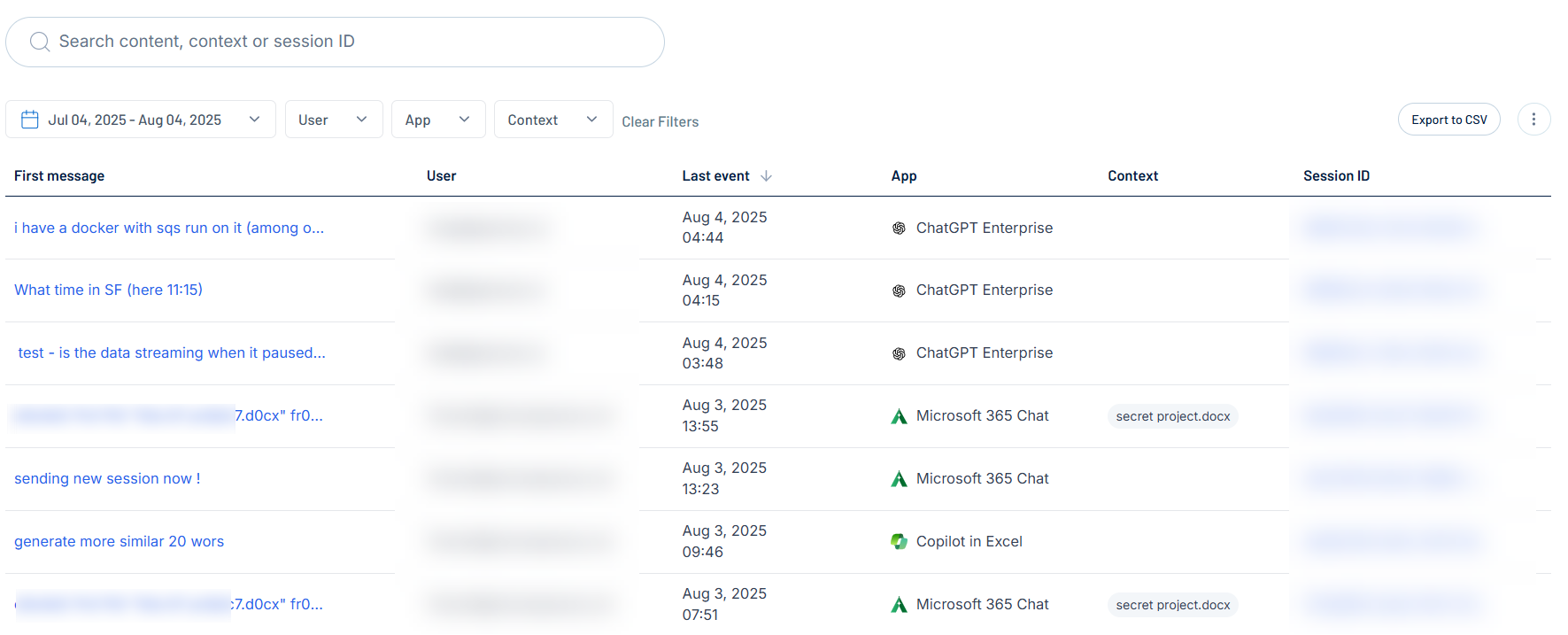
Here, you can:
-
Use the search bar to search for a specific session in the list.
-
Filter the list:
-
Above the list, use one or more of the following filters to adjust the data displayed in the list:
-
Date selection drop-down
-
User
-
App
-
Context
Tenable One AI Exposure updates the list based on your selection.
-
-
Click Clear Filters to clear any filters applied to the list.
-
-
Export the list:
-
In the upper-right corner, click Export to CSV.
Tenable One AI Exposure exports the list in CSV format and saves it to your local downloads folder.
-
-
Manage the columns in the list:
-
In the upper-right corner, click the
 button.
A menu appears.
-
Select or deselect columns to show or hide them within the list.
-
-
View the following information about your sessions:
-
First message — A preview of the first message sent between the user and the AI application.
-
User — The user who started the session.
-
Last event — The last time the user sent a message to the AI application during the session.
-
App — The AI application used during the session.
-
Session ID — The identification number associated with the session.
-
Delete a Session
To delete a session:
-
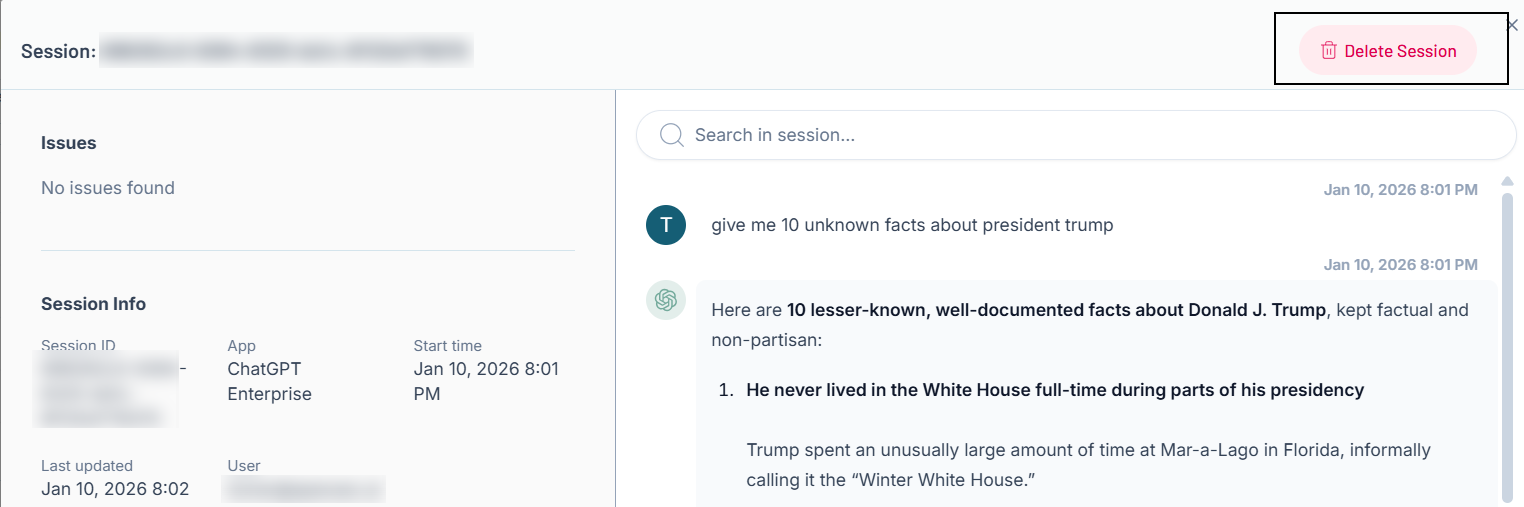
In the Sessions tab, click the session that you want to delete.
The session details panel appears.
-
In the upper-right corner, click Delete Session.
A confirmation message appears and Tenable One AI Exposure deletes the session.