Connect a Ping Identity Environment
Integrate your Ping Identity environment with Tenable One Cloud Exposure to reveal a complete inventory of Ping Identity groups and users in your environment.
Note: This section does not relate to integrating your IdP for the purpose of enabling Cloud Exposure Console login via SSO. For more information about how to enable login via SSO for users who need access to the Console, see Single Sign-On.
FedRAMP: If you use Tenable One Cloud Exposure in a FedRAMP environment, make sure to connect integrations only to FedRAMP authorized services and endpoints. You are responsible for confirming that each service you connect meets your FedRAMP requirements. Sending data to a service outside your authorization boundary can put your organization out of compliance with FedRAMP requirements.
To add a Ping Identity environment:
- In the Cloud Exposure Console, navigate to Settings > Integrations.
- Click Add Integration.
- In the Integrations Library, click Ping Identity. The Ping Identity wizard opens.
-
Create a new application (Step 1 in wizard):
- Log in to the Ping Identity console and navigate to Connections > Applications.
- Click the + sign to add a new application.
- Name the application, choose Worker as the application type, and then click Save.
- On the application page that displays, navigate to the Roles tab.
-
Delete all roles except for the following:
- CONFIGURATION READ ONLY
- IDENTITY DATA READ ONLY
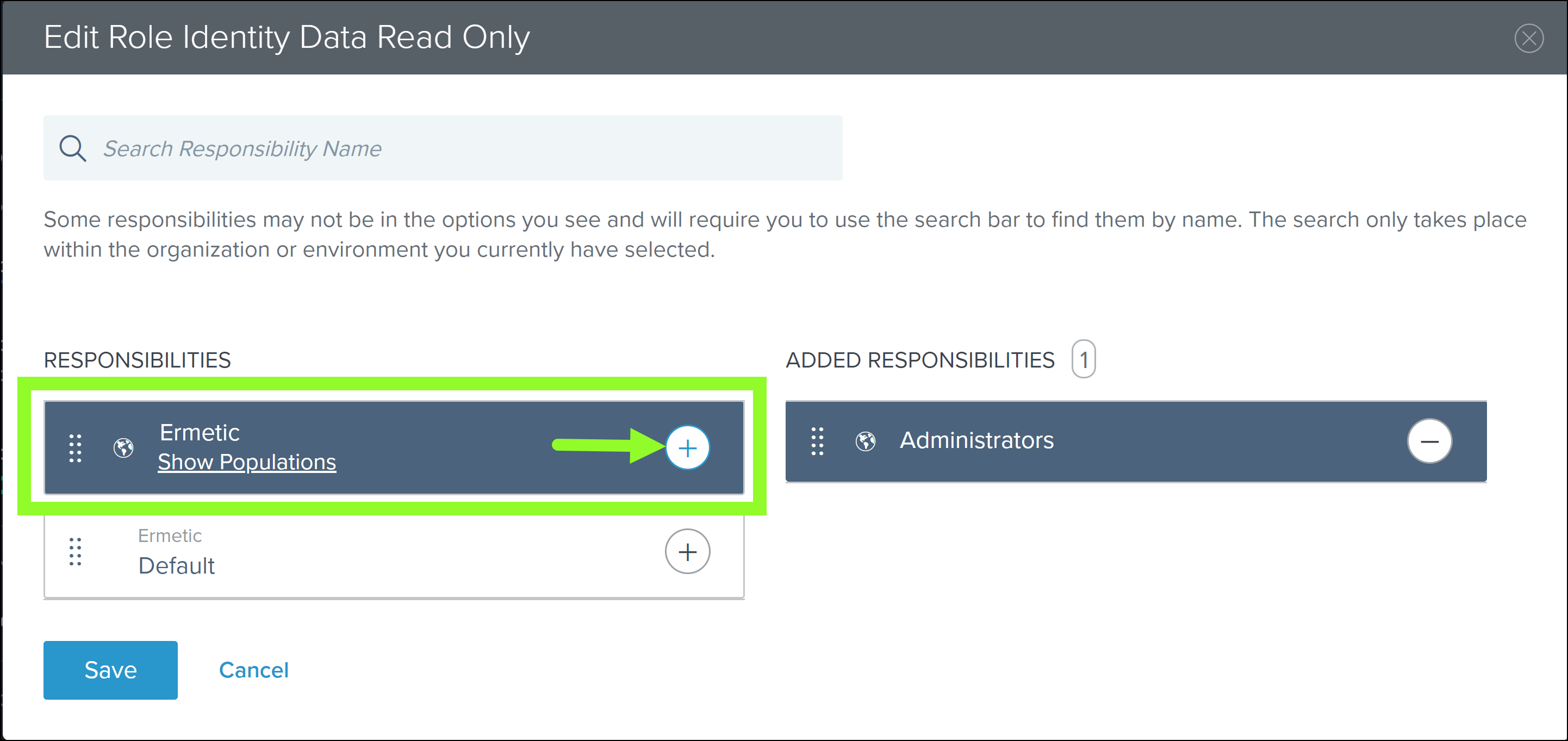
- Click the Edit button to edit the roles, and then click the Edit button next to the IDENTITY DATA READ ONLY role.
From the RESPONSIBILITIES list, add the environment to the list of ADDED RESPONSIBILITIES.
- On the application page, click the toggle button to enable user access to the application.
- [Cloud Exposure Console] Click NEXT to move to the next step in the wizard.
-
Connect your environment to Tenable by providing the following details (Step 2 in wizard):
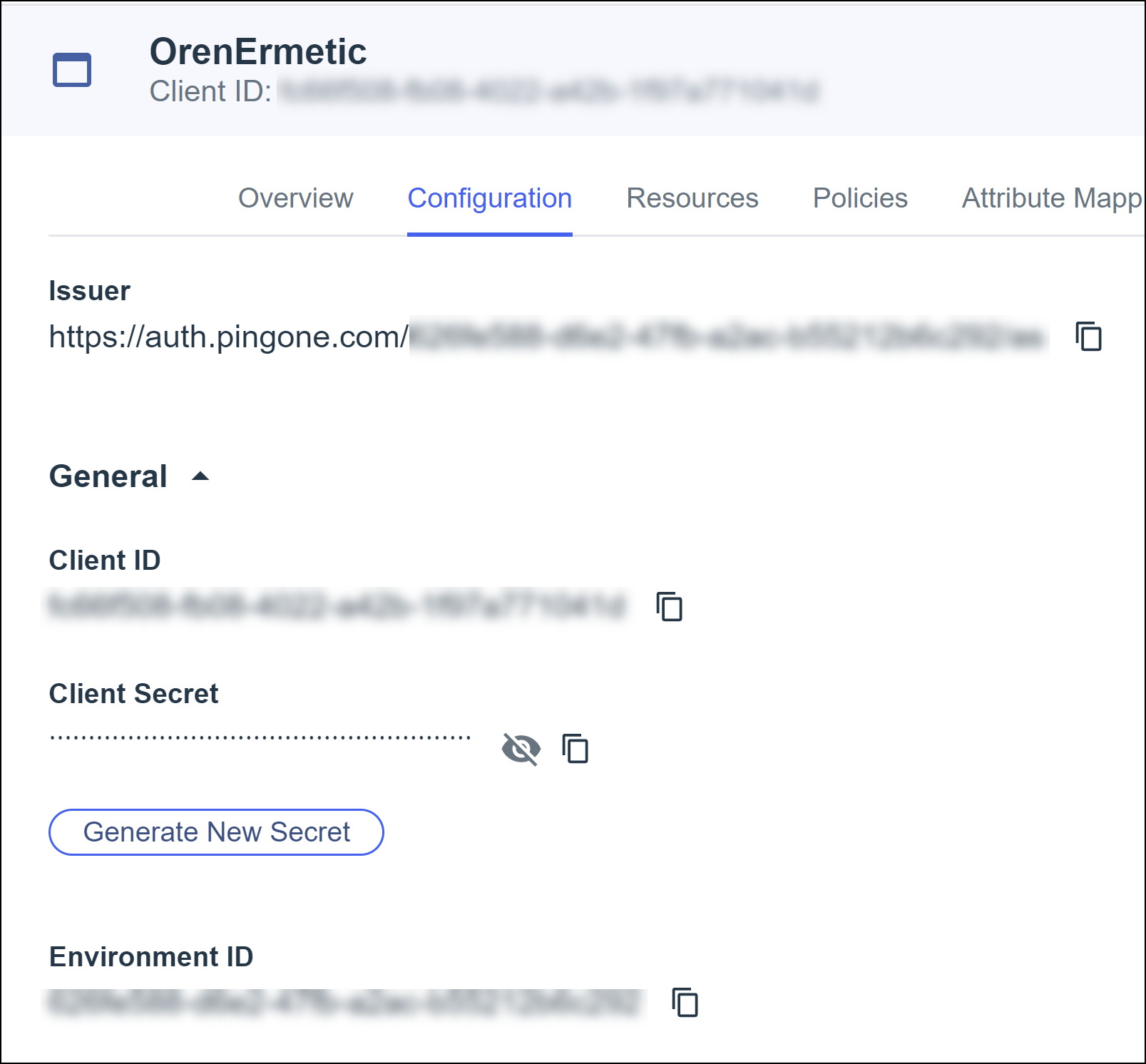
In the Ping Identity console, on the application page, navigate to the Configuration tab and then expand the General section. You will need to enter this information in the Cloud Exposure Console.
-
In the Cloud Exposure Console, enter the following details:
- The Name of your application.
- The Environment ID.
- The Client ID and Client Secret.
The Region of your environment.
Note: You can find your region in the Ping Identity console by navigating to Environment > Properties.
- In the Cloud Exposure Console, click FINISH.