Tenable One AI Exposure
Tenable Exposure Management integrates data from Tenable One AI Exposure to provide visibility into your artificial intelligence (AI) attack surface. This integration imports AI-specific assets and findings into Tenable Exposure Management, allowing you to analyze AI security risks alongside your other exposure data.
-
Tenable One AI Exposure ingests data from ChatGPT Enterprise and Microsoft Copilot Studio.
-
Tenable One AI Exposure scans for and ingests two primary asset types:
-
Users: Identities that interact with AI tools (for example, ChatGPT and Microsoft Copilot).
-
Agents: Automated bots or scripts configured to perform tasks (for example, a booking reservation agent).
-
When Tenable One AI Exposure detects risks associated with these assets, it generates issues. Tenable Exposure Management imports these issues as Findings classified as Misconfigurations.
Note: This section includes the complete scope of Tenable One AI Exposure currently supported in Tenable Exposure Management.
For more information on data sources available for use with Tenable Exposure Management, see Data Sources.
Tenable One AI Exposure Data in Tenable Exposure Management
Tenable Exposure Management maps data from Tenable One AI Exposure to specific asset classes and finding types.
Asset Mapping
Tenable Exposure Management maps assets to the following asset classes:
| Tenable One AI Exposure Asset | Tenable Exposure Management Asset Class | Description | Notes |
|---|---|---|---|
| Users | Account |
An Account is a user identity interacting with a specific AI application, such as ChatGPT or Microsoft Copilot. Accounts are application-specific. For example, a login for ChatGPT ([email protected]) is treated as a distinct account from a login for Gmail ([email protected]), even if they share the same email address.
|
Users map to the asset class Account in Tenable Exposure Management |
| Agent | AI Agent |
An AI Agent is an automated bot or script configured to perform specific tasks, such as making a reservation or updating a spreadsheet. Tenable One AI Exposure scans the behavior of these agents to detect risks. |
Agents map to the asset class AI Agent in Tenable Exposure Management. |
Findings Mapping
Tenable Exposure Management maps Tenable One AI Exposureissues to the following finding types and severity:
| Tenable One AI Exposure Data | Tenable Exposure Management Findings Type | Severity Mapping |
|---|---|---|
| Issue | Misconfiguration |
Severity maps 1-to-1. For example, a High severity issue in Tenable One AI Exposure appears as a High severity finding in Tenable Exposure Management. |
Tenable One AI Exposure Assets in Tenable Exposure Management
Before You Begin
Ensure you have a license for Tenable One AI Exposure.
To view Tenable One AI Exposure assets in Tenable Exposure Management:
-
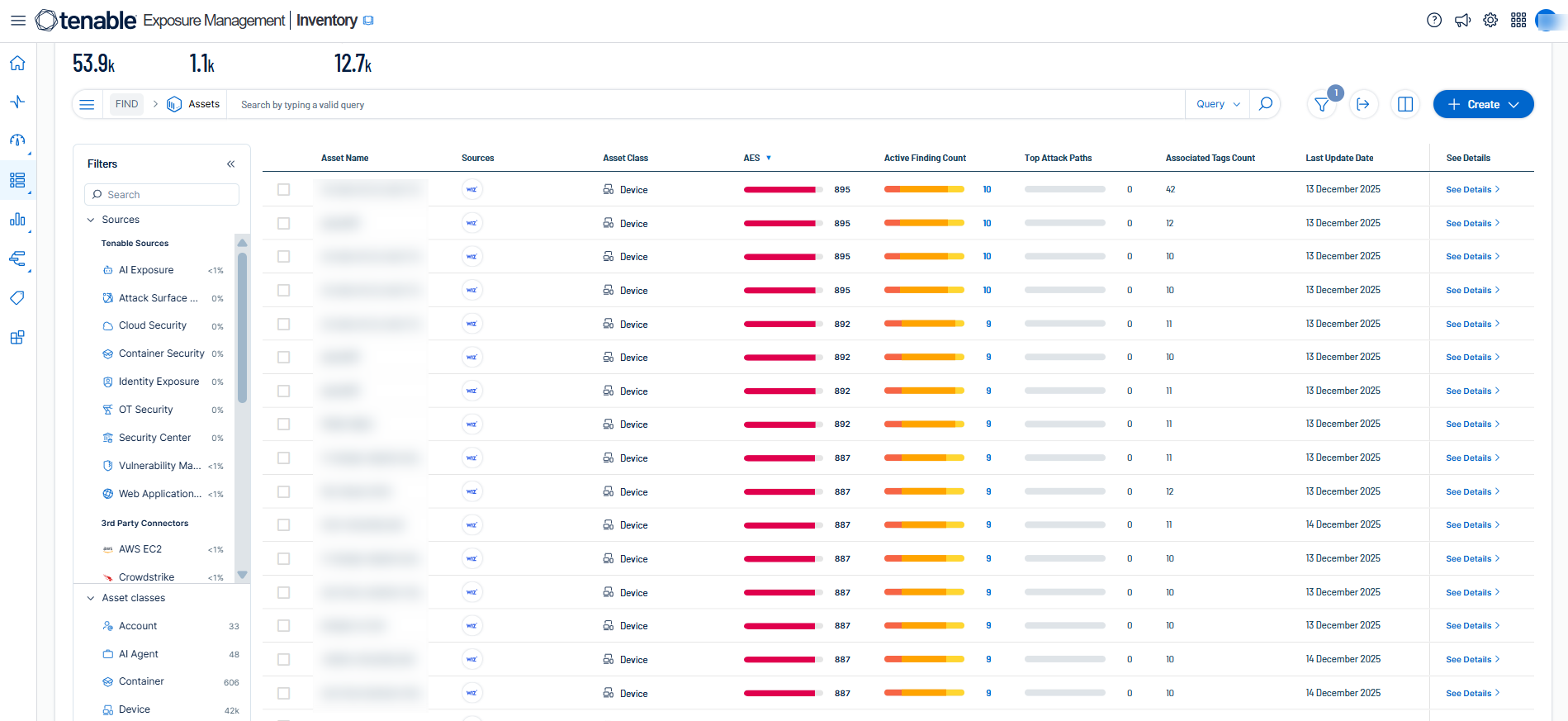
In the left navigation menu, click Inventory.
The Assets page appears.
-
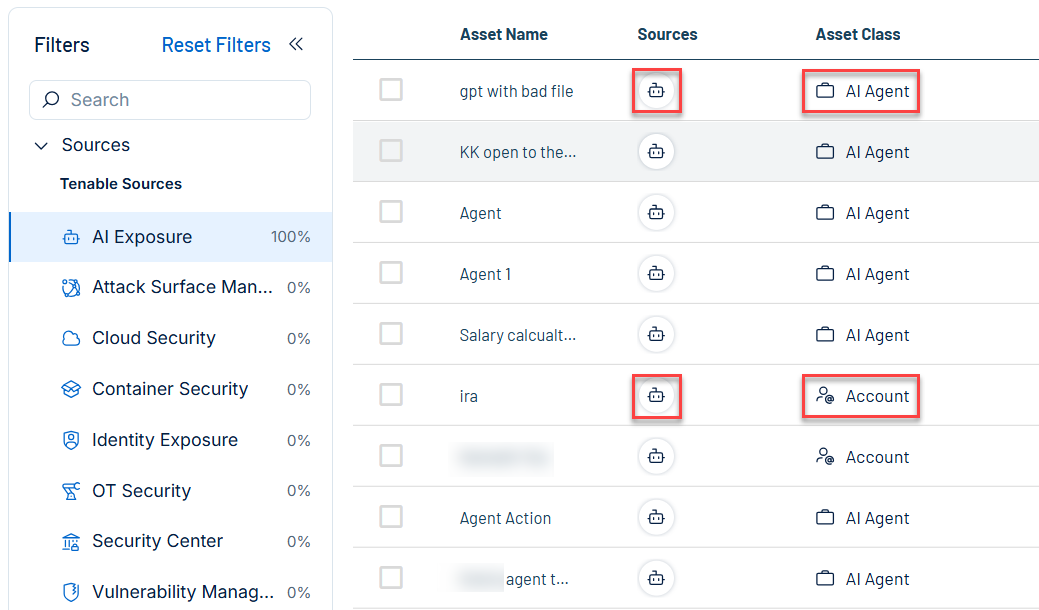
In the Assets table, filter by Source or Asset Class as follows:
-
In Sources:
-
Select AI Exposure to view imported Tenable One AI Exposure Accounts (users) and AI Agents (agents).
-
-
In Asset Classes:
-
Select Account to view imported Tenable One AI Exposure users only.
-
Select AI Agent to view only imported Tenable One AI Exposure agents only.
-
-
Tenable One AI Exposure Findings in Tenable Exposure Management
Before You Begin
Ensure you have a license for Tenable One AI Exposure.
To view Tenable One AI Exposure findings in Tenable Exposure Management:
-
Do one of the following:
-
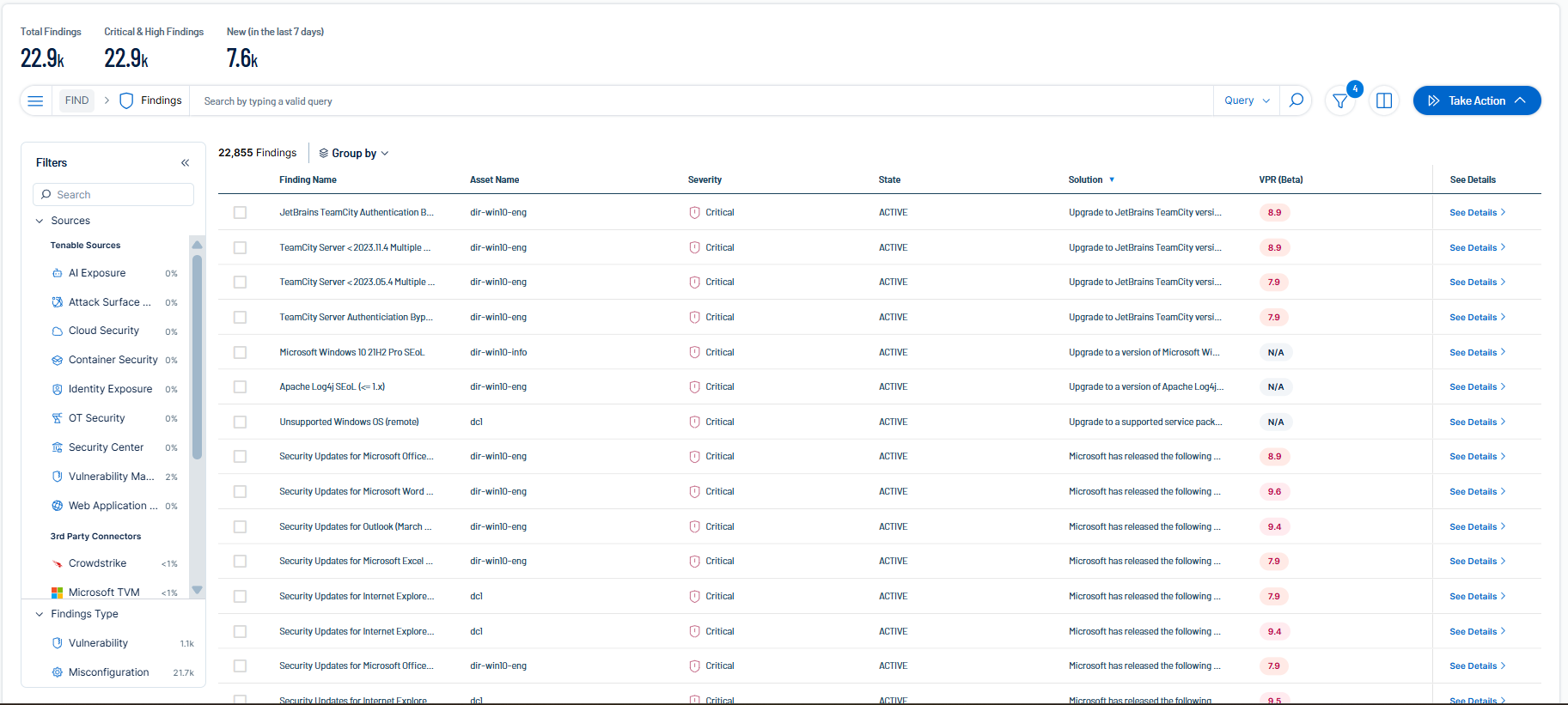
In the left navigation menu, click Inventory > Findings.
-
At the top of the Inventory page, click the Findings tab.
-
-
The Findings page appears.
-
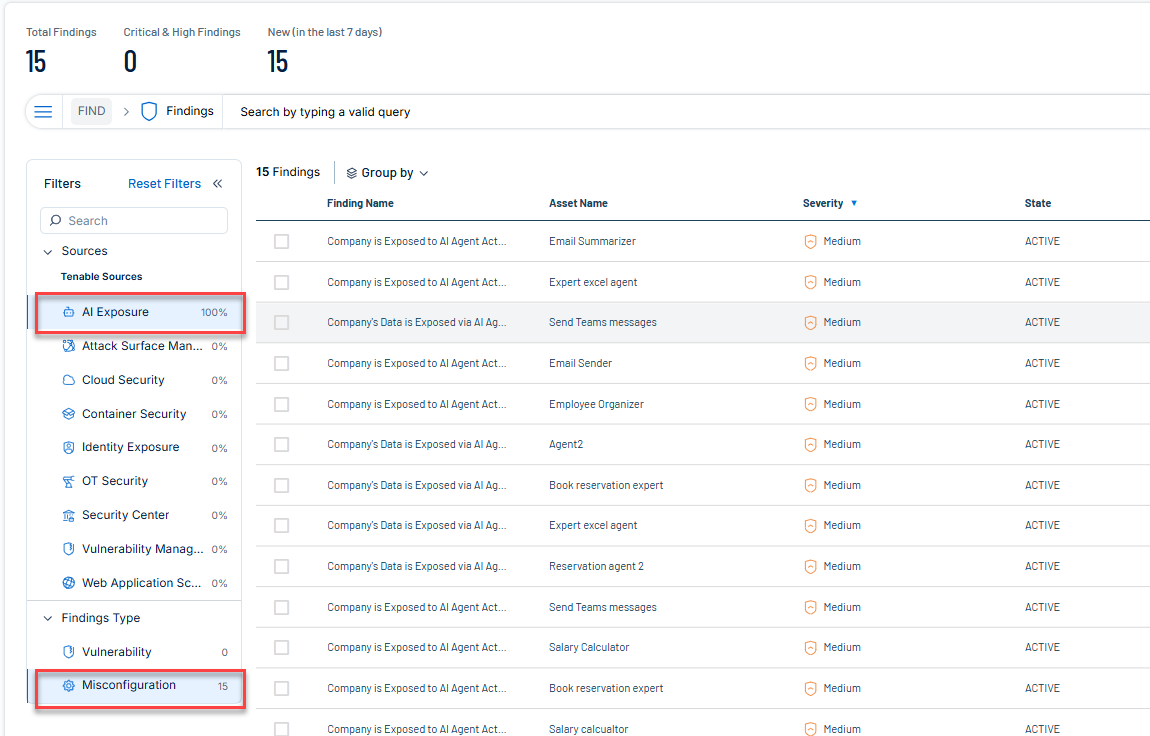
In the Findings table, filter by Source or Findings Type as follows:
-
In Sources:
-
Select AI Exposure to view Tenable One AI Exposure Misconfigurations (issues).
-
-
In Findings Type:
-
Select Misconfigurations to view Tenable One AI Exposure issues.
-
-
Tenable One AI Exposure in Exposure Cards
To access the Tenable One AI Exposure Card:
-
In the left navigation menu, click Analytics.
A menu appears.
-
Click Exposure View.
The Exposure View page appears.
-
Click the TAI Exposure card.
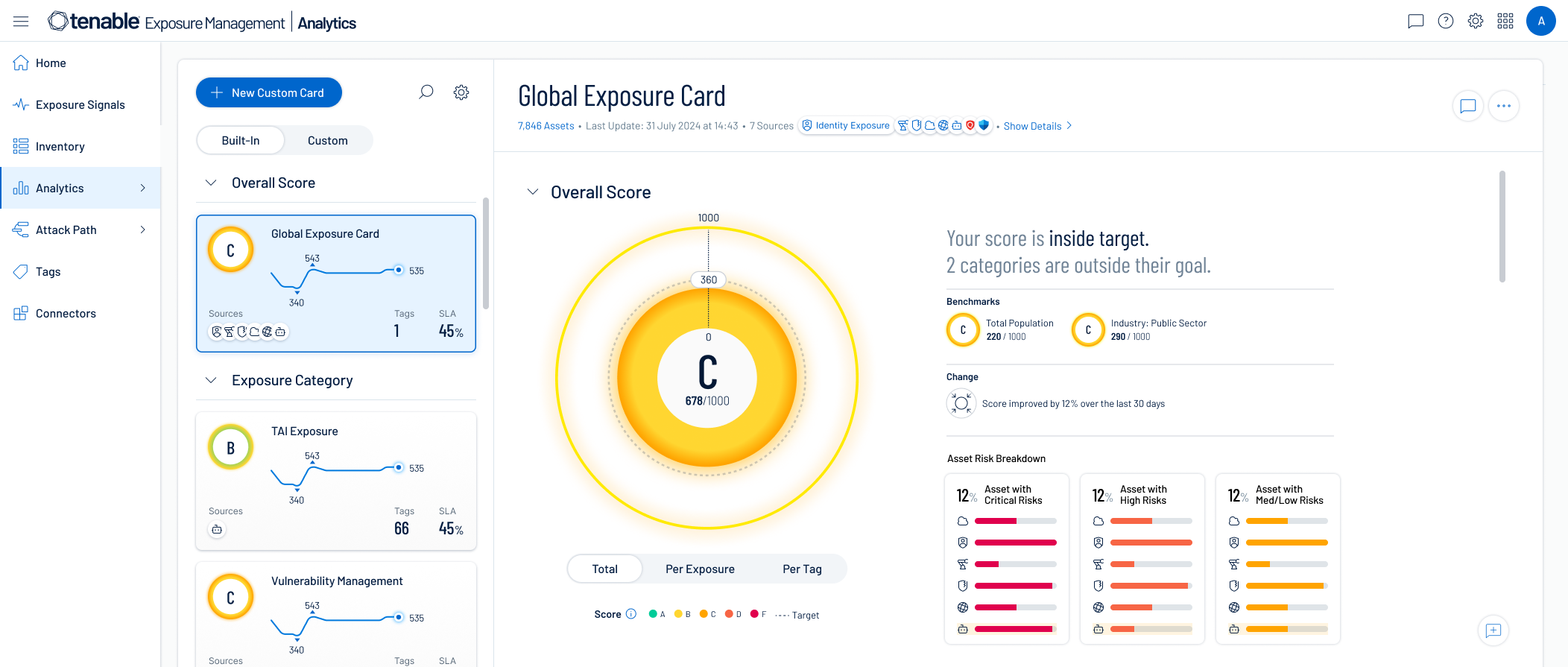
The TAI Exposure card represents the incoming data from your configured Tenable One AI Exposure source.