Event Details
The Trail Flow in Tenable One Identity Exposure provides detailed information on each event affecting your Active Directory (AD). Details on a specific event allow you to review technical information and take remedial actions that the IoE's severity level requires.
To view event details:
-
In Tenable One Identity Exposure, click Trail Flow to open the Trail Flow page.
-
Click to select an entry in the Trail Flow table.
The Event details pane opens.
IoE, Event, and Deviant Object
-
An Indicator of Exposure (IoE) describes a threat that affects the AD. Tenable One Identity Exposure's IoEs assess security levels after receiving an event in real time. IoEs can include several technical vulnerabilities. IoEs provide information on detected vulnerabilities, associated deviant objects, and recommendations for remedial actions.
-
An event indicates a change related to security that can appear in an AD. It can be a password change, a user creation, a new or modified GPO, or a new delegated right. An event can change the compliance status of an IoE from compliant to non-compliant.
-
A deviant object is a technical element — either on its own or associated with another deviant object — that allows the IoE's attack vector to work. For more information, see Indicators of Exposure.
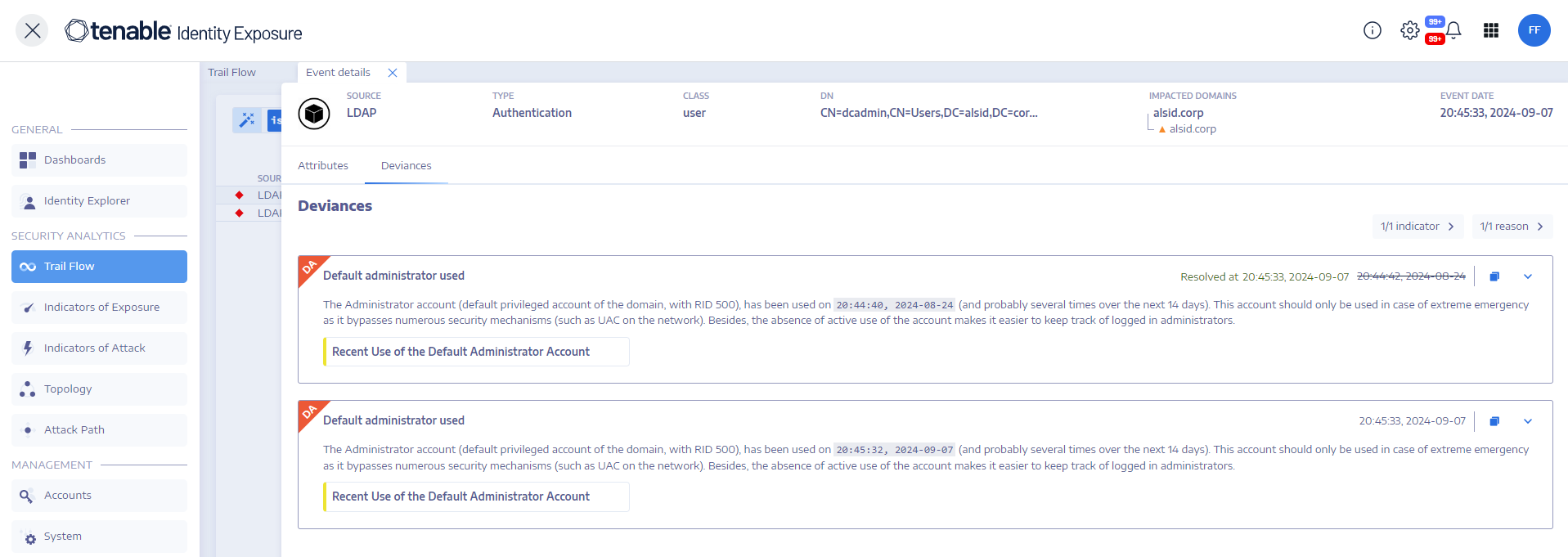
Attributes Table
The Attributes table includes the following columns:
| Column | Description |
|---|---|
| Attributes | Indicates the attributes of the AD object associated with the event that you selected in the Trail Flow table. Attributes describe the object characteristics. Multiple attributes can describe a single AD object. |
| Value at event | Indicates the attribute value at the time that the event occurred. |
| Current value | Indicates the value of the attribute in the AD at the moment when you are viewing it. |
To search for an attribute:
-
In the Event details pane, type a string in the Search box.
Tenable One Identity Exposure narrows the list to attributes matching the search string.
For more information, see Attribute Changes.
Deviances
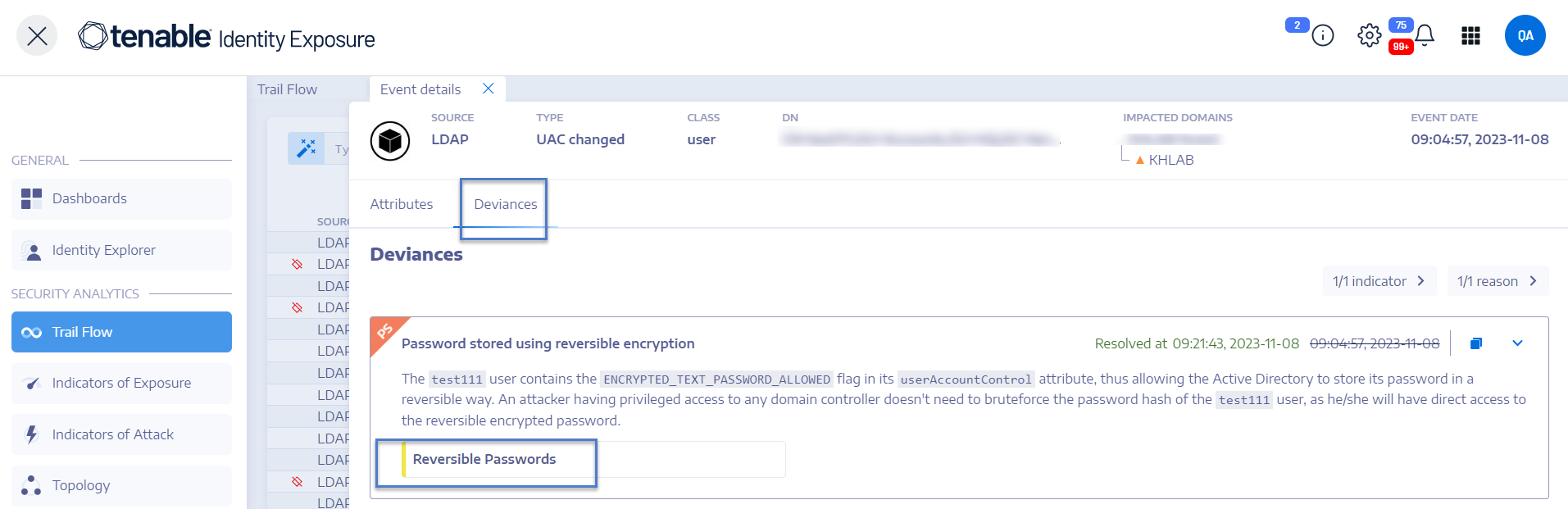
If an event in the Trail Flow contains deviances, the Event Details pane also displays them to allow you to drill down to the source of the problem.
Tenable One Identity Exposure ties a deviance to a root object and can link it to multiple incriminating attributes. When you resolve one of these attributes, Tenable One Identity Exposure resolves the deviance on the root object. It then creates a new deviance for the root object, keeping the same reason but including only the unresolved attributes.
For example, Tenable One Identity Exposure ties a deviance to object A for a single reason that connects to multiple related objects (B, C, and D). When you resolve the incriminating attribute on object C, Tenable One Identity Exposure resolves the deviance on object A. Then, it creates a new deviance for object A, linking it to the same reason but including only objects B and D.
During this process, Tenable One Identity Exposure can generate a Trail Flow event that shows multiple deviances as resolved and reopened at the same timestamp.
To display deviances:
-
In Tenable One Identity Exposure, click Trail Flow to open the Trail Flow page.
-
Click to select an entry in the Trail Flow table.
The Event details pane opens.
-
Select the Deviances tab.
Tenable One Identity Exposure displays the list of deviances and the IoEs that triggered them.
To drill-down to IoE details:
-
In the Deviances tab, click the IoE tile below the reason for the deviance.
The Indicator details pane opens with a list of deviant objects and the following information:
-
Name of the IoE
-
The severity of the IoE (Critical, High, Medium, Low)
-
The IoE status
-
The timestamp of the latest detection
-
-
Click any of the following tabs:
-
Information — Includes internal and external resources on the IoE.
-
Vulnerability details — Provides explanations for the weakness detected in your AD.
-
Deviant objects — Includes technical details and a search box to filter for objects.
-
Recommendations — Includes tips on how to solve the issue.
-