Dynamic Scanning with Delinea Secret Server
The Tenable integration with Delinea Secret Server Auto-Discovery provides the dynamic scanning feature that offers the following significant advantages.
-
When using Delinea Secret Server Auto-Discovery, the scan automatically adds discovered hosts as scan targets with their respective credentials.
-
With the Auto-Discovery feature, there is no need to scan multiple targets in the target list. Only one target is required within the target(s) list. This target can be any pingable IP address or hostname, such as the IP address of the scanner, 127.0.0.1, or the address of one of the intended targets. This initial target kicks off the collection process. You can configure up to five Delinea Secret Server Auto-Discovery credentials.
The Delinea Secret Server Auto-Discovery feature functions with Tenable One Vulnerability Management, Tenable Nessus, or Tenable Security Center to perform credentialed scanning of SSH, Windows (SMB), and Database credential types.
How Dynamic Scanning Works
Caution: Tenable recommends utilizing scan zones with one scanner when using Auto-Discovery credentials, and users should only enter a single initial host in the scan. If multiple scanners are used in an Auto-Discovery scan, targets retrieved from the integration may be scanned multiple times.
Integrating with the standard Delinea Secret Server integration setup requires you to specify a particular secret within the scan credential configuration. This designated secret acts as the authentication method for all hosts specified in the target list, which must be provided at the start of the scan configuration. If different targets require distinct accounts for authentication, multiple credentials may need to be configured within the scan.
Conversely, the Delinea Secret Server Auto-Discovery integration enables the retrieval of multiple accounts via a search query. It then dynamically populates these accounts along with their associated machines into the scan targets list, ensuring each target is correctly paired with its corresponding credential.
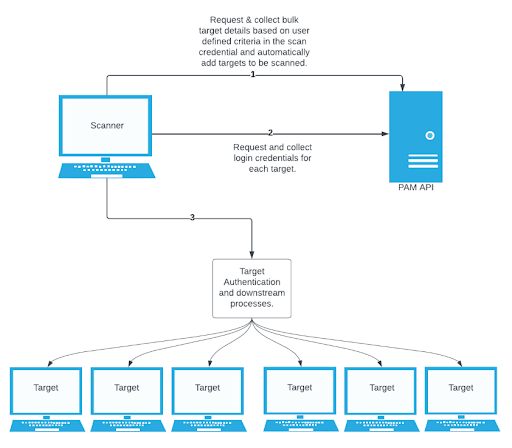
Collection
The initial collection of accounts occurs once the arbitrary target/host appears in the target settings of the scan policy. Logs for the initial collection are located in the Debugging Log Report plugin output on this host in the following logs:
-
Database: pam_database_auto_collect.nbin~Delinea Secret Server AutoDiscovery
-
SSH: pam_ssh_auto_collect.nbin~Delinea Secret Server Auto-Discovery
-
Windows: pam_smb_auto_collect.nbin~Delinea Secret Server Auto-Discovery
Adding Targets to the Scan with Credentials
After the initial collection, the integration automatically adds the hosts and necessary knowledge base (KB) entries for an authenticated scan. Logs from this stage are located in the Debugging Log Report plugin output on this host in the following logs:
-
Database: pam_database_auto_collect.log
-
SSH: pam_ssh_auto_collect.log
-
Windows: pam_smb_auto_collect.log
To automatically add a target to the scan, the integration must collect an account that includes a Machine field containing either an IP address or a resolvable hostname. If a machine is not a valid IP address or resolvable hostname, it does not add the host to the scan. In this case, errors from the function fqdn_resolv() trigger the creation of separate detailed logs:
-
Database: pam_database_auto_collect_resolv_func.log
-
SSH: pam_ssh_auto_collect_resolv_func.log
-
Windows: pam_smb_auto_collect_resolv_func.log
Querying for Accounts
You must provide a query defining the exact set of accounts to use for the scan. The Delinea Secret Server Auto-Discovery credential gives a flexible set of options for how to select these accounts. It is essential to know how to construct a query for accounts to use Delinea Secret Server Auto-Discovery. The following table describes the possible combinations of query values and their effects.
| Query values | Effect |
|---|---|
| Query Mode: Simple Folder: 10 Search Field: (empty) Search Text: (empty) Exact Match: false |
Use all accounts contained in the folder with ID 10. GET /v1/secrets/lookup?filter.folderId=10 |
| Query Mode: Simple Folder: (empty) Search Field: (empty) Search Text: tenable Exact Match: false |
Use all accounts contained in the folder with ID 10. GET /v1/secrets/lookup?filter.folderId=10 |
| Query Mode: Simple Folder: (empty) Search Field: notes Search Text: tenable Exact Match: false |
Use all accounts that contain "tenable" in the notes. GET /v1/secrets/lookup?filter.searchText=tenable&filter.searchField=notes |
| Query Mode: Simple Folder: (empty) Search Field: notes Search Text: tenable Exact Match: true |
Use all accounts whose "notes" field ONLY contains "tenable." GET /v1/secrets/lookup?filter.searchText=tenable&filter.searchField=notes&exactMatch=true |
| Query Mode: Advanced Query String: filter.folderId=10&includeInactive=true |
Use folder ID 10, and include inactive secrets. GET /v1/secrets/lookup?filter.folderId=10&includeInactive=true |
If using the Advanced query mode, the documentation on Lookup Secrets with Search contains a full list of parameters that can be used in the query string.
Note: Advanced query strings must be URL-encoded (for example, replacing space characters with %20).
The initial query uses the Lookup Secrets with Search method of the Delinea Secret Server REST API. You can find an exact API reference in the Secret Server web interface under Administration > REST API Guide.
Folder ID is the integer ID of the folder within Delinea Secret Server. A folder ID is visible in its URL when the folder is open in a web browser. For example, if its URL displays https://SECRETSERVER/app/#/secrets/view/folder/10, then the folder ID is 10.
Privilege Escalation
The Delinea Secret Server Auto-Discovery integration supports privilege escalation. If login and escalation use two different credentials (for example, using an escalation method of su), then you must enter a separate query to collect the escalation accounts. Otherwise, you can leave the escalation query fields empty. For example, with sudo escalation the authenticated user would enter their own password to escalate. In all cases, you may optionally specify a user for escalation.
Limitations
-
It is only possible to use one account per host. If the search collects multiple accounts with the same machine, the first account that the search returns is used. Additionally, the Debugging Log Report includes a warning in the collection phase logs. Generally, Tenable recommends configuring scans to collect only a single account per machine to reduce the number of unnecessary requests.
-
A credential is limited to a single target authentication protocol. Delinea Secret Server Auto-Discovery is an authentication method of the SSH, Windows, or Database credential, so it is not possible to configure a single credential that collects both SSH and Windows accounts or targets.
-
You cannot use secrets with SSH private key authentication in the same credential as secrets with password authentication, because you must select the Use Private Key option that applies to the entire credential. To use both private keys and password authentication, configure separate Delinea SSH Auto-Discovery credentials.
-
For Auto-Discovery to use a secret, it must have a Machine or Server field defining the secret's associated address or hostname.