Business Units and Rollout Processes
Business units are the primary organizational structure in Tenable Patch Management. They logically group devices based on shared attributes such as:
-
Location
-
Purpose
-
Users
-
Organizational structure
These groupings determine how patches, settings, and policies are applied to devices. Business units can also be used to directly target customized products. Rollout processes operate at the business unit level and define how patches are approved and deployed. This includes managing approvals, targeting a specific business unit, and initiating patch rollouts once approval is received.
Business Units
Business units group devices with shared characteristics and provide a scalable way to manage patching behavior. Each business unit can define its own rollout process, approvals, maintenance windows, notifications, and other patching settings.
Business units are hierarchical, with child units inheriting settings from their parent unless explicitly overridden. Tenable Patch Management includes a default parent business unit for all clients, along with child and lab business units to further refine deployment scope and customize patching behavior.
Note: When using business units with an Advanced Patching Strategy, ensure the Patch Deployment Bot for that strategy targets the same business units.
Parent and Child Business Units
Business unit objects use a parent-child hierarchy. This structure gives you the freedom to create patching hierarchies that match any endpoint landscape.
Note: Child business units may only contain devices that the parent business unit also manages.
There is no functional difference between parent and child business units. The parent/child hierarchy exists solely to support settings inheritance. An inherited setting or process is indicated by a blue up-arrow, and inheritance is enabled by default. When overriding inheritance, deselect the blue up-arrow and this enables the previously greyed out field.

Organizing the Business Unit Hierarchy
You can arrange the business unit view in hierarchies that meet the needs of your environment. Parent business units pass attributes to child business units, so it is important to maintain those relationships where they exist. When a device belongs to multiple business units, deployment behavior is always governed by the highest-priority business unit.
For example, if a device belongs to both the Seattle HQ parent business unit and the Seattle Windows Only child business unit, the device follows the settings defined in Seattle Windows Only, assuming it has the higher priority. Even if a patch strategy targets the Seattle HQ business unit in a deployment ring, the device still uses the settings from the higher-priority Seattle Windows Only business unit.
Best Practices
Business units at the bottom of the hierarchy have a higher priority than at the top. When changing the priority of a business unit in the Tenable Patch Management hierarchy, follow these best practices to avoid unintended deployment behavior:
-
Validate settings
-
After changing priority, review the business unit’s settings, including rollout processes, approval behavior, maintenance windows, notifications, and interaction settings.
-
-
Review device scope and membership
-
Ensure that all devices in the business unit are intended to receive the policies and deployments associated with the new priority level.
-
-
Verify inheritance configuration
-
Check inheritance toggles after the move to confirm that settings are either correctly inherited from the new parent or explicitly overridden where required.
-
-
Assess impact on deployment rings
-
Identify whether the business unit or any of its ancestors are included in deployment rings that target descendant business units.
-
Remove the business unit from rings that no longer apply.
-
Confirm that any inherited ring participation is intentional.
-
-
-
Test changes before broad rollout
-
Where possible, validate priority changes using a lab or test business unit before applying them to production environments.
-
Create a Business Unit
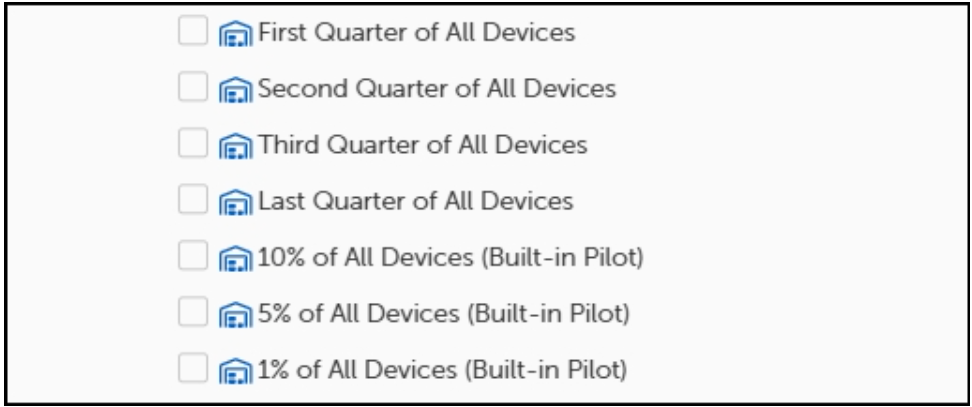
Tenable provides default business unit templates. Except for the Root template, these templates can be copied and customized, or you can create new business units as needed. Child and lab business units allow administrators to further refine and customize the patching environment. In Tenable Patch Management version 10.970 and later, there are several business unit templates that effectively target smaller subsets of devices in order to deploy patches more granularly.
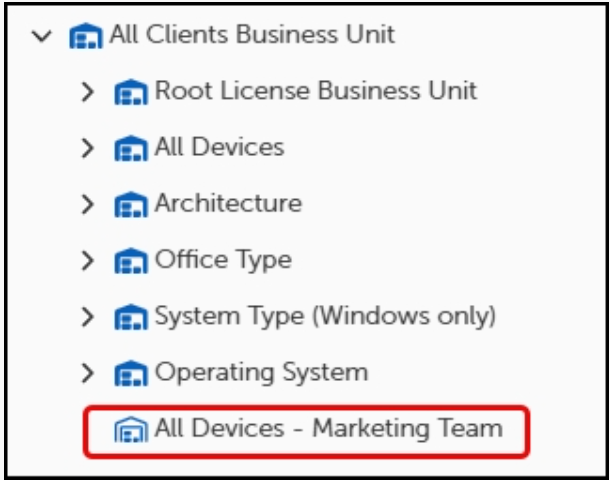
Note: When creating a new business unit, and it is immediately scoped for membership (by default), it becomes the highest priority business unit. If you have not defined the Maintenance Window settings or the User Input Settings, this may override other settings in the hierarchy and cause unexpected software deployments or reboots.
-
Select Asset Management > Business Units in the left side navigation.
-
Select the right arrow to the left of any folder to expand the list of available templates.
-
Select the ellipses (...) then select Save As.
-
Save the template with a new title:
-
In the upper-left of the dialog, select More, and then select Save as.
-
Enter a new name for the template, and then select Save as. This returns you to a copy of the template with the new name.
-
General Settings
-
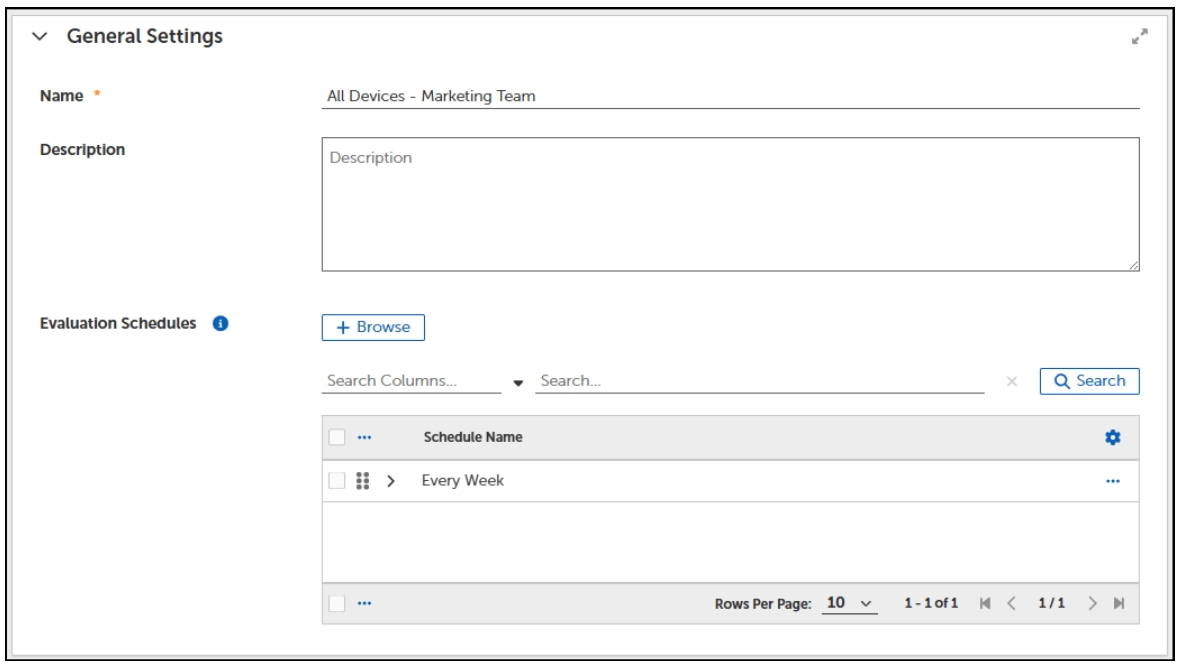
(Optional) Enter a Description.
-
Select Browse next to Evaluation Schedules.
For business units with dynamic membership that may change over time, evaluation schedules determine when to check the membership of a business unit. Dynamic membership can occur based on Location or Sensor scopes, where a device moves between locations or Sensor results change over time. The Evaluation Schedules added here trigger group membership evaluations for this business unit to regularly check for group membership changes.
Business Unit Scopes
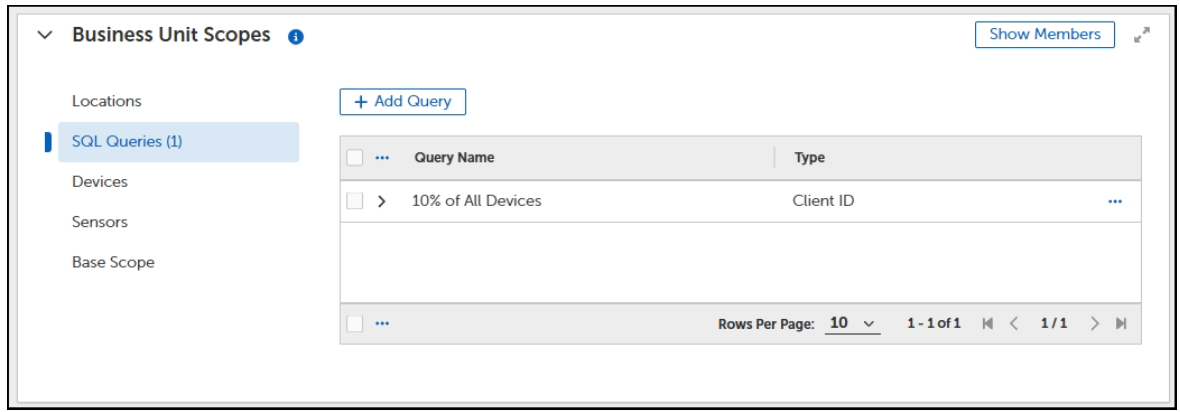
Business Unit Scopes define the rules used to find and include devices in a named business unit. Tenable supports using one or more scopes to create a business unit.
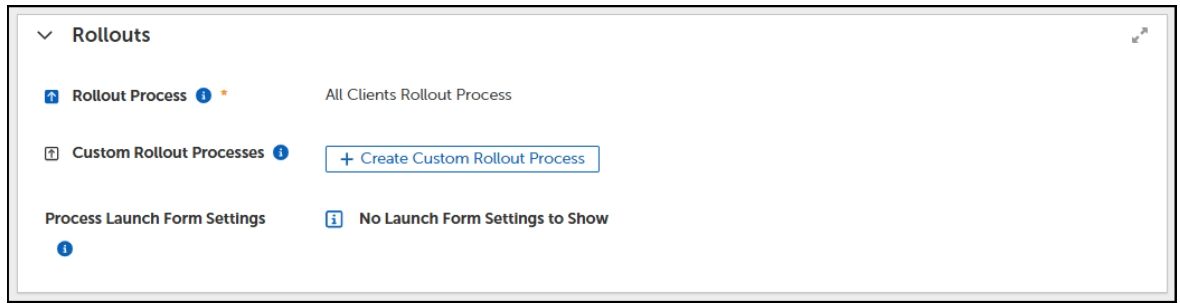
Select a Rollout Process
Customizing rollout processes is an advanced feature of Tenable. For more information, contact your Tenable Representative or Tenable Customer Support.
Maintenance Windows in Business Units
Business unit maintenance settings allow you to define separate windows for deployments and reboots. Deployment Windows and Reboot Windows operate independently. If you configure a Deployment Window but do not define a Reboot Window, installations occur during the Deployment Window, but any required reboot may occur at any time.
To restrict reboots, you must configure a Reboot Window. Reboot Windows must occur within the Deployment Window.
-
Select Browse next to Deployment Window or Reboot Window and select the desired option or create a new window.
-
Click OK.

Add User Interaction Settings
Choose a User Interaction Setting for the devices in this business unit. These settings control how end users are notified about upcoming installations and reboots. For more information about User Interaction Settings, see User Interaction Settings.
-
Select Browse next to User Interaction Setting and select the desired option.
-
Click OK.

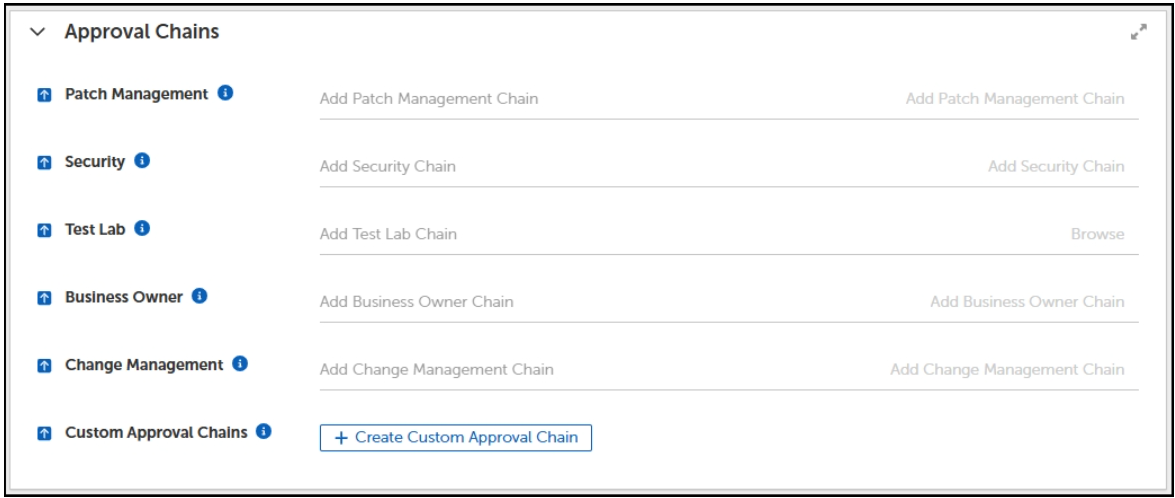
Add Approval Chains to a Business Unit
Approval Chains settings enable administrators to specify users who receive patch approval requests for business units. You have the option of defining an approval chain for each type.
-
Select Add... next to the type of Approval chain you want to add.
-
Select an Approval Chain from the Approval Chains table.
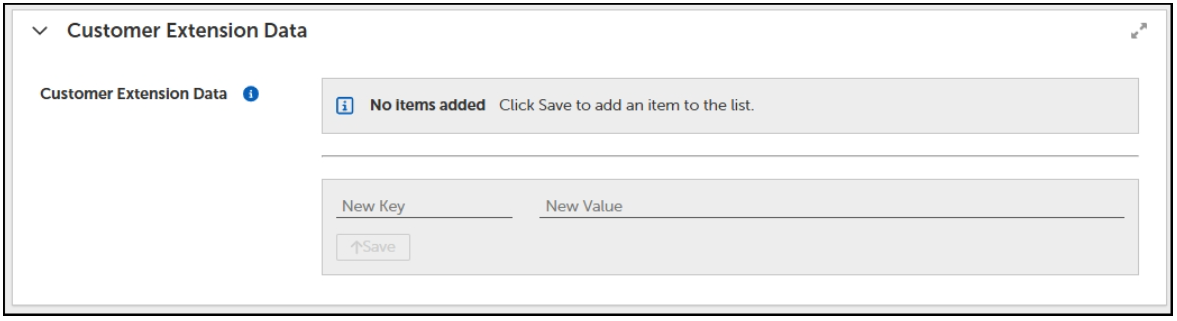
Customer Extension Data
Customer Extension Data is an advanced feature of Tenable. The Customer Extension Data fields allow you to specify different key/value pairs for use in customized patching strategies, Deployment Chains, or business units when necessary to achieve different results.
Customer Extension Data fields relate directly to fields in a customized template. If you do not have customized templates with key/value pairs you can modify, you do not need to configure or use this feature. If you want to create customized templates that use key/value pairs for some settings, contact Tenable Support.
Add a Notification Chain
Notification Chain settings exist in the object templates for patching strategies, deployment channels, and business units.
-
Select Browse next to the Notifications Chain. This opens the Notifications Chain dialog.
-
Select a Notification Chain from the table.
To edit or create Notification Chains, refer to Chains.

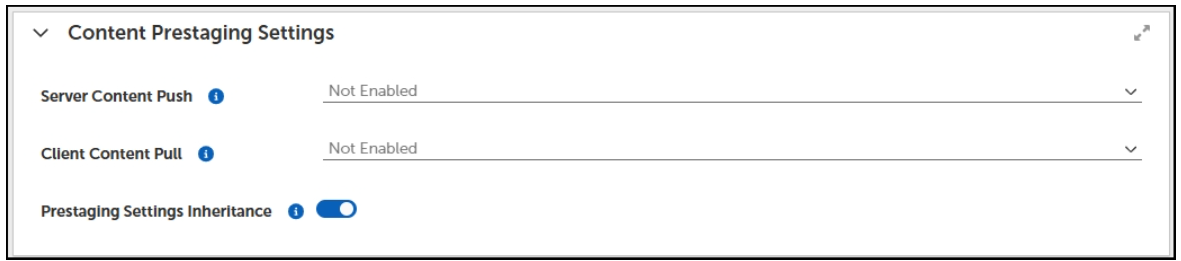
Content Prestaging Settings
The Content Prestaging feature deploys content to devices ahead of the scheduled deployment, either pushing content to a location or allowing a client to pull content. Prestaging content makes the content available on the device locally when the deployment time arrives. This reduces the deployment time and minimizes the chances of missing service windows or having devices going offline before a content download finishes.
To configure these settings, refer to Content Prestaging Settings.
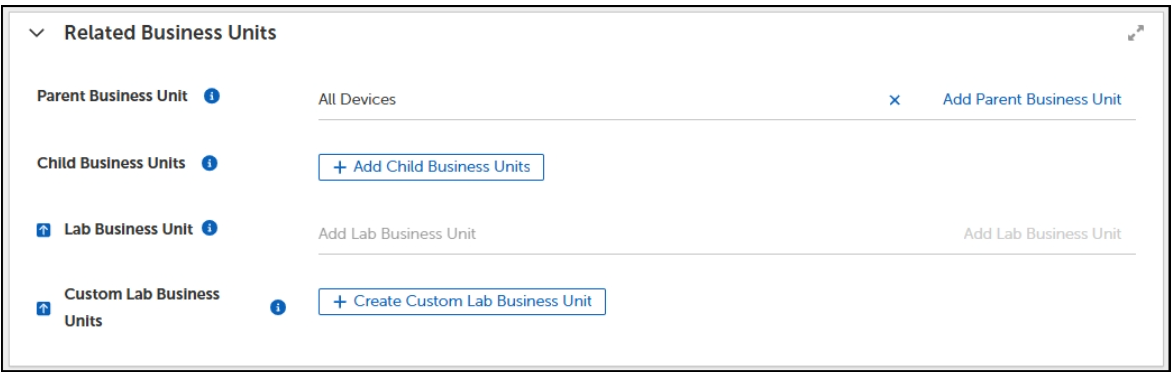
Related Business Units
In this section, you can select associated business units to relate to your new business unit. This lets you define Parent and Child business units and use a lab business unit for testing. If inherited from a parent business unit, values merge with the custom lab values of the parent and supersede the parent values when they conflict.
Verify Business Unit Members
After saving the business unit, select Show Members to display the members of the business unit and verify that you have populated the business unit as you intend.
Note: Selecting Evaluate Now causes evaluation of the group membership rules to occur off schedule.
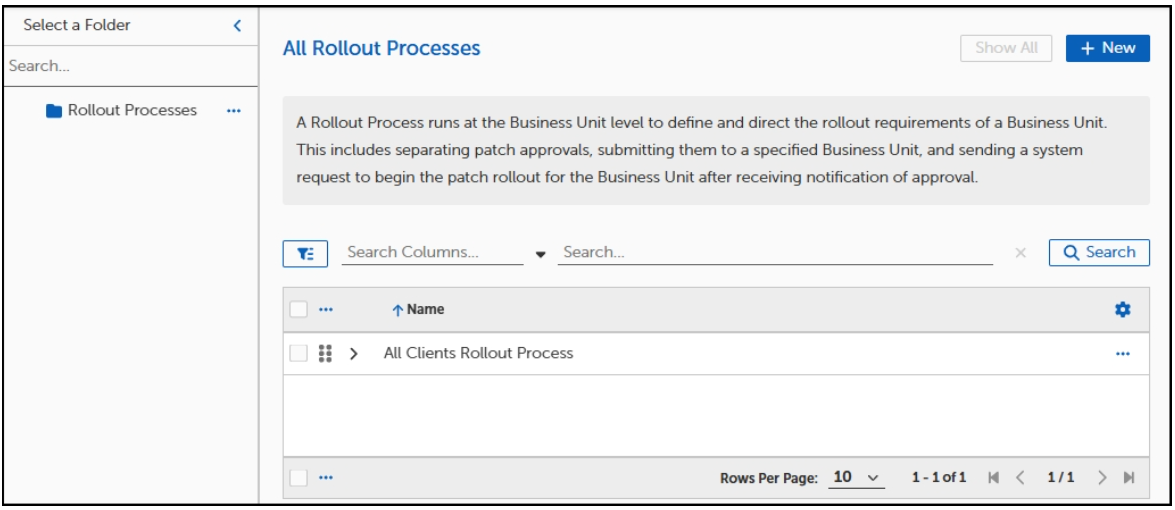
Rollout Processes
Business unit rollout processes determine which clients receive patches and control the final step before patches are delivered. For example, a rollout can deploy patches in batches of 100 clients, allowing administrators to monitor progress and address issues before continuing. After the patching and deployment channel processes define the required activity, they delegate rollout execution to each business unit. Each business unit then manages its deployment using its customized All Clients Rollout Process workflow. Before creating a custom rollout process, enter a support ticket and request help from Tenable Customer Support.
Including Rollouts in Business Units
The rollout process uses information from a business unit template, such as Approval Chains, Notification Chains, and Related Business Units, to control patch approval and deployment. It also performs the actual client deployment for the business unit. New child business units automatically inherit the parent’s rollout process, which is typically the All Clients Rollout Process. If a rollout process is inherited, you must disable inheritance before making changes.