Create Branch Office Admin
You can create a branch administrator role that has permissions scoped to a specific business unit(s). A user with this role has full control over components within the scope of their business unit, but no class level permissions to objects outside of their scope. The branch administrator role is created dynamically from a business unit by an administrator.
Note: At this time, RBAC capability is limited in scope and available exclusively for the Tenable Patch Management On-Prem offering. Full RBAC capabilities for both TPM On-Prem and Tenable Patch Management SaaS are currently on the product roadmap and are projected to be delivered during the first half of 2026.
-
Patch Enterprise Branch Administrator: this role gives users full permission to Tenable Patch Management, scoped to one or more business units. For example, a Seattle HQ branch administrator can create a patching strategy for the Seattle HQ business unit, but not for any other business unit.
Create a Branch Administrator Role
Complete the following to create a new branch administrator role:
-
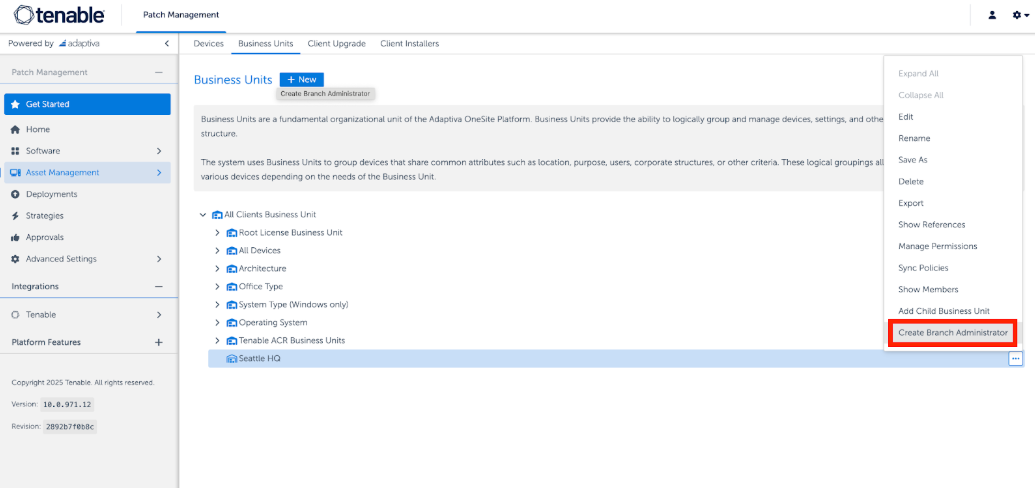
In the left-hand navigation pane, click Asset Management > Business Units.
-
Next to your Business Unit, click the ellipsis (...) and then click Create Branch Administrator.
-
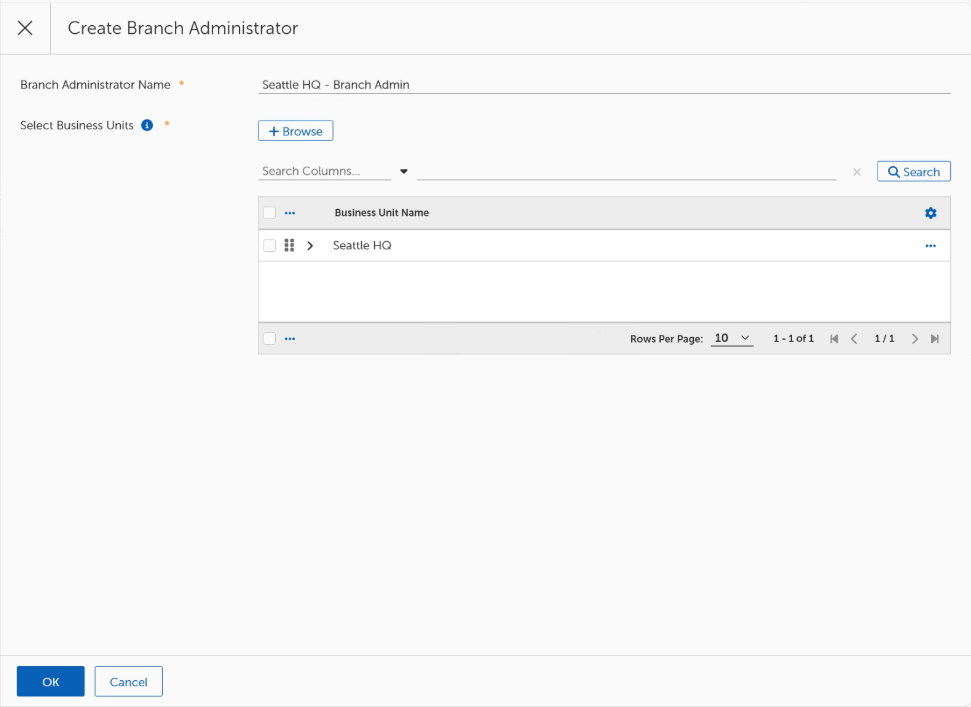
On the Create Branch Administrator page, give the account a name.
-
The Business Unit is scoped to your previous selection.
-
Click OK.
-
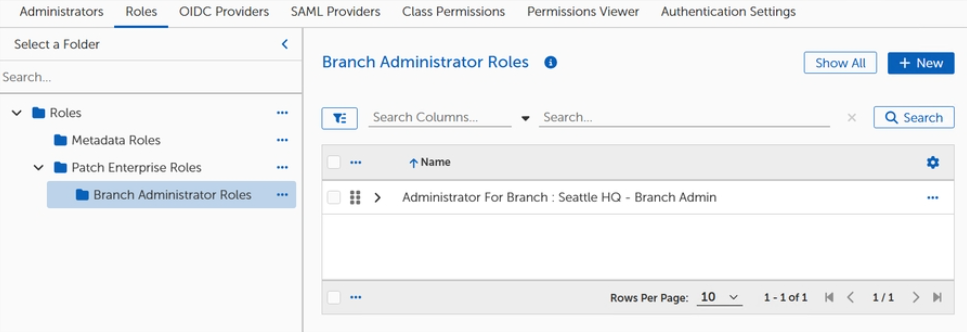
Click Settings > Security > Roles, and in the page click the Branch Administrator Roles folder.
The new branch administrator role is created in the Branch Administrator Roles folder, under Patch Enterprise Roles. The role has no class level permissions for features in Tenable Patch Management. All permissions for the role are scoped to a folder under the intent objects.
-
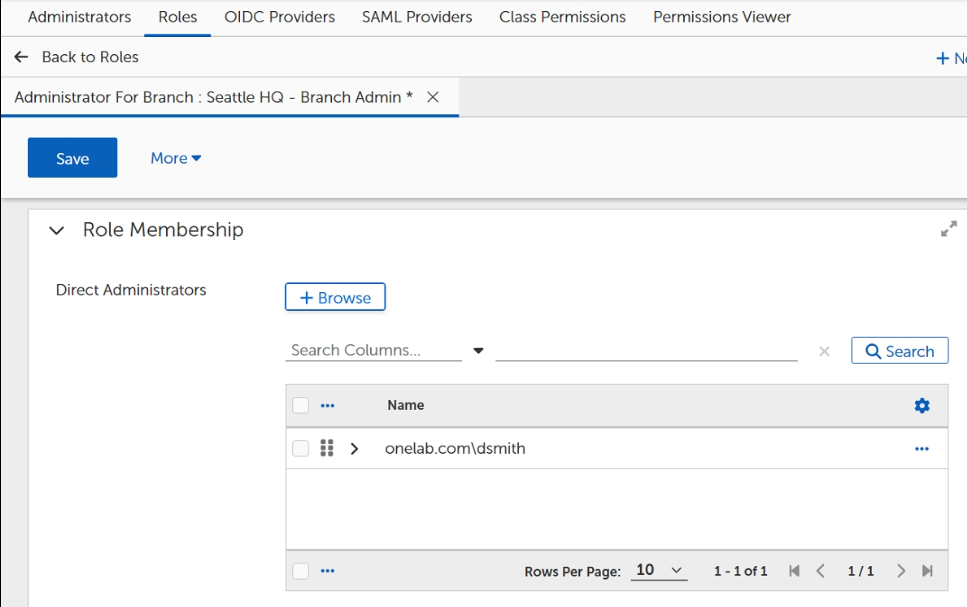
Select the new branch administrator role to open the properties page.
-
Under Direct Administrators, click Browse, select a user to associate with this role, and click OK.
-
Click Save.
View Components Scoped to the Branch Administrator
Administrators with the branch administrator role have full access only to objects scoped to their role. These objects are all organized in a folder for each Patch feature. For example, view the dedicated folder for the branch admin role in patching strategies.
-
In the left-hand navigation pane, click Strategies.
-
Under Patching Strategies is a new folder named Branch : %role name% : PatchingStrategy.
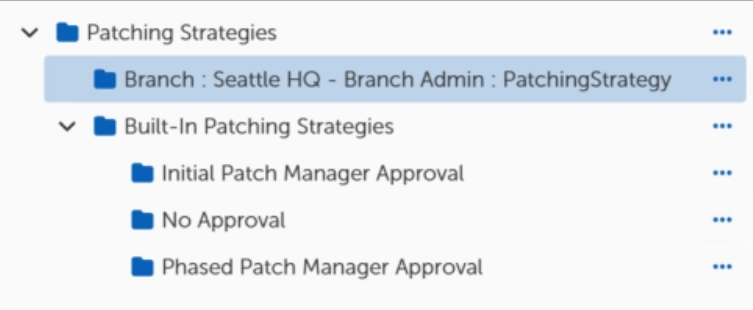
The branch administrator only has full access to the patching strategies in this folder.
View the Branch Admin Permissions in Permissions Viewer
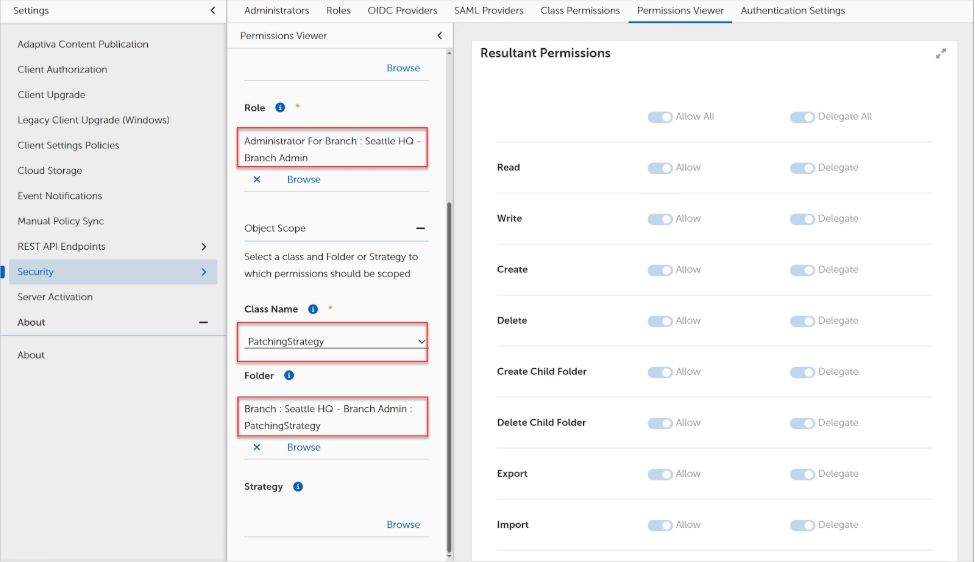
You can view the limited scope of a branch administrator's permissions using the Permissions Viewer.
-
Click Settings > Security > Permissions Viewer.
-
Next to Role, click Browse.
-
Select the branch administrator role and click OK.
-
Under Object Scope, type and then select PatchingStrategy.
-
In the Resultant Permissions pane, you can see that the branch administrator role does not have permissions on the PatchingStrategy class.
-
Next to Folder, click Browse.
-
Select the folder named Branch : %role name% : PatchingStrategy and click OK.
In the Resultant Permissions pane, you can see that the branch administrator has full permissions on the PatchingStrategy class within the scope of the folder.