Exceptions
Patching exceptions allow teams to define exceptions for specific business units or environments, create multiple exceptions under a single policy, and more. This means you can manage exceptions for several patches or products simultaneously.
Patching Exceptions
When business units require exemption from specific updates on certain products, or the entire enterprise must remain at a specific version of a product, patching exceptions provide a mechanism for creating and implementing these rules.
Product Exceptions
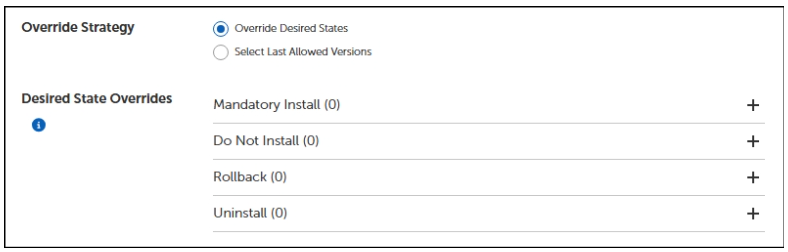
Product exceptions allow you to set desired state overrides for chosen products within a desired business unit. For instance, if you want to ensure a product is not installed on a client devices in your specified business unit, you can add them to Desired State Override > Do Not Install.
Desired State Override Options
Desired state override are both available for patching and product exceptions.
Descriptions of each option:
-
Mandatory Install: Allows client devices to treat the product as mandatory for installation purposes.
-
Do Not Install: Allows client devices to block the installation of a particular product.
-
Rollback: Forces a rollback to a specific product version on a client device, when Tenable Patch Management detects a later product version than allowed.
-
Uninstall: Removes the product from client devices in the specified business unit.
Last Allowed Version
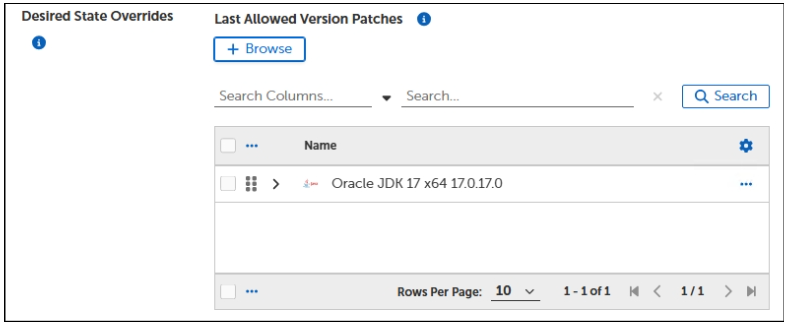
Last allowed version is only available for patching exceptions as an additional override strategy. When specified, the last allowed version allows you to choose a version that will not be updated past the chosen version for each product's patches. For example, if you want to ensure your Java (JDK) version does not go beyond version 17, you can add Java 17 to the list of Last Allowed Version Patches in your patching exception. This ensures a version beyond 17, is not installed.
Create a Patching Exception
-
Select Advanced Settings > Flex Controls > Exceptions > Patches.
-
Select +New on the upper-right to open a patching exception template.
-
Enter a unique Name.
-
Enter a detailed Description of the purpose for this exception.
-
Select the Set Last Allowed Patch Versions for your override strategy.
-
Select +Browse.
-
Enter a product name in the search line, and then select Search.
-
Select the product from the list, and then select OK.
-
-
Select +Browse next to Target Business Units.
-
Select one or more Business Units to include in the patching exception.
-
Select OK.
-
Select Save.