Requests
Scans are performed daily at 6 AM and are load balanced over eight hours. However, you can manually trigger a client scan of specified products with Scan Requests. Additionally, you can clear the maximum number of times a patch can fail installation value to allow further installation attempts with Failure Reset Requests.
For instance, if you have just installed a new product onto a client device and don't want to wait until the daily scan the following day, you can create a Scan Request to immediately run a scan on the client device. Or if you are troubleshooting, you can create a Failure Reset Request that clears the known data of the products installed on a client device, so you can complete a clean scan and see where there may be an issue.
Create a scan request
-
Select Advanced Settings > Flex Controls > Requests > Scan Requests.
-
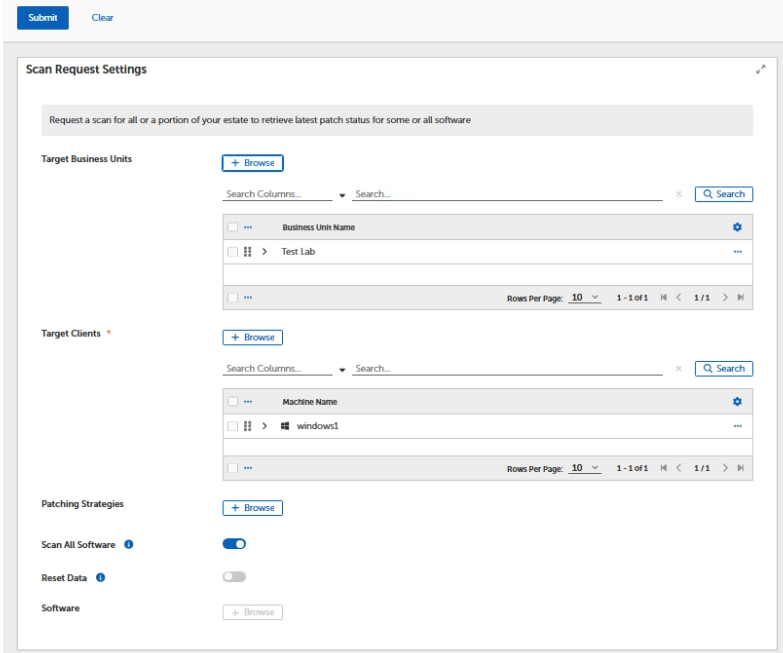
Click Browse next to Target Business Units and select the business unit(s).
If you have chosen a target client(s), selecting a business unit(s) is optional.
-
Click Browse next to Target Clients and select a client(s) for the scan to be applied.
If you have chosen a business unit, selecting a target client(s) is optional.
-
(Optional) Click Browse next to Patching Strategies and select a patching strategy that you'd like to associate with the selected client devices.
-
Select either Scan all Software and optionally select Reset Data if you want to reset a previous scan and then run a clean scan.
Alternatively, you can click Browse next to Software to scan only selected products. This is useful in the event that a scan is too resource intensive to run during normal business hours and you only want to scan for the new product that was installed on the client.
-
Click Submit.
This now triggers an immediate scan of the chosen target clients.
Create a failure reset request
-
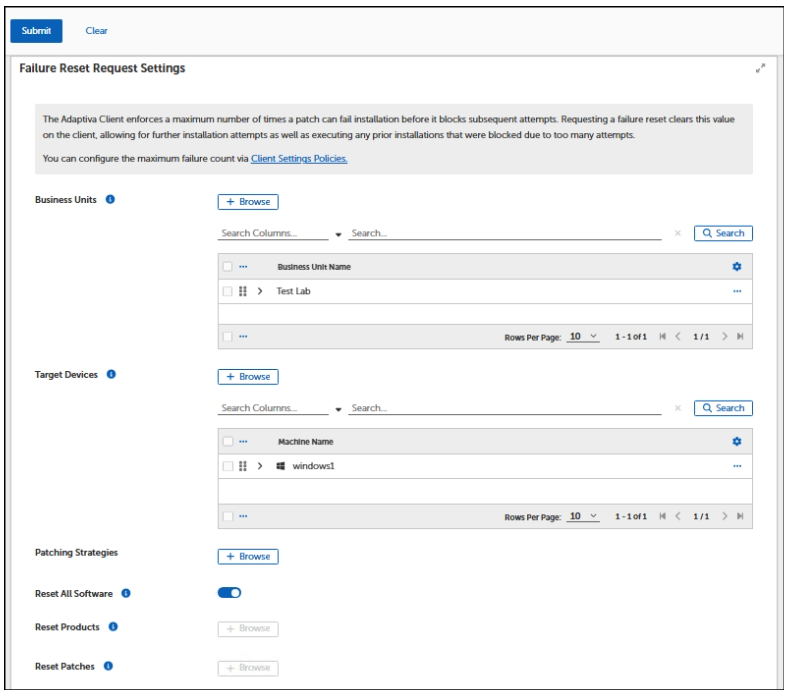
Select Advanced Settings > Flex Controls > Requests > Failure Reset Request.
You can follow the steps 2-4 in the Create a scan request section, then select either Reset All Software or choose individual Products and Patches you'd like to reset. After you submit your request, this immediately resets the scan and what was previously reported to Tenable Patch Management from the client device(s). This gives you a clean start from which to perform another scan.