Microsoft Hyper-V
The configuration settings have been configured using Hyper-V running on Microsoft Server 2012. Hyper-V mirroring settings are between virtual machines (VM) utilizing virtual ports on the same virtual switch. When adjusting the settings, the VM must be powered off. After the changes are made, power on the VM to enable the new configuration.
Configure Mirroring Destination Port
To configure the mirroring destination port on the Tenable Network Monitor server VM:
-
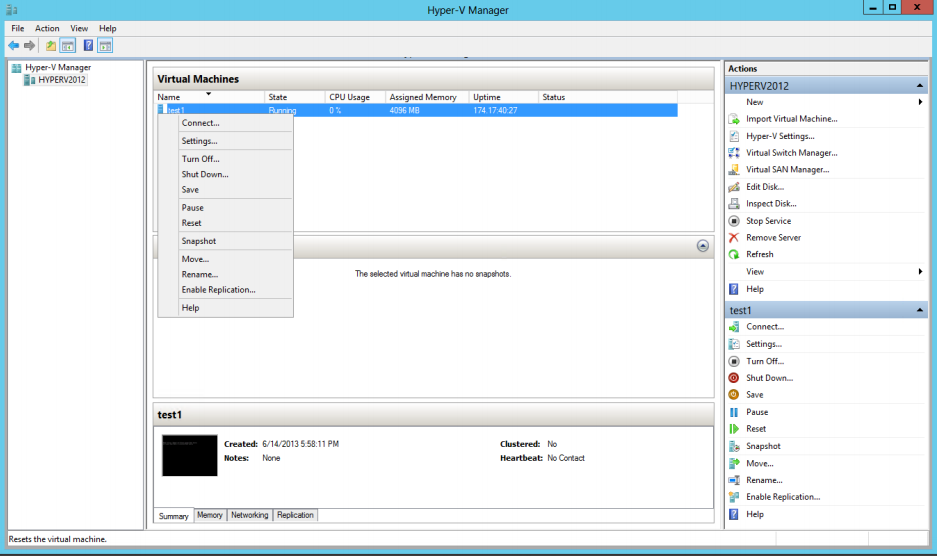
Under Actions on the Tenable Network Monitor VM, navigate to the Settings option.
-
Select the Advanced Features option on the network adaptor to use to receive port mirrored traffic from other VMs.
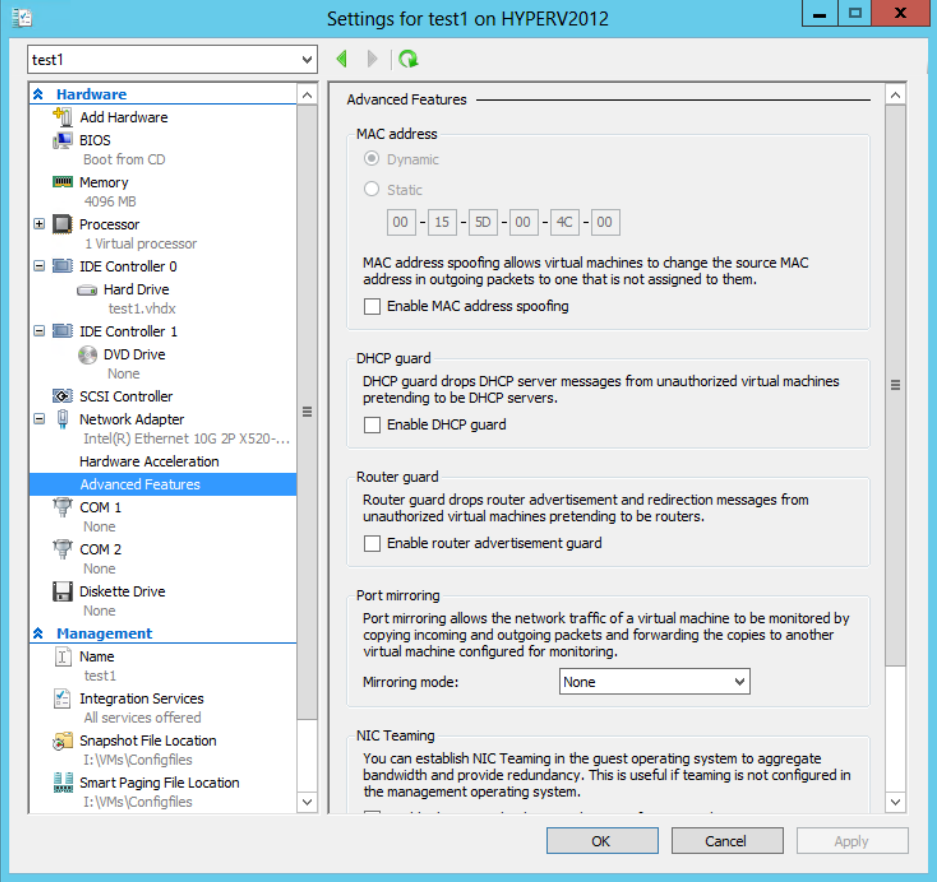
- In the Port Mirroring section, from the Mirroring Mode drop-down menu, select Destination.
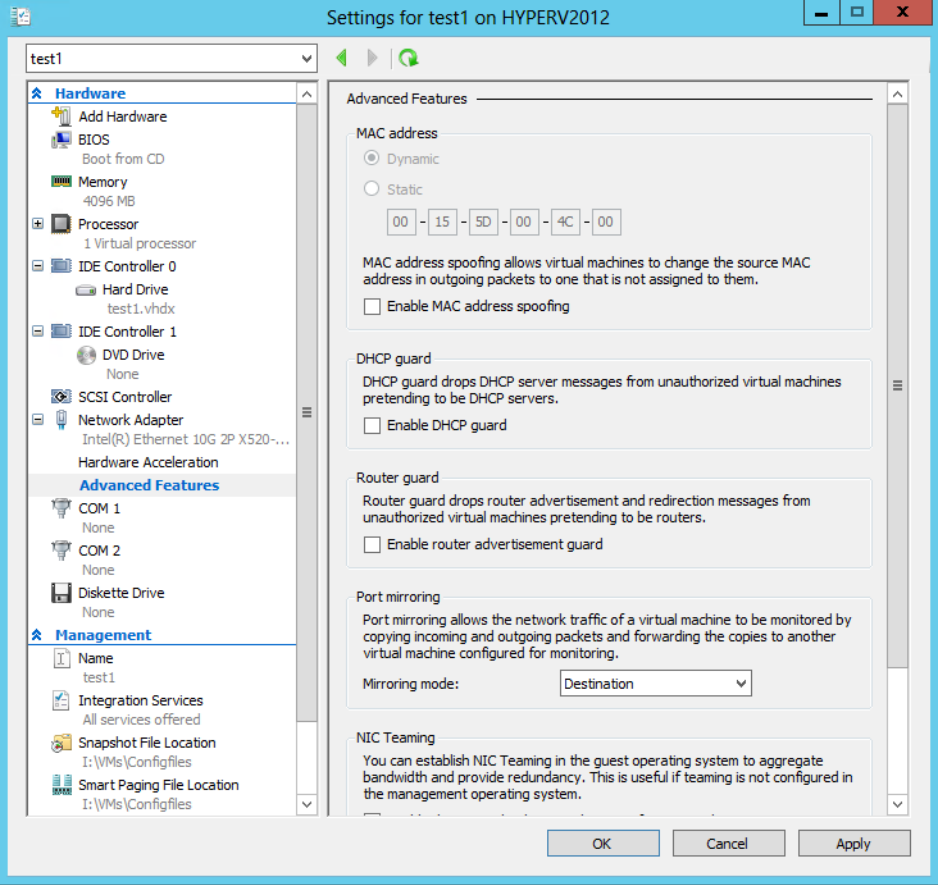
- Click Apply.
- Click OK.
- Start the VM with Tenable Network Monitor monitoring the configured port.
Configure Mirrored Ports
To configure the mirrored ports of the monitored VMs:
-
Under Actions on the monitored VM, navigate to the Settings option.
-
Select the Advanced Features option on the network adaptor(s) to use to send port mirrored traffic to the port that Tenable Network Monitor monitors.
- In the Port Mirroring section, from the Mirroring Mode drop-down menu, select Source.
- Click Apply.
- Click OK.
- Start the VM. Traffic to and from the configured port is sent to the destination port configured on the Tenable Network Monitor server.
Pass Data from an External Source
You can also pass data from an external source, such as from a router, through Hyper-V to the Tenable Network Monitor server. This allows you to mirror traffic from an internal VM to an internal Tenable Network Monitor server. For more information, see Pass External Data through Microsoft Hyper-V.