Manage Reporting Consoles
A reporting console represents a single reporting instance associated with your Tenable One OT Exposure product. The Reporting Consoles tab on the Product Details page allows you to view and manage the reporting consoles assigned to your Tenable One OT Exposure instance.
Note: You must have at least one site provisioned on your Tenable One OT Exposure product before you can create a reporting console.
Create a Reporting Console
Note: The Create Console option is only available when you have available reporting console licenses and at least one site has been provisioned on the product.
To create a new reporting console:
-
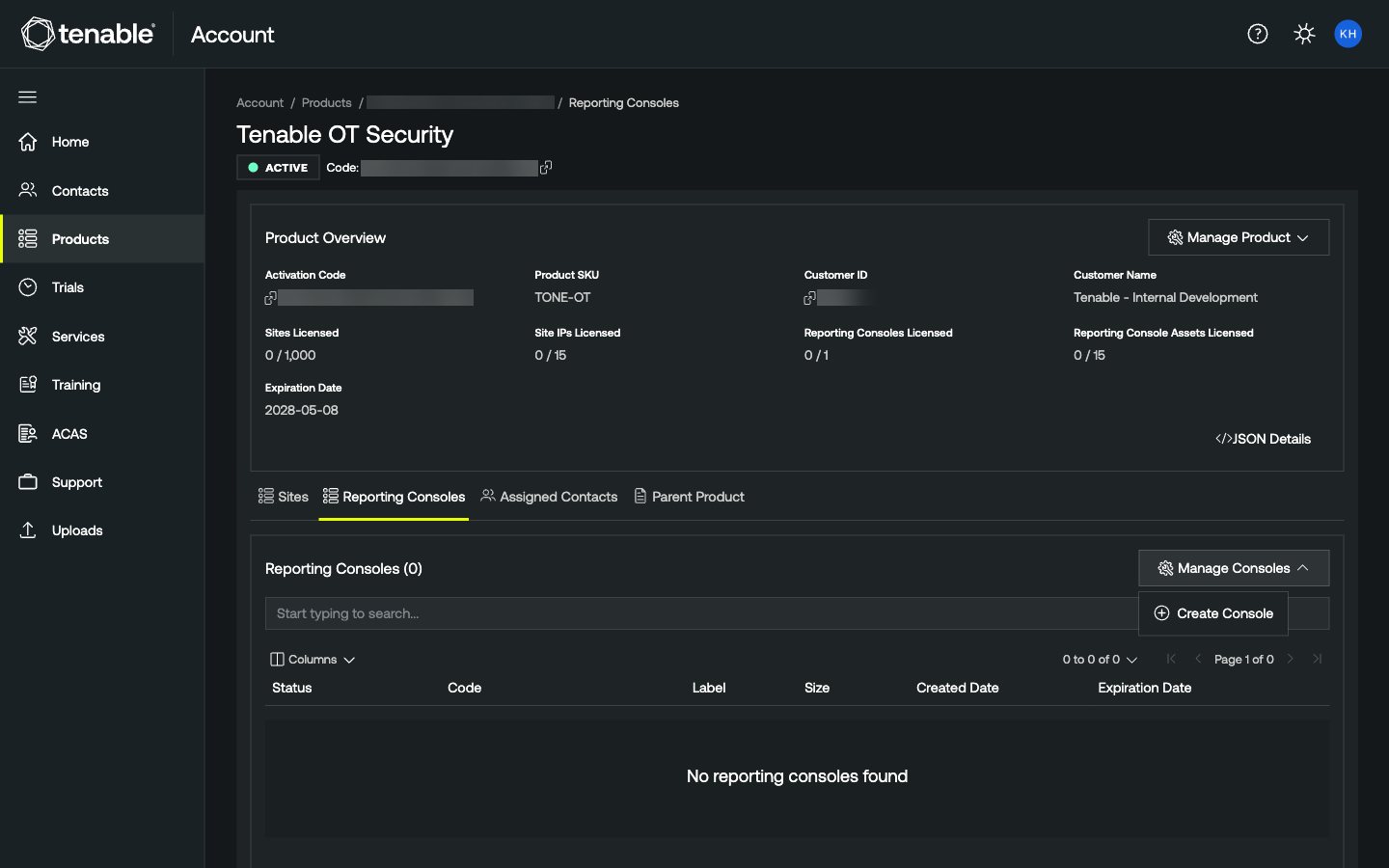
In the upper-right corner of the Reporting Consoles tab, click Manage Consoles. A menu appears.
-
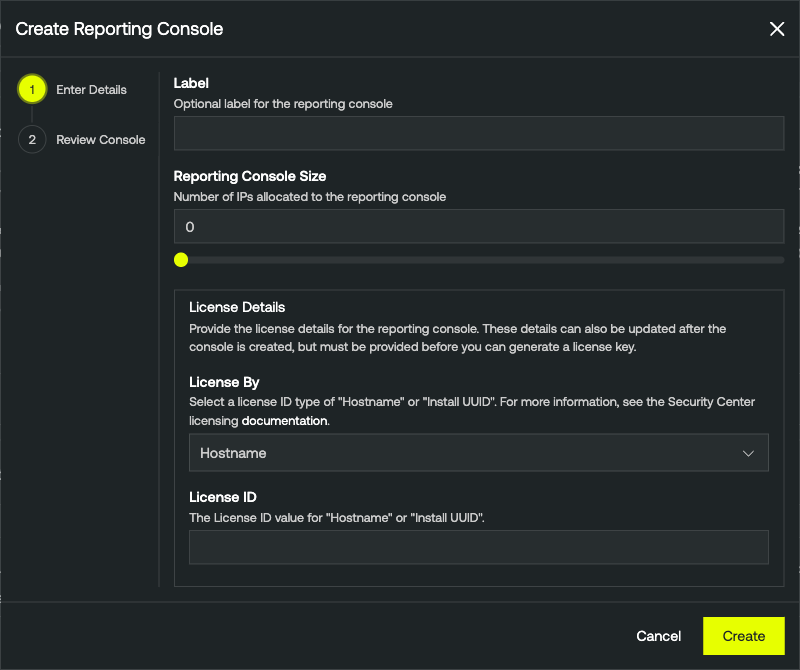
Click Create Console. The Create Reporting Console window appears on the Enter Details step.
-
(Optional) In the Label text box, type a label for the reporting console.
-
In the Reporting Console Size text box, type the number of IP addresses to allocate.
-
In the License Details section, from the License By drop-down, select Hostname or Install UUID.
-
In the License ID text box, type the hostname or install UUID value.
Note: You can leave License By and License ID blank during creation and set them later using Set Hostname. Both fields must be populated before you can generate a license key.
-
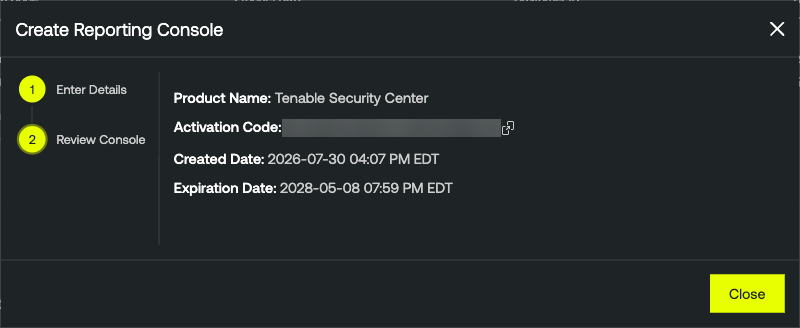
Click Create. The Review Console step appears.
-
Click Submit. The portal creates the reporting console and adds it to the Reporting Consoles list.
Edit a Reporting Console
You can edit the label and size of any reporting console in the Reporting Consoles list.
To edit a reporting console:
-
In the Reporting Consoles list, in the row for the reporting console you want to edit, click the
 button. A menu appears.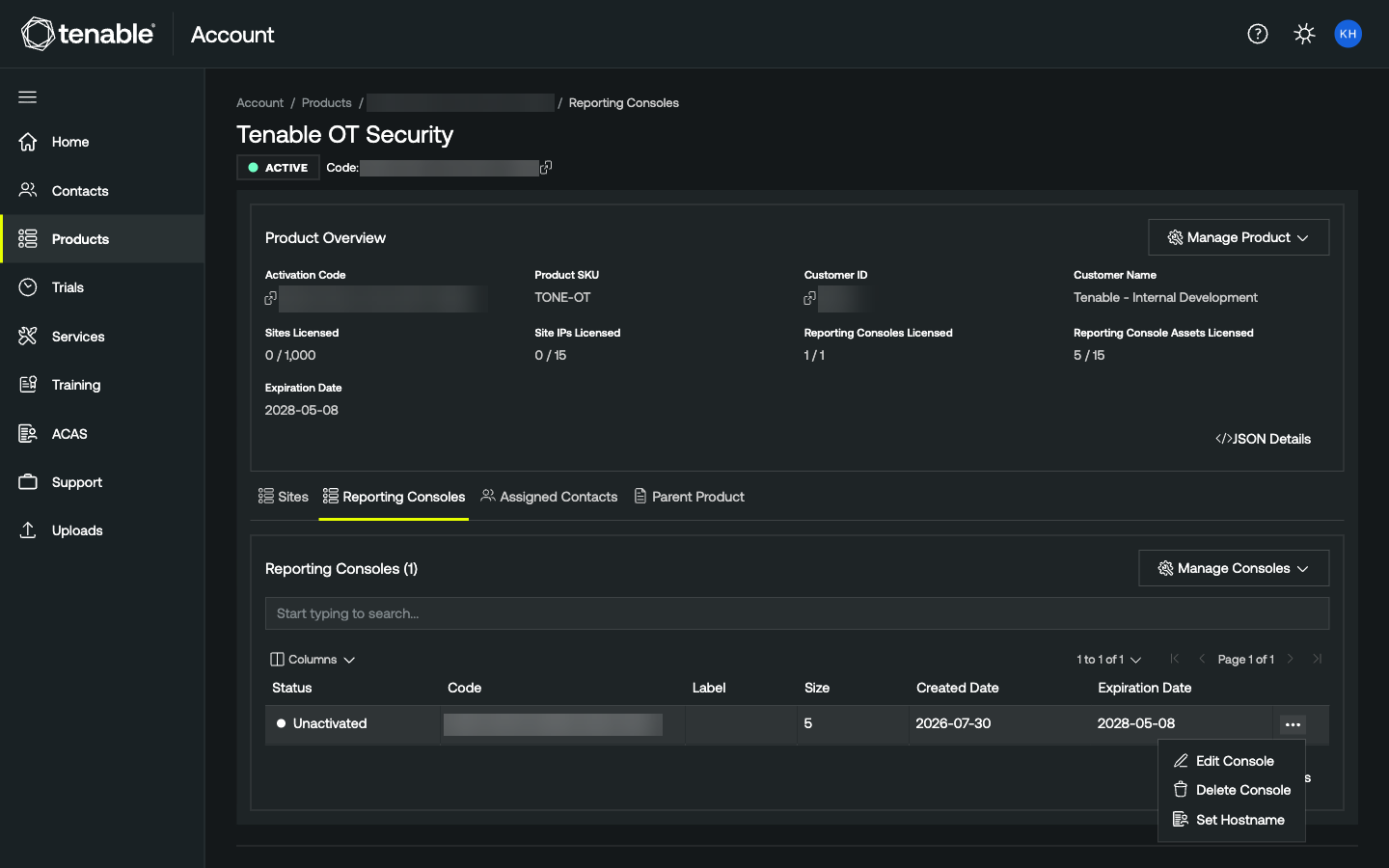
-
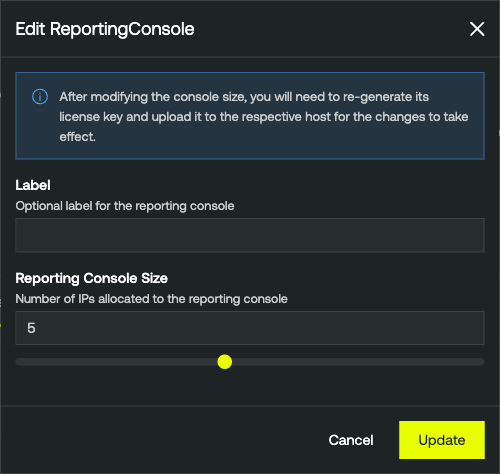
Click Edit Console. The Edit Reporting Console window appears.
-
Update the Label and/or Reporting Console Size fields as needed.
Note: After modifying the console size, you will need to re-generate its license key and upload it to the respective host for the changes to take effect.
-
Click Update. The portal saves your changes.
Set a Hostname
Before you can generate a license key for a reporting console, you must set a hostname (or Install UUID). You can set this during creation or from the Reporting Consoles list.
To set a hostname on a reporting console:
-
In the Reporting Consoles list, in the row for the reporting console you want to update, click the
button. A menu appears.
-
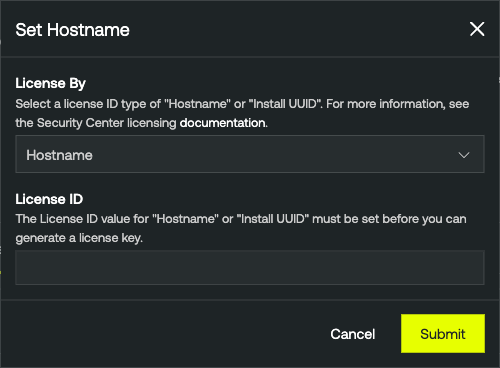
Click Set Hostname. The Set Hostname window appears.
-
From the License By drop-down, select Hostname or Install UUID.
-
In the License ID text box, type the hostname or install UUID value.
-
Click Submit. The portal saves the license details.
Download a Reporting Console License Key
You can download a license key for any reporting console that has a hostname or license ID set.
To download a reporting console license key:
-
In the Reporting Consoles list, in the row for the reporting console whose license key you want to download, click the
button. A menu appears.
-
Click Download License Key. The Download License Key window appears.
-
Click Download. The portal downloads the license key to your local downloads folder.
Delete a Reporting Console
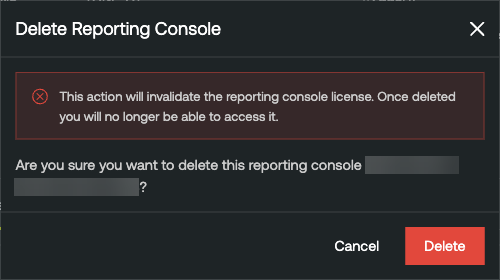
Warning: Deleting a reporting console invalidates its license. Once deleted, you will no longer be able to access it.
To delete a reporting console:
-
In the Reporting Consoles list, in the row for the reporting console you want to delete, click the
button. A menu appears.
-
Click Delete Console. A confirmation message appears.
-
Click Delete. The portal deletes the selected reporting console.