Troubleshooting and Frequently Asked Questions
The following are some common errors and questions users may encounter when configuring and managing mobilization initiatives.
How long does it take to see initiative/ticket data?
For initiatives created within Tenable One Vulnerability Management:
-
Newly created initiatives and their data appear in the user interface within minutes.
-
Existing initiatives automatically update once every 24 hours, or when there is a change to the initiative scope that triggers on-demand metric recalculation.
Tip: In Tenable One Vulnerability Management, you can view the time at which an initiative's metrics were last calculated in the Initiative Overview section. -
Due to data caching policies, the following project-related updates made within Jira can take up to an hour to appear within Tenable One Vulnerability Management:
-
List of projects
-
Project details
-
Users with access to a project
-
Issue types for a project
-
Priority schemes
-
For tickets created within Tenable Exposure Management:
-
It can take up to 10 minutes to see the newly created and updated ticket information in both Tenable Exposure Management and the ticketing system.
How can I debug issues with my configuration?
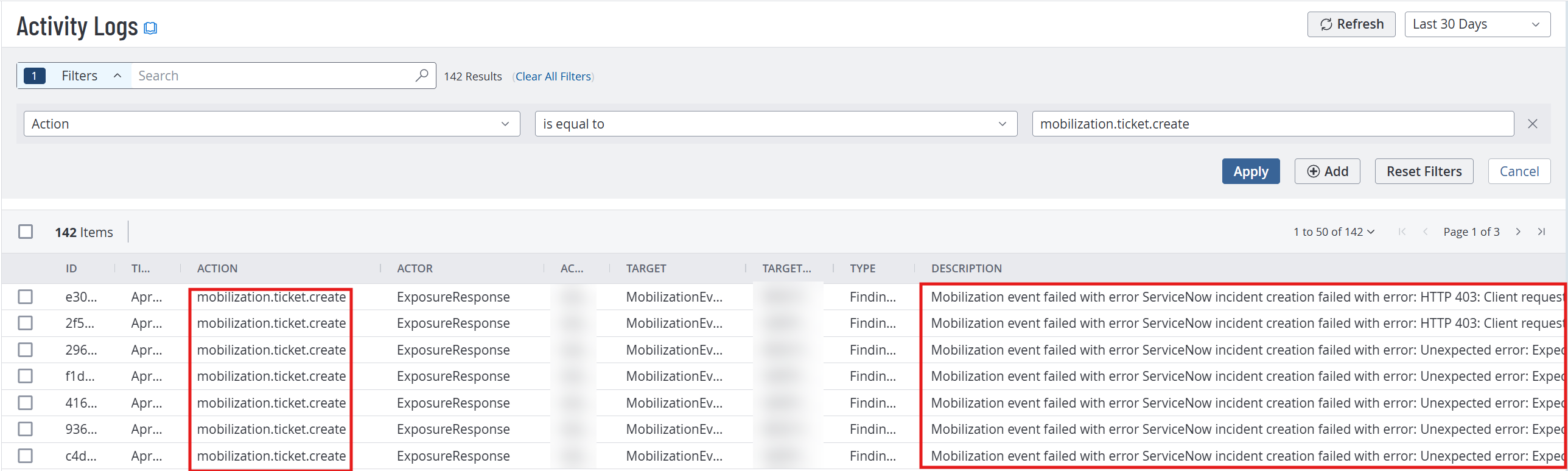
Tenable recommends regularly monitoring the Activity Logs. These logs provide real-time visibility into the status and execution of your third-party ticketing integration configurations, allowing you to verify successful data synchronization and quickly identify any communication failures between platforms.
Tenable logs the following mobilization-related actions:
| Action | Description |
|---|---|
| mobilization.ticket.create | The user created an initiative linked to their third-party ticketing integration. |
| mobilization.ticket.update | The user made an update to an initiative linked to their third-party ticketing integration. |
| mobilization.ticket.delete | The user deleted an initiative linked to their third-party ticketing integration. |
To view your activity logs:
-
Log in to Tenable One Vulnerability Management.
-
In the left navigation menu, click
 Settings.
The Settings page appears.
-
Click the Activity Logs tile.
The Activity Logs page appears. This page shows a list of activities associated with your organization's Tenable Vulnerability Management account.
-
In the Search text box, type "mobilization".
The list automatically filters for audit log events related to your mobilization configuration.
-
Review the results and check the Description column for any errors that can be fixed.