Remove or Delete a Label
Required Tenable Security Center User Role: Administrator or organizational user with appropriate permissions. For more information, see User Roles.
You can remove a label from an asset
To remove a label or completely delete a label from Tenable Security Center:
-
Log in to Tenable Security Center via the user interface.
-
Navigate to the Asset Tags
-
Click Assets > Asset Tags.

-
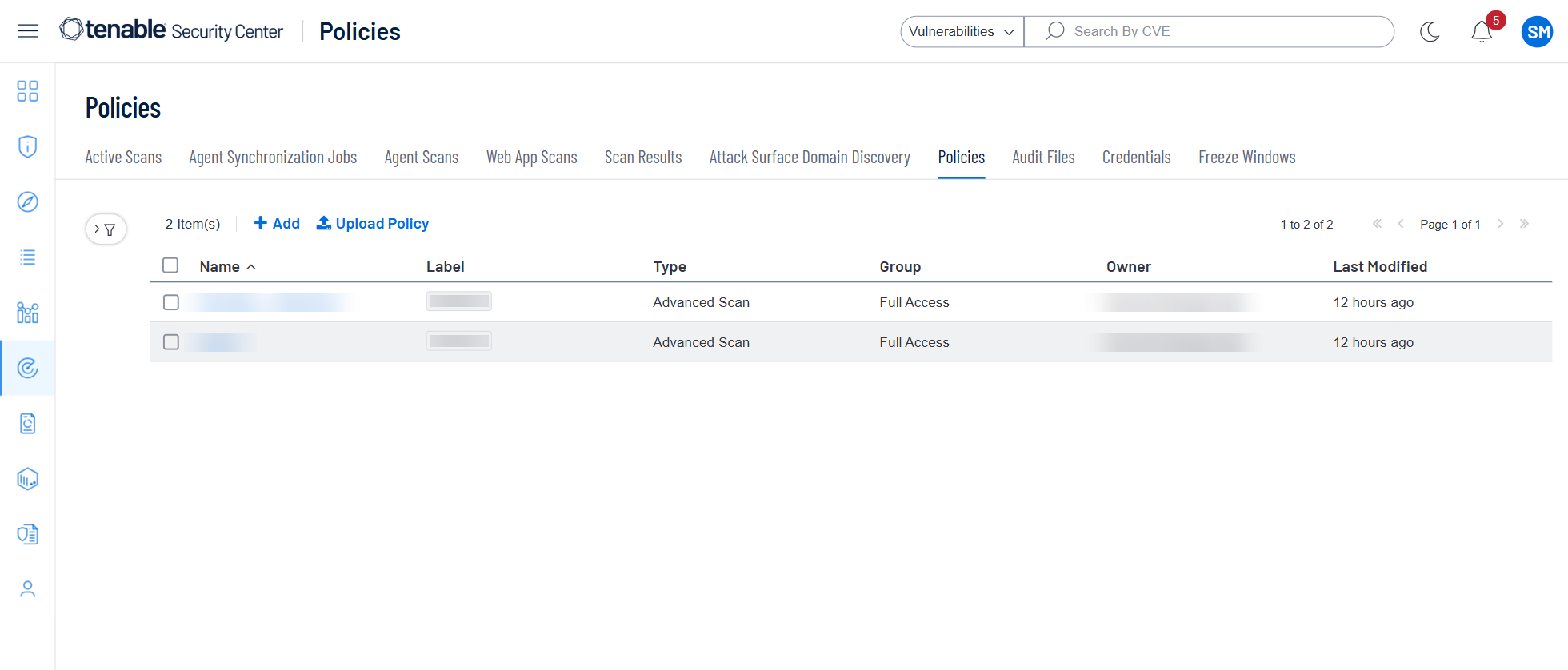
Click Scanning > Policies (administrator users) or Scans > Policies (organizational users).
-
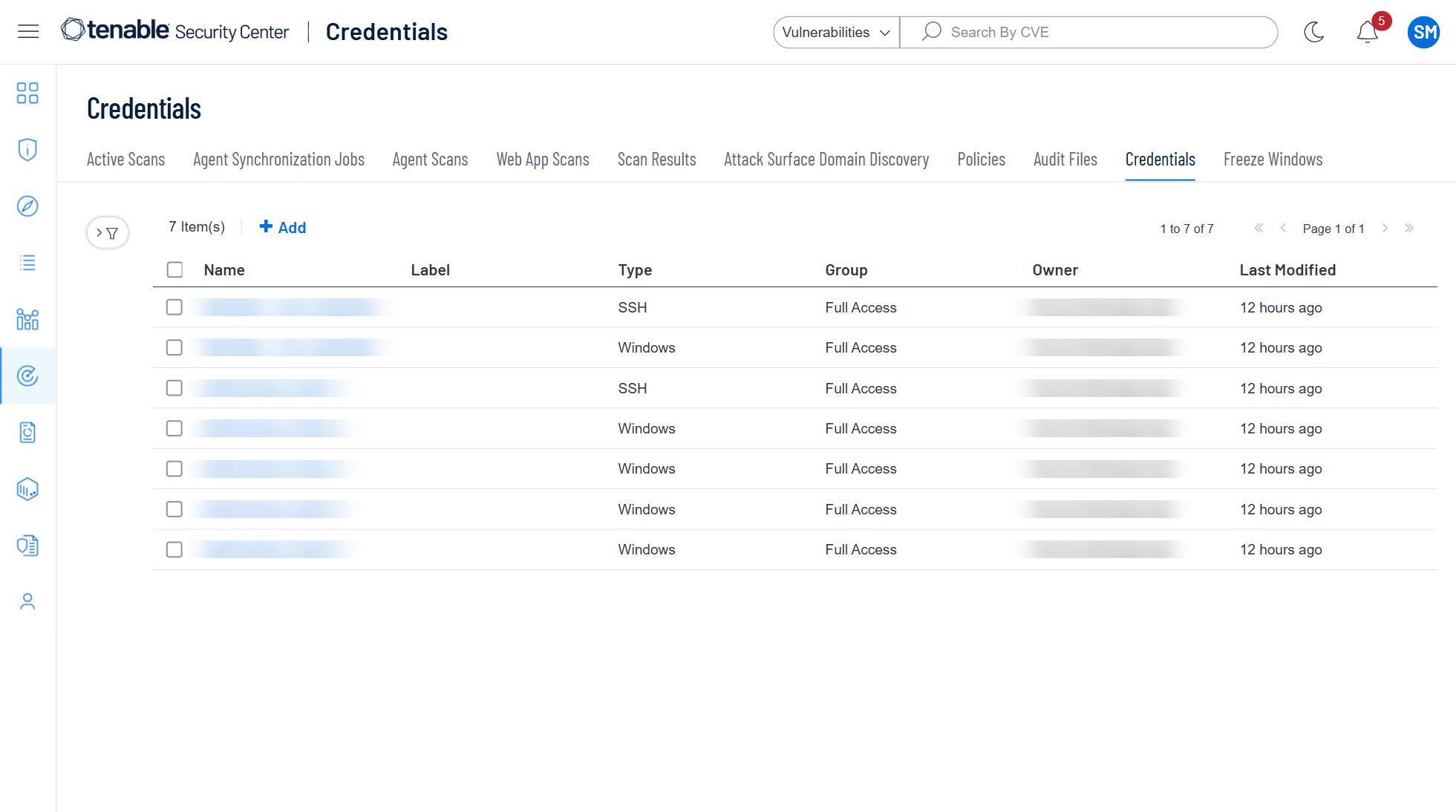
Click Scanning > Credentials (administrator users) or Scans > Credentials (organizational users).
-
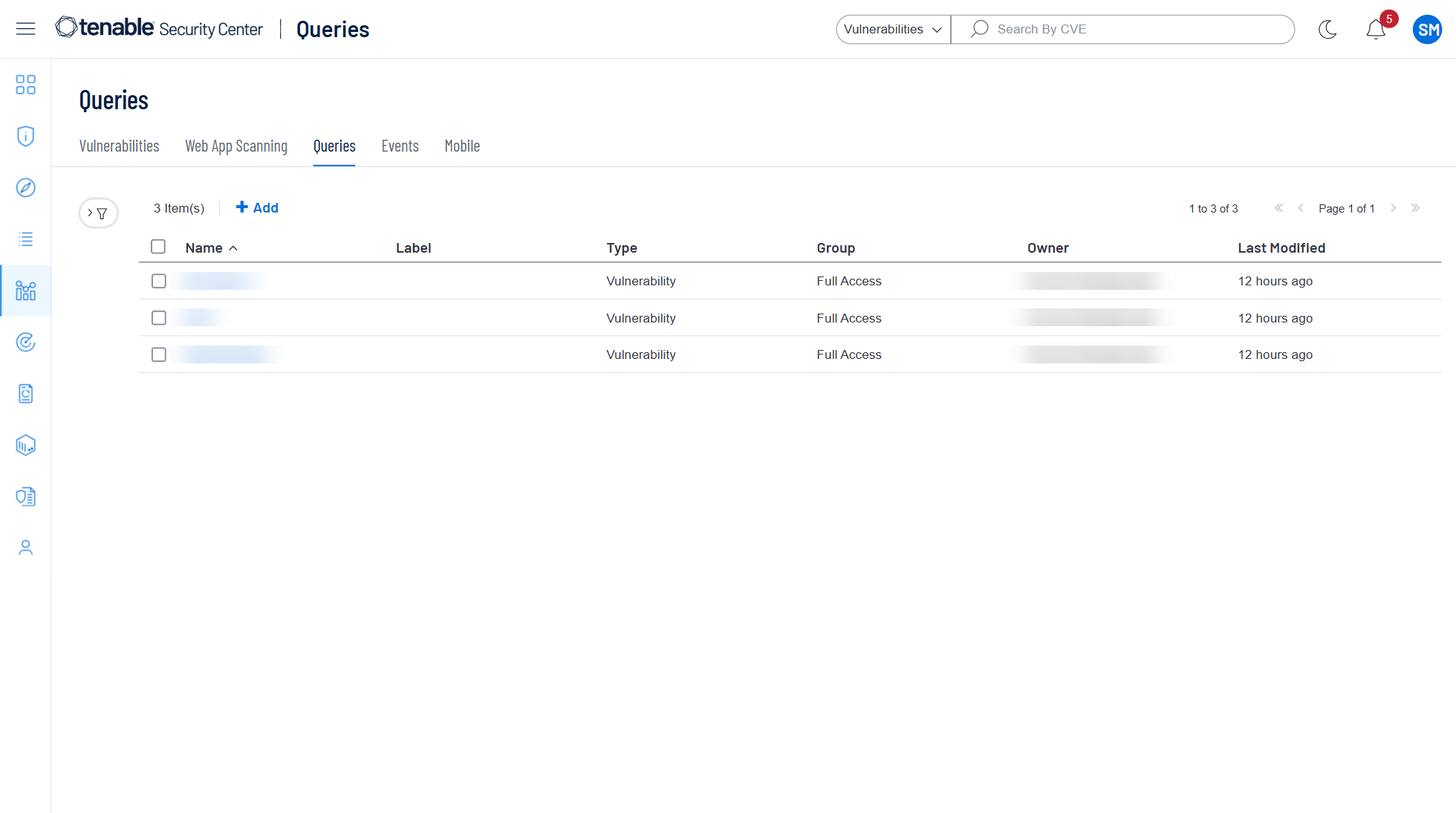
Click Analysis > Queries.
-
-
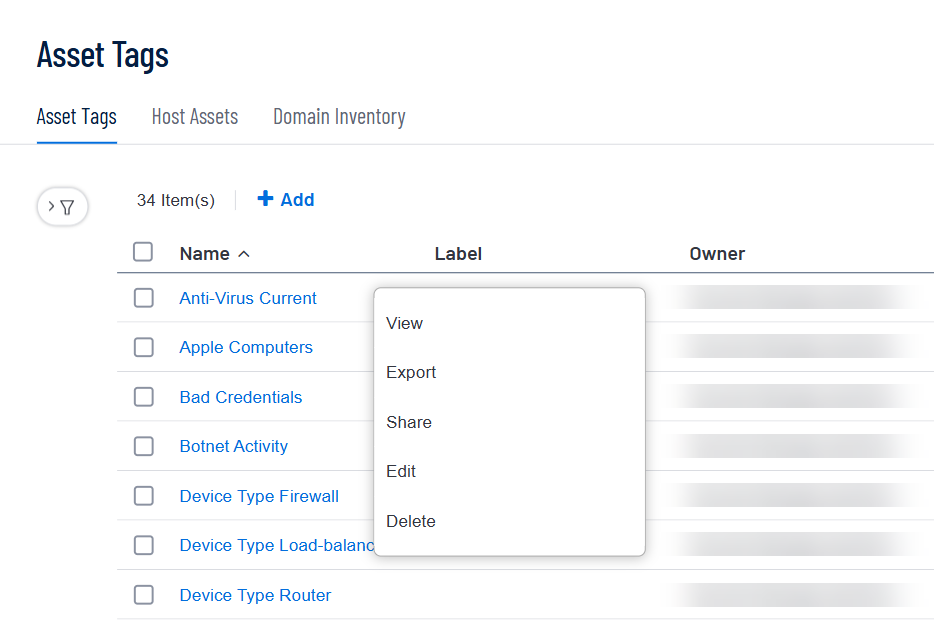
Right-click the row for the asset
The actions menu appears.
-or-
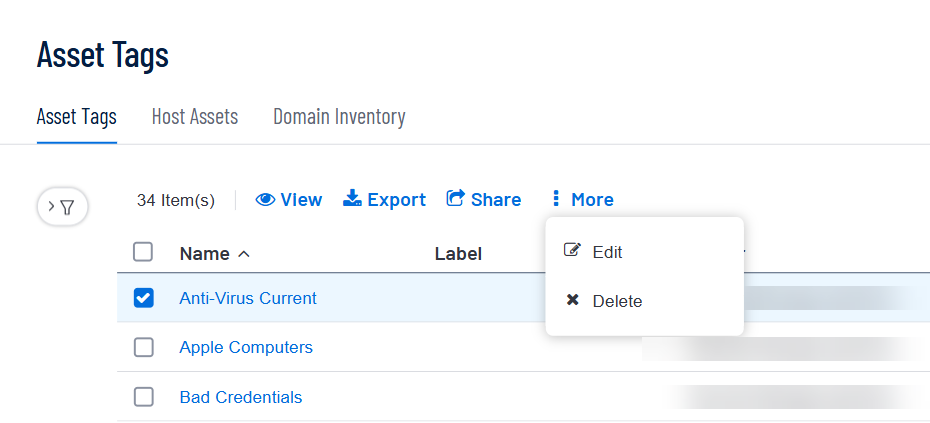
Select the check box for the asset
The available actions appear at the top of the table.
-
Click Edit.
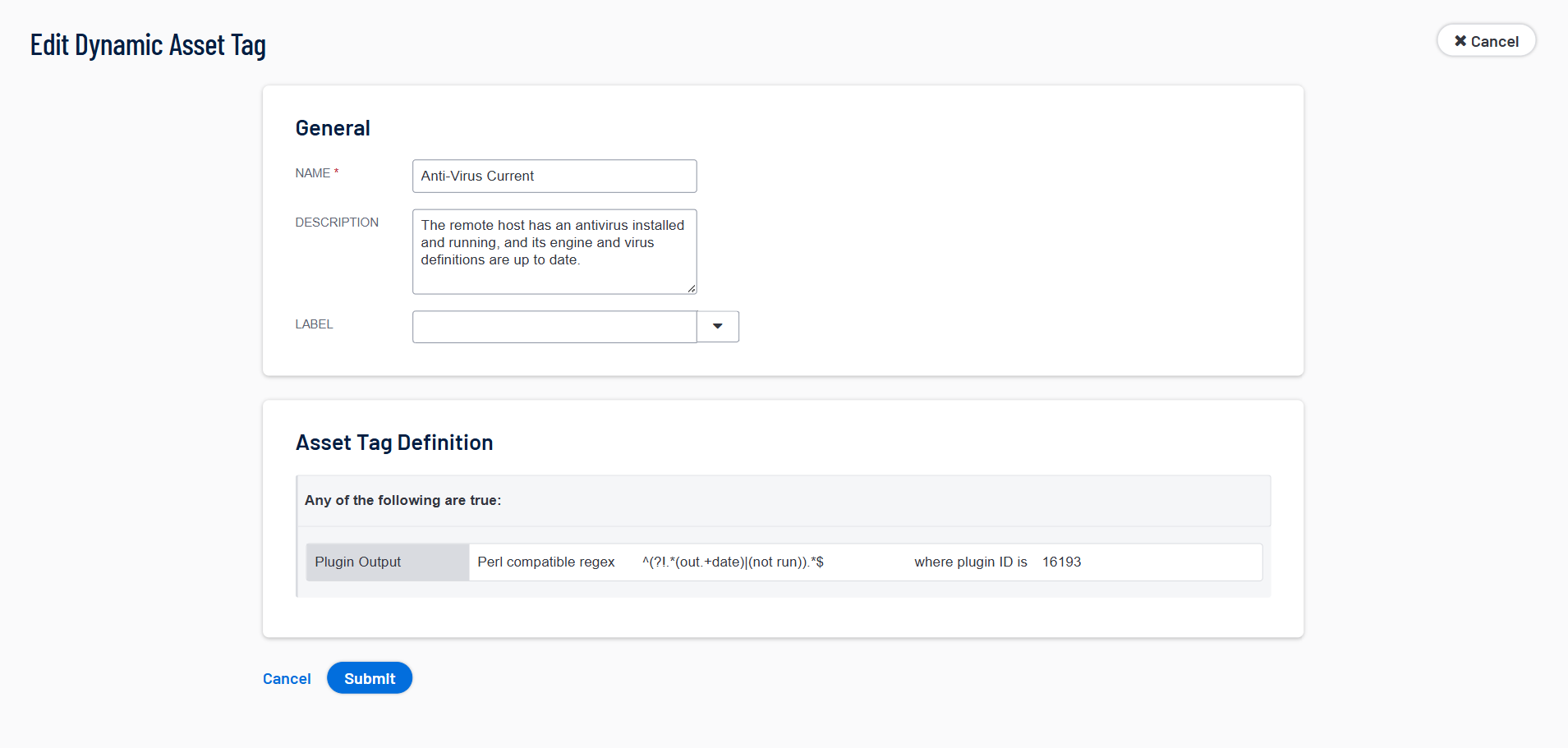
The Edit page appears.
-
In the Label drop-down-box, remove the label from the asset
-
Click Submit.
Tenable Security Center removes the label from the asset
-
(Optional) If you want to delete the label from Tenable Security Center, repeat steps 2 through 6 until you have removed all uses of the label for the object type.
Tenable Security Center deletes the label.