Generate a Diagnostic Report
You can use diagnostic reports to assist with troubleshooting Tenable Core.
To generate a diagnostic report for troubleshooting:
-
Log in to Tenable Core via the user interface.
The Tenable Core web user interface page appears.
-
In the left navigation bar, click Diagnostic Reports.
The Diagnostic Reports page appears.
- Click the Run report button.
- A user interface list appears as the report generates.
- When the report is complete, the status displays Done.
-
Click the Download button next to each report that you want to download.
Tenable Core saves and prints the report.
Export an Tenable One OT Exposure-Specific Diagnostic Report
You can generate and export an Tenable One OT Exposure-specific diagnostic report from Tenable Core for troubleshooting.
Before you Begin
-
Make sure you have Administrative access.
To generate the diagnostic report:
-
Log in to Tenable Core.
-
In the left navigation bar, click Tenable One OT Exposure.
The Tenable One OT Exposure page appears.
-
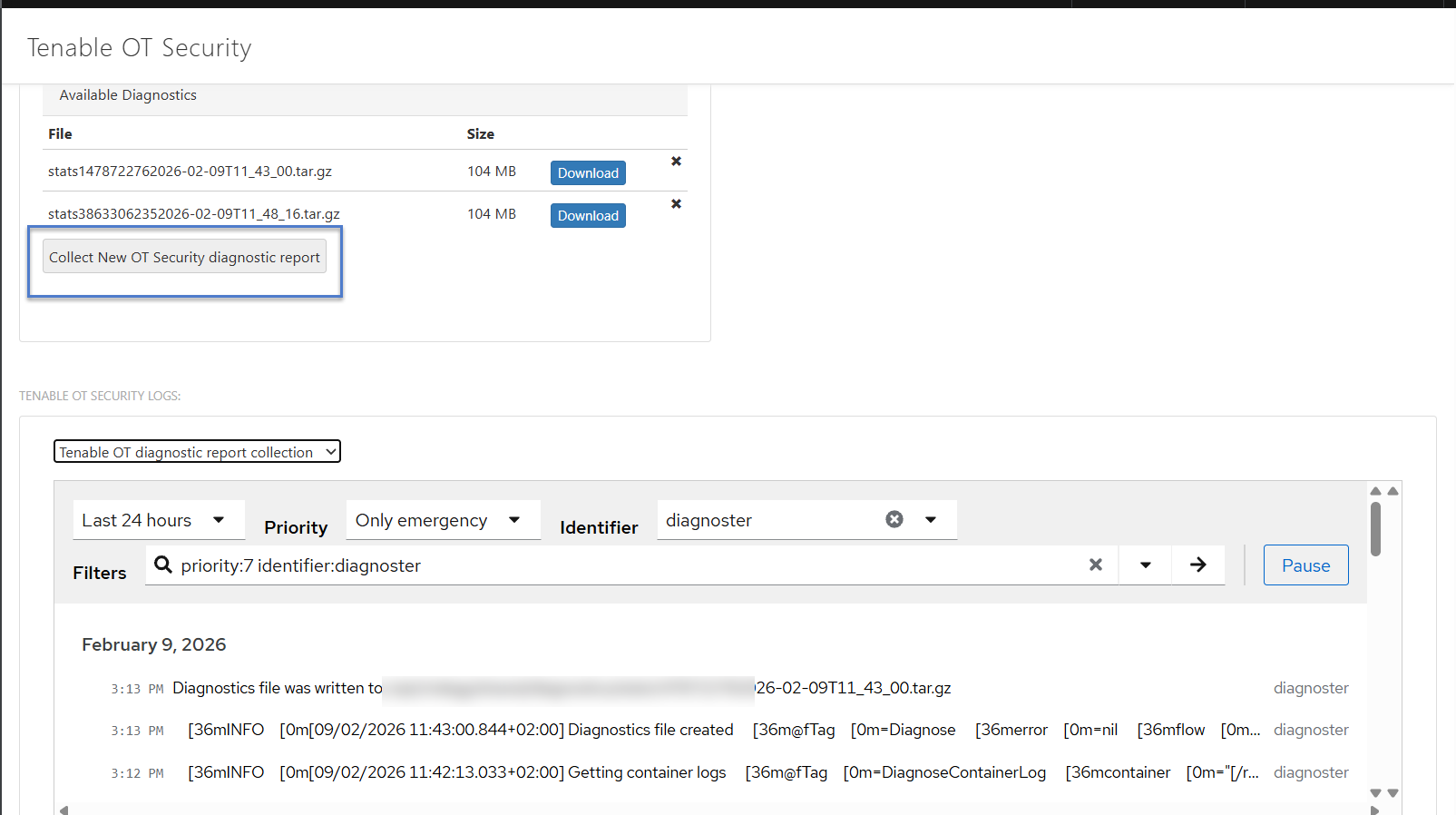
In the OT Diagnostics section, click Collect New OT Security Diagnostic Report.
The system generates the diagnostic report.
-
Click Download next to the report that you want to download.
Tenable Core downloads the report to your system. After Tenable Core generates the logs, it may take several minutes before the data appears in the debug logs.