Using Group By Options on the Findings Page
The Group By feature in Tenable One Vulnerability Management is a data organization tool used to consolidate the Findings table. Conceptually similar to a GROUP BY clause in a relational database query, this feature aggregates individual findings into logical categories. This allows you to pivot between different risk perspectives and streamline remediation workflows across all finding types: Vulnerabilities, Web Application Findings, and External Attack Surface.
The Group By options appear above the findings table in Explore > Findings.
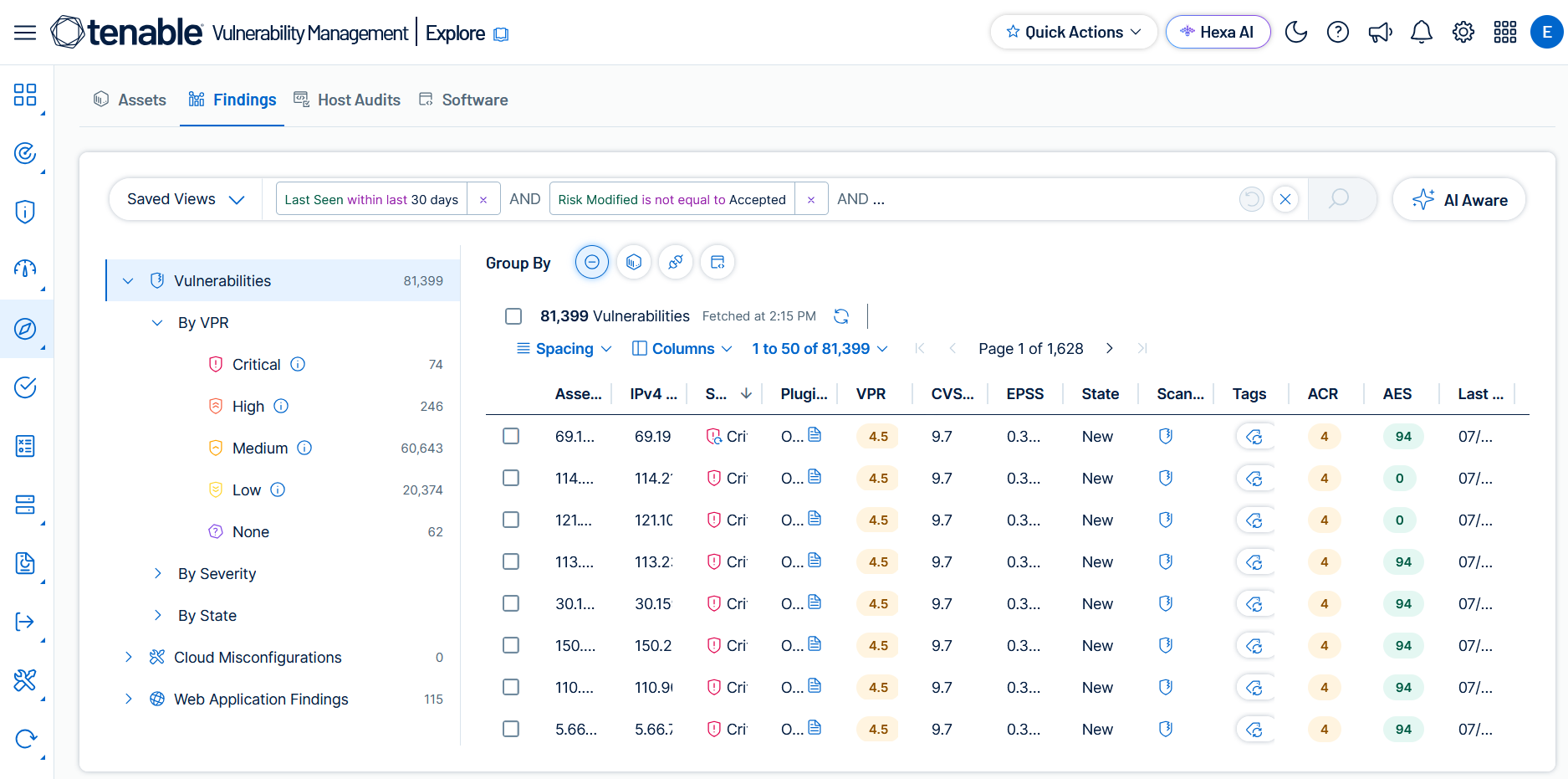
What is Group By?
The Findings table is a collection of finding instances. Every time a scanner identifies a security issue on an asset, it creates a unique, individual row in the table. While this provides total granularity, it can lead to a high volume of repetitive data when the same issue exists across many assets.
Group By allows you to consolidate these individual instances based on shared attributes. Instead of reviewing the same issue 100 times because it exists on 100 different computers, you can Group By Plugin to see it as a single line item with a count of affected assets. This transformation shifts your view from a list of detections to a list of actionable remediation tasks or prioritized assets.
Using Group By Options
-
On the Findings page, select one of the Group By icons above the table. For example, for Vulnerabilities select the Group By Plugin icon.
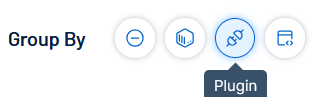
-
A table appears that aggregates findings that a specific Plugin ID discovers across your entire environment into single rows.
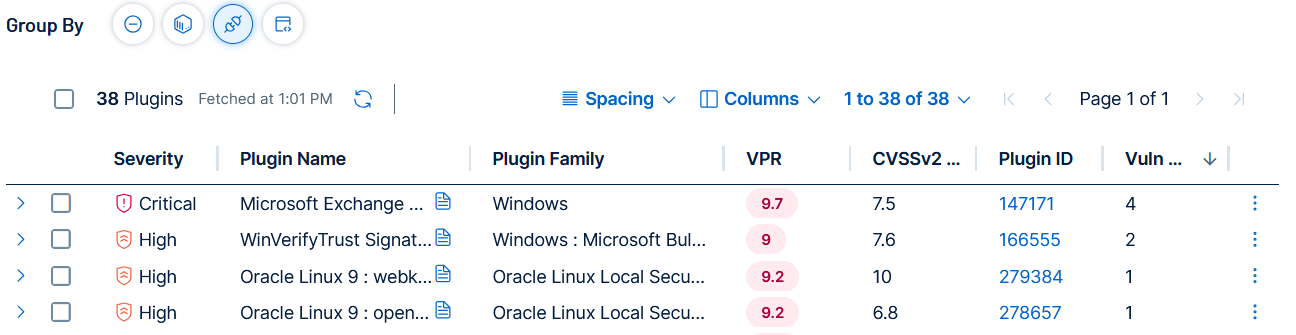
Each row in a grouped table shows an expansion icon
 on the left side of the row.
 -
Select the
icon on the left side of any row.The
 Assets and
  Findings tabs appear.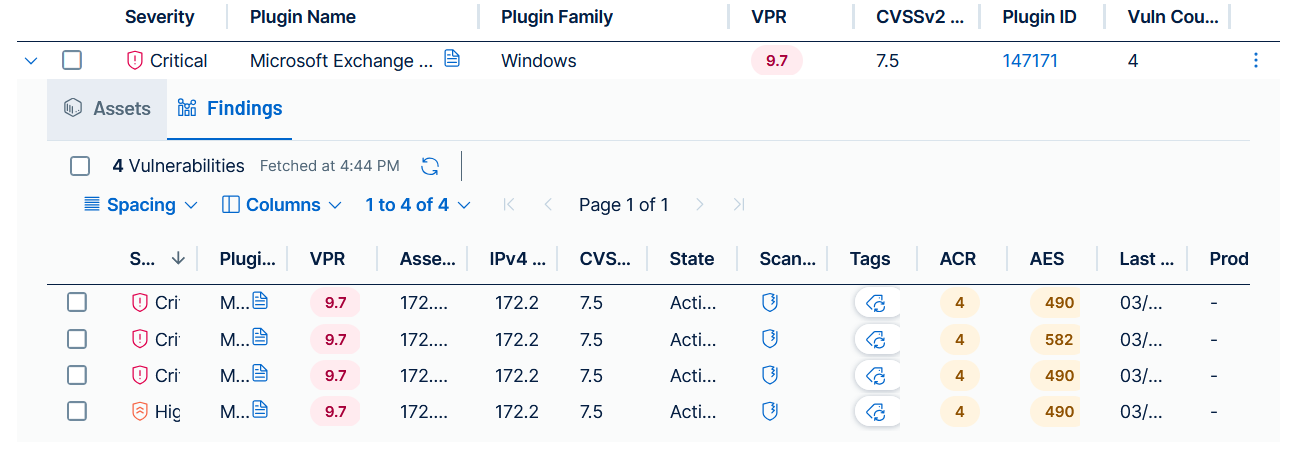
-
The
Assets tab shows a table of all assets affected by the findings in that group. -
The
Findings tab shows a table of individual finding instances that make up that group, allowing you to see the granular details such as IP Address or Port, while maintaining the grouped context.
-
-
Group By Options
The available grouping options change based on the finding type selected in the findings table.
-
None—This is the raw, granular view of all findings and is the default Group By showing when you view the findings table. Every finding is displayed as its own row, providing total visibility into every specific instance where Tenable identified a finding.
-
Primary Use Case—Use this view for technical verification, troubleshooting, or bulk data analysis. It is the only view that displays the specific port, protocol, or IP address for every finding directly in the main table.
-
Bulk Export Advantage—While grouped views allow you to drill down into individual items to see details, the Group By None view is the only way to perform a bulk export of all granular metadata, such as technical evidence and specific solution paths, across your entire finding set in a single file. This is useful for external reporting or ingestion into third-party analysis tools where you need the proof for every finding.
-
-
Asset—This option aggregates all findings onto the specific host or web application where Tenable discovered them. Each row represents a unique asset, displaying the total count of findings for that device.
-
Primary Use Case—Assess the total risk profile of individual devices or applications to prioritize asset-level remediation and identify the least secure entities in your environment.
-
-
Plugin—This option groups all instances of a specific Plugin ID across your entire environment into a single row. This represents a root cause view.
-
Primary Use Case—Determining the "blast radius" of a specific vulnerability and identifying the most impactful remediation action for the entire organization, such as a specific patch.
-
Severity Display with Recast or Accept Rules—Because recast and accept rules apply to individual findings rather than to plugins, a single plugin row can contain findings at different severity levels. When this occurs, the Severity column displays Mixed. Hover over the Mixed label to see a tooltip listing each severity and the number of findings at that level. When you open the details panel for a row with mixed severities, the panel header displays a Mixed Severity badge.
-
-
Software—This option consolidates findings based on the specific software product and version, for example, Google Chrome 118.0.5993.70.
-
Primary Use Case—Identify specific software builds that pose a collective riskand facilitate targeted application updates for outdated third-party software.
Important: Installed software data is retained for 30 days. Software not detected in a scan within that window no longer appears in this view. -
Group By to Promote Ease of Use
Here are examples of how Group By can improve your daily workflow.
-
Reduced Noise—Clears potential clutter of seeing repetitive findings, allowing you to see the true scope of your exposure.
-
Faster Prioritization—You can immediately see which specific patch (Plugin), configuration policy (Audit File), or server (Asset) represents the highest concentrated risk.
-
Role-Based Views
-
Remediation teams can Group by Plugin to see what software needs to be updated or which code needs to be fixed.
-
System owners can Group By Asset to see the total risk profile of the specific machines or applications they manage.
-
Compliance officers can Group by Audit File to track adherence to security standards.
-
Group By Availability by Finding Type
The available grouping options depend on the type of findings being viewed. The table below shows the support for each category.
| Finding Type | None | Group By Asset | Group By Plugin | Group By Software | Group By Audit File |
|---|---|---|---|---|---|
|
Vulnerabilities |
Yes | Yes | Yes | Yes | No |
|
Web Application Findings |
Yes | Yes | Yes | No | No |
|
External Attack Surface |
Yes | Yes | No | No | No |