Filtering and Simple Search
The Query Builders in Tenable One Vulnerability Management have dual functionality. They provide a convenient interface for building filter queries and also allow for keyword searching. You can combine searches with filter search for building queries. For example, you can use simple search to find a server by name, and then add a filter to see only vulnerabilities with Critical severity on this asset.
This section covers these two features of the query builder:
-
Filter lookup to help build queries to identify
-
Simple search for both text-based lookups within certain fields and for IP address search.
To perform a filter lookup, do not enclose your search query in quotation marks. To perform a simple search, enclose your search query in quotation marks.
Filter Lookup (Default, No Quotation Marks)
When you type directly into the query builder without using quotes, you are using a filter lookup. This helps you find filters to use as conditions within a filter query.
As you type, one of three outcomes occur:
-
Exact Match: For example, if you type fixed, the query builder finds an exact match for the Last Fixed filter and you can then select that filter. Next, you can choose an operator (for example, is on or after) and a value (for example, 7 days ago).
-
Multiple Matches: For any token you type, the query builder shows a list of all matching filters for that token that you can select from. For example, if you type sev, the query builder shows multiple filter names including Severity, Original Severity, and CVSS v3.0 Base Score Severity.
-
No Match: If you enter xyz and no filter name matches, the query builder shows
 Invalid filter: xyz.
 Note: You also see a link to Search for "xyz"?. Clicking this link moves to simple search functionality within the query builder.
Simple Search (Using Quotation Marks)
Simple search is another feature of the query builder that allows you to search amongst your
When you enclose your search term in double-quotes (for example, "my-server"), you activate the simple search functionality. Instead of looking for a filter name, the query builder searches for your string inside the data of specific fields.
Working with Text and Wildcards
When you search for a text string using simple search, the query builder looks for a partial match.
-
Implicit wildcards ("xyz") — If you search for a string such as "server" without wildcards, the query builder automatically applies them to the beginning and end (example, *server*). This matches values such as web-server-01 or fileserver.
-
Explicit wildcards ("xyz*") — You can use an asterisk (*) to control the match. For example, "server*" matches anything starting with "server", while "*server" matches anything ending with it.
Working with IP Addresses
You can search for individual IPv4 or IPv6 addresses, IP ranges, or CIDR ranges. For example:
-
Type "10.1.1.5" in the query builder, the search looks for a specific IPv4 address equal to 10.1.1.5.
-
Type "2001:db8::1" in the query builder, the search looks for a specific IPv6 address equal to 2001:db8::1.
-
Type "10.1.1.5-10.1.1.47" in the query builder, the search looks for all IPv4 addresses within the range 10.1.1.5 to 10.1.1.47.
-
When you type "10.1.0.0/16" in the query builder, it searches over a CIDR range of 65,000 IP addresses.
Note: Partial IP segments are treated as text strings. For example, searching for "10.1" searches the Asset Name rather than the IPv4 Address field because the string 10.1 is not a valid IP address, IP range, or CIDR range.
Text and IP-based simple search in the query builder performs the search against the following tables and fields:
-
Explore > Assets table: Searches Asset Name, Agent Name, NetBIOS Name and DNS (FQDN).
-
Explore > Findings table: Searches either Asset Name for text-based search or IPv4 Address or IPv6 Address (for IP-based search).
-
Recast table: Allows you to quickly locate specific vulnerabilities or plugins used within recast rules. Searches Name, Asset Name, and Plugin ID fields.
Advanced: Convert Search to Filters
You can convert your simple searches into a query.
-
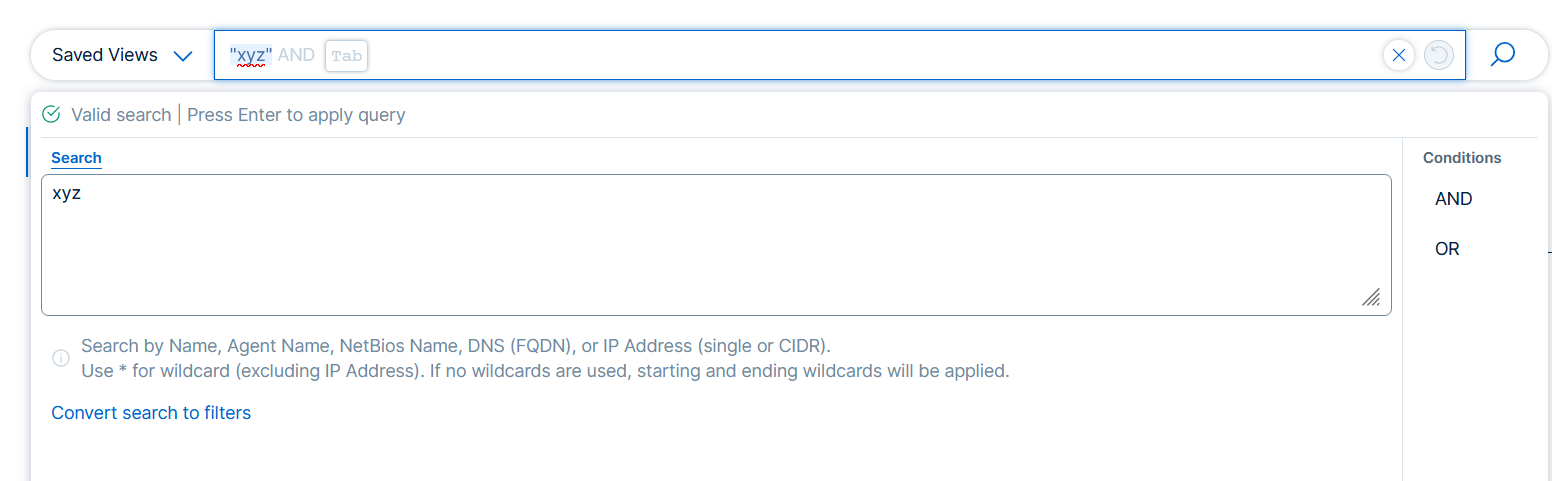
In the query builder, type a search string such as "xyz".
A search box appears.
-
Click Convert search to filters.
The query builder replaces the search with a group of filters, connected by an OR operator. The specific fields included in this group depend on which table you are using. The following table summarizes the resulting query.
Table Filters Used in the Converted Search Query Explore > Assets
Asset Name, Agent Name, NetBIOS Name, DNS (FQDN), IPv4 Address and IPv6 Address (single, range, or CIDR) Explore > Findings Asset Name, IPv4 Address and IPv6 Address (single, range, or CIDR)
Recast Vulnerabilities and Web Applications—Name, Asset Name, Plugin ID
Host Audits—Name, Audit File, Audit Name
-
Example 1.
-
Type "xyz" in the query builder on the Explore > Assets table.
-
Click Convert search to filters.
-
The following query appears in the query builder:
Agent Name is equal to *xyz* OR DNS (FQDN) is equal to *xyz* OR Asset Name is equal to *xyz* OR NetBIOS Name is equal to *xyz*
Name is equal to xyz OR Asset Name is equal to xyz OR Plugin Name is equal to xyz
You can continue to modify this query.
-
-
Example 2.
-
Type "::ffff:ac10:201" in the query builder on the Explore > Assets table.
-
Click Convert search to filters.
-
The following query appears in the query builder:
Agent Name is equal to *::ffff:ac10:201* OR DNS (FQDN) is equal to *::ffff:ac10:201* OR IPv6 Address is equal to ::ffff:ac10:201 OR Asset Name is equal to *::ffff:ac10:201* OR NetBIOS Name is equal to *::ffff:ac10:201*
You can continue to modify this query.
-
Note: This feature shows you exactly which fields were searched and allows you to further refine the query. For example, you may want to remove NetBIOS Name from an asset search and only look at DNS (FQDN).