System Configuration
The System Configuration section allows administrators to manage the foundational settings of the Tenable One OT Exposure EM. This includes defining the device identity, securing connections via encryption certificates and API keys, and maintaining the system's operational status through license management. The System Configuration includes the following section:
Device
The page allows you to view and edit device details and network information such as port configuration and system time, automatic logout (inactivity timeout).
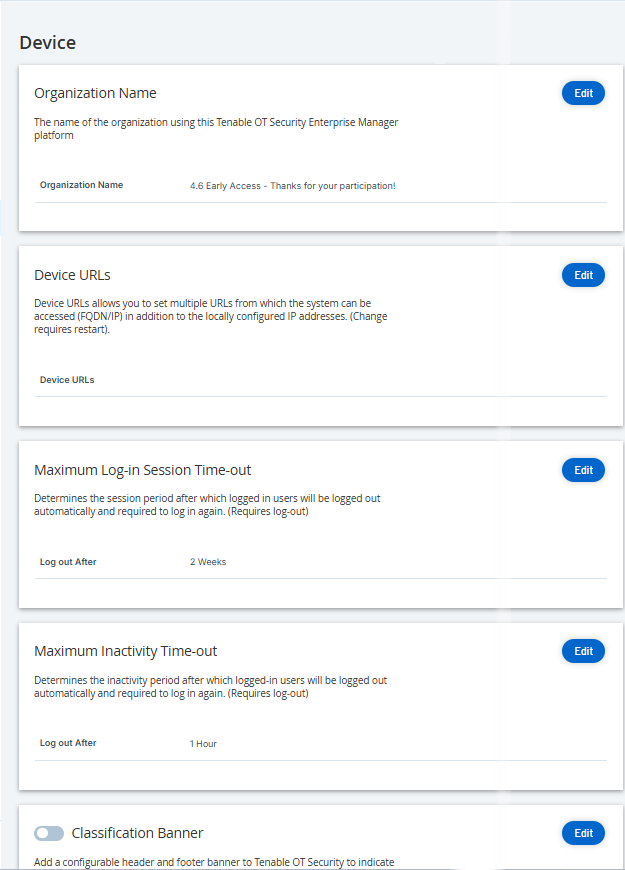
The Device page shows the following information:
| Parameter | Description |
|---|---|
| |
The name of the Tenable One OT Exposure management system. |
| Device URLs | The URL used to access the Tenable One OT Exposure EM console in a DNS environment. |
| Maximum Log-in Session Time-out | The session period after which users are logged out automatically. |
| Maximum Inactivity Time-out | The period of inactivity that causes the system to log out automatically. |
| Classification Banner |
Add a banner to Tenable One OT Exposure EM to indicate the data accessible via the software. To add a banner, click Edit. After adding the banner, click to enable the Classification Banner toggle. |
| Enable Usage Statistics |
The Enable Usage Statistics option specifies whether Tenable collects anonymous telemetry data about your Tenable One OT Exposure EM deployment. When enabled, Tenable collects telemetry information at the company level and not at an individual level. This information does not include personal data or personally identifiable information (PII). Telemetry information includes, but is not limited to, data about your visited pages, your used reports and dashboards, and your configured features. Tenable uses the data to improve your user experience in future Tenable One OT Exposure EM releases and for other reasonable business purposes in accordance with the Tenable Master Agreement. This setting is enabled by default. To enable telemetry collection, click the Enable Usage Statistics toggle. Note: You can disable sharing of usage statistics at any time by clicking the toggle switch. |
| Auto approve ICP pairing requests | Enable this option to approve all ICP pairing requests automatically. For more information about pairing an ICP, see Pair ICP with Enterprise Manager. |