Monitored Networks
Use the Monitoring Networks page in Tenable One OT Exposure EM to define and manage CIDR network boundaries for all ICPs from a single location instead of configuring each ICP individually. This reduces operational workload for organizations managing 10 or more ICPs and ensures consistent network configuration across your entire OT infrastructure.
The Monitored Network configuration contains a set of IP ranges (CIDRs / subnets) that define the monitoring boundaries for Tenable One OT Exposure. Tenable One OT Exposure ignores all assets outside of these configured ranges.
By default, Tenable One OT Exposure configures three default public ranges: 10.0.0.0/8, 172.16.0.0/12, and 192.168.0.0/16, as well as the link-local Automatic Private IP Addressing (APIPA) range of 169.254.0.0/16.
For Nessus Network Monitor (NNM) components, Tenable One OT Exposure processes only the first 128 entries.
To disable any of the default ranges or add custom ranges for your network:
-
Go to Sites Management > Monitored Networks.
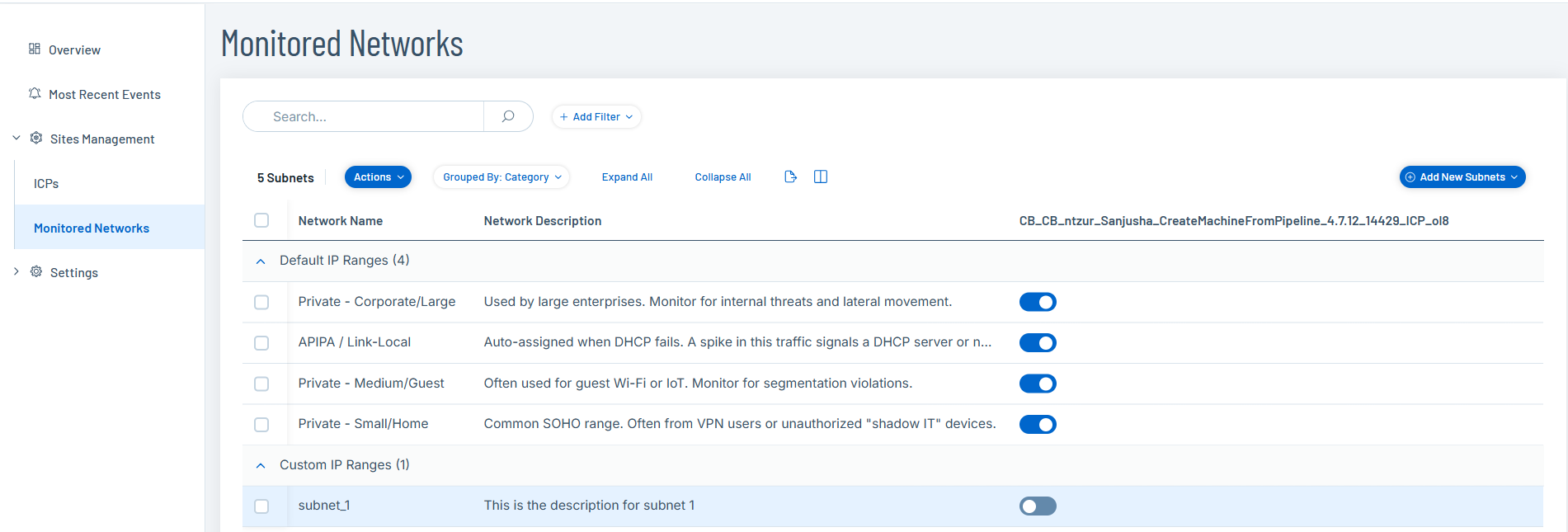
The Monitored Networks page appears.
-
(Optional) Customize tables as required. For more information, see Customize Tables.
-
The Monitored Networks table includes the following details:
Column Description Default IP Ranges and Custom IP Ranges The Default IP Ranges section displays the default IP ranges configured in Tenable One OT Exposure.
The Custom IP Ranges section displays any subnet that you manually create.
Network Name The global name of the network. Network Description A description about the network. 
Hover over a value to display the Copy button. You can use this to copy the parameter value.Monitored A toggle to enable or disable the monitoring for the configured IP addresses. Monitoring is enabled by default.
Add Subnets
You can add a single subnet or a list of multiple subnets for monitoring.
To add a new subnet:
-
Go to Sites Management > Monitored Networks.
The Monitored Networks page appears.
-
In the upper-right corner, click Add New Subnets.
A menu appears.
-
Select one of the following:
-
Add One Subnet — To add a single subnet.
-
Add Subnets List — To add multiple subnets.
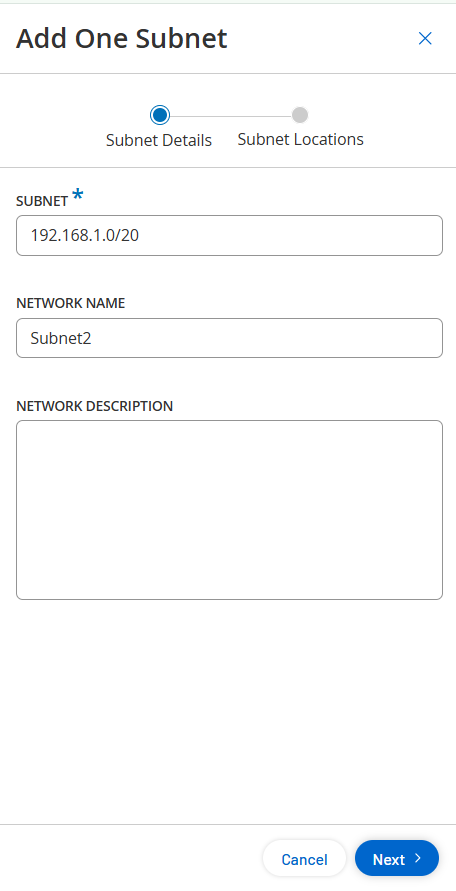
The Add Subnet panel appears.
-
-
If you selected Add One Subnet:
-
In the Subnet box, type the IP address range in the CIDR format. For example, 192.168.1.0/24.
-
In the Network Name box, type a name for the network.
-
(Optional) In the Description box, type a description for subnet.
-
Click Next.
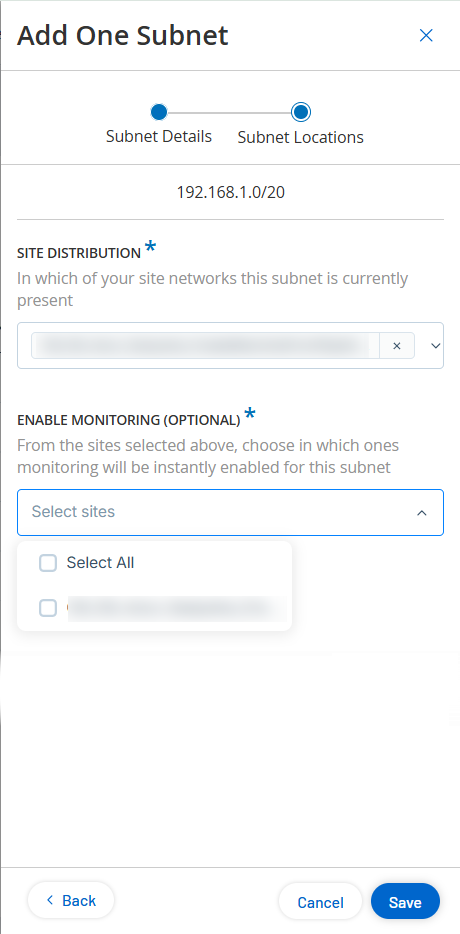
The Subnet Locations panel appears.
-
In the Site Distribution drop-down box, select the physical sites that include this subnet.
-
(Optional) In the Enable Monitoring drop-down box, select the sites where you want to enable monitoring.
-
Click Save.
-
-
If you selected Add Subnets List:
-
In the CIDR box, provide the list of CIDRs, one CIDR per line.
-
Click Next.
The Subnet Locations panel appears.
-
In the Site Distribution drop-down box, select the physical sites that include these subnets.
-
(Optional) In the Enable Monitoring drop-down box, select the sites where you want to enable monitoring.
-
Click Save.
Tenable One OT Exposure saves the subnets and displays them on the Monitored Networks page.
-
Edit a Subnet
You can edit an existing subnet to make changes to it.
-
In the Monitored Networks table, do one of the following:
-
Select the checkbox next to the subnet you want to edit.
Tenable One OT Exposure enables the Actions menu.
-
Right-click the row of the IP range you want to edit.
A menu appears.
-
-
Select Edit Details.
The Edit Details panel appears.
-
Modify the configuration details as needed.
-
Click Save.
Tenable One OT Exposure saves the changes to the subnets.
Manage Locations
Use the Manage Locations option to assign additional sites to a subnet and to enable monitoring on these sites.
-
In the Monitored Networks table, do one of the following:
-
Select the checkbox next to the subnet you want to modify.
Tenable One OT Exposure enables the Actions menu.
-
Right-click the row of the IP range you want to modify.
A menu appears.
-
-
Select Manage Locations.
The Manage Locations panel appears.
-
Edit the Site Distribution and Enable Monitoring (Optional) fields as needed.
-
Click Save.
Tenable One OT Exposure updates your subnet site changes.