Manage Exclusions
Exclusions allow you to create rules that automatically ignore certain AI alerts. For example, you may have a known false positive that you no longer want to see in your list of open findings. You can create an Exclusion rule to hide them from your future findings and alerts throughout the Tenable One AI Exposure interface.
On the Exclusions page, you can manage your Tenable One AI Exposure exclusion rules in the following ways:
Create an Exclusion
To create an exclusion:
-
On the Exclusions page, in the upper-right corner, click
 Add exclusion rule.
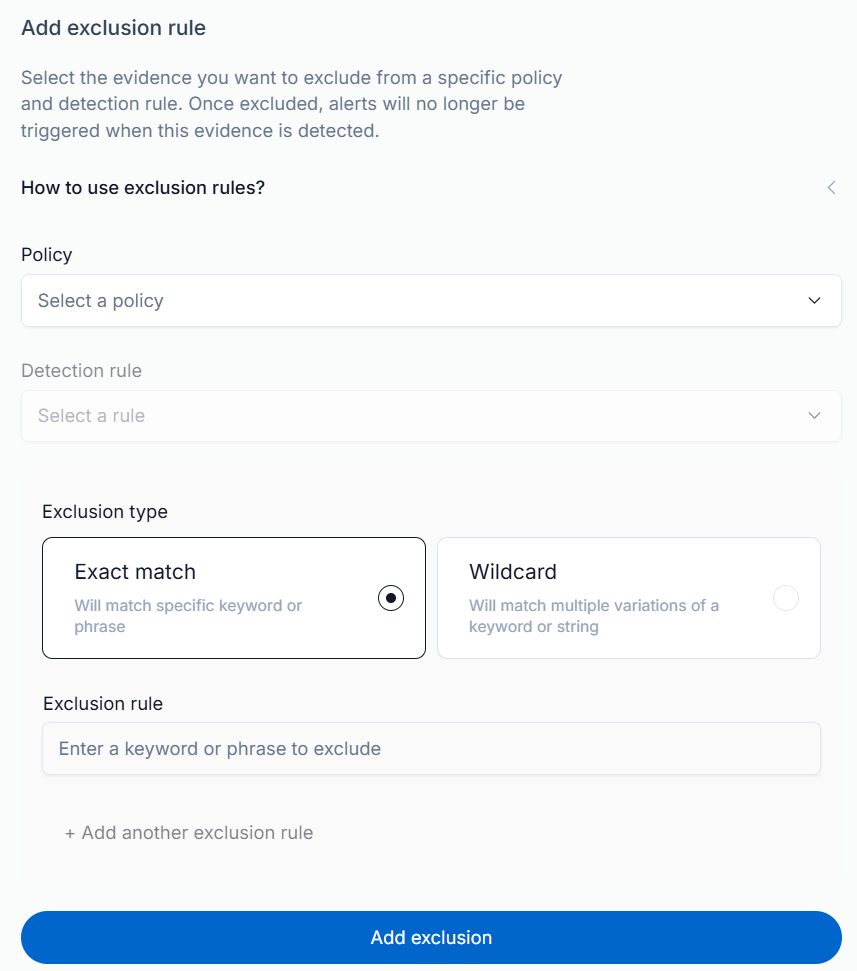
The Add exclusion rule panel appears.
-
From the Policy drop-down, select the policy you want to apply to the exclusion rule.
Tip: For more information about policies and their related detection rules, see Tenable One AI Exposure Policies and Detection Rules. -
From the Detection rule drop-down, select the rule type you want to use for detection.
Note: The options in this drop-down depend on your selection in the Policy drop-down. -
In the Exclusion type section, select one of the following options:
-
Exact match — The rule only excludes findings that match the keyword or phrase text exactly.
-
Wildcard — The rule excludes multiple variations of a keyword or string.
-
-
In the Exclusion rule text box, do one of the following:
-
For Exact match exclusion rules — Type the specific keyword or phrase you want to exclude.
-
For Wildcard exclusion rules — Type the wildcard pattern to exclude.
Tip: You can use the following wildcard characters:* (Asterisk): Matches any number of characters, including none.
? (Question Mark): Matches exactly one character.
 Example wild card patterns:
*@tenable.com - Excludes all email addresses from the tenable.com domain, such as [email protected].
admin*@company.com - Excludes any email that starts with admin and ends with @company.com, like [email protected].
192.168.*.* - Excludes all IP addresses in the range 192.168.x.x, like 192.168.1.1 or 192.168.100.255.
file_??.log - Excludes filenames like file_01.log, file_AB.log, where the ? matches any two characters.
-
-
(Optional) Click
 Add another exclusion rule to add additional rules to the exclusion.
 -
Click Add exclusion.
Tenable One AI Exposure creates the exclusion, adds it to the Exclusions list, and begins excluding the selected criteria from your findings and alerts.
Edit an Exclusion
To edit an exclusion:
-
On the Exclusions page, in the exclusions list, click the exclusion rule you want to edit.
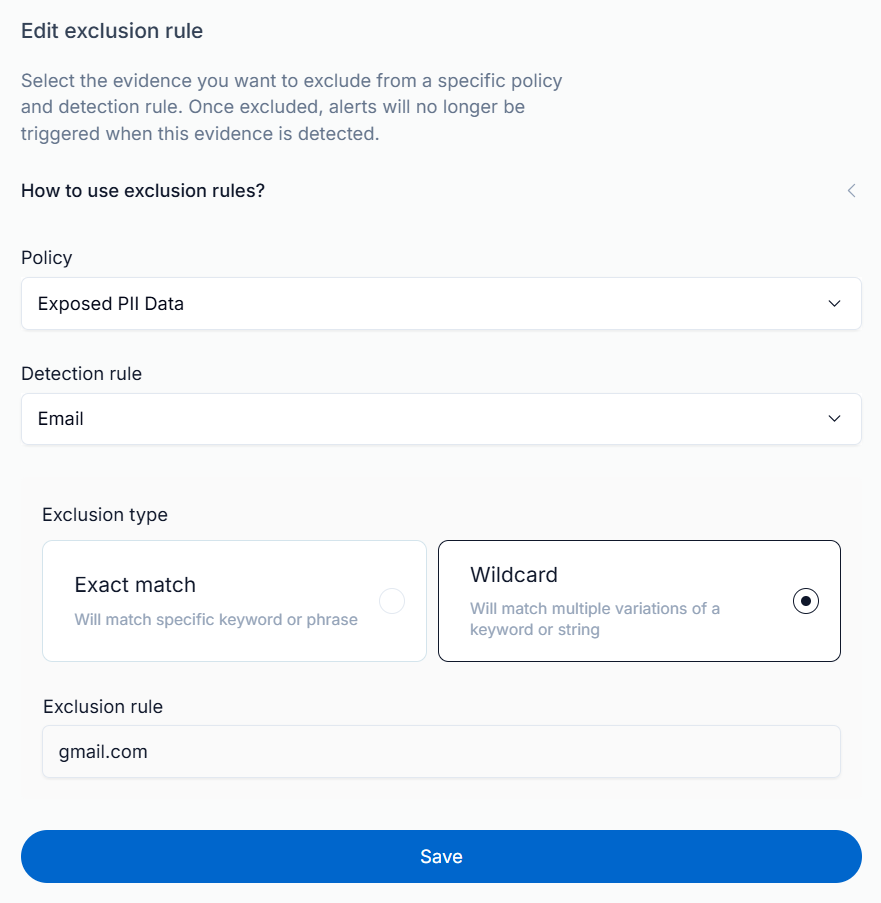
The Edit exclusion rule panel appears.
-
Make your desired changes.
-
Click Save.
Tenable One AI Exposure saves your changes to the exclusion rule.
Delete an Exclusion
To delete an exclusion:
-
On the Exclusions page, in the exclusions list, hover over the exclusion rule you want to delete.
On the right side of the row, a
 button appears.
 -
Click the
button.A confirmation message appears. Tenable One AI Exposure removes the rule from the Exclusions list, and stops excluding the selected criteria from your future findings and alerts.