Settings
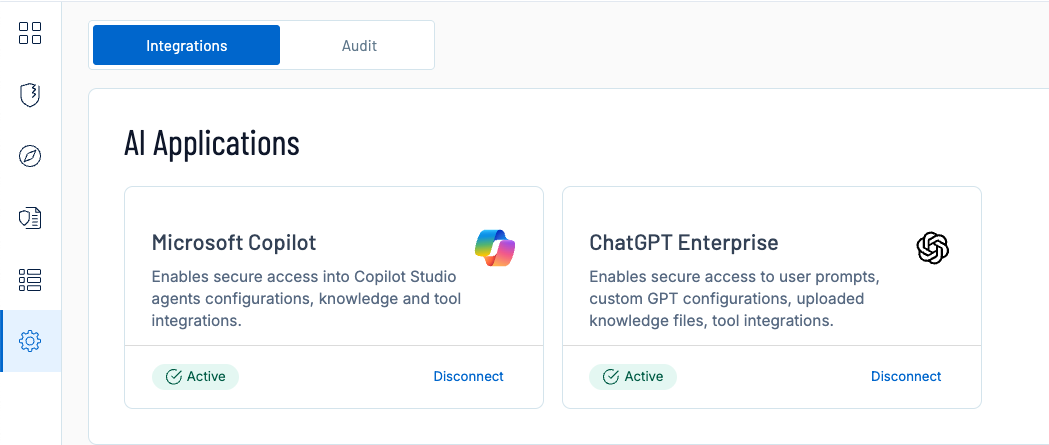
The Settings page in Tenable One AI Exposure allows you to view and manage your Tenable One AI Exposure container settings, including your AI application integrations, your automatic notifications, and more!
To access the Settings page:
-
In the left navigation menu, click Settings.
The Settings page appears. By default, the Integrations tab is selected.
Required Permissions to Modify Settings
To modify settings in Tenable One AI Exposure, you must have the AI Administrator role. Tenable One licenses include these administrator permissions.
To add the AI Administrator role:
-
In Tenable One Vulnerability Management, navigate to Settings > Access Control.
The Access Control page appears.
-
Click the Roles tab.
-
Click Add Role.
The Add Role page appears.
-
In the left navigation pane, click AI.
The AI options appear.
-
Click the Enable AI toggle to enable AI Security.
-
In the AI Exposure Admin section, select the Use checkbox.
Assign this role to a user to modify settings in Tenable One AI Exposure. See Manage User Accounts.
For more information, see the following topics: