Create a ServiceNow Ticket
Required User Role: Basic User, Scan Operator, Standard User, Scan Manager, Administrator, or Custom Role
Within Tenable Exposure Management, you can create a ServiceNow incident directly from the Findings page. This is useful when you want to track and assign remediation work using your team's existing ServiceNow incident management workflows, or when you want to open a one-off incident outside of an initiative's regular ticketing automation schedule.
Prerequisites
Before you create ServiceNow incidents via Tenable products, you must:
-
Have a ServiceNow administrator user with the following roles:
ServiceNow Permission
Custom Context ServiceNow Documentation canvas_user Primarily associated with accessing and viewing Configurable Workspaces and pages built with UI Builder.
This role provides the necessary permissions to render and interact with the visual structure (the "canvas") of the ServiceNow user interfaces.
Document Intelligence Roles cmdb_inst_admin Grants administrative rights specifically for configuring and managing CMDB data integration processes. Exploring SGC Central connection_admin A specialized administrative role focused on managing the security and configuration of external system connections. Create a Connection Administrator -
Perform the following steps to support ServiceNow tags:
-
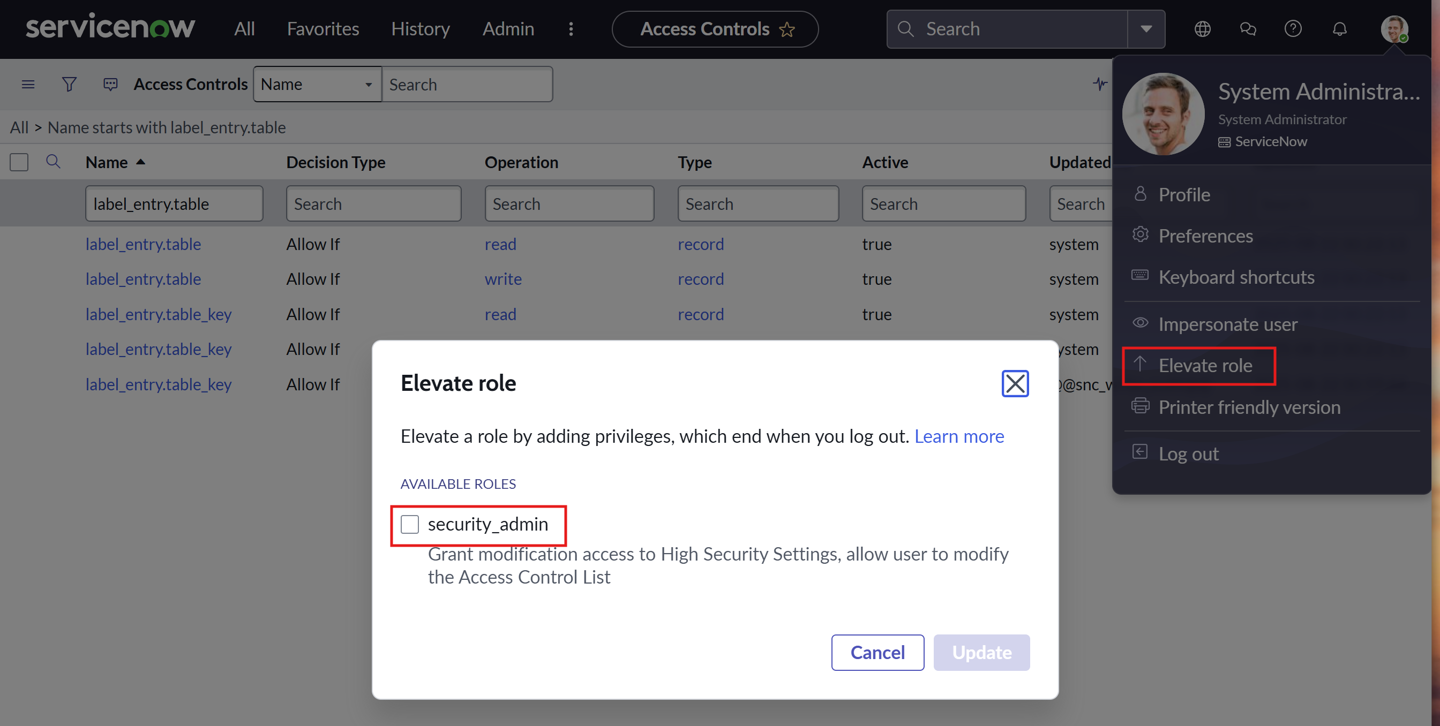
In ServiceNow, in the upper-right corner, access the user menu.
-
Select Elevate role.
The Elevate role window appears.
-
Select the security_admin check box.
-
Click Update.
-
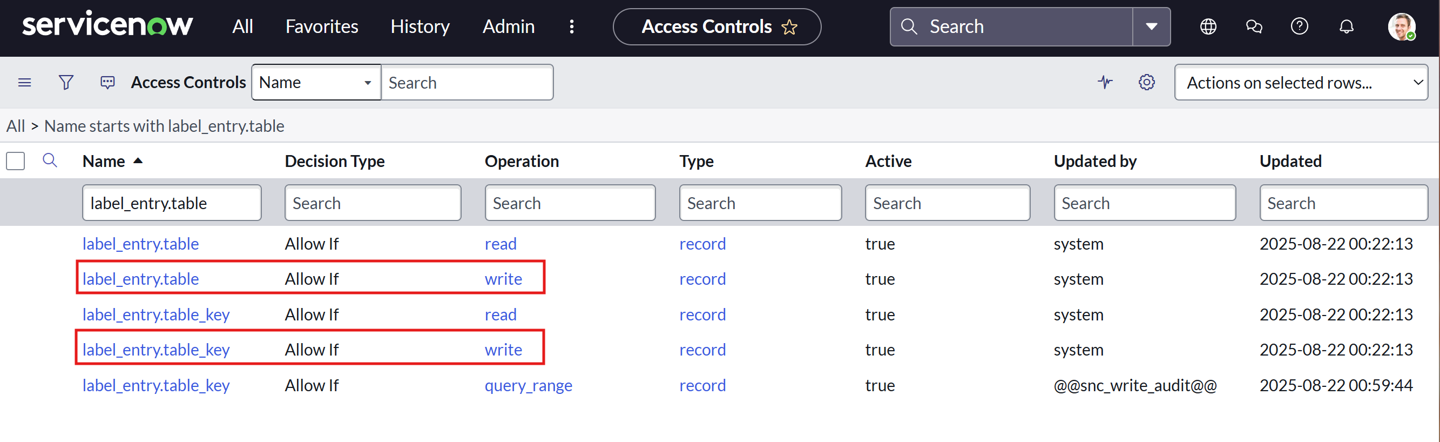
Add the admin & maint roles to both the label_entry.table and label_entry.table_key write operation ACL records.
-
-
Perform the steps to configure ServiceNow for use with the Tenable One Platform.
Create Tickets in Seconds with Tenable Hexa AI
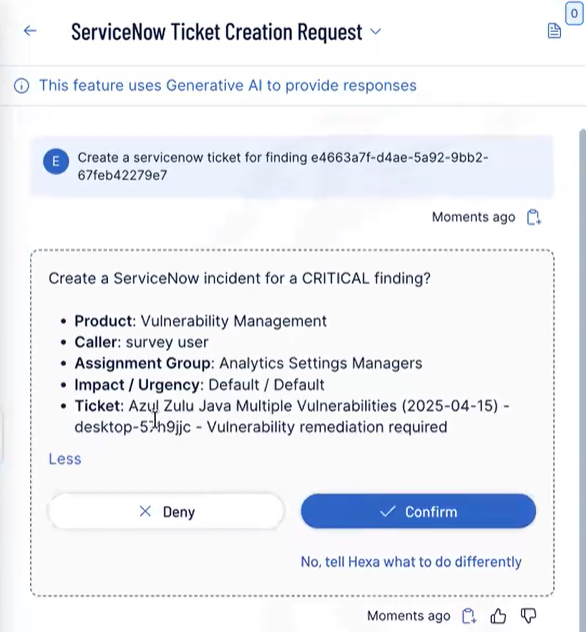
Did you know that you can use Tenable Hexa AI to create a ticket for you? Simply click the button in the upper-right corner of any page to open the Hexa AI panel.
For example, you can ask Tenable Hexa AI to create a ServiceNow ticket for a specific finding:
For more information about using Tenable Hexa AI, see the following topics:
Create Tickets Manually
To create a ServiceNow ticket based off of a finding:
-
In Tenable Exposure Management, access the Findings view.
-
In the findings list, select the check box next to each finding you want to include in the ticket.
-
In the upper-right corner of the page, click
 Take Action.
A drop-down menu appears.

-
Click Create ServiceNow Ticket.
The Open a ServiceNow Ticket page appears.

-
Configure the following options:
Option Description Aggregation Behavior Select one of these two options:
-
Create a new incident for each finding
Every time a finding appears, a new incident gets created in ServiceNow.
-
New findings create subtasks on an existing incident
Every time a finding appears, a child incident gets created on an existing ServiceNow incident.
Parent Incident (optional) Select the existing ServiceNow incident from the drop-down list.
Note: You see this option only if you choose New findings create child incidents on an existing incident.Caller The user who originally reported or requested the issue. Assignment Group The team or group responsible for managing and resolving the ticket. Assignee The individual user currently responsible for resolving the ticket. Category A high-level classification of the issue or request, for example, Hardware, Network, Software. Subcategory A more detailed breakdown within the selected Category, for example, Laptop, Wireless, OS. Impact The measured effect this issue has on the business process or service. Values are Default, High, Medium or Low.
Note: Set this to Default to allow the finding severity to set the impact based on your ServiceNow instance configuration. To override this, see Configure ServiceNow. You can override it here.Urgency The speed required to resolve the issue, based on business needs. Values are Default, High, Medium or Low. Note: Set this to Default to allow the finding severity to set the urgency based on your ServiceNow instance configuration. To override this, see Configure ServiceNow. You can override it here.Tags Any tags or labels you want to apply to the incident. Short Description This value is appended to the name of the finding. Description Additional descriptive information for this incident. -
-
Click Create Ticket.
Tenable Exposure Management creates the incident within ServiceNow based on the selected finding data. It can take up to 10 minutes to see the updated ticket information in both Tenable Exposure Management and ServiceNow.