Strategies
Strategies are a critical step in designing your system that defines What, When, and How to implement your patching.
Create a Strategy in v10.0+
In Tenable Patch Management, creating new patching strategies is comprised of four simple steps:
-
Overview - Enter a Name, Description, and Enable the strategy.
-
What to Patch - Include all the products you'd like to patch.
-
When to Patch - Set a schedule for when you'd like your strategy to run.
-
How to Patch - Set up how you'd like to patch to specific business units and add transitions that let you control the behavior of how the strategy is executed and how patches are deployed.
The following example incorporates several features of the new strategy configuration with a staged approach to ensure successful deployment for pilot to production devices. This is a common use case that you will likely want to implement in your own environment.
-
Click Strategies from the side bar navigation.
-
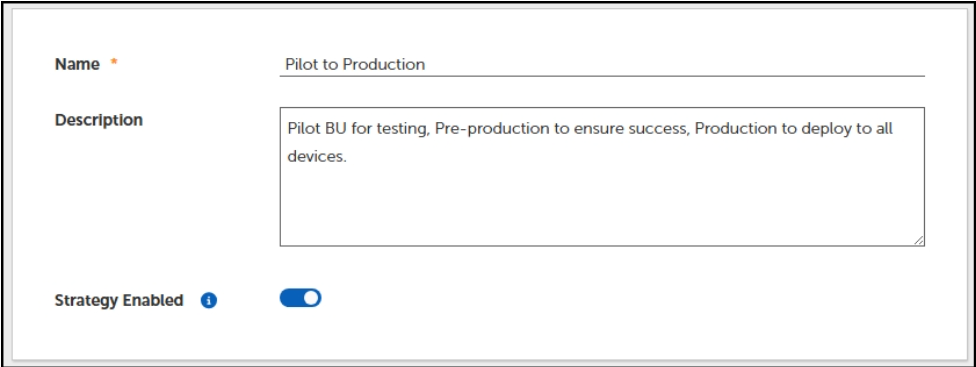
Enter a Name and an optional Description.
-
Toggle ON Strategy Enabled.
-
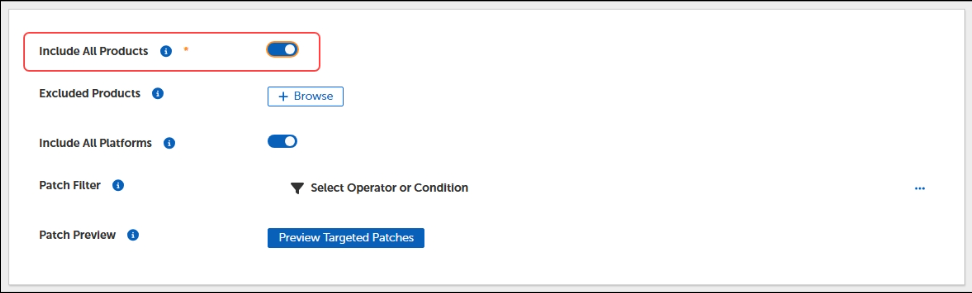
Toggle ON Include All Products or choose individual products.
-
Click OK.
-
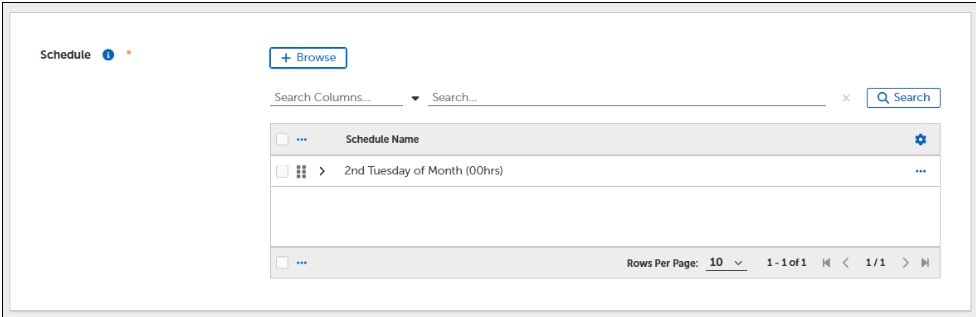
Click When to Patch then select Browse and select 2nd Tuesday of Month (00hrs) from the table.
-
Click OK.
-
Click How to Patch then select + Add Deployment Ring.
-
Click Browse and select the built-in 1% of Workstations (Built-in Pilot) business unit.
-
Click + Add Transition > Delay Transition and enter 3 days.
This ensures that 3 days pass before the next operation in the strategy is triggered.
-
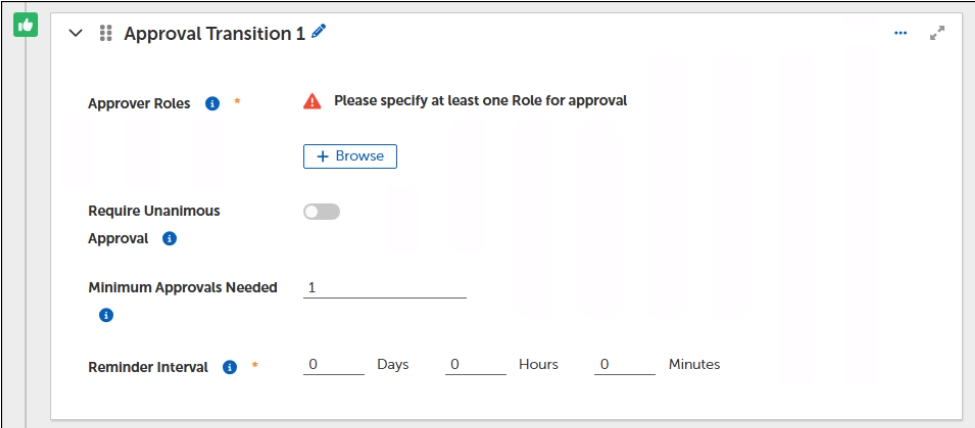
Click + Add Transition > Approval Transition and add an approver(s).
-
Set the Minimum Approvals Needed to 1 and Reminder Interval to two hours.
-
-
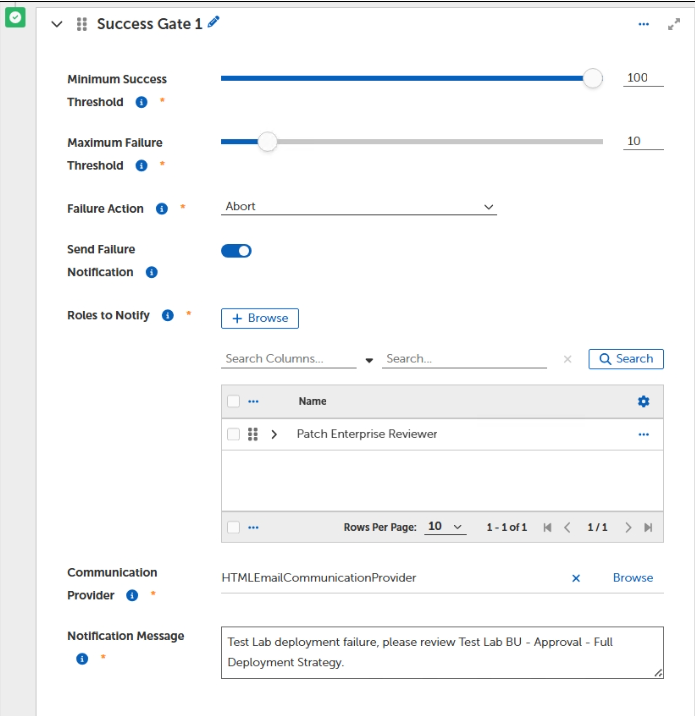
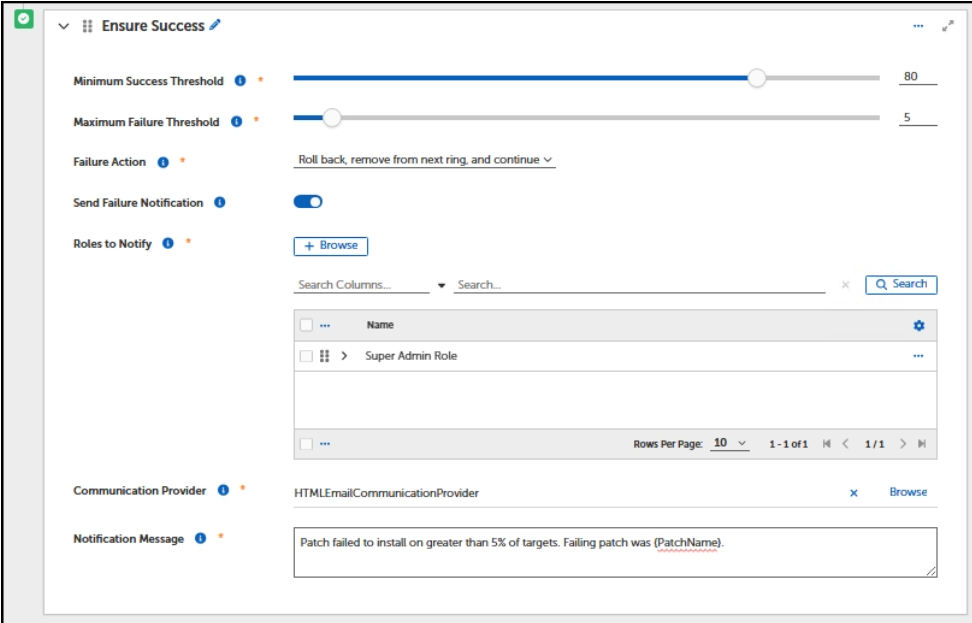
Select + Add Transition > Success gate.
-
Minimum Success Threshold set to 80% and Maximum Failure Threshold to 5%.
This ensures that at least 80% of devices must succeed AND no more than 5% can fail deployment.
-
Failure Action
-
Set to Roll back, remove from next ring, and continue
This failure action rolls back any patches that may have been installed on successful devices, then the patch is removed from the deployment, and then the deployment continues from here.
-
-
Roles to Notify
-
Set to desired Roles.
-
-
Communication Provider
-
Set to the desired provider.
-
-
Notification Message
-
Write a descriptive message. (for example, Patch failed to install on greater than 5% of targets. Failing patch was {PatchName}.)
-
-
-
Click + Add Transition > Deployment Ring and select All devices
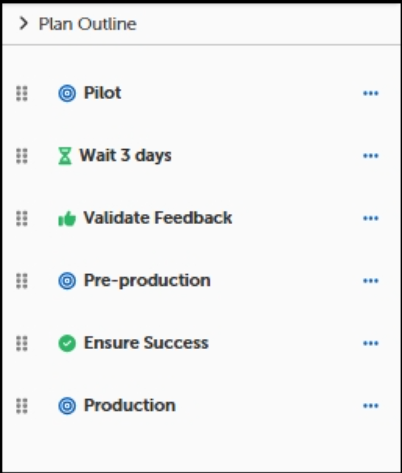
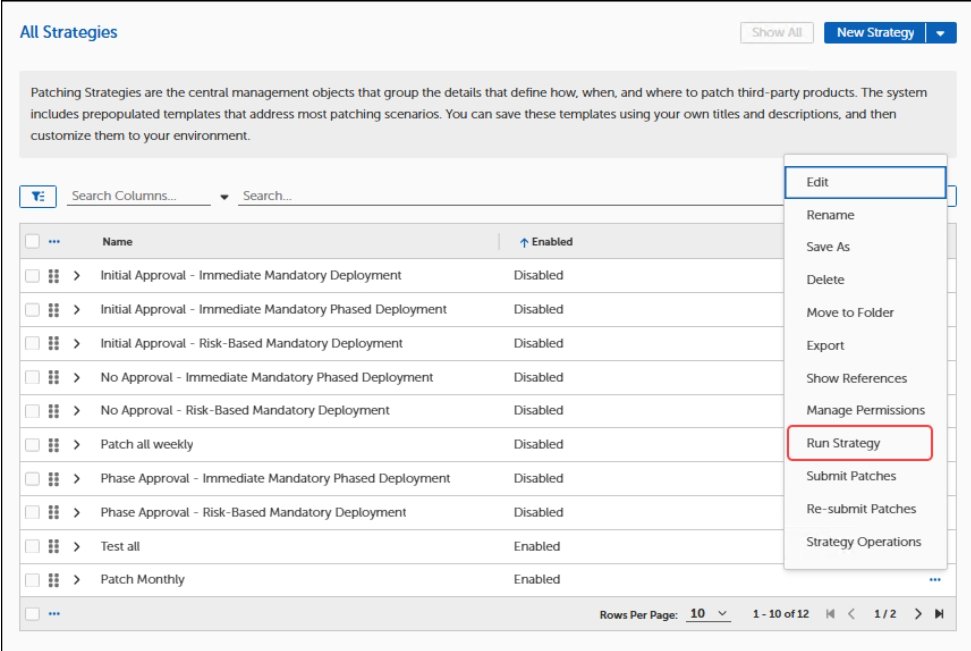
You have now created a new strategy that effectively deploys to a pilot business unit for testing, then a pre-production business unit for a larger subset of devices to ensure further validate a successful deployment, and finally a production business unit to deploy to all devices. If you would like to run your strategy immediately instead of waiting for the selected scheduled time, you can select the ellipses (...) next to your strategy name in the table and the select Run Strategy.
Deployment Plan Details
The following is additional information regarding the Transition settings in the How to Patch section of the strategy walkthrough.
Add deployment ring
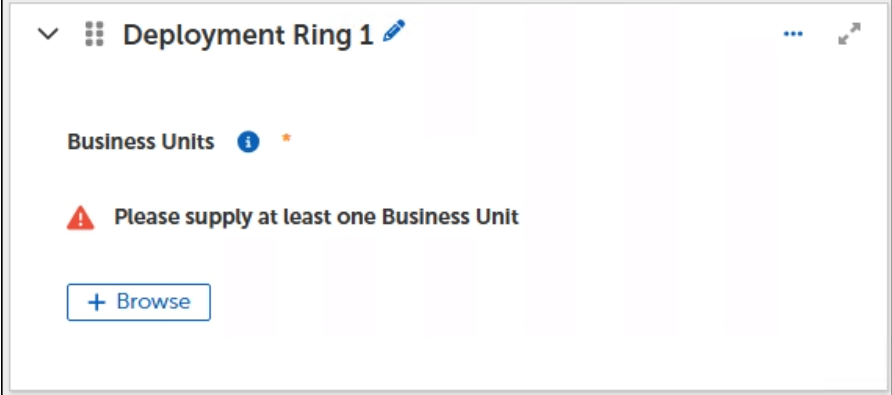
Adding a Deployment Ring allows you to choose which business units you would like the strategy to target for deployment.
Add a transition
Transitions give you the ability to create objects that dictate the behavior of how a patch should be deployed.
Approval
You can add an Approval Transition that require a patch to get an approval prior to deployment. With an Approval Transition, you can specify:
-
Which Role is the approval body
-
Whether or not you need unanimous approvals or a minimum number of approvals needed
-
When to send reminders to approvers after an approval request has been sent
Delay
Delay Transition allows you to delay the deployment of a patch by a specified time after it is received.
Enter Delay Duration in Days, Hours, and Minutes.

Success gates
You can create Success Gate Transitions to test on a smaller business unit before deploying out to a broader scope of devices. After creating your strategy with a Success Gate, a Deployment Wave is automatically generated.
With a Success Gate you can define things like:
-
A Minimum Success Threshold sets how many deployments must succeed by percentage of devices before continuing. For example, if you have two devices and you set Minimum Success Threshold to 50%, at least one device must be successful before continuing the Patching Process pipeline.
-
Similar to Minimum Success Threshold, you can set a Maximum Failure Threshold that can fail a Patching Process if the percentage of unsuccessful deployments is exceeded. In the same scenario of two devices, if you set the maximum to 50% and one device failed, it triggers the Failure Action.
-
If a particular patch deployment fails, you can specify whether or not to send a Failure Notification and if you want it to:
-
Abort
-
Continue
-
Remove from next wave and continue
-
Roll back, remove from next wave, and continue
-