Deployment Waves
Deployment waves allow the deployment of patches progressively to devices contained in different business units. Because waves execute in top-to-bottom order, less critical business units appear higher in the priority. This prioritizes deployment to non-mission critical business units or smaller groups of endpoints first, followed by more critical or larger groupings of endpoints.
Using Deployment Wave Entries
Entries for deployment wave settings exist in the object templates for business units, deployment channels, and customized products templates. All methods use the same process.
Create a Wave Entry
-
Click Advanced Settings > Intent Schema > Deployment Waves.
-
Click + New.
-
Enter a unique Name and Description.
-
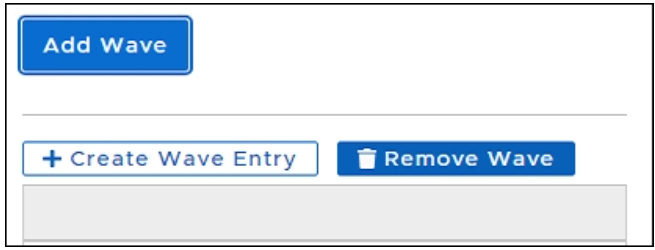
Click Add Wave.
-
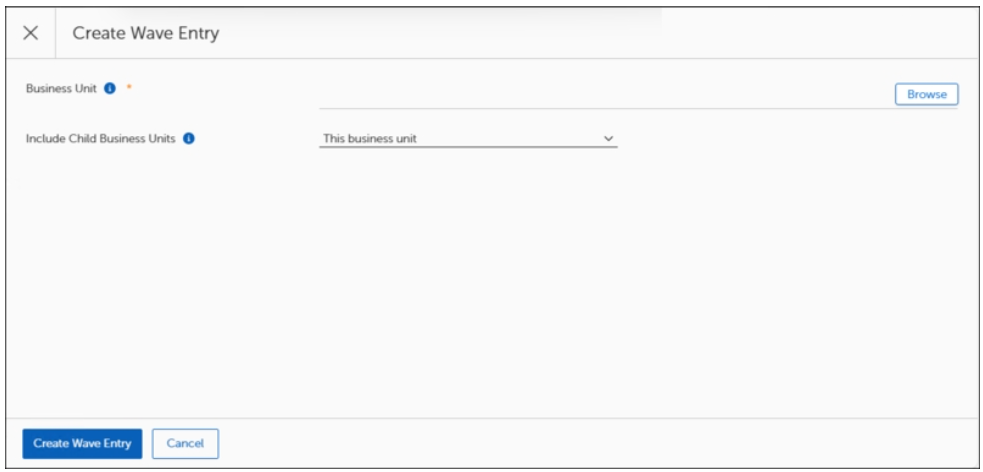
Click + Create Wave Entry.
-
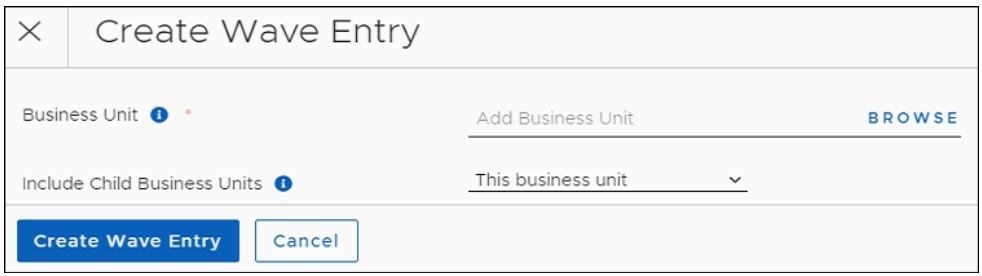
Next to Add Business Unit, click Browse.
-
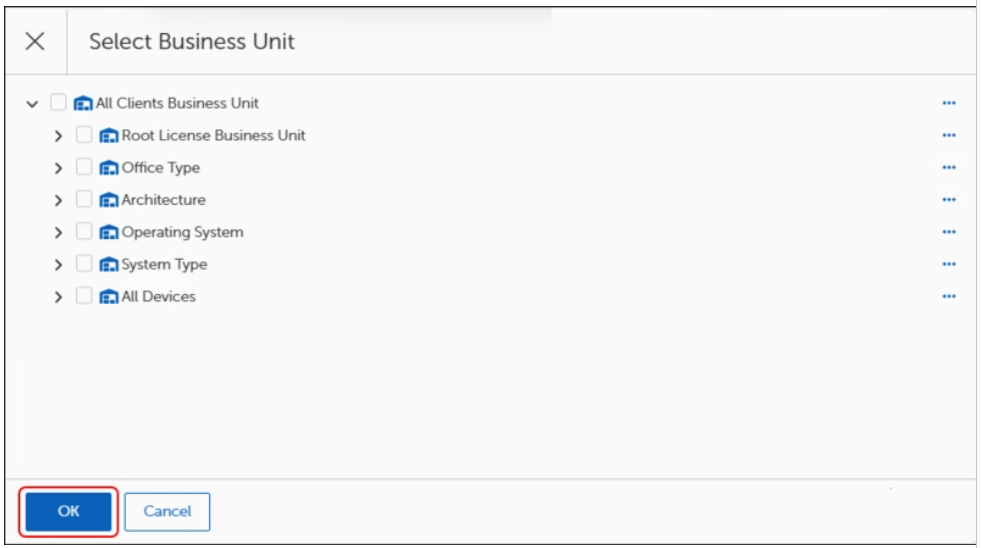
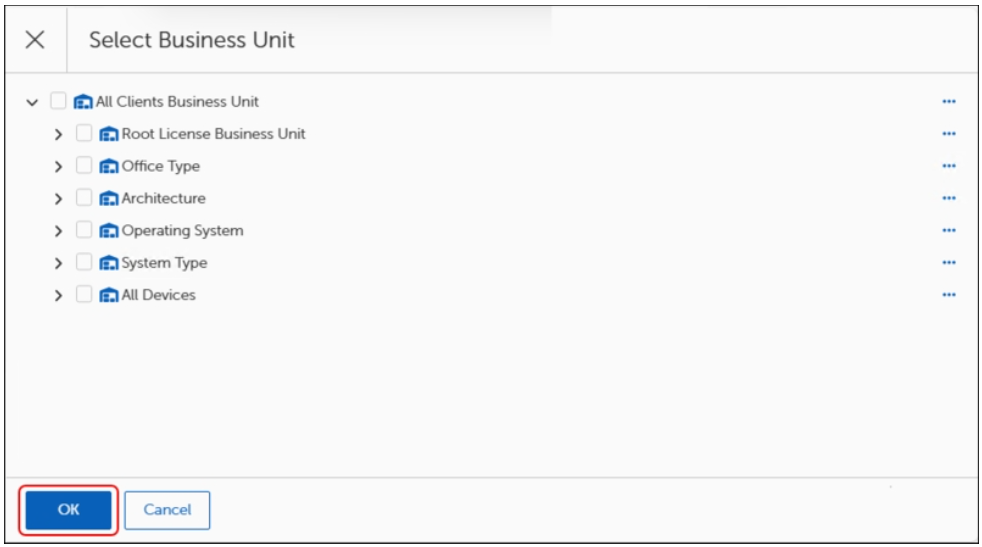
Navigate to and click the business unit to which the wave entry applies.
-
Click OK to return to the create wave entry dialog.
-
-
Expand the Include Child Business Units menu to include one or more child business units of the selected parent.
-
Click Create Wave Entry to return to the deployment wave template.
-
Click Save.
Create one or more Wave Entries
-
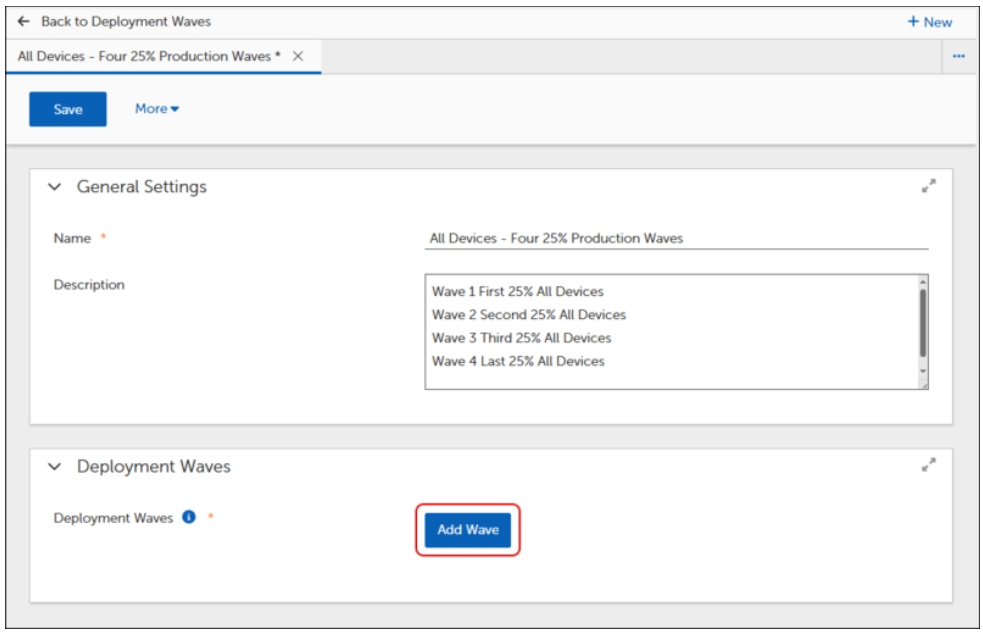
In an open deployment wave template, under Deployment Waves, click Add Wave.
-
Click + Create Wave Entry.
-
Next to Add Business Unit, click Browse.
-
Navigate to, and click, the Business Unit to which the wave entry applies.
-
Click OK to return to the create wave entry dialog.
-
Expand the Include Child Business Units menu to include one or more child business units of the selected parent.
-
Click Create Wave Entry to return to the deployment wave template.
-
If creating multiple wave entries, repeat steps a through d to add another deployment wave.
-
-
Click Save.
Edit or Remove a Wave Entry
-
Click Advanced Settings > Intent Schema > Deployment Waves.
-
Open the Deployment Wave template you want to change.
-
Scroll down to the deployment waves table that shows the wave entry you want to edit or remove.
-
Click the ellipsis (...) in the Actions column, and then choose one of the following options:
-
Click Remove Wave Entry to remove the wave.
-
Click Edit the Remote Wave Entry to make any necessary changes to the wave.
-
-
Click Save.
Open and Save a Deployment Wave Template
-
In the left navigation menu of the Patch Management Dashboard, click Deployment Waves.
-
Click the Name of a template to open it, and then save the template with a new title:
-
In the upper-left of the dialog, click More.
-
Click Save As.
-
Enter a new name for the template, and then click Save as.
This returns you to a copy of the template with the new name.
-
Enter a detailed Description of the process covered in this template, or leave the prepopulated description.