Devices (Assets)
The Devices pane allows you to view and manage all of your devices for each location and business unit.
-
In the admin portal, click Assets > Devices.
This displays a table of all clients reporting into the server. You can view each device's full information by clicking the > dropdown.
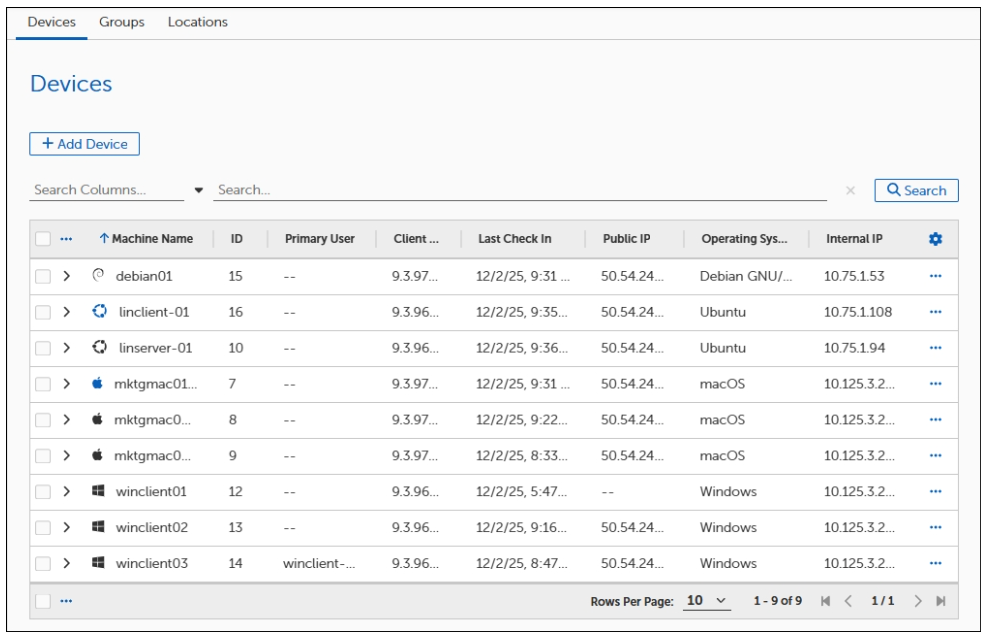
Devices actions
There are two options for you to manage a device(s)
-
Remove Device
When a client is no longer valid, click the ellipses (...) next to the device entry and click Remove Device. This removes the device from the service database. This can be useful when a machine is re-imaged and its name has changed, but the record of the old client is still listed.
When you remove the agent from the Device pane, it does not uninstall. It triggers the agent to inactivate. The next time the client checks in it will ask for a new ID.
Note: By default, inactive client records are purged after 21 days, but until the purge occurs the old record will still consume a license. If the client does not check in for 21 days, the server removes that client form the asset list, and the client will mark itself as inactive. If it comes online again it will ask for a new ID and re-initiate communications.
-
Sync Policies
When you click Sync Policies this sends a command to the selected device(s) to sync client policies. This is useful when client policies have changed and you want to manually sync these changes, or if a new device is added and you want to ensure the client policies are enacted.
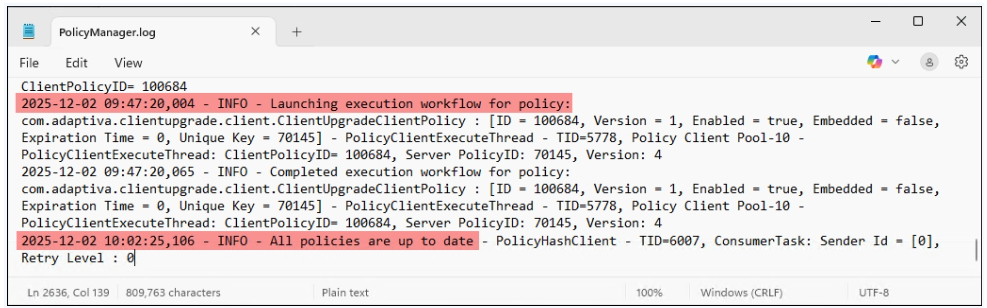
To verify if a device was properly synced, you can view the PolicyManager log via:
C:\Program Files\Tenable\PatchClient\logs\componentlogs
For more information, refer to Client Settings Policy.