Maintenance Windows
A maintenance window is the scheduled time that maintenance occurs on devices. Maintenance windows can include one or more schedules that deploy based on urgency settings (Low, Normal, High, and Critical). Urgency settings are cumulative, so higher urgencies inherit any settings specified at lower urgencies. Overlapping time settings do not have a restrictive effect, but Tenable recommends keeping your maintenance window time settings simple. When a patch encounters multiple time settings for maintenance windows, it reviews one after another until it finds a match.
Tenable Patch Management provides built-in start-time objects, available from the following path:
Schedules\Patching Schedules\Window Start
Create a Maintenance Window
-
Select Advanced Settings > Maintenance Windows in the left navigation menu of the patch dashboard.
-
Enter a Name and Description.
Dynamic Settings
A Dynamic Detection workflow sets the patching maintenance window based on the selected workflow rather than a set schedule. For more information, enter a support ticket and request help from Tenable Customer Support.
Add Dynamic Detection Workflow (Optional)
-
Scroll down to Dynamic Settings, in an open maintenance window template.
-
Select Browse to the right of Add Workflow and select a workflow.
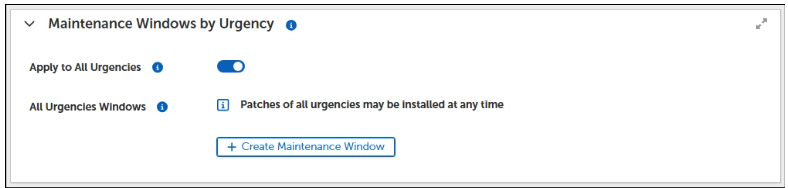
Maintenance Windows by Urgency
Create maintenance windows for use with different urgency settings (Low, normal, High, or Critical) or create a single maintenance window that applies to all urgencies. Because urgency settings are cumulative, any settings specified at lower urgencies are inherited by higher urgency maintenance windows. The urgency configuration settings use the same template whether creating a single maintenance window for all urgencies or creating individual maintenance windows for specific urgency levels.
You may create multiple urgencies maintenance windows with different start times based on low, normal, high, and critical urgencies or create a single maintenance window for all urgency types.
-
Toggle ON for Apply to All Urgencies to enable the All Urgencies options.
-
Select + Create Maintenance Window to begin.
-
Select Browse to view and choose a Start Time Schedule.
-
Enter the Duration.
These settings override any non-zero duration values set in the maintenance window when the maintenance window fails to open for urgency level updates.
-
Enter the max number of maintenance windows that can be missed before a forced install is performed in the Missed Window Limit field.
Save and Deploy the Maintenance Window
Deploy a maintenance window to make it available for use.
-
Save your changes:
-
Select Save & Deploy to save and deploy your configuration:
-
Select Save & Deploy to save and deploy your changes.
-
Select Save to save your changes without deploying. Be sure to return and Deploy the changes to make them available for use.
-