Manage Sites
A site represents a single OT Security instance and defines the number of IP addresses licensed to that instance. The Sites tab on the Product Details page allows you to view and manage the sites assigned to your Tenable One OT Exposure instance.
Here, you can manage your sites in the following ways:
Create a Site
When you create a site, the portal generates a one-time activation code that you paste back into your OT Security instance to complete the activation.
To create a new site on your Tenable One OT Exposure instance:
-
In the upper right corner of the Sites list, click Manage Sites.
A menu appears.
-
Click
 Create Site.
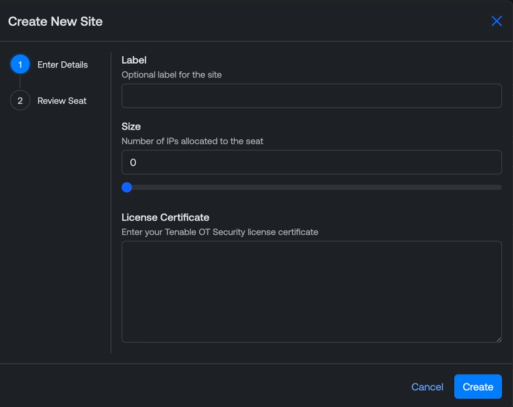
The Create New Site window appears.
-
In the Size text box, type the number of IPs you want to allocate to the seat.
Tip: Alternatively, drag the slider left or right to adjust the number. -
In the License Certificate text box, paste your Tenable One OT Exposure license certificate.
-
Click Create.
The Review Seat window appears.
-
Copy the Activation Code to use with your Tenable One OT Exposure instance.
Important: This code is displayed only once. Copy it before closing the dialog box. -
Select the I confirm I have saved this activation code check box.
-
Click Confirm.
You can now use the activation code within your Tenable One OT Exposure application.
Edit Site
You can edit any site in the Sites list.
To edit a site:
-
In the Sites list, in the row for the site you want to edit, click the
 button.
A menu appears.
-
Click
 Edit Site.
The Edit Site Details window appears.

-
(Optional) In the Label text box, type a label for the site. This label appears in the Label column across the Tenable Account Management portal.
-
In the Size text box, type the number of IP addresses you want to allocate to the site.
Tip: Alternatively, drag the slider left or right to adjust the number. -
In the License Certificate text box, paste the license certificate code for your Tenable One OT Exposure instance. Contact Tenable Support for more information.
-
Click Update.
The Review Seat window appears.
-
Copy the Activation Code to use with your Tenable One OT Exposure instance.
Important: This code is displayed only once. Copy it before closing the dialog box. -
Select the I confirm I have saved this activation code check box.
-
Click Confirm.
You can now use the newly generated activation code within your Tenable One OT Exposure application.
Delete Site
To delete a site:
-
In the Sites list, in the row for the site you want to delete, click the
button.A menu appears.
-
Click
 Delete Site.
A confirmation message appears.
-
Click Delete.
The Tenable Account Management portal deletes the selected site.