Upload Details
The Upload Details page in the Tenable Account Management portal allows you to view additional information about and manage your file uploads.
To access the Upload Details page:
-
Access the Uploads page.
-
In the My Files list, in the Name column, click the name of the file upload for which you want to view details.
The Upload Details page appears.
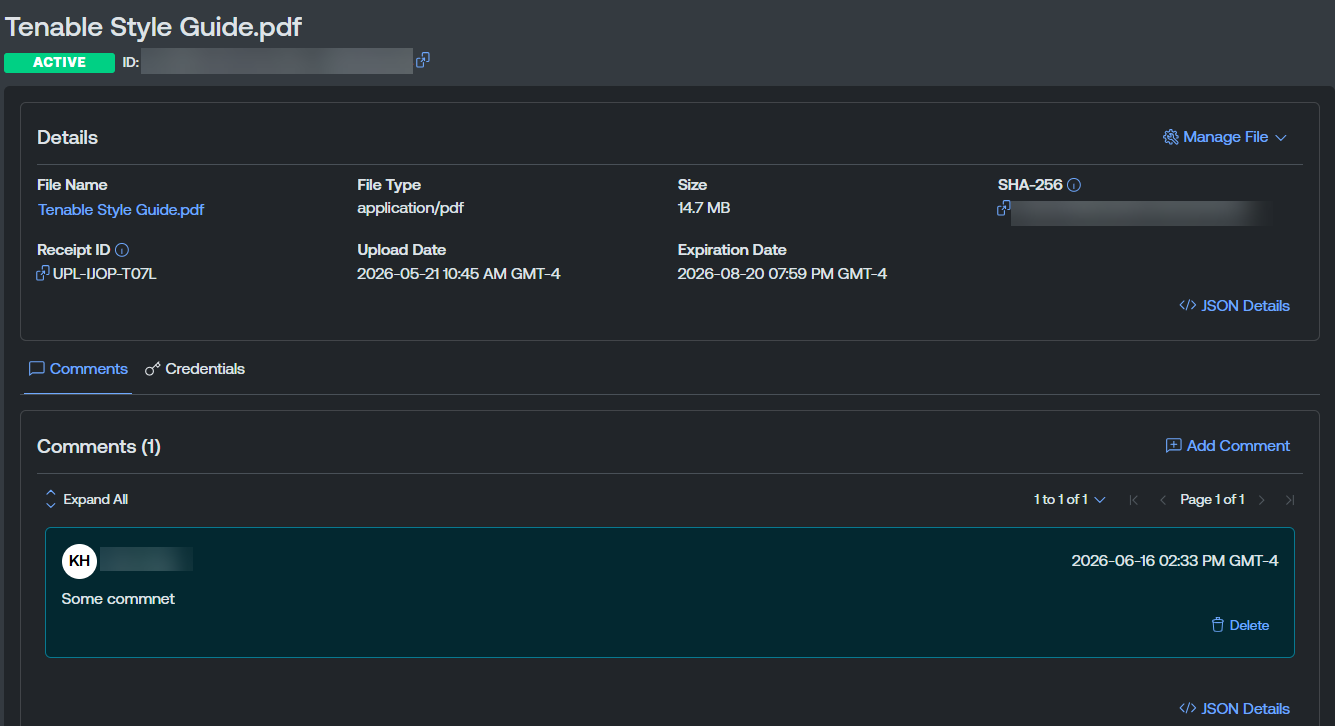
The upload details page includes the following sections:
Details
The Details section includes the following information:
 button next to an item to copy it directly to your clipboard.
-
File Name — The name of the file upload. Click the file name to download the file.
-
File Type — The type of file uploaded, such as a disk image, PDF, etc.
-
Size — The size of the file upload.
-
SHA-256 — The checksum for file integrity verification.
-
Receipt ID — Where applicable, the support receipt identification number associated with the file upload.
-
Case Number — Where applicable, the support case number associated with the file upload.
-
Upload Date — The date on which you uploaded the file to the portal.
-
Expiration Date — The date on which the file upload expires.
Comments
Each uploaded file has its own comment thread. Comments are useful for recording context about the file and for coordinating with Tenable Support when the file is attached to a case.
On the Comments tab, comments are listed in threads and sorted by newest first. Comments authored by Tenable Support are highlighted with a different background color. Each comment includes the time at which the comment was added.
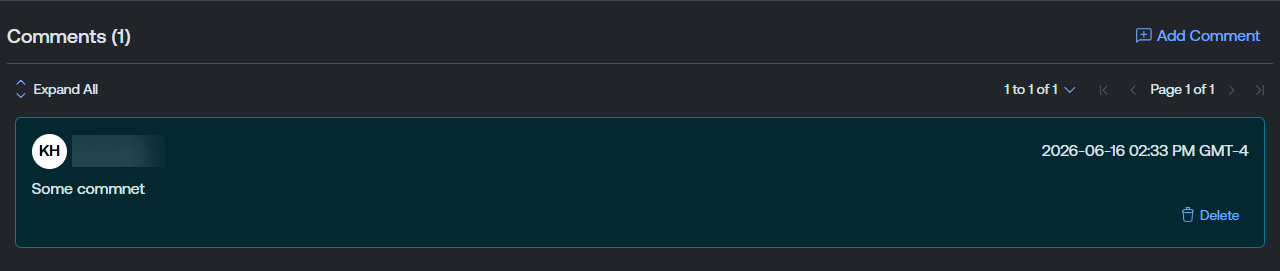
In this section, you can manage your comments in the following ways:
Add a Comment
To add a comment to an upload file:
-
In the upper-right corner of the comments list, click
 Add Comment.
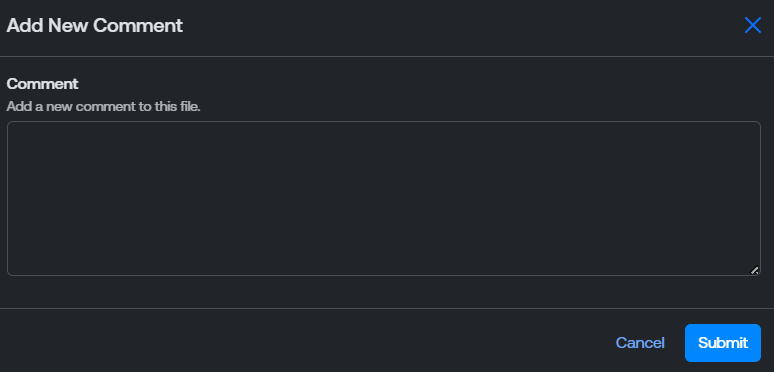
The Add New Comment window appears.
-
In the Comment text box, type the comment you want to add to the upload file.
Note: Comments are limited to 4,000 characters.Tip: If your comment contains text that looks like a credential or secret, the portal warns you before submission so you can remove it or share the credential separately. For more information, see Add a Credential. -
Click Submit.
The Tenable Account Management portal adds the comment to the upload file and lists the new thread within the Comments list.
Delete a Comment
To delete a comment thread from the Comments tab:
-
In the bottom right corner of the comment thread, click
 Delete.
A confirmation message appears.
-
Click Delete.
The Tenable Account Management portal removes the comment from the upload file and removes the thread from the Comments list.
Credentials
For files that require a password or other credential to open, you can share the credential with Tenable Support directly from the file detail page. Credentials are encrypted at rest, hidden behind a Show Credentials affordance, and only accessible to authorized Tenable Support staff.

The Credentials list includes the following information:
-
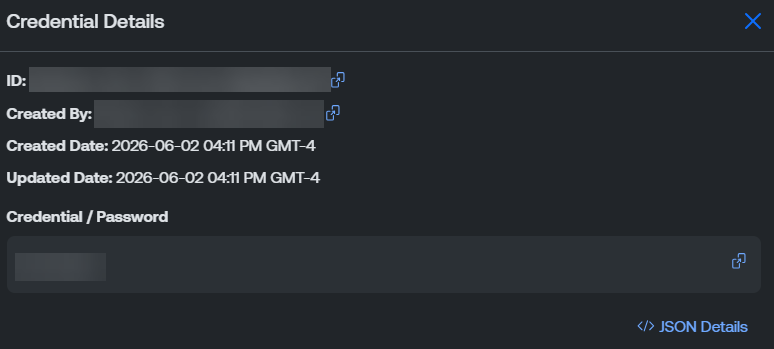
Credential (Masked by default) — The credential value. Click the value to open the Credential Details window, where you can view and copy the values.
-
Created By — The user that created the credential.
-
Updated Date — The date and time at which the credential was last updated.
-
Created Date — The date and time at which the credential was initially created.
In this section, you can manage your credentials in the following ways:
Add a Credential
To add a credential to a file:
-
In the upper-right corner of the tab, click
 Add Credential.
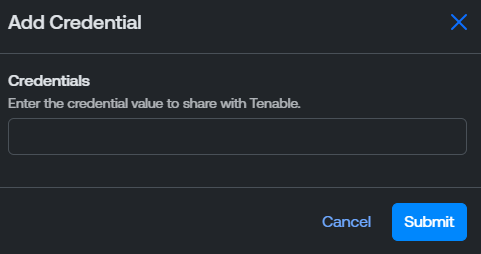
The Add Credential window appears.
-
In the Credentials text box, type the file credential to share with Tenable.
-
Click Submit.
The Tenable Account Management portal stores the credential alongside the uploaded file.
View Credential Values
You can view the full details and values for any credential in the list.
To view a credential's values:
-
In the Credentials list, in the row for credential whose values you want to view, click the
 button.
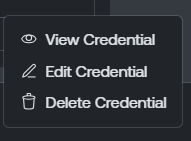
A menu appears.
-
Click
 View Credential.
The Credential Details window appears.
Tip: Click the button next to an item to copy it directly to your clipboard.
Edit a Credential
To edit a credential:
-
In the Credentials list, in the row for credential you want to edit, click the
button.A menu appears.
-
Click
 Edit Credential.
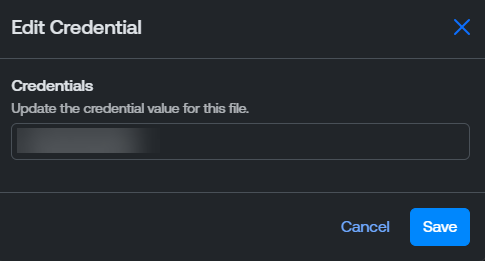
The Edit Credential window appears.
-
In the Credentials text box, make any desired changes to the credential.
-
Click Save.
The Tenable Account Management portal saves your changes to the credential.
Delete a Credential
To delete a credential:
-
In the Credentials list, in the row for credential you want to delete, click the
button.A menu appears.
-
Click
Delete Credential.A confirmation message appears.
-
Click Delete.
The Tenable Account Management portal removes the credential from the file upload and from the Credentials list.