Using Group By Options on the Host Audits Page
The Group By feature in Tenable One Vulnerability Management is a data organization tool used to consolidate the Host Audits table. Conceptually similar to a GROUP BY clause in a relational database query, this feature aggregates individual host audit findings into logical categories. You can pivot between different compliance perspectives and streamline remediation workflows.
The Group By options appear above the host audits table in Explore > Host Audits.
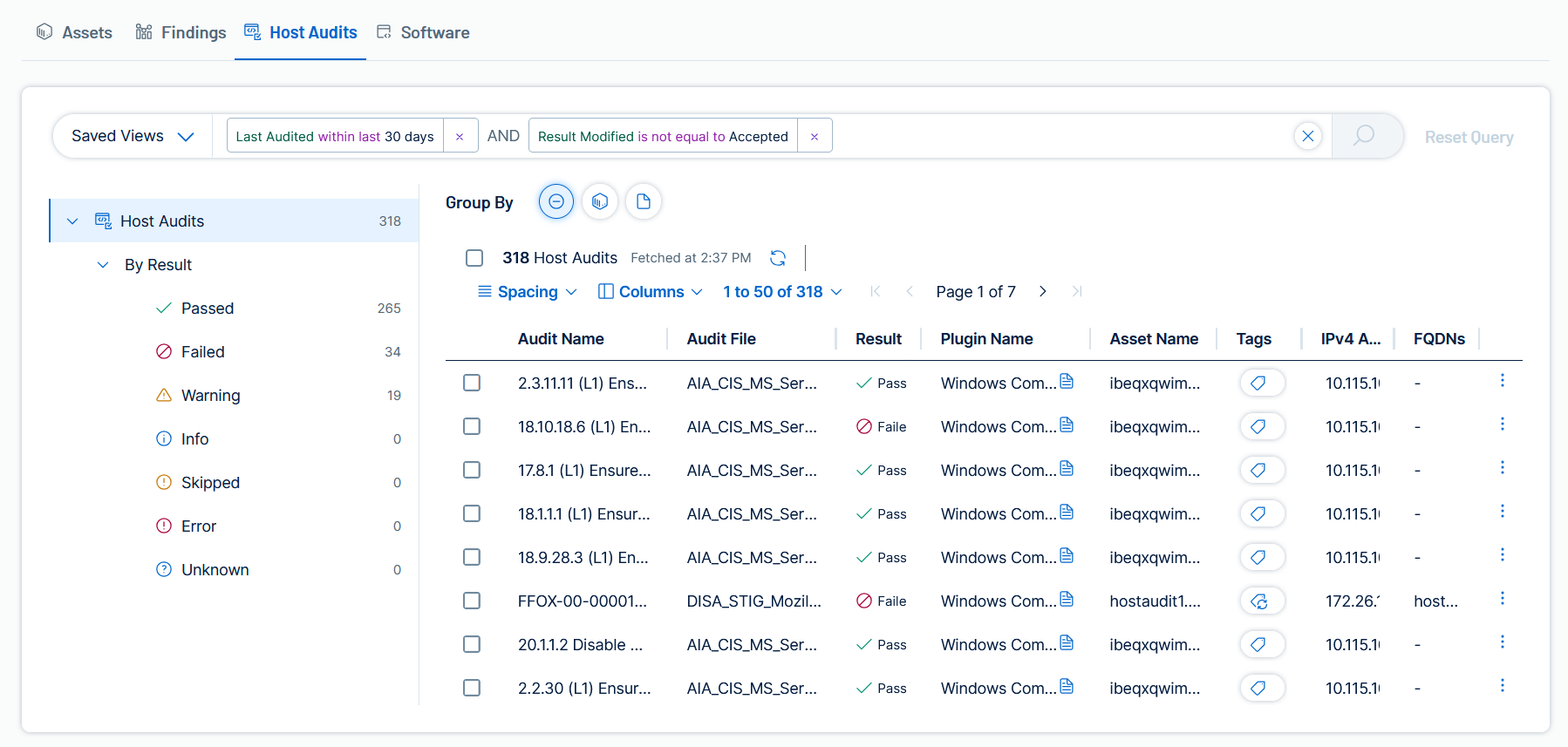
Using Group By Options
-
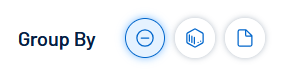
On the Host Audits page, select one of the Group By icons above the table. The three icons represent None, Asset, and Audit File (left to right).
-
A table appears that aggregates host audit findings into groups based on the selected option.
Each row in a grouped table shows an expansion icon
 on the left side of the row.
-
Select the
icon on the left side of any row to expand it.A nested table of individual host audit findings that make up that group appears.
-
Group By Options
The Host Audits page supports three Group By options. Group by Asset to view all audit findings specific to that asset. Group by Audit File to see all audit findings associated with that audit file. Group by None for granular analysis or bulk exporting.
-
None — This is the raw, granular view of all host audit findings and is the default. Every finding is displayed as its own row, providing total visibility into every specific audit check result.
-
Primary Use Case — Use this view for technical verification, troubleshooting, or bulk data analysis. It is the only view that displays all individual finding details directly in the main table.
-
Bulk Export Advantage — The Group By None view is the only way to perform a bulk export of all granular metadata across your entire host audit finding set in a single file.
-
-
Asset — This option aggregates all host audit findings onto the specific asset where they were found. Each row represents a unique asset, displaying the total count of host audit findings for that device.
-
Primary Use Case — Assess the overall compliance posture of individual devices to prioritize asset-level remediation and identify the least compliant systems in your environment.
-
Columns: Asset Name, Asset IP Address, Host Audits (count), Last Seen, Tags.
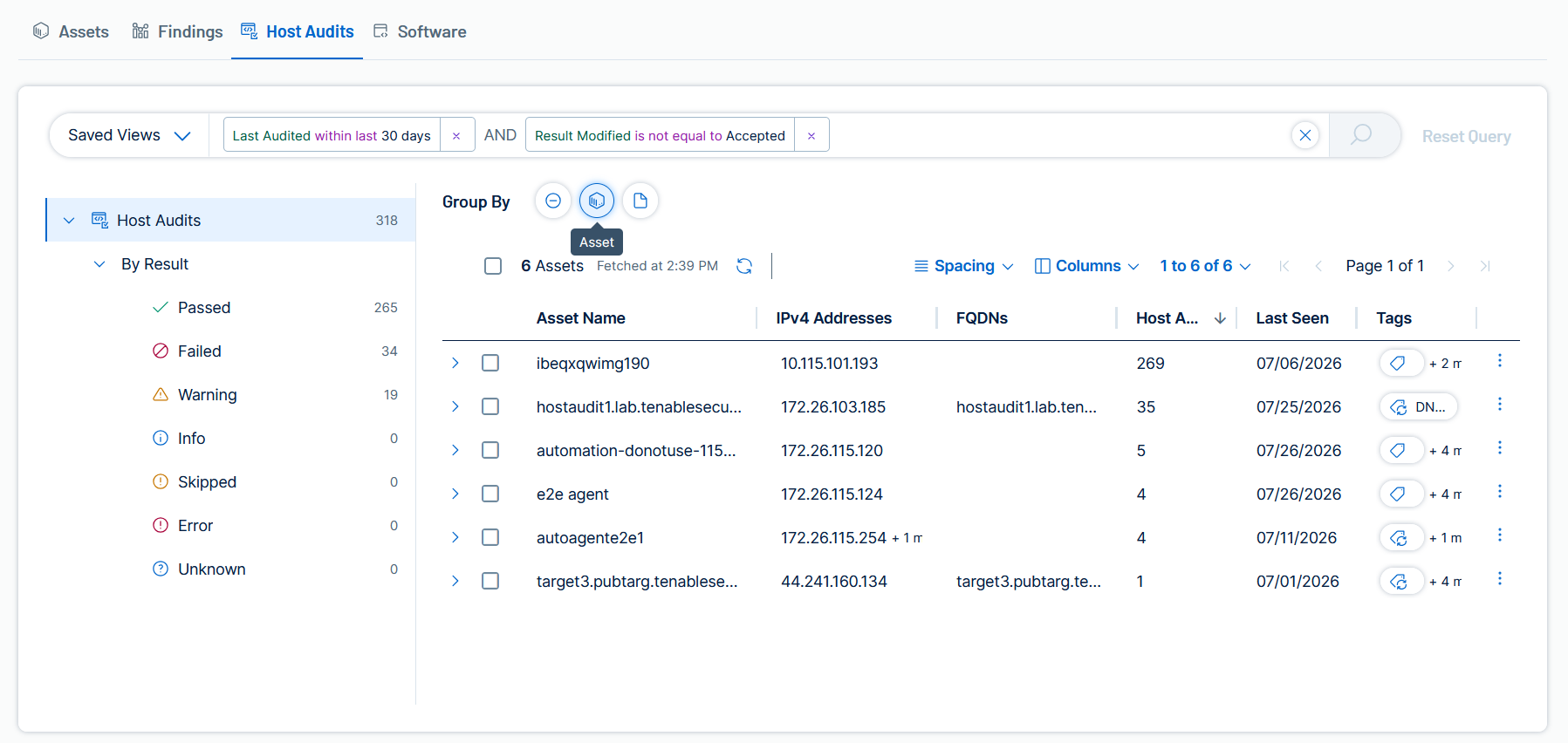
-
Details pane — Click an Asset row to open the Asset details pane. For more information, see View Asset Details. Expand the
icon to view the nested host audit findings for that asset.
-
-
Audit File — This option groups all host audit findings by the specific audit file or configuration policy used to perform the check, for example faker.audit 8.
-
Primary Use Case — Use this view to measure organizational adherence to specific compliance benchmarks and internal security policies to report on high-level compliance health.
-
Columns: Audit File, Plugin Name, Last Audited.
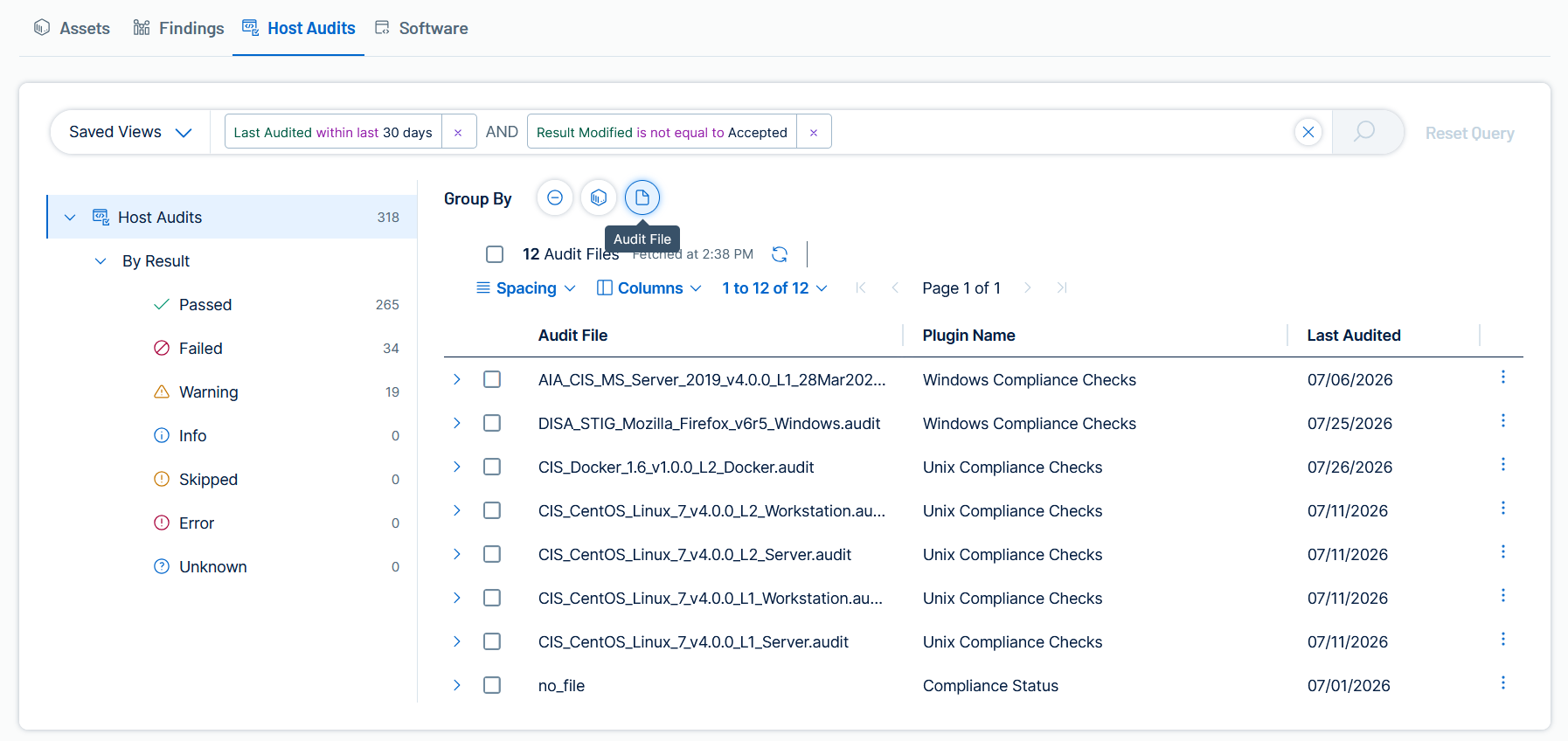
-
Note: Audit File rows do not open a details pane. Expand the icon to view the nested host audit findings for that audit file.
-