Host Audit Findings Details
Required User Role: Read-Only, Basic User, Scan Operator, Standard User, Scan Manager, or Administrator
On the Host Audits page, click a finding to open a details pane. Then, click  to expand the pane.
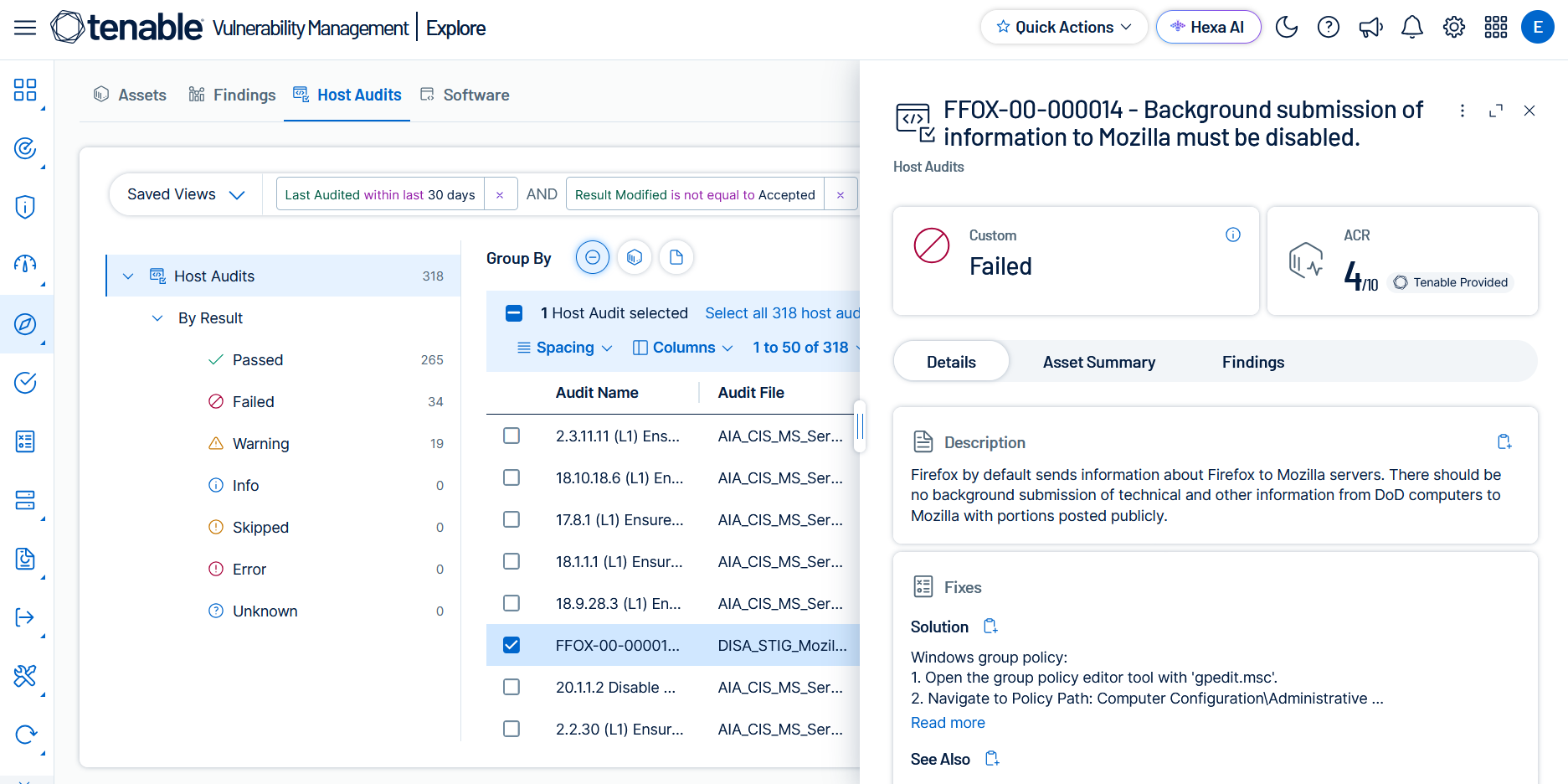
The upper part of the Host Audit Details pane contains the following information.
|
Attribute |
Description |
|---|---|
|
Audit Check Name |
The name of the host audit check, displayed as the title of the details pane, for example Check 6. |
|
Result |
The result of the audit check, displayed with a color-coded icon. Possible values are Passed, Failed, Warning, Info, Skipped, Error, and Unknown. The category label (for example, Custom) indicates the benchmark or policy source. |
|
ACR |
(Requires Tenable One / Tenable Lumin license) The Tenable-defined Asset Criticality Rating (ACR) is an integer from 1 to 10. ACR helps prioritize remediation by identifying which failing audit checks affect your most critical assets. |
|
Asset Category |
The category of the asset associated with the finding, for example Unknown Device. |
|
Asset Function |
The function of the asset associated with the finding, for example Unknown Device. |
The lower part of the Host Audit Details pane is divided into tabs.
Details
The Details tab breaks down information about the host audit finding. Sections appear only when the finding contains the relevant data.
|
Section |
Description |
|---|---|
| Description | A description of the audit check. |
| Fixes |
If available, details about how to remediate the finding, including:
|
| Host Audit Information |
Information about the audit check, including:
|
| Audit Output |
The output from the audit check, including:
|
| References | A list of compliance framework references associated with the audit check, displayed as Framework: Control pairs — for example, 800-53: CM-6. |
 menu. See Add a Recast Rule.
Asset Summary
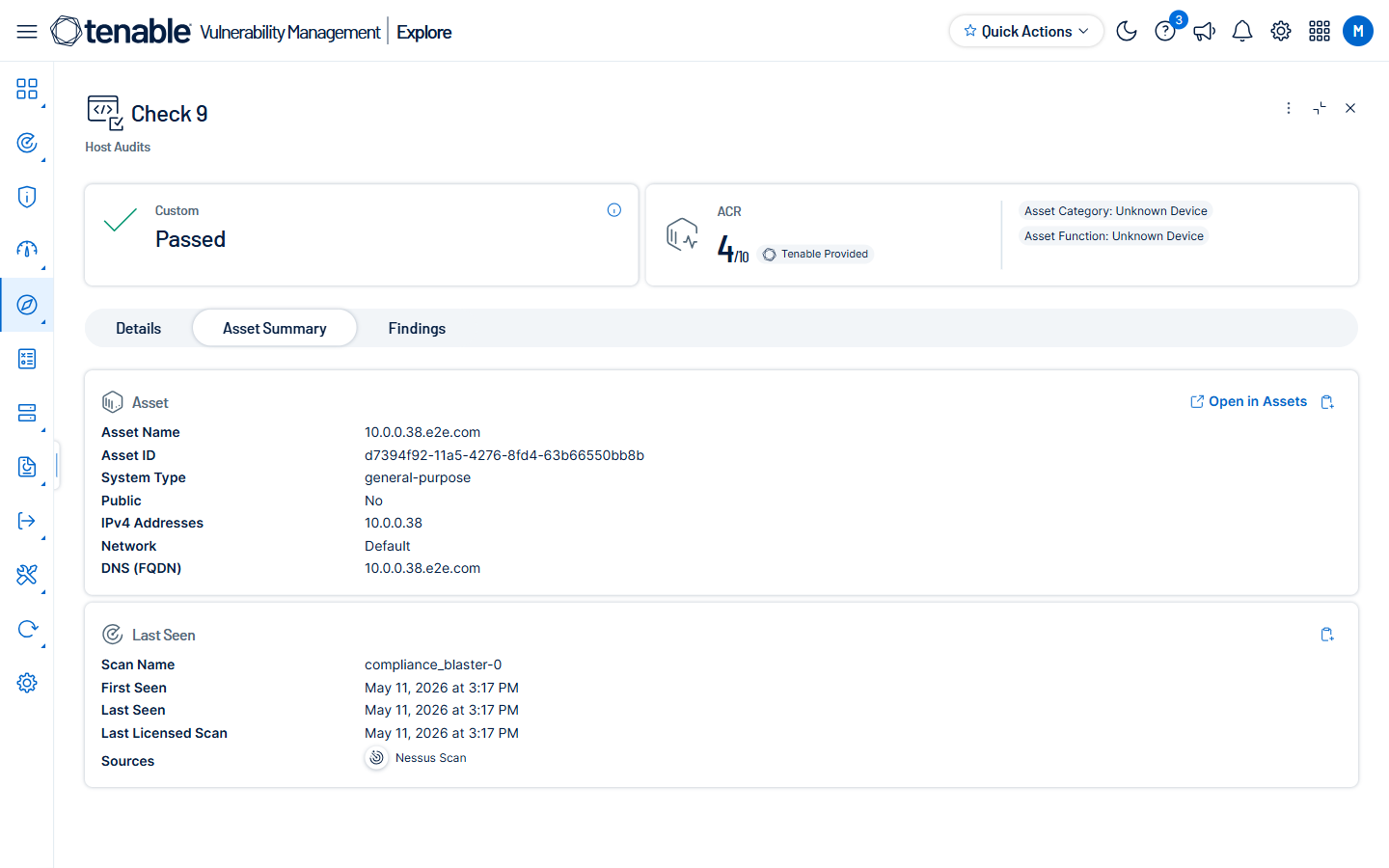
The Asset Summary tab contains details about the asset associated with the finding.
|
Section |
Description |
|---|---|
| Asset |
Information about the affected asset, including:
Click Open in Assets to view the full asset record in Explore > Assets. |
| Last Seen |
Information about when the asset was last identified on a scan, including:
|
Findings
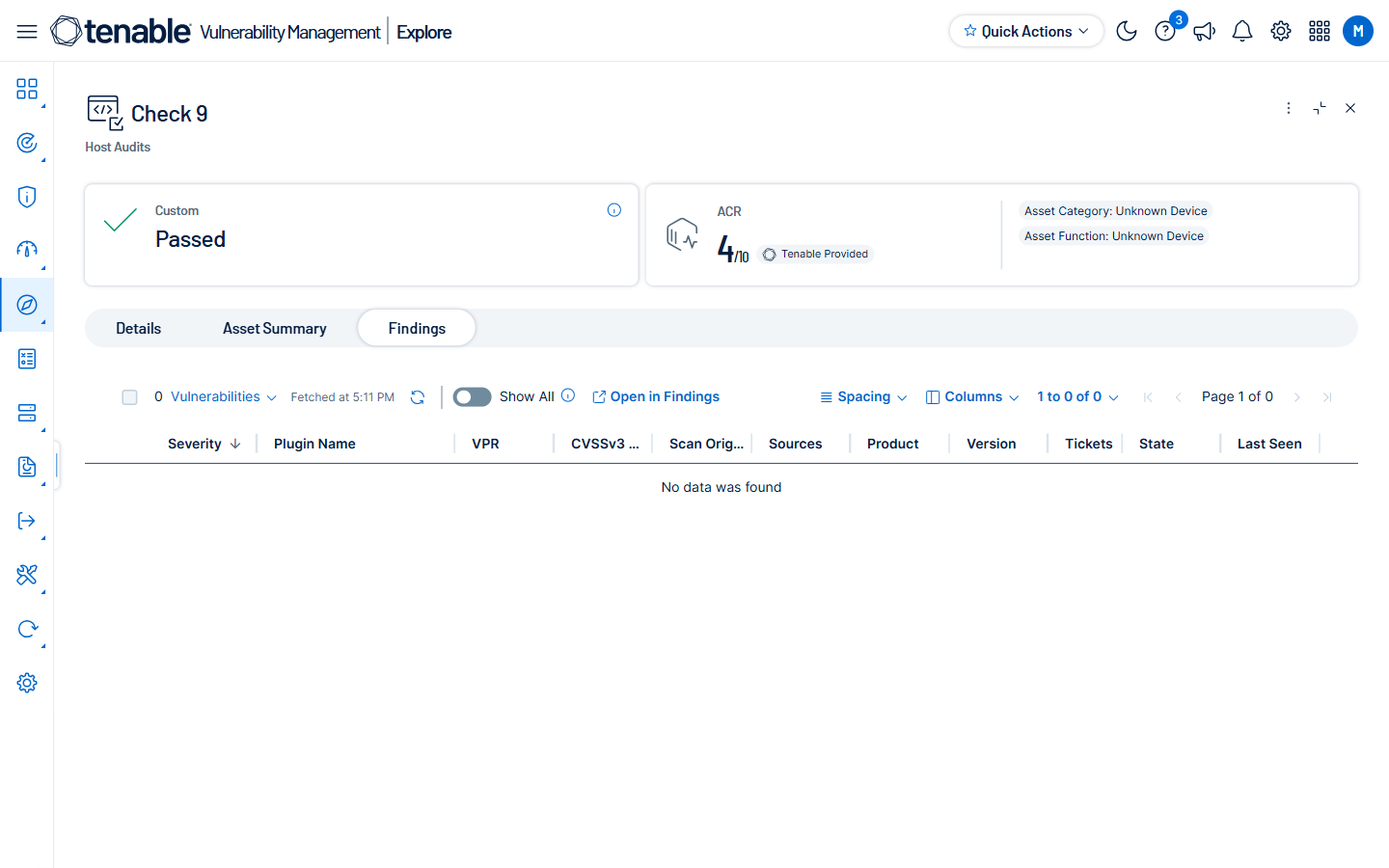
The Findings tab displays vulnerability findings detected on the same asset, allowing you to correlate compliance failures with vulnerability exposure.
Select Open in Findings to view the full findings list for this asset on the Explore > Findings page.