Configure Jira
Required User Role: Administrator
Before you can create Jira tickets within Tenable One Vulnerability Management, you must configure your Jira account.
Prerequisites
Before you create tickets within Jira via Tenable products, you must:
-
Have a Jira user with the following permissions:
Tip: In Jira, navigate to Settings > System > Admin Helper > Permission Helper to confirm or provision permissions for the user.Note: The Jira user account must be either a global admin or an administrator within the project you plan to use for the integration.Jira Permission
Purpose in Exposure Response Custom Context Atlassian Documentation "ASSIGNABLE_USER" User Validation Ensures the dedicated integration user is a valid assignee within the project, which is often a prerequisite for using "ASSIGN_ISSUES". Assignable User Permissions "ASSIGN_ISSUES" Work Assignment Allows the integration to assign the newly created ticket to the designated user or group specified in the Initiative configuration. Assign Issues Permissions "BROWSE_PROJECTS" Visibility Allows the integration to read and confirm the existence of the configured Jira project and its Issue Types. Browse Projects Permissions "CREATE_ISSUES" Ticket Creation Required to automatically generate new tickets for findings that match the Initiative's criteria (the "combination").
Create Issues Permissions "EDIT_ISSUES" Status Synchronization Enables Tenable to update key fields, push risk data (like VPR), and change the ticket status (e.g., from Resolved to Resurfaced). Edit Issues Permissions "LINK_ISSUES" Audit Trail Creates the essential link between the Tenable finding and the corresponding Jira ticket, enabling the Ticket Log functionality. Link Issues Permissions "MODIFY_REPORTER" Ticket Creation Required to automatically generate new tickets for findings that match the initiative's criteria. Browse Project Permissions "USER_PICKER" Ticket Creation Often referred to as Browse Users or similar, this option allows a user to search for and select other users or groups from a directory. Browse Project Permissions -
Have a Jira project with the following fields enabled for issues:
Important: For the configuration to function as expected, you must:- Have at least one Jira project
- Ensure your Jira project allows tickets to be transitioned to the Done status
-
"priority",
-
"assignee",
-
"labels",
-
"summary",
-
"description",
-
"issuetype",
-
"parent",
-
"project",
-
"reporter" — To use this field, the user must also have the "MODIFY_REPORTER" permission enabled.
-
Perform the steps to configure Jira for use with the Tenable One Platform.
Configure the Integration
Before you create an initiative, you must first configure a connection between Jira and Tenable One Vulnerability Management.
To configure Jira issue creation in Tenable One Vulnerability Management:
-
In the left navigation, click
 Settings.
The Settings page appears.
- Click on the
 Jira Cloud tile.

The Jira Connector page appears.
-
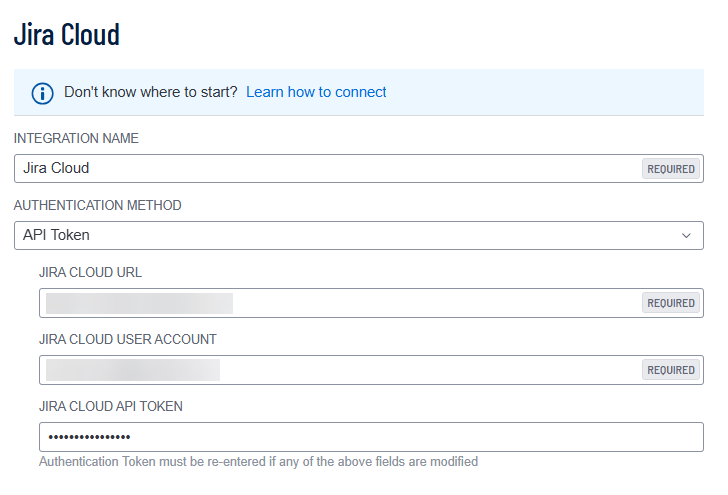
From the Authentication Method drop-down box, select API Token.

- Configure the following credentials:
- To test the connection, click Connect.

Once Tenable validates the integration connectivity, a Connection was Successful notification appears.
Important! You must successfully connect the integration before you can proceed.
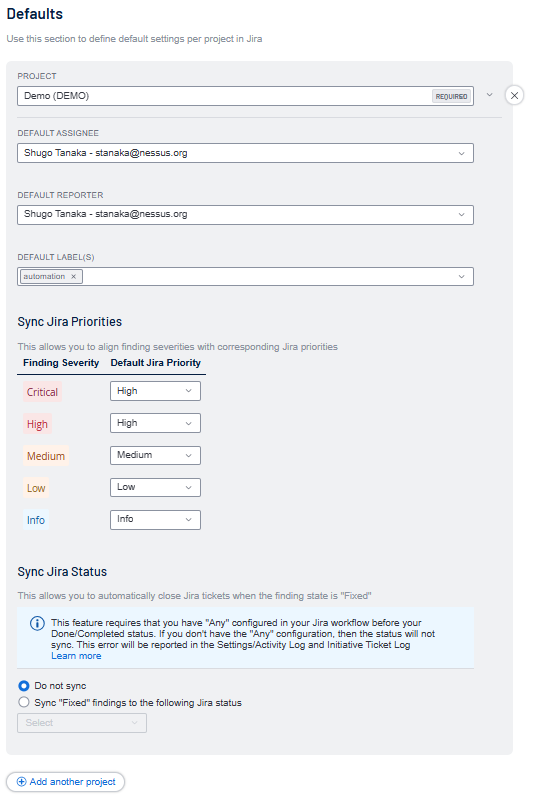
- Configure the following default values for each Jira project:
- To set default values for additional Jira projects, click
 Add Another Project.
 - Click Save.
| Option | Description |
|---|---|
| Integration Name | Choose your own Jira integration name. |
| Jira Cloud URL | The unique web address for your organization's instance of Jira Cloud, typically formatted as https://[your-company-name].atlassian.net. |
| Jira Cloud User Account |
Your individual credentials (email and password) used to authenticate and access your organization's Jira Cloud site. |
| Jira Cloud API Token |
Your API key or token for authenticated access to the Jira Cloud API. |
| Option | Description |
|---|---|
| Project | The Jira Project name that these options relate to. |
| Default Assignee | Assign a user as a default assignee from the drop-down list. |
| Default Reporter | Assign a default reporter value from the drop-down list. |
| Default Label(s) | Labels from your project that you want to use within Tenable One Vulnerability Management. |
| Sync Jira Priorities |
Create a mapping of Tenable finding severities (for example, Critical, High, Medium, Low, Info) to Jira Priorities (for example, Highest, High. Lowest). |
| Sync Jira Status |
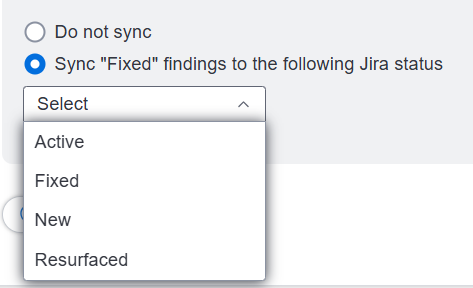
Automatically close Jira tickets when the associated finding state is Fixed. Select the Sync "Fixed" findings to the following Jira status radio button and, from the drop-down menu, select the Jira status you to which you want to sync the fixed findings.
Important! For this feature to work as expected, you must configure the Any > Done/Completed status within your Jira workflow. For more information, see Add Statuses to a Jira Workflow.
|
 next to the corresponding project.