GCP Overview
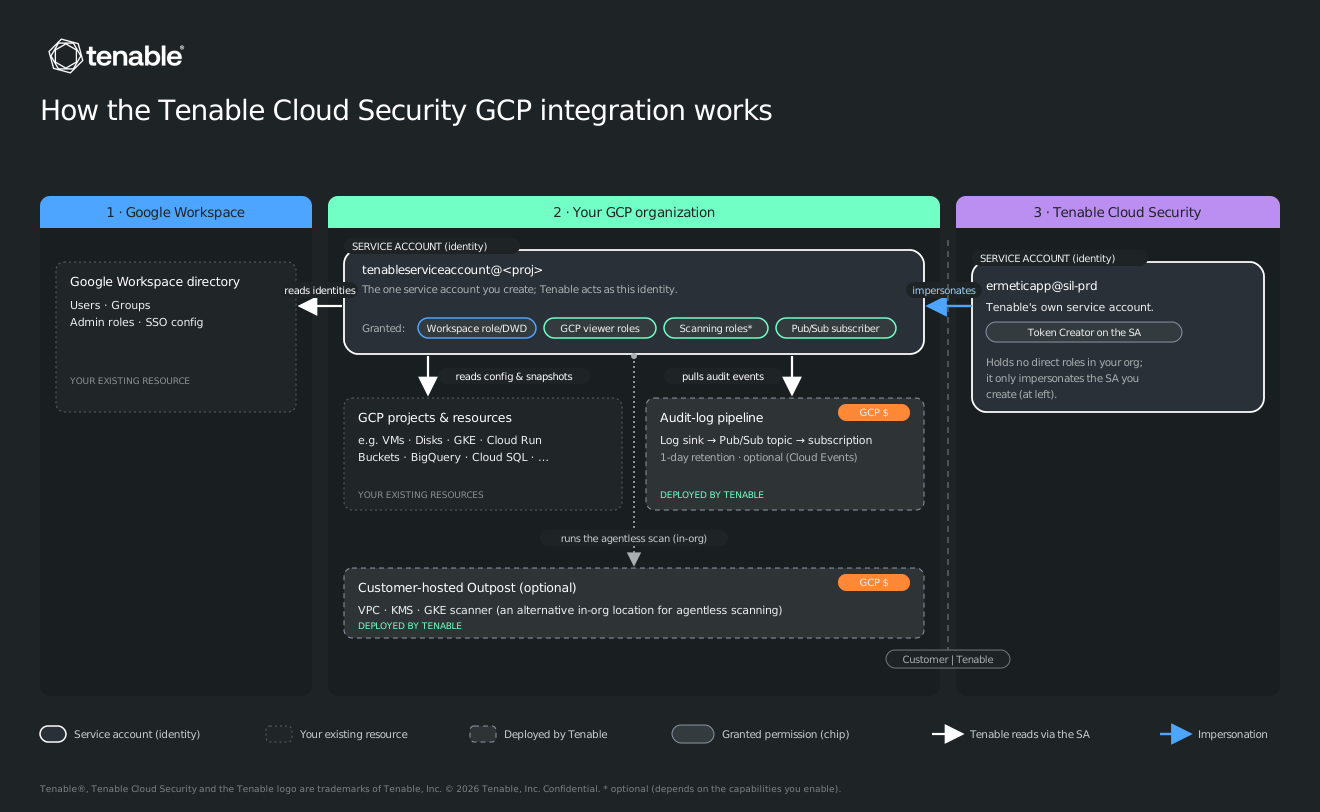
Connect a GCP environment in Tenable One AI Exposure to get full visibility and risk assessment for all cloud identities and resources associated with your organization/projects, including information about permissions, account usage, and security configurations. Tenable collects inventory and configuration data from GCP API.
After successful connection, Tenable displays a status for each project, indicating, for example, whether Tenable can connect to the project, and helping you troubleshoot potential issues.
For a list of frequently asked questions related to integration, see Google FAQ and Troubleshooting.
Perform the following steps to connect either:
- a single project.
- an entire organization
To view AI Exposure Activity Log data for your GCP resources, make sure to configure the audit log forwarding steps in the wizard. This can be done either on the organization level, or the individual project level. See Cloud Events Data.
It's important to fully understand the implications of Pub/Sub pricing before connecting accounts. Refer to Pub/Sub pricing for official, updated pricing information. Consider, for example, the following:
- Message throughput costs — Charges are based on the volume of data published and delivered, measured in GBs.
- Data transfer costs — Fees apply for data transferred across Google Cloud zones or regions.
- Storage costs — Charges are incurred for retaining messages, snapshots, or acknowledged messages.
Cloud Events Data
To view AI Exposure Cloud Events (activity log data) for your GCP resources, make sure to configure the audit log forwarding steps in the wizard. These steps require that you create a pub/sub topic, create a sink with the pub/sub topic as the destination, and then create a subscription to allow Tenable to receive messages published to the topic. This can be done either on the organization level, or the individual project level.
Add VPC Service Control Exceptions
If you use VPC Service Controls to restrict access to Google-managed services in the project/organization that you want to connect, you need to define exceptions to grant API access to Tenable IP addresses for your region. This ensures that the Tenable service account can access your projects, and that integration can proceed successfully.
For more information about creating service perimeters with VPC Service Controls, see the relevant Google Cloud documentation.
To add an exception:
- Navigate to VPC Service Controls on the organization level.
- Select the relevant access policy.
- Click EDIT PERIMETER to edit the relevant VPC service perimeter.
- In the Ingress Policy, update the Identity field (in the FROM attributes of the API client section) to include both the service account that you created for Tenable when you added a Google Workspace in AI Exposure AND the following Tenable service account:
- In Access Levels, verify whether any access levels are configured by clicking on the Choose Access Level drop-down. If so, make a note of the relevant access level/s that appear, as you need this information in the upcoming steps.
- Click SAVE.
-
Add Tenable IP addresses to any relevant access levels:
- Navigate to Access Context Manager on the organization level, and locate the access level/s that you identified earlier.
- Edit the relevant access level, and, in IP subnetworks, add the relevant Tenable IP addresses for your region.
- Click SAVE.
- Repeat this process for any other access levels.
-
(Workload Protection) Ensure the following:
- Allow all methods for artifactregistry.googleapis.com without any IP restrictions to cover tag listing and metadata calls used during discovery.
- Add an egress rule that allows all operations for compute.googleapis.com for cross-project snapshot API read calls.
- Add an ingress rule for compute.snapshots.setIamPolicy, which is the IAM binding step for the snapshot.
- (Optional) Confirm the sil-prd account is in the relevant project.
- Confirm both [email protected] and the delegated customer service account are in the relevant project.