Offboarding Cloud Accounts
You may need to offboard an account from Tenable One AI Exposure in one of the following situations:
- If you performed an audit for a group of accounts and you completed the audit.
-
If you want to shut down your accounts.
Note: Tenable deletes customer data within 30 days of the customer terminating its contract.
Offboard AWS Accounts
Follow these steps to offboard AWS accounts and/or organizations.
- Delete any IAM roles that you created during onboarding.
-
(Workload Protection) Delete any KMS keys/snapshots that were created:
In the AWS Console, navigate to KMS > Customer managed keys, and search for keys with the tag key/value of ErmeticContext = WorkloadAnalysis.
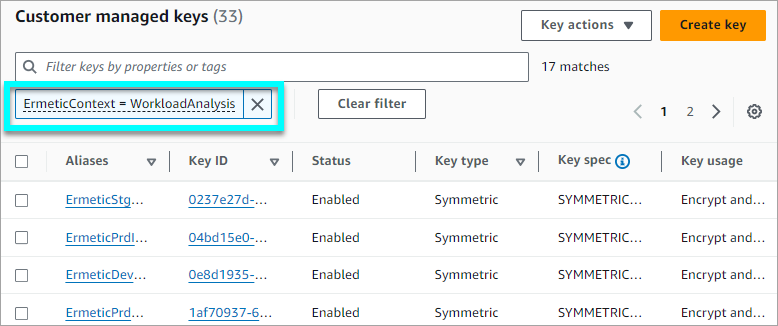
- Select the relevant keys and delete them.
Navigate to EC2 > Elastic Block Store > Snapshots, and search for snapshots with the tag key/value of ErmeticContext = WorkloadAnalysis.
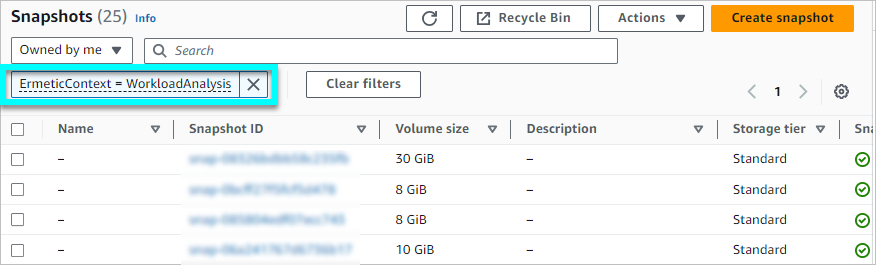
- Select the relevant keys and click Actions > Delete Snapshot.
-
If you used CloudFormation to create an IAM role, delete any Stack instances and StackSets that were created:
- In the AWS Console, navigate to CloudFormation > StackSets and search for any StackSet you created during onboarding.
- Select the StackSet and then click Actions > Delete stacks from StackSet.
- Enter any required details, and proceed with deleting the stacks.
- After any stacks are deleted, select the StackSet again and click Actions > Delete StackSet.
- Click Delete to confirm.
-
Delete the organization/account/s from the AI Exposure Console:
- Organization — Navigate to Settings > Integrations > AWS Organization, and then click Delete next to the relevant organization. Deleting the organization will automatically delete all associated folders and accounts beneath it.
Account — Navigate to Accounts > AWS, and then click Delete next to the relevant account/s.
Note: If the account/s belongs to an onboarded organization, you should exclude the account from the organization. Otherwise, delete the account from Settings > Accounts > AWS.
Offboard Azure Subscriptions
Follow these steps to offboard Azure subscriptions and/or organizations.
- Remove the role assignments that you added to the AI Exposure app during onboarding.
- Remove the AI Exposure app from Microsoft Entra ID.
-
Delete the organization/subscription from the AI Exposure Console:
- Organization — Navigate to Settings > Integrations > Azure Organization, and then click Delete next to the relevant organization.
Subscription — Navigate to Accounts > Azure, and then click Delete next to the relevant subscription.
Note: If the subscription/s belongs to an onboarded organization, you should exclude the subscription from the organization. Otherwise, delete the subscription from Settings > Accounts > Azure.
Offboard GCP Projects
Follow these steps to offboard GCP projects and/or organizations.
- Remove the permissions that you granted to the Tenable service account during onboarding.
- Remove the Tenable service account that you created when you connected a Google Workspace.
-
Delete the organization/project from the AI Exposure Console:
- Organization — Navigate to Settings > Integrations > GCP Organization, and then click Delete next to the relevant organization.
Project — Navigate to Accounts > GCP, and then click Delete next to the relevant account.
Note: If the project/s belongs to an onboarded organization, you should exclude the project from the organization. Otherwise, delete the project from Settings > Accounts > GCP.
Offboard OCI Tenancy
Follow these steps to offboard OCI tenancies.
- Remove any group/user/key/credentials that you created when you onboarded your Oracle Cloud tenancy.
- Delete the tenancy from the AI Exposure Console. Navigate to Settings > Integrations > OCI Tenancy, and then click Delete next to the relevant tenancy.