View Resource Details
You can view the details of a resource from the Inventory page. The Resource Details page provides a comprehensive evaluation of a specific AI resource within your Tenable One AI Exposure inventory.
View Resources in AI Provider Console
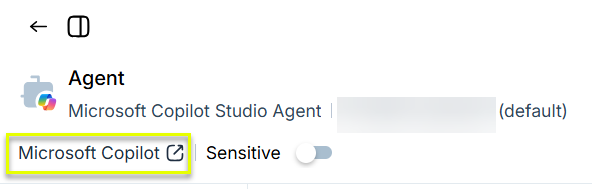
Click the link below the resource name to view it in the relevant AI console.
Mark Sensitive Resources
Mark resources as sensitive to accomplish the following tasks:
- Elevate the priority of any findings associated with the resource or identities that have access to the resource.
- Label a resource as sensitive within AI Exposure.
Marking resources as sensitive is available for most resource categories, excluding Identity and Access Management (IAM) across all AI service providers.
To mark a resource as sensitive:
- In the AI Exposure Console, click Explore > Inventory.
- From the Inventory view, select the relevant category and resource type. For example, select IAM > Microsoft Entra ID User.
- Click the resource to view its details. The resource details panel appears.
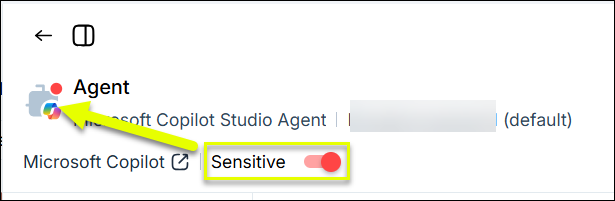
- Click the Sensitive toggle below the resource name in the header.
A red circle appears at the top-right corner of the resource throughout the AI Exposure Console to indicate that this resource is marked as sensitive.
Apply Labels to Resources
Manually apply relevant, predefined custom labels to resources to add context for risk assessment. This action enriches your AI Exposure environment by correlating labels with factors like excessive permissions and network exposure.
To manually apply a label to a resource:
- In the AI Exposure Console, click Explore > Inventory.
- From the Inventory view, select the relevant category and resource type. The Resource Details panel appears.
- In the upper-right corner, click the three dots button, and then click Edit labels.
- Select the checkboxes for the relevant labels you want to add or clear the checkboxes to remove labels.
- Click Save.
Get More Details about a Resource
Click Overview to see extensive characteristics about the resource, including the following examples:
- General resource properties, such as resource type, account, and assigned tags.
- The owner of the resource, the authentication mode (if applicable), and whether authentication triggers automatically.
- The environment, region, location, and the time of the last synchronization.
- Custom properties, which are user-defined parameters such as ownership, team, cost center, or other internal metadata.
View and Manage Associated Risks
In the Risk left-hand menu section, click any of the following options to view potential risks associated with the resource:
- AI Findings
- Cloud Findings
- Threat Detections
- Vulnerabilities
- Malicious Files