Manage Policies
A policy is a list of detection rules designed to trigger AI findings based on specific detection logic. Each policy represents a set of rules related to a specific AI risk category, such as Exposed Access Data or Harmful Content, with each rule representing a subcategory within that policy.
On the Policies page, you can manage your Tenable One AI Exposure policies in the following ways:
Edit a Policy
To edit a policy:
-
On the Policies page, in any section, click the row for the policy you want to edit.
The policy details panel appears.
-
In the upper-right corner, click
 Edit Policy.
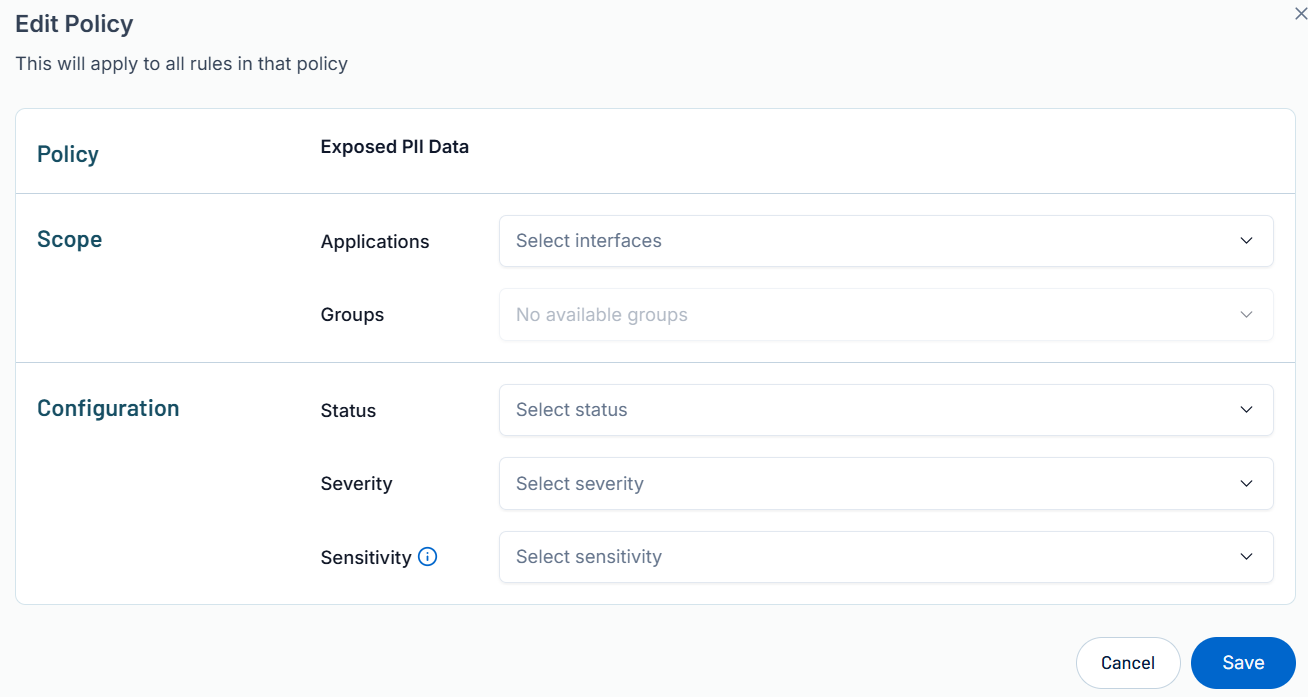
The Edit Policy window appears.
-
In the Scope section, configure the following policy settings:
-
From the Applications drop-down, select the AI interfaces to which you want the policy to apply.
-
From the Groups drop-down, select the groups to which you want the policy to apply.
-
-
In the Configuration section, configure the following policy settings:
-
From the Status drop-down, select policy status, for example Activated or Deactivated.
-
From the Severity drop-down, select the severity you want to apply to the policy, for example Critical or High.
Tip: For more information, see Policy and Rule Severity. -
From the Sensitivity drop-down, select the sensitivity level you want to apply to the policy, for example Balanced or High.
Tip: For more information, see Policy and Rule Sensitivity.
-
-
Click Save.
Tenable One AI Exposure saves your changes to the policy.
Edit a Policy Rule
To edit a policy rule:
-
On the Policies page, in any section, click the row for the policy whose rule you want to edit.
The policy details panel appears.
-
Do one of the following:
-
To edit a single rule, in the rules list, hover over the rule you want to edit.
On the right side of the row, buttons appear.
-
Click the
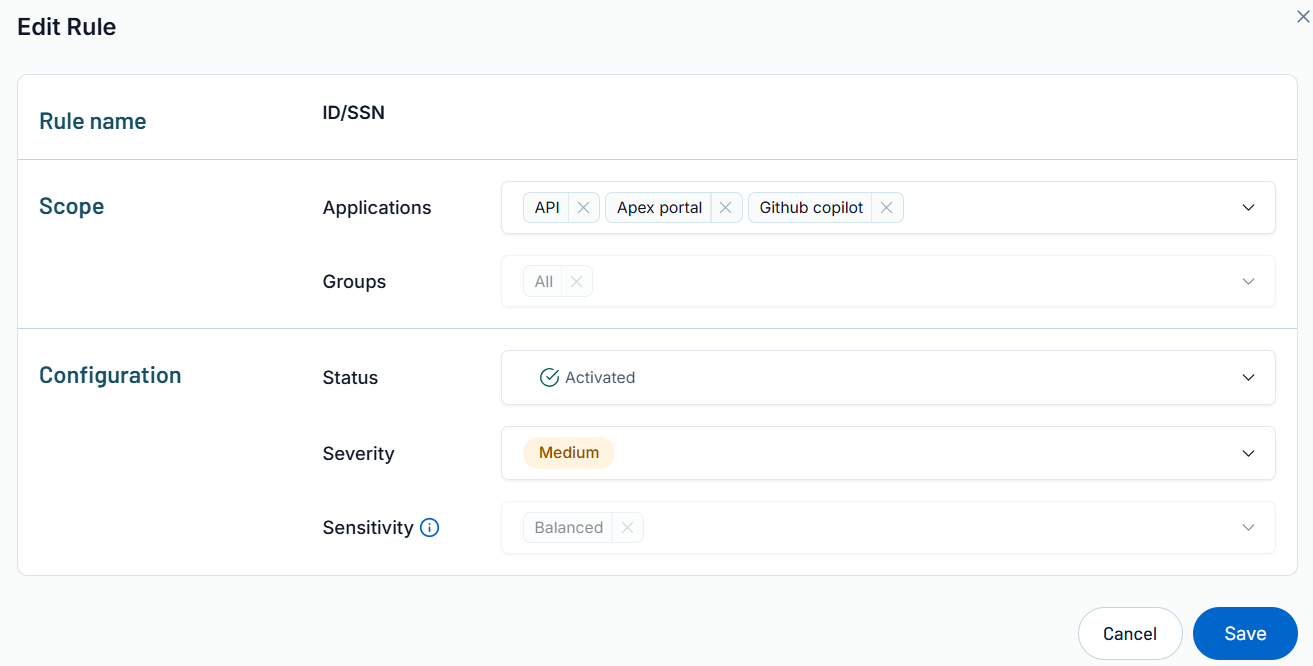
button.The Edit Rule window appears.
-
-
To edit multiple rules, in the rules list, select the check box to the left of each rule you want to edit.
The
Edit Selected button appears at the bottom of the list.-
Click
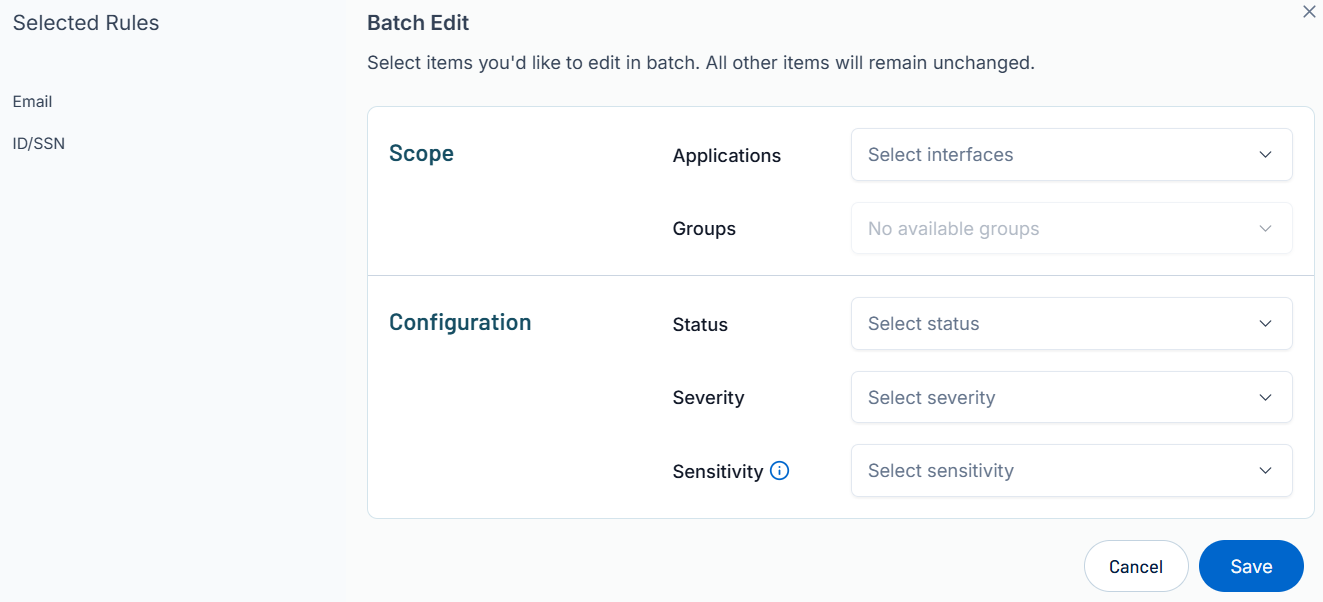
Edit Selected.The Batch Edit window appears.
-
-
-
In the Scope section, configure the following rule settings:
-
From the Applications drop-down, select the AI applications to which you want the rule to apply.
-
From the Groups drop-down, select the groups to which you want the rule to apply.
-
-
In the Configuration section, configure the following rule settings:
-
From the Status drop-down, select rule status, for example Activated or Deactivated.
-
From the Severity drop-down, select the severity you want to apply to the rule, for example Critical or High.
Tip: For more information, see Policy and Rule Severity. -
From the Sensitivity drop-down, select the sensitivity level you want to apply to the rule, for example Balanced or High.
Tip: For more information, see Policy and Rule Sensitivity.
-
-
Click Save.
Tenable One AI Exposure saves your changes to the policy rule.
Duplicate a Policy Rule
To duplicate a policy rule:
-
On the Policies page, in any section, click the row for the policy whose rule you want to duplicate.
The policy details panel appears.
-
In the rules the list, hover over the rule you want to duplicate.
On the right side of the row, buttons appear.
-
Click the
 button.
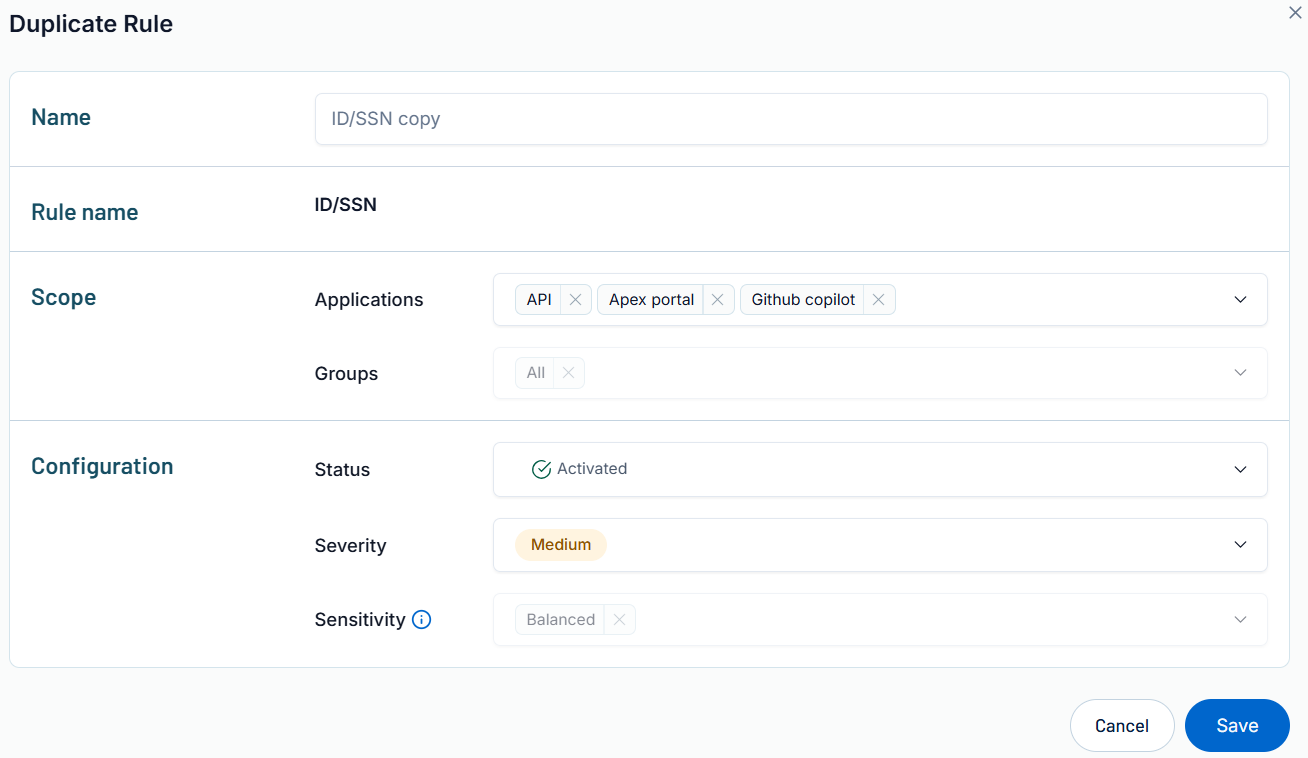
The Duplicate Rule window appears.
-
Make any desired changes to the rule.
-
Click Save.
Tenable One AI Exposure saves the policy rule to the related policy and adds it to the rules list in the policy details panel.