Policy Details
You can view the additional details for and further manage any policy on the Policies page.
To view policy details:
-
Access the Policies page.
-
In any section, click the row for the policy you want to edit.
The policy details panel appears.
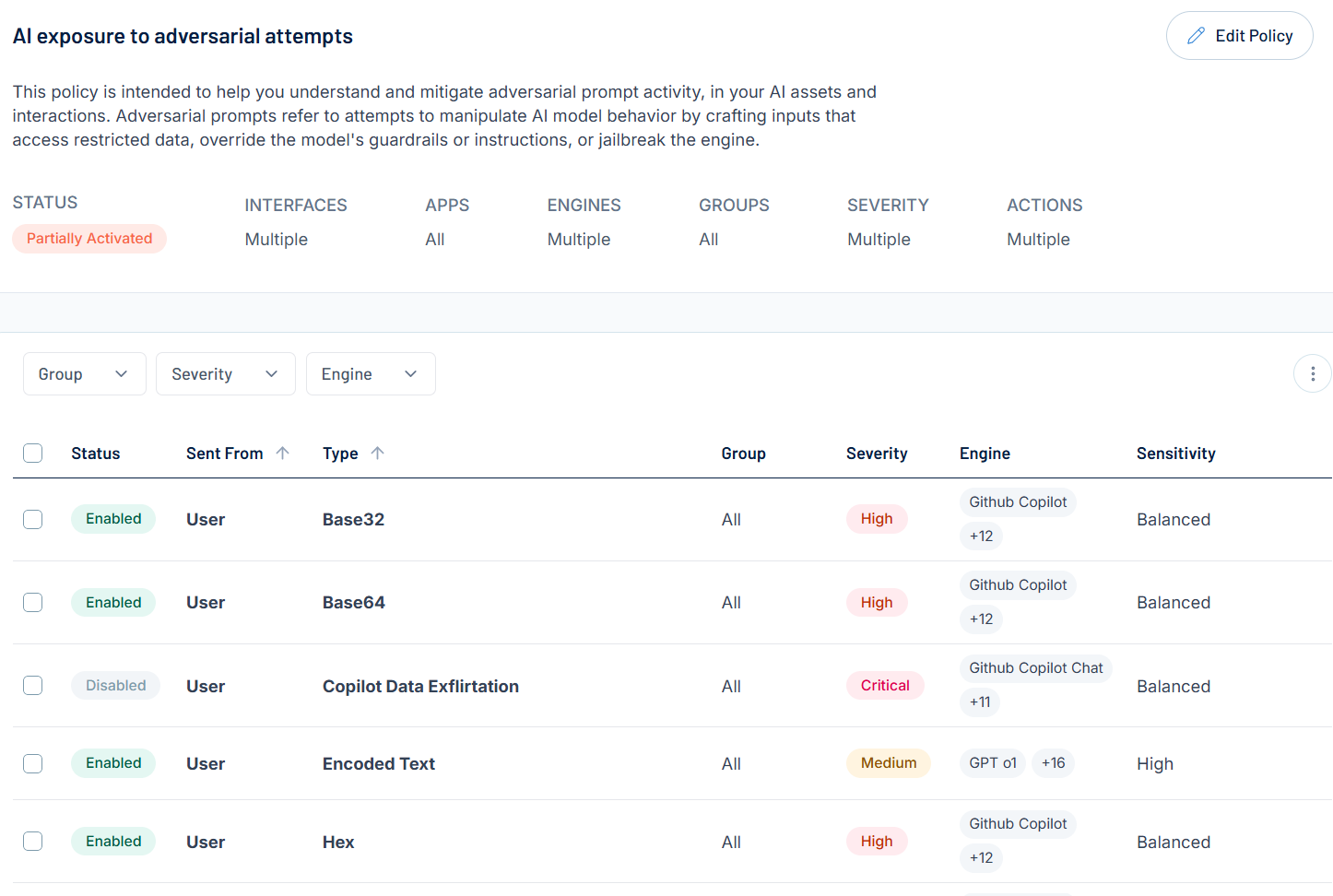
Here, you can:
-
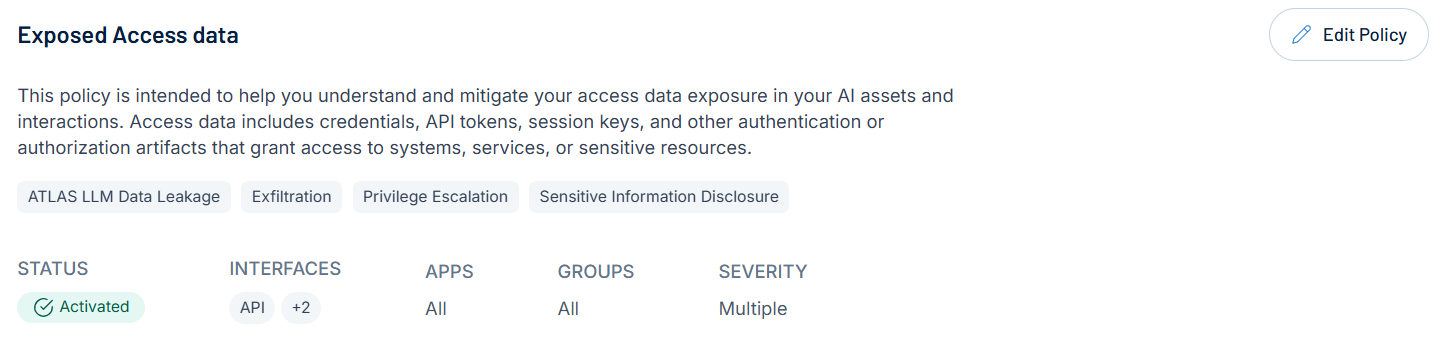
At the top of the panel, view the following information about the policy:
-
A brief description of the policy.
-
The policy Status, for example, Partially Activated.
-
The Interfaces to which the policy applies.
-
The AI Apps to which the policy applies.
-
The specific Groups to which the policy is applied.
-
The Severity of the policy, for example, High, Medium, or Multiple.
-
To edit the policy, in the upper right corner of this section, click
 Edit Policy. For more information, see Edit a Policy.
-
-
At the bottom of the panel, view a list of the rules associated with the policy:
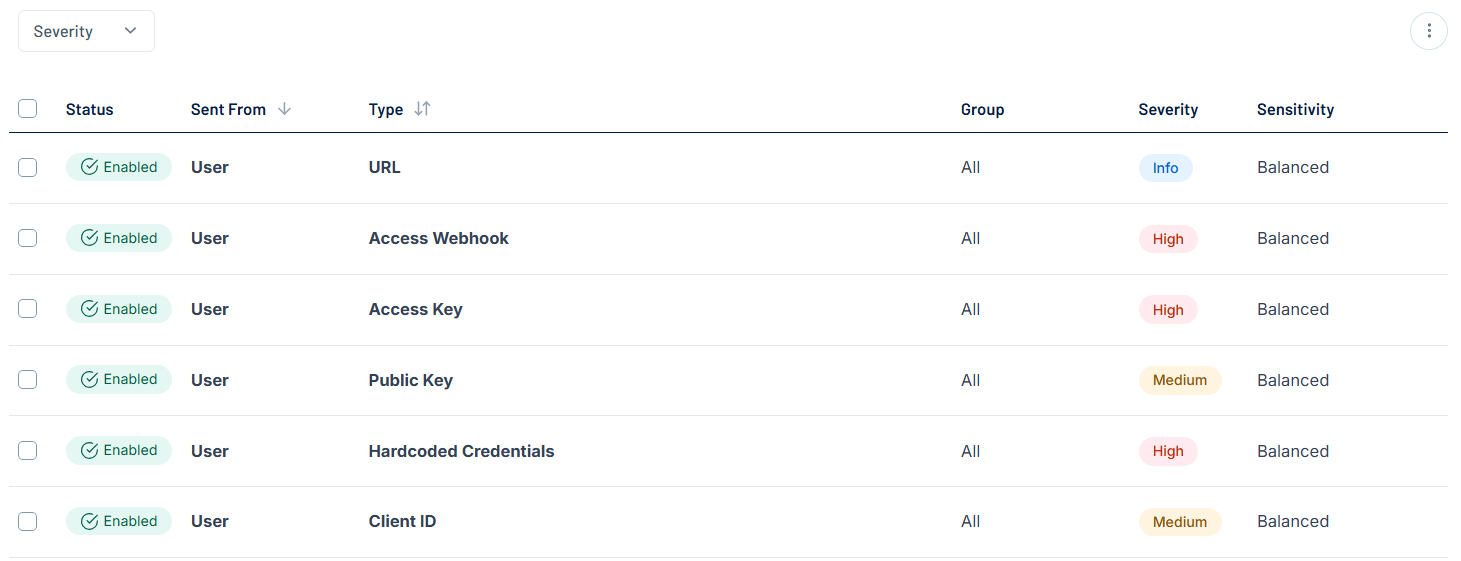
Here, you can:
-
Filter the list:
-
Above the list, use one or more of the following filters to adjust the data displayed in the list:
-
Severity
Tenable One AI Exposure updates the list based on your selection.
-
-
Click Clear Filters to clear any filters applied to the list.
-
-
Manage the columns in the list:
-
In the upper-right corner, click the
 button.
A menu appears.
-
Select or deselect columns to show or hide them within the list.
-
-
View the following information about the policy rules:
-
Status — The status of the rule, for example Enabled or Disabled.
-
Sent From — The source the rule was sent from.
-
Type — The detection rule type.
Tip: For more information, see Tenable One AI Exposure Policies and Detection Rules. -
Group — The specific group(s) to which the rule applies.
-
Severity — The severity associated with the rule, for example Critical or High.
Tip: For more information, see Policy and Rule Severity. -
Sensitivity — The sensitivity associated with the rule, for example Balanced or High.
Tip: For more information, see Policy and Rule Sensitivity.
-
-
Edit one or more rules. For more information, see Edit a Policy Rule.
-
Duplicate a rule. For more information, see Duplicate a Policy Rule.
-