ChatGPT Enterprise
Tenable One AI Exposure allows you to integrate with the ChatGPT Enterprise platform by OpenAI to identify any risks from users within your organization that use ChatGPT.
Prerequisites
Before you begin, ensure you have the following:
-
A user with owner permissions for both the OpenAI Platform and ChatGPT Enterprise.
-
Ensure the Organization ID in the OpenAI Platform matches the Organization ID of the ChatGPT Enterprise workspace where you want to enable the Compliance API.
-
If the Organization IDs do not match, contact OpenAI Support at [email protected] to resolve the issue before proceeding, as the org ID used to create the API key is recommended to match the org ID of the ChatGPT Enterprise workspace.
 Sample Email Template
Subject: Request for Assistance: Organization ID Mismatch for Compliance API Setup
Dear OpenAI Support Team,
I am the administrator of our ChatGPT Enterprise workspace and am in the process of setting up the Compliance API. I’ve encountered an issue where the Organization ID listed in our ChatGPT Enterprise workspace Admin Settings (https://chatgpt.com/admin/settings) differs from the one shown in our OpenAI Platform Settings (https://platform.openai.com/settings/organization/general).
To proceed with enabling the Compliance API, I need clarification on which Organization ID should be used. Additionally, I’d like to understand how to align both IDs if needed.
For your reference:
ChatGPT Workspace Organization ID: [Insert ID]
OpenAI Platform Organization ID: [Insert ID]
Thank you for your assistance.
Best regards,
[Your Full Name]
[Your Company Name]
-
Configure ChatGPT Enterprise for use with Tenable One AI Exposure
To configure ChatGPT Enterprise for use with Tenable One AI Exposure, you must perform the following actions:
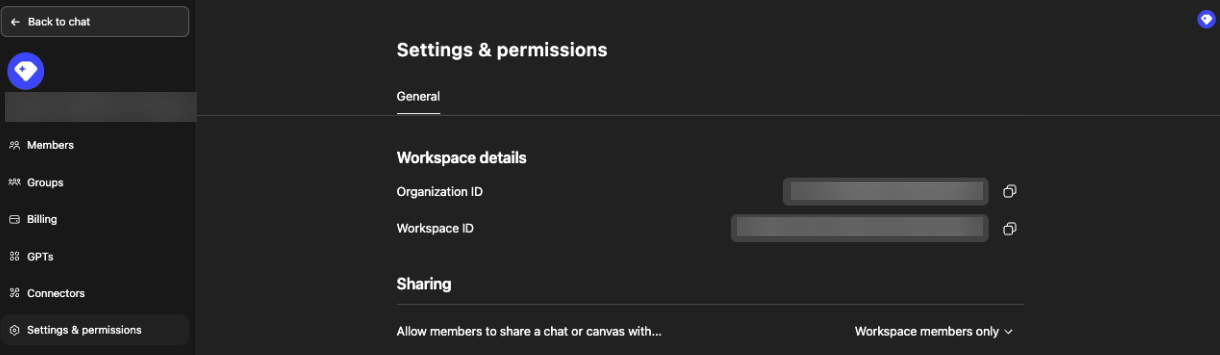
Locate your ChatGPT Enterprise Workspace Details
-
Navigate to the ChatGPT Enterprise workspace.
-
In the lower-left corner, click the user icon.
A menu appears.
-
Click Workspace settings.
The Settings & permissions page appears.
-
Copy the following values:
-
Organization ID
-
Workspace ID
-
Locate your OpenAI Platform Workspace Details and Keys
-
Navigate to the OpenAI Platform. If given the option, choose to Continue with Google.
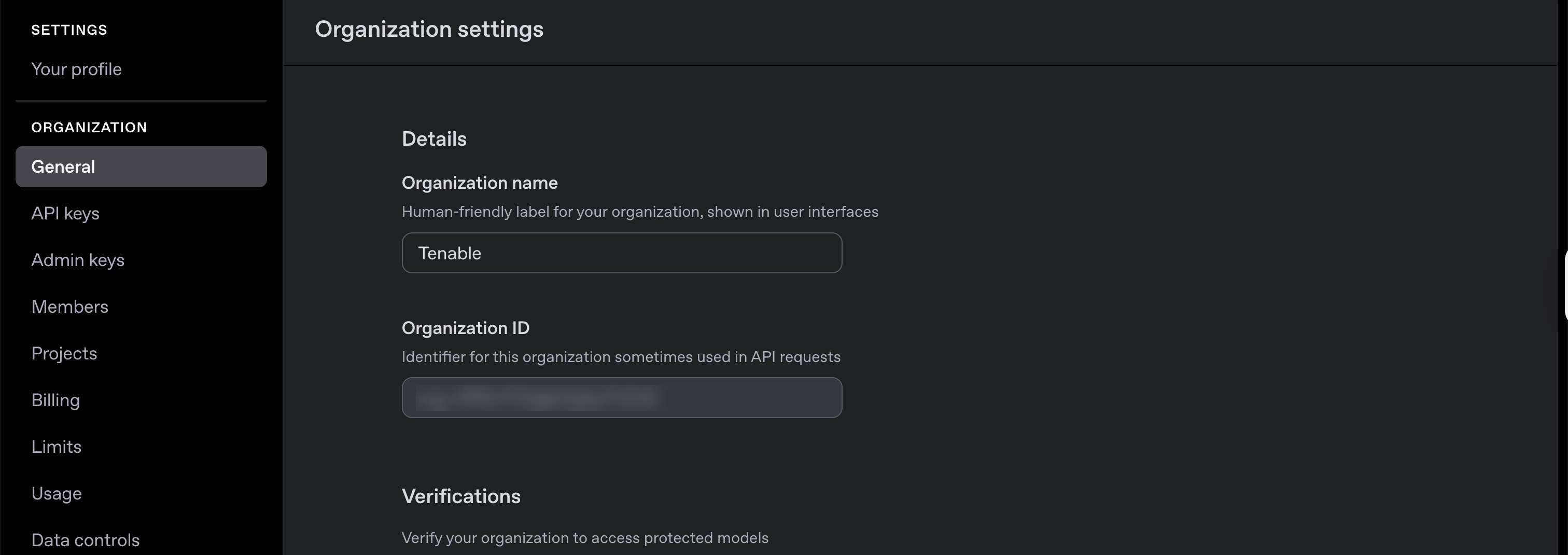
Note: You must ensure you are signed in to your organization's workspace rather than your personal workspace. To check, navigate to your general settings and confirm your organization's name is listed rather than your personal one. -
In the left navigation menu, navigate to Settings > General.
-
Copy the OpenAI Platform Organization ID.
-
In the left navigation menu, navigate to Admin keys.
-
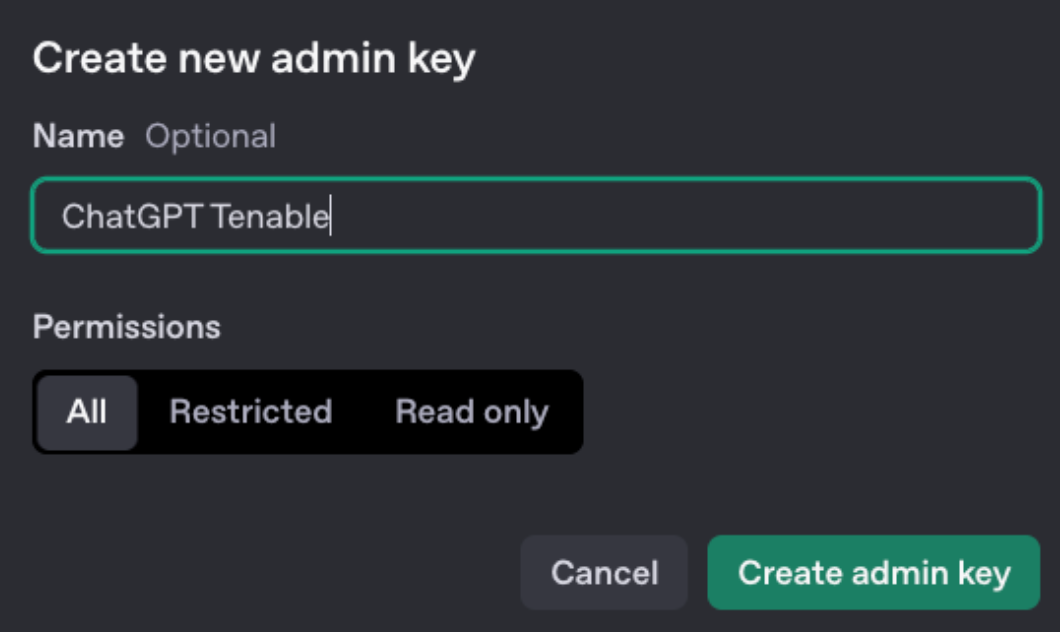
Click Create new admin key.
The Create new admin key window appears.
-
In the Name text box, type a name for the admin key.
-
In the Permissions section, select All.
-
Click Create admin key.
The OpenAI Platform generates your key. Copy this key for later use within Tenable One AI Exposure.
-
Save the following values:
-
Chat GPT Workspace ID
-
Open AI Platform Organization ID
-
Secret Key
-
Key name
-
Created by
-
-
Send an email to OpenAI support ([email protected]) to request that they enable Compliance API access for your organization's API key.
Important! You MUST receive approval from OpenAI before continuing. Without this approval, the integration with Tenable One AI Exposure will fail.Sample Email Template
Subject: Request for Compliance API Access for Monitoring
Hi OpenAl Support,
We would like to request enabling the Compliance API for our account so we can monitor our usage. Here are our account details:
-
Chat GPT Workspace ID: [Insert Workspace ID]
-
Open AI Platform Organization ID: [Insert Organization ID]
Note: If the ChatGPT Enterprise and OpenAI Platform organization IDs are different, include both:
- Organization ID: [Insert Organization ID] (ChatGPT Enterprise)
- Organization ID: [Insert Organization ID] (OpenAI Platform)
-
API Key (last 4 characters): [Insert last 4 characters of your API key]
-
Key name: [Insert your API key name]
-
Requested scope: Read and Delete
-
Created by: [name associated with the key]
Please confirm once the Compliance API has been enabled for the provided API key.
Thank you for your assistance.
Best regards,
[Your Name]
[Your Position]
[Your Contact Information]
Tip: You can cc the Tenable team to the email. -
Connect ChatGPT Enterprise to Tenable One AI Exposure
Once you have the required credentials you can complete your integration through the Tenable One AI Exposure user interface.
-
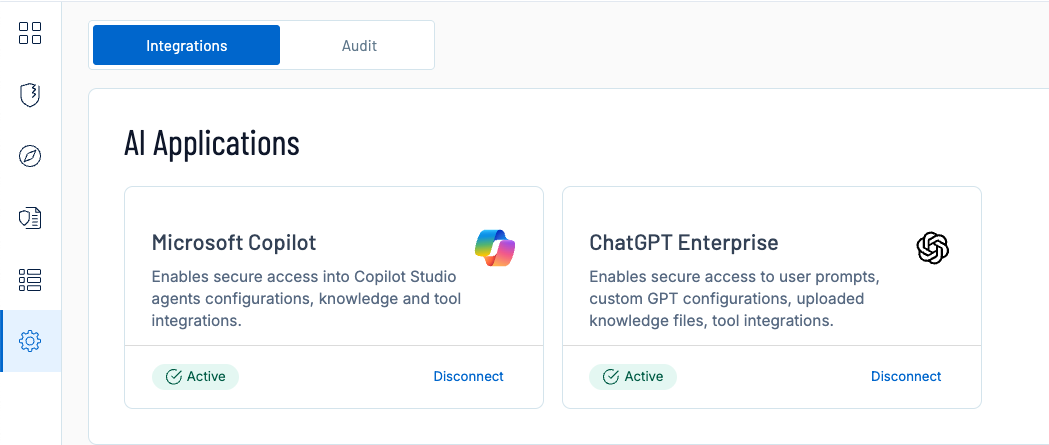
Navigate to the Integrations page.
-
In the ChatGPT Enterprise tile, click Configure.
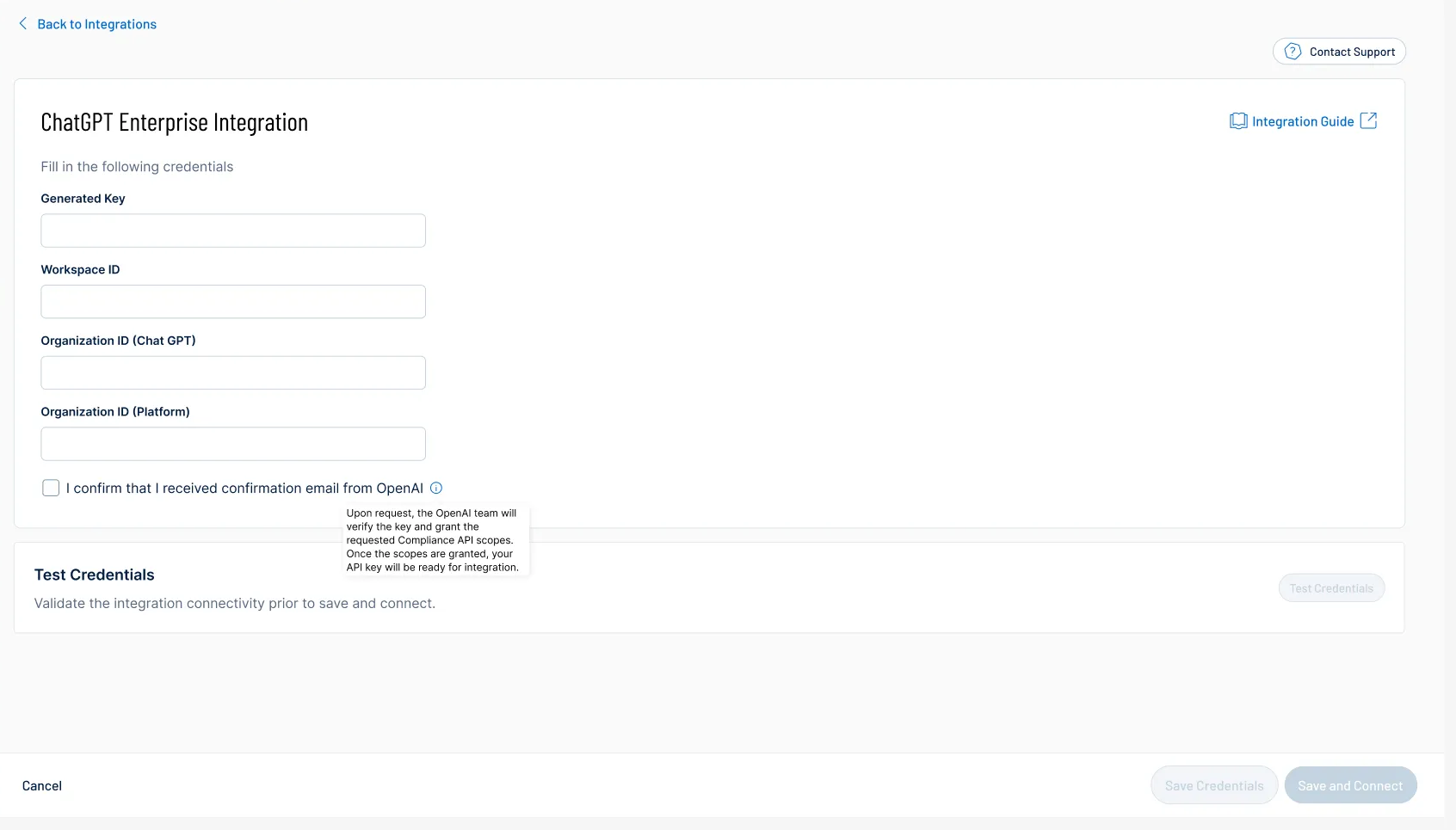
The integration configuration page appears.
-
Paste the following values you copied from the ChatGPT Enterprise platform:
-
Generated Key
-
Workspace ID
-
Organization ID (Chat GPT)
-
Organization ID (Platform)
-
-
Select the I confirm that I received confirmation email from OpenAI check box to indicate that OpenAI enabled the Compliance API for your workspace with the appropriate read and delete permissions.
-
In the Test Credentials section, click Test Credentials to ensure your integration can connect to Tenable One AI Exposure.
-
Click Save and Connect.
Tenable One AI Exposure enables the integration.
Troubleshooting
If you encounter an error message, please ensure you've followed the guide correctly and met all prerequisites. If the issue persists, use the "Contact Support" window for assistance. Please Include relevant text or a screenshot that can help us to best resolve your issue effectively.