Manage Routines
The following is not supported in Tenable FedRAMP Moderate environments. For more information, see the Tenable FedRAMP Product Offering.
Required User Role: Scan Operator, Standard User, Scan Manager, Administrator, or Custom Role
On the Routines page, you can create and manage routines to automate vulnerability management tasks in your environment.
Here, you can perform the following actions:
Create a Routine
You can use Tenable Hexa AI to create a new routine. Tenable Hexa AI guides you through the process conversationally — describe the routine you want, and Hexa configures it based on your input.
To create a routine:
- Do one of the following:
- To create a routine via the Tenable Hexa AI panel:
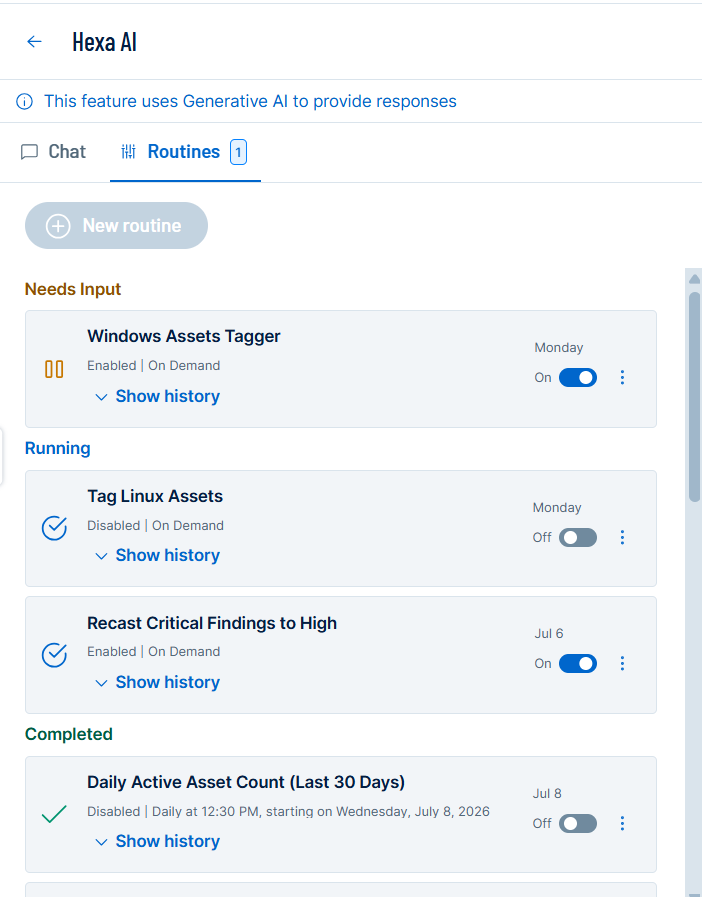
- Access the Routines tab.
- Click
 New routine.
The Chat tab opens.
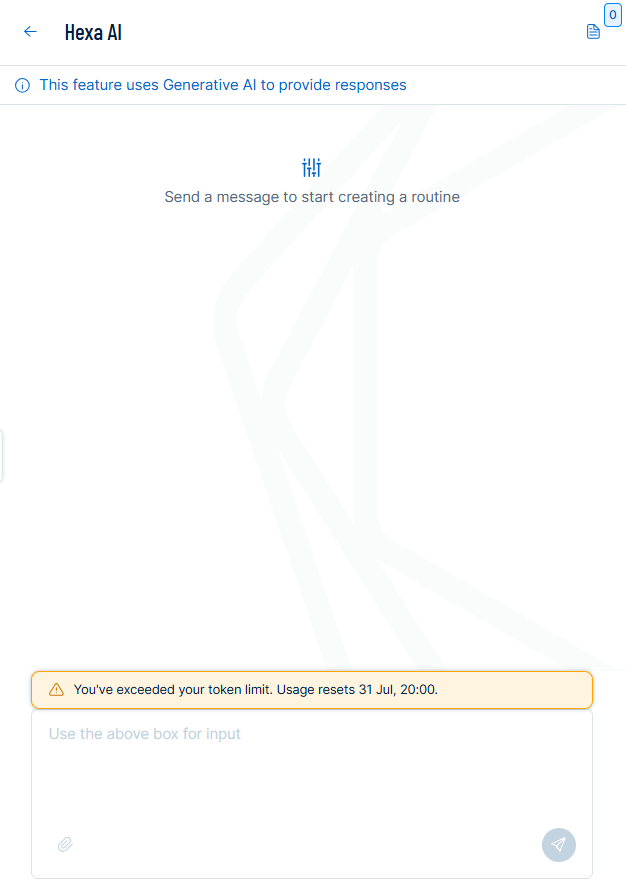
- Answer the questions from Tenable Hexa AI. For the first question, What should the routine do?, select one of the suggested options, or select Type something else… and describe the routine you want to create. Then click Next.
To cancel, click Cancel. To return to the previous question, click Previous.
- When you have answered all of the questions, Tenable Hexa AI responds with a proposed routine configuration based on your answers.
- Review the proposed configuration and follow any additional prompts from Tenable Hexa AI to refine the routine as needed.
- Review the details and perform the steps to finalize the routine creation with Tenable Hexa AI.
Tenable Exposure Management creates the routine and adds it to the routines list.
- Access the Routines tab.
- To create a routine via the Routines page:
- Access the Routines page.
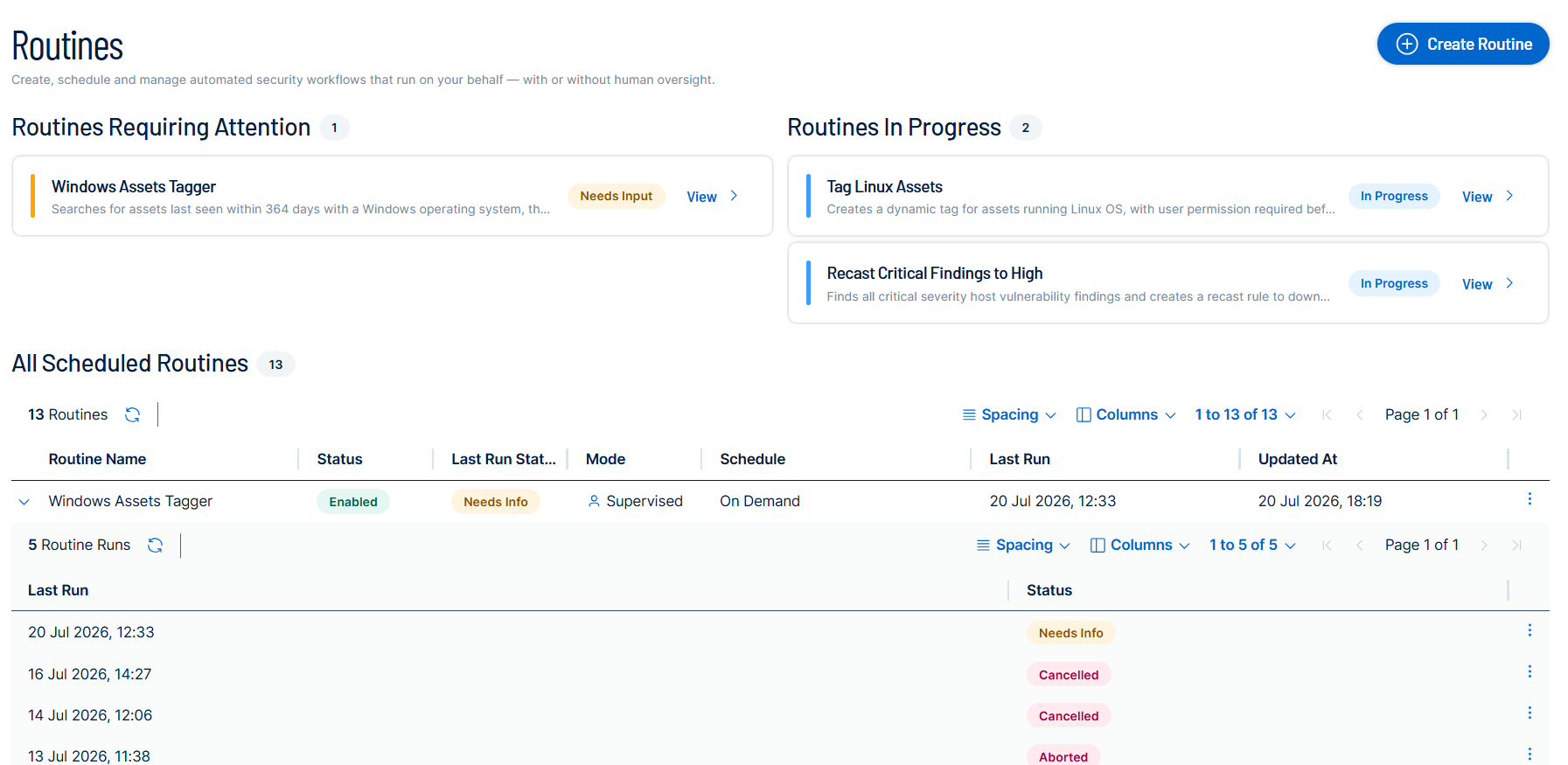
- Above the routines table, click Create Routine.
The Hexa AI panel appears.
- Answer the questions from Tenable Hexa AI. For the first question, What should the routine do?, select one of the suggested options, or select Type something else… and describe the routine you want to create. Then click Next.
To cancel, click Cancel. To return to the previous question, click Previous.
- When you have answered all of the questions, Tenable Hexa AI responds with a proposed routine configuration based on your answers.
- Review the proposed configuration and follow any additional prompts from Tenable Hexa AI to refine the routine as needed.
- Review the details and perform the steps to finalize the routine creation with Tenable Hexa AI.
Tenable Exposure Management creates the routine and adds it to the routines list.
- Access the Routines page.
- To create a routine via the Tenable Hexa AI panel:
Launch a Routine
You can manually launch a routine at any time, regardless of its schedule. This is useful when you want to run a routine immediately rather than waiting for its next scheduled run.
To launch a routine:
- Do one of the following:
- To launch a routine via the Tenable Hexa AI panel:
- Access the Routines tab.
- In the routine card for the routine you want to launch, click the
 button.
A menu appears.
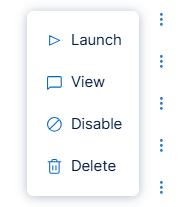
- Click
 Launch.
Tenable Exposure Management launches the routine. The routine status changes to Running.
Tip: For a description of each status, see Routine Statuses.
- Access the Routines tab.
- To launch a routine via the Routines page:
- Access the Routines page.
- In the row for the routine you want to launch, click the button.
A menu appears.
- Click Launch.
Tenable Exposure Management launches the routine. The routine status changes to Running.
Tip: For a description of each status, see Routine Statuses.
- Access the Routines page.
- To launch a routine via the Tenable Hexa AI panel:
Force-Relaunch a Routine
If you attempt to launch a routine that is already running or paused, Tenable Exposure Management displays a confirmation dialog before proceeding. Launching a routine in this state stops the current run and starts a new one.
To force-relaunch a routine:
- Follow the steps to launch a routine.
If the routine is already running or paused, a confirmation dialog appears. The dialog notifies you that the current run will be stopped and a new run will begin.
- Click Confirm to stop the current run and launch a new one.
Tenable Exposure Management stops the current run and starts a new routine run. The routine status changes to Running.
Tip: For a description of each status, see Routine Statuses.
View Routine Run History
You can view the run history for a routine to see a record of its previous runs, including each run's start time and status.
To view the run history for a routine:
- Do one of the following:
- To view run history via the Tenable Hexa AI panel:
- Access the Routines tab.
- In the routine card whose run history you want to view, click
 Show history.
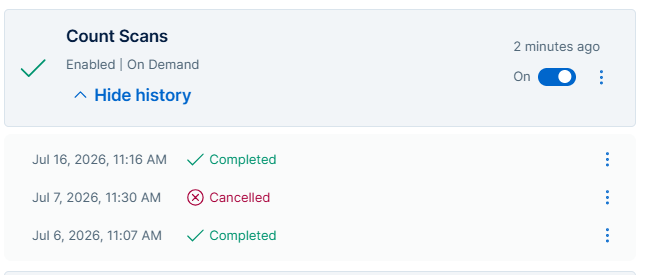
The run history expands below the routine card and lists each previous run, including its date, time, and status.
- Access the Routines tab.
- To view run history via the Routines page:
- Access the Routines page.
- Click the expand arrow
 to the left of the routine row.
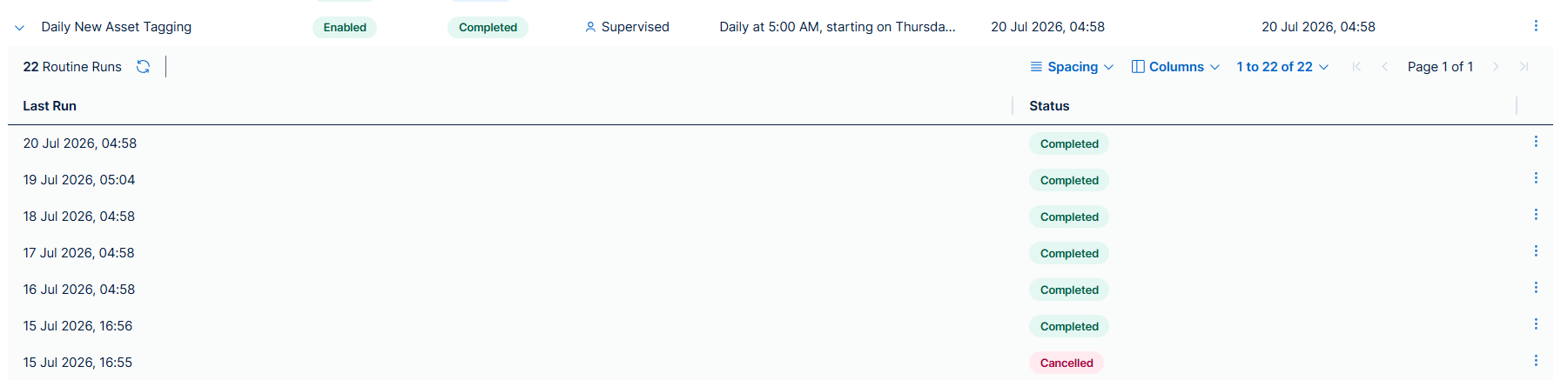
The run history sub-table appears below the routine and lists each previous run, including its start time and status.
- Access the Routines page.
- To view run history via the Tenable Hexa AI panel:
View a Routine Chat
Each routine run generates a chat log that records the actions taken and any information requested during the run. You can view this log to monitor what the routine did, respond to requests for additional information, or review past activity.
To view the chat for a routine run:
- Do one of the following:
- To view a routine chat via the Tenable Hexa AI panel:
- Access the Routines tab.
- In the routine card whose chat you want to view, click the button.
A menu appears.
- Click
 View.
View.
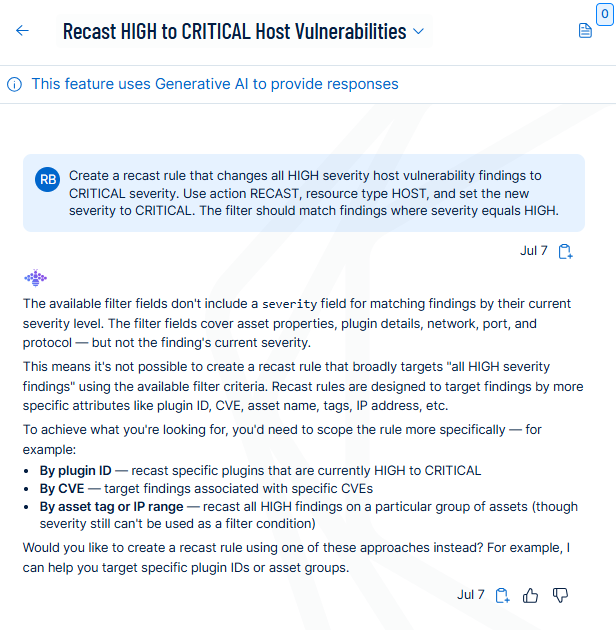
Tenable Exposure Management opens the chat view for the routine. This includes the log of actions and messages for the most recent run of the routine.
- Access the Routines tab.
- To view a routine chat via the Routines page:
- Access the Routines page.
- In the row for the routine whose chat you want to view, click the button.
A menu appears.
- Click View.
Tenable Exposure Management opens the chat view for the routine. This includes the log of actions and messages for the most recent run of the routine.
- Access the Routines page.
- To view a routine chat via the Tenable Hexa AI panel:
Respond to a Routine Input Request
When a routine requires additional information to continue, its status changes to Needs Input. Tenable Exposure Management pauses the routine run until you provide the requested information through the chat view. Once you respond, the routine resumes automatically.
To respond to a routine input request:
- View the routine chat with the input request to which you want to respond.
- In the input field at the bottom of the chat view, type your response.
- Click the
 button or press Enter on your keyboard.
Tenable Exposure Management registers your response and resumes the routine run. The routine status changes from Needs Input to Running.
Edit a Routine
You can edit a routine by opening its chat and describing the changes you want to make. Tenable Hexa AI updates the routine configuration based on your input.
To edit a routine:
- View the routine chat that you want to edit.
- In the chat window, describe the changes you want to make to the routine.
- Click the button or press Enter on your keyboard.
Tenable sends the message, and Tenable Hexa AI responds with an updated routine configuration based on your description.
- Review the proposed configuration and follow any additional prompts from Tenable Hexa AI to refine the routine as needed.
- Perform the steps to finalize the update with Tenable Hexa AI.
Tenable Exposure Management saves your changes to the routine.
Enable or Disable a Routine
You can enable or disable a routine to control whether it runs on its defined schedule. Disabling a routine prevents it from running automatically but does not delete it. You can re-enable a disabled routine at any time.
To enable or disable a routine:
- Do one of the following:
- To enable or disable a routine via the Tenable Hexa AI panel:
- Access the Routines tab.
- In the routine card you want to enable or disable, do one of the following:
- Click the enable toggle to switch the routine on or off.
A notification message appears in the upper-right corner of the screen confirming your selection. If an error message appears, review the error and re-try the action.
- Click the button, then do one of the following:
- To enable the routine, click
 Enable.
 - To disable the routine, click
 Disable.
A notification message appears in the upper-right corner of the screen confirming your selection. If an error message appears, review the error and re-try the action.
- To enable the routine, click
- Click the enable toggle to switch the routine on or off.
- Access the Routines tab.
- To enable or disable a routine via the Routines page:
- Access the Routines page.
- In the row for the routine you want to enable or disable, click the button, then do one of the following:
- To enable the routine, click Enable.
- To disable the routine, click Disable.
A notification message appears in the upper-right corner of the screen confirming your selection. If an error message appears, review the error and re-try the action.
- To enable the routine, click
- Access the Routines page.
- To enable or disable a routine via the Tenable Hexa AI panel:
Delete a Routine
You can permanently delete a routine that you no longer need. Deleting a routine also removes its run history.
To delete a routine:
- Do one of the following:
- To delete a routine via the Tenable Hexa AI panel:
- Access the Routines tab.
- In the routine card you want to delete, click the button.
A menu appears.
- Click Delete.
A confirmation message appears.
- Click
 Delete.
Tenable Exposure Management permanently deletes the routine and removes it from the routines list.
- Access the Routines tab.
- To delete a routine via the Routines page:
- Access the Routines page.
- In the row for the routine you want to delete, click the button.
A menu appears.
- Click Delete.
A confirmation message appears.
- Click Delete.
Tenable Exposure Management permanently deletes the routine and removes it from the routines list.
- Access the Routines page.
- To delete a routine via the Tenable Hexa AI panel: