Install Tenable Network Monitor
Before You Begin
- Download the Tenable Network Monitor package.
- Ensure you can run the following commands with administrative or root privileges.
Linux
To ensure audit record time stamp consistency between Tenable Network Monitor and Tenable Security Center, ensure the underlying OS uses NTP as described in the Red Hat documentation.
Tip: Ensure that organizational and OS firewall rules permit access to port 8835 on the Tenable Network Monitor server.
To install Tenable Network Monitor on Linux:
-
Install the Tenable Network Monitor
.rpmfile downloaded from the Tenable Downloads page in RedHat or CentOS with the following command. The specific file name varies depending on your platform and version.# rpm -i nnm-
Preparing... ########################################### [100%]
1:NNM ########################################### [100%]
[*] Tenable Network Monitor installation completed.
#
Note: If rpm is not available on your system, you can use yum or dnf instead. For example: yum install nnm-6.x.x-esx.x86_64.rpm or dnf install nnm-6.x.x-esx.x86_64.rpm.
The installation creates the
/opt/nnmdirectory, which contains the Tenable Network Monitor software, default plugins, and directory structure. -
(Optional) You can verify the rpm's signature before deploying. See Verify the RPM Signature.
-
Start Tenable Network Monitor for Red Hat and CentOS systems using the following command:
# service nnm start -
Navigate to
https://<IP address or hostname>:8835, which displays the Tenable Network Monitor web front end to log in for the first time.Refer to Configure Tenable Network Monitor to complete the initial login.
Windows
Before You Begin:
-
Ensure that you have installed the latest version of Microsoft Visual C++ 2010 Redistributable Package for your 64-bit platform and architecture.
-
Ensure that the directory or directories containing the Tenable Network Monitor folder are not writable by regular users. The directories that contain the Tenable Network Monitor binaries must be writable only by special users like administrators to prevent other users from acquiring elevated privileges granted to Tenable Network Monitor.
-
Stop any other programs on your system that utilize
To install Tenable Network Monitor on Windows:
-
Double-click the
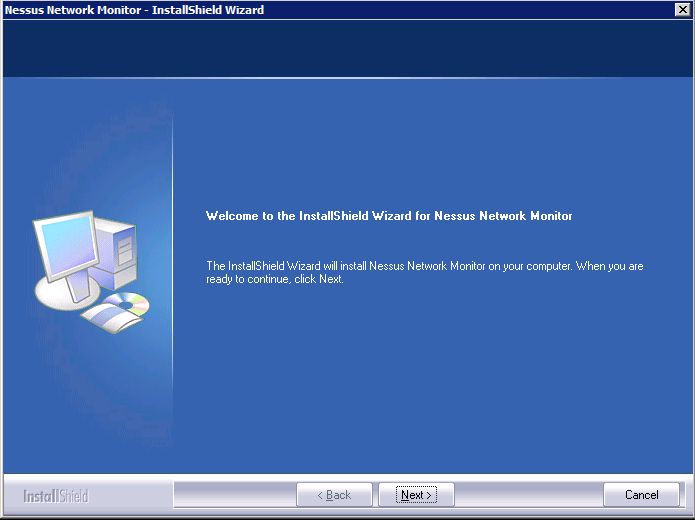
.exefile downloaded from the Tenable Downloads page. The specific file name varies depending on your version.The InstallShield Wizard launches, which walks you through the installation process and required configuration steps.
-
Click the Next button.
The License Agreement screen appears.
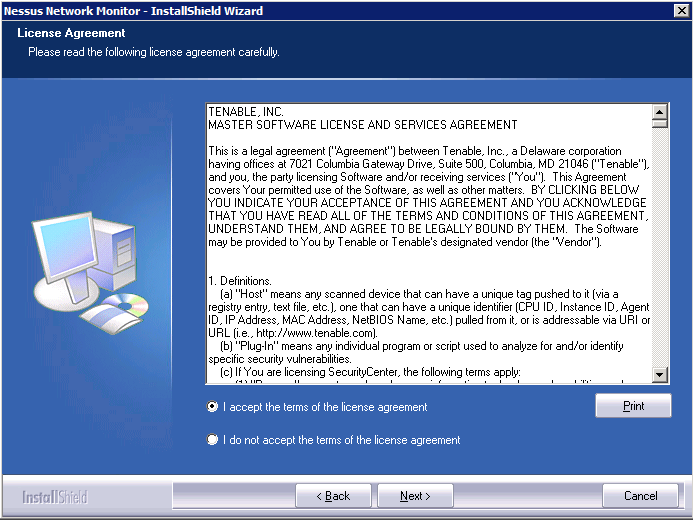
- Agree to the terms to continue the installation process and use Tenable Network Monitor.
Tip: You can copy the text of the agreement into a separate document for reference, or you can click the Print button to print the agreement directly from this screen.
-
Click the Next button.
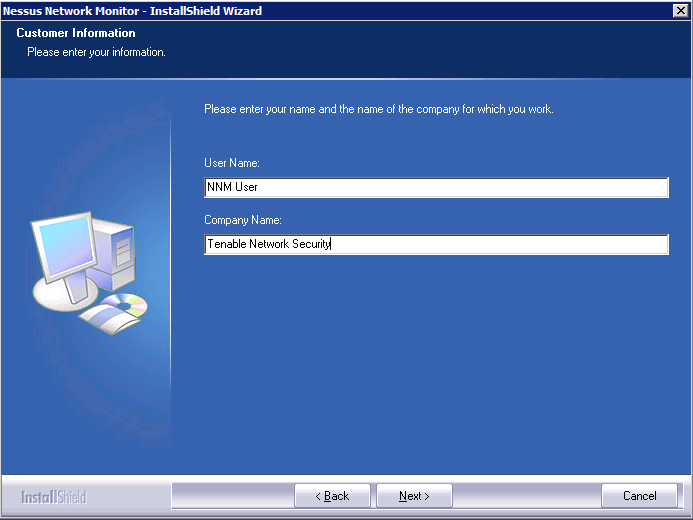
The Customer Information screen appears. The User Name and Company Name boxes are used to customize the installation, but are not related to any configuration options (for example, for interfacing with Tenable Security Center).
-
Click the Next button.
The Choose Program Location screen appears, where you can verify the location in which the Tenable Network Monitor binaries are installed.
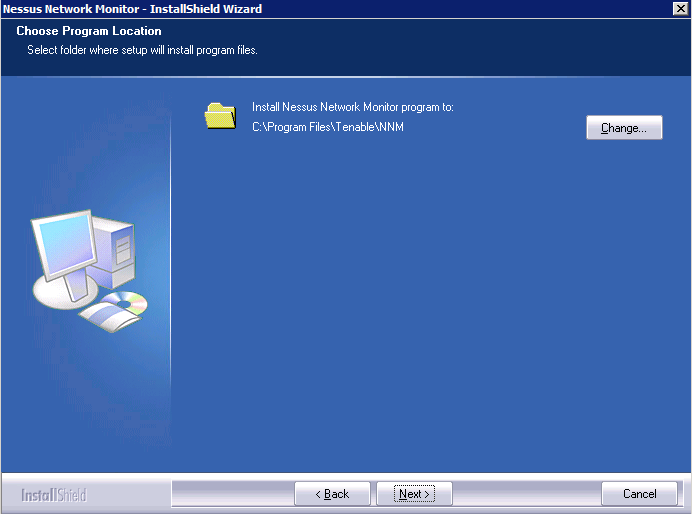
- Click the Change button to specify a custom path.
-
Click the Next button.
The Choose Data Location screen appears, where you can verify the location in which user data generated by Tenable Network Monitor is stored.
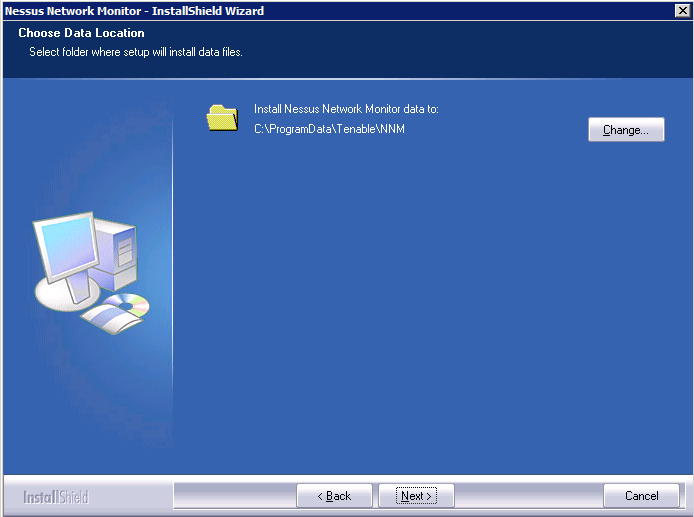
- Click the Change button to specify a custom path.
Tip: If you connect Tenable Network Monitor to Tenable Security Center, altering the data path disables Tenable Security Center from retrieving reports.
-
Click the Next button.
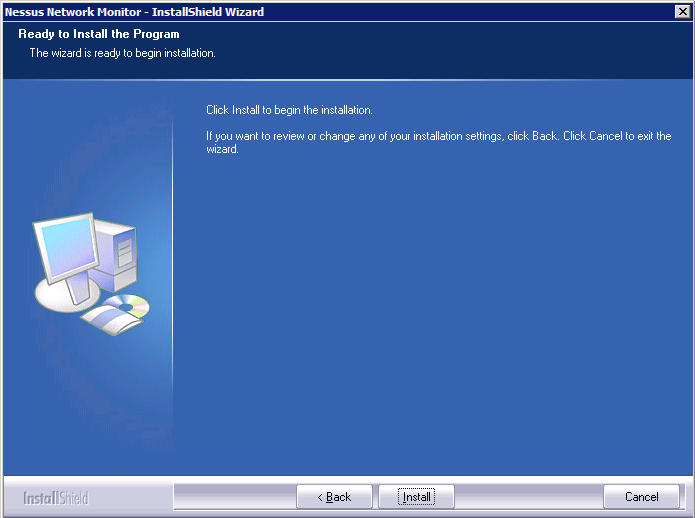
The Ready to Install the Program screen appears, where you can review and edit the information supplied on previous screens.
-
Click the Install button.
The Installing message appears for about 30 seconds, and Tenable Network Monitor deploys Npcap automatically.
Tip: Use the provided version of Npcap or newer. Tenable Network Monitor has been designed and tested using the supplied version of Npcap.
- Start Tenable Network Monitor.