Use Report Cards
Required User Role: Administrator or Custom Role
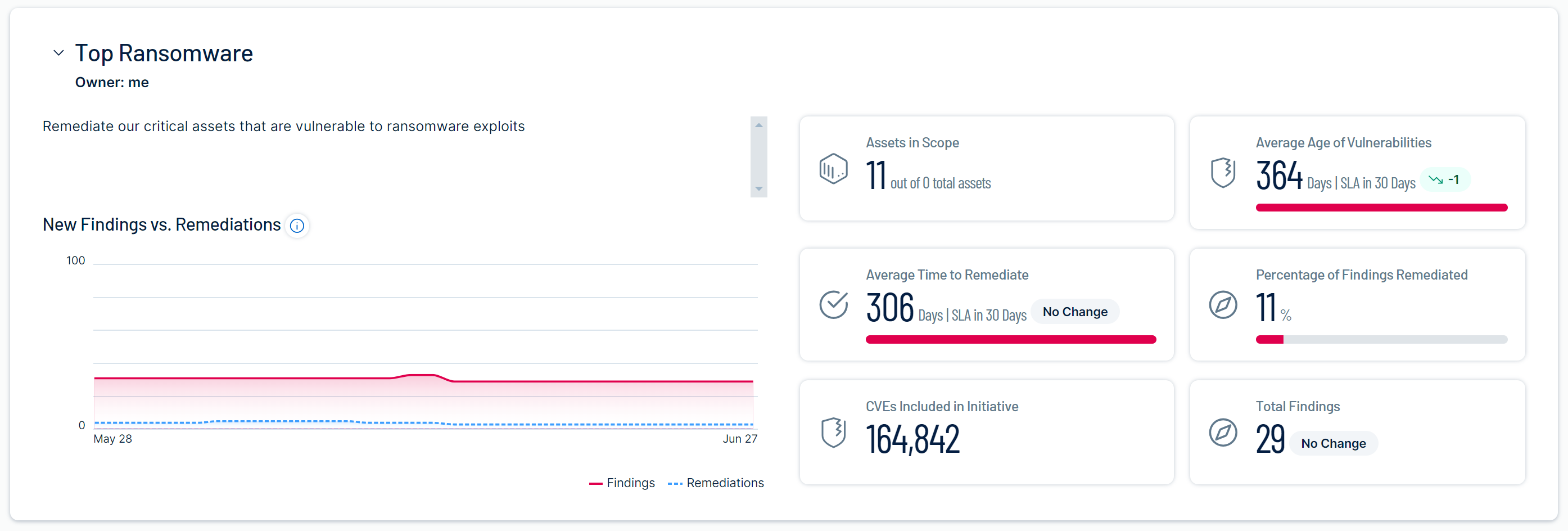
In the Exposure Response section of Tenable One Vulnerability Management, you can view dashboard-style reports about the initiatives you have access to and export them to PDF.
View Report Cards
To view report cards:
-
In the left navigation, click
 Exposure Response.
The Exposure Response page appears. By default, the
 Initiatives tab is active.
 -
In the left panel, click
 Report Card.
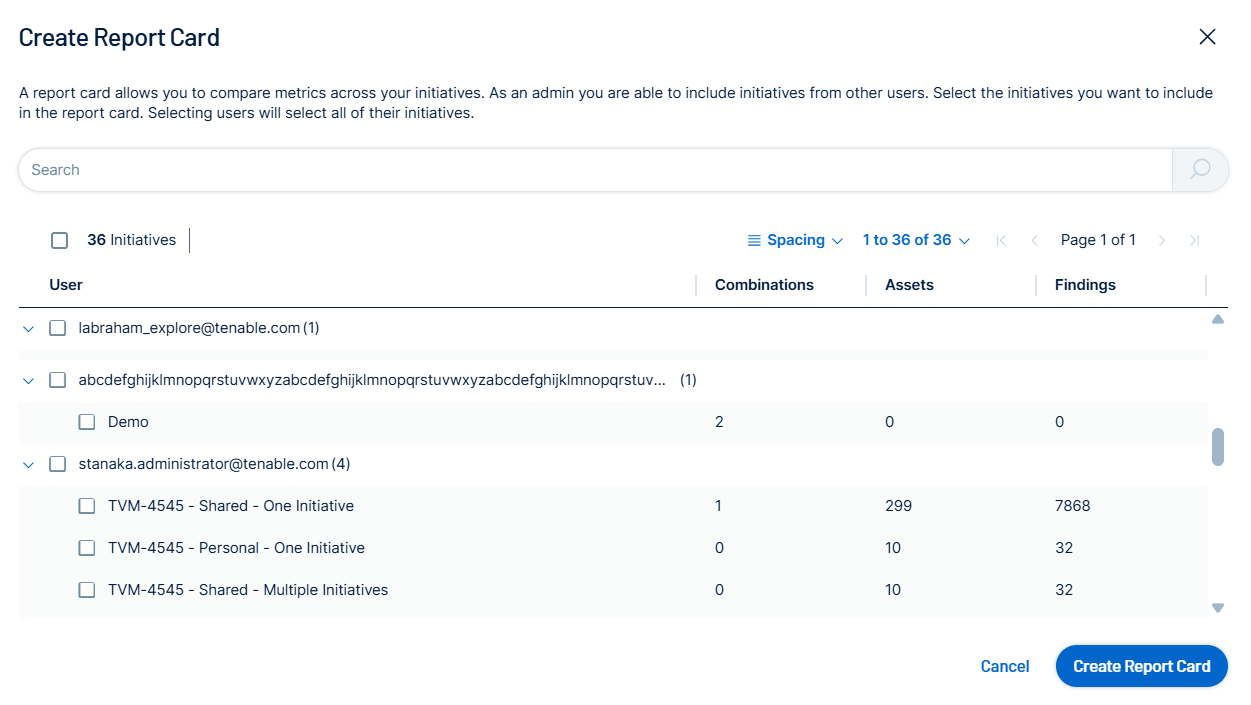
The Create Report Card page appears.
-
Select the users and/or initatives that you want to view on the report card.
-
Click Create Report Card.
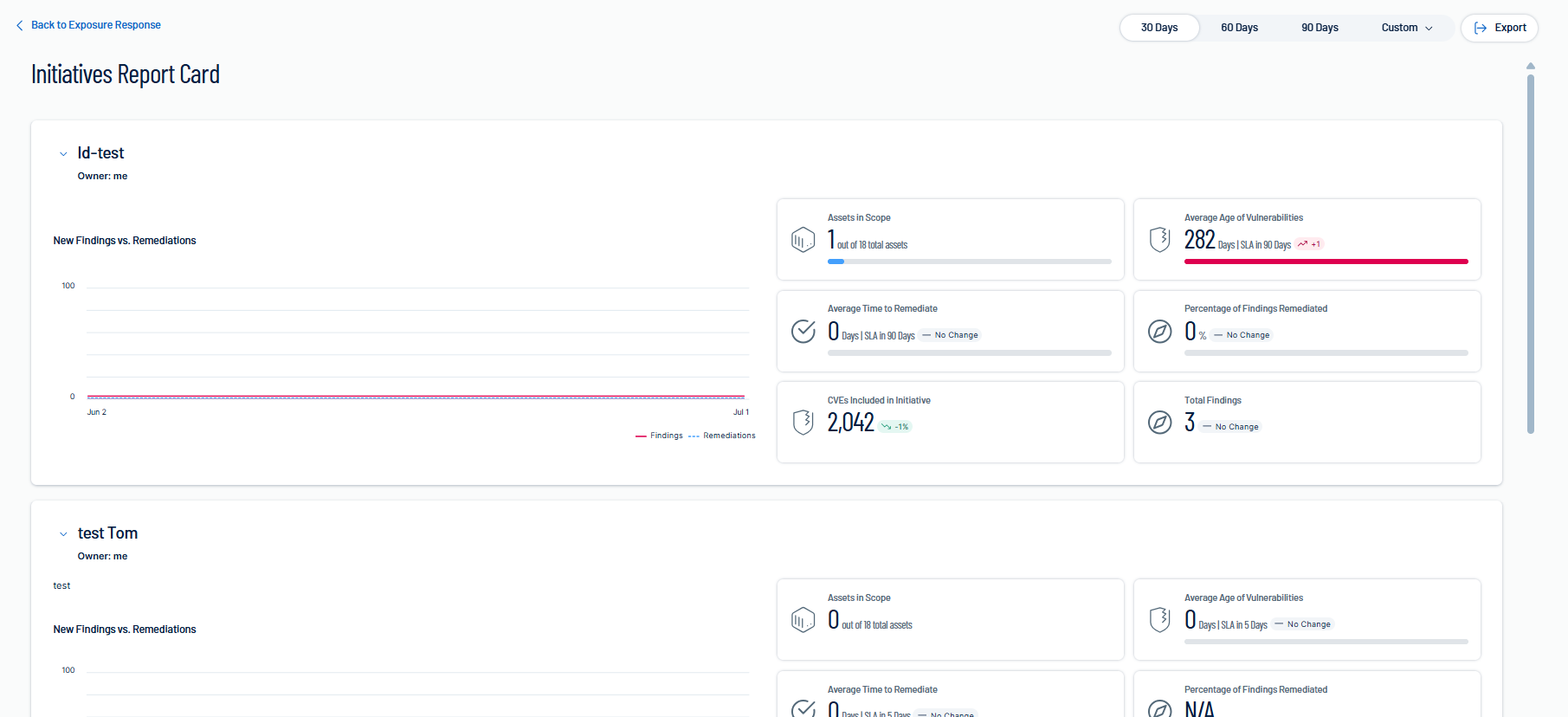
The Initiatives Report Card page appears.
Read Report Cards
Report cards contain the following sections.
| Section | Description |
|---|---|
| Owner | Indicates the owner, chosen during initiative creation. You cannot reassign initiatives to other owners. |
| New Findings vs. Remediations | Indicates the findings and remediations as they have trended during the selected date range. |
| Assets in Scope | Indicates the assets tracked by the initiative when compared to all assets in your environment. |
| Average Time to Remediate | Indicates the average time in days to fix findings since they were identified on a scan and a countdown to the SLA. |
| CVEs Included in Initiative | Indicates the total number of vulnerabilities being tracked. |
| Average Age of Vulnerabilities | Indicates the average age of unfixed vulnerabilities and a countdown to the SLA. |
| Percentage of Findings Remediated | Indicates the percentage of remediated findings, as indicated by your scans. |
| Total Findings | Indicates the total number of active, new, or resurfaced findings in the initiative. |
Export Report Cards
To export all your report cards:
-
In the left navigation, click
Exposure Response.The Exposure Response page appears. By default, the
Initiatives tab is active. -
In the left panel, click
Report Card.The Create Report Card page appears.
-
Select the users and/or initatives that you want to view on the report card.
-
Click Create Report Card.
The Initiatives Report Card page appears.
-
In the top-right corner, click
 Export.
The system downloads the report card to your computer as a single PDF.