Certificates
The HTTPS certificate ensures the system uses a secure connection to the Tenable One OT Exposure EM appliance and server. The initial certificate ages out after two years. You can generate a new self-signed certificate at any time. The new certificate is valid for one year.
To generate a certificate:
-
Go to Settings > System Configuration > Certificates.
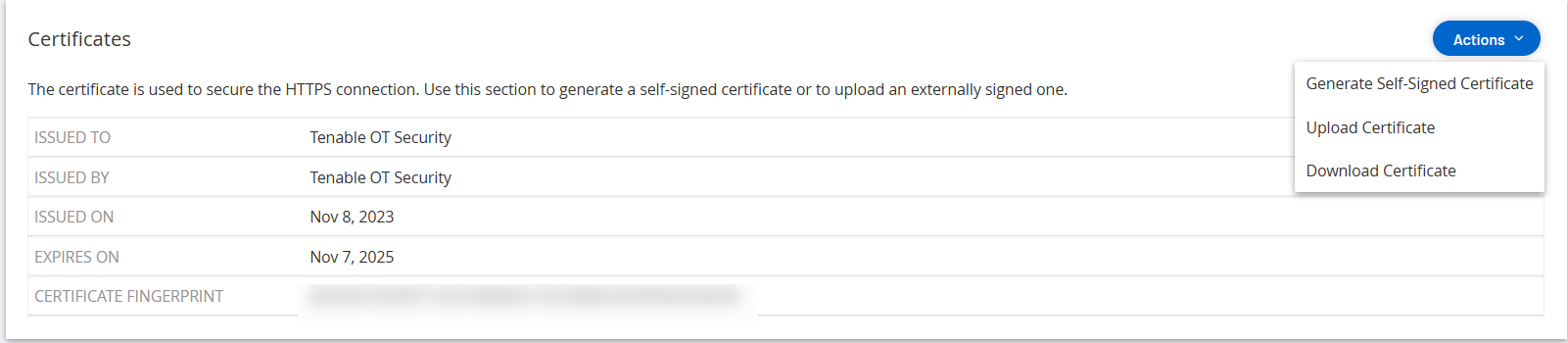
The Certificates page appears.
-
From the Actions menu, select Generate Self-Signed Certificate.
The Generate Certificate confirmation window appears.
-
Click Generate.
Tenable One OT Exposure EM generate the self-signed certificate, which appears on the Certificates page.
View the Certificates page
On the Certificate page, you can view information about your HTTPS certificate and generate a new certificate for secure HTTPS connections for the Tenable One OT Exposure EM. Generating a new certificate overrides the current certificate. A certificate is valid for one year.
The Certificates page shows the following details:
| Parameter | Description |
|---|---|
| Issued to | The entity to which the certificate was issued. |
| Issued by | The entity that issued the certificate. |
| Issued on | The issue date of the certificate. |
| Expires on | The date when the certificate ages out. |
Upload a Certificate
To upload a certificate:
-
Go to Settings >System Configuration > Certificates.
The Certificates window appears.
-
From the Actions menu, select Upload Certificate.
The Upload Certificate panel appears.
-
In the Certificate File section, click Browse and navigate to the certificate file you want to upload.
-
In the Private Key File section, click Browse and navigate to the private key file you want to upload.
-
In the Private Key Passphrase box, type the private key passphrase.
-
Click Upload.
Tenable One OT Exposure EM uploads the certificate.
Download Certificate
-
To download the certificate, click Actions > Download Certificate.
Tenable One OT Exposure EM downloads the certificate to your system.