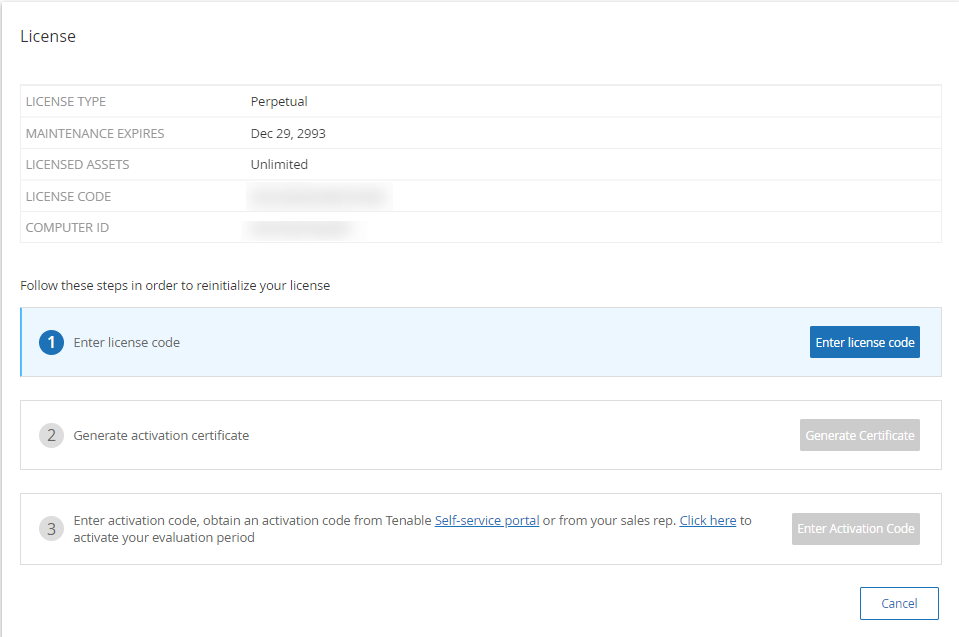
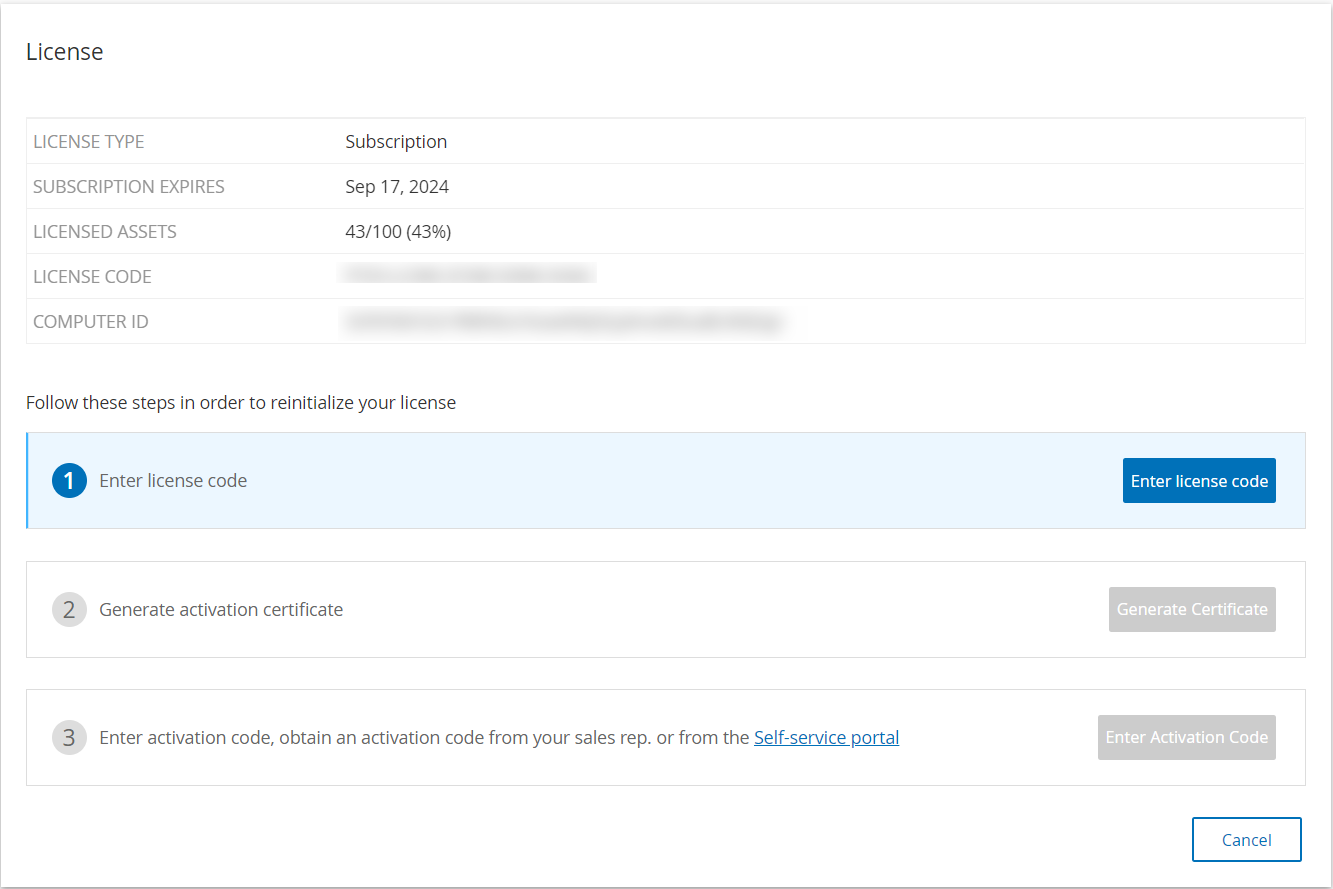
Tenable One OT Exposure EM License Workflow
Licenses for Tenable accounts are calculated based on the number of unique IPs in the system. Each IP requires a separate license. For example, even if more than one device shares the same IP address, multiple devices connected to the same backplane that share the same three IPs, the licenses can still be based on the number of IPs. In this case, you need three licenses, regardless of the number of devices.
After you install Tenable One OT Exposure EM, the next step is to activate your license.
Before you Begin
-
Make sure that you have the license code (20 characters letter/numbers), which you received from Tenable when you ordered your device.
-
Make sure you have access to the internet. If your Tenable One OT Exposure EM device is not connected to the Internet, you can register the license from any PC.
-
Make sure you have access to the Tenable Account Management portal. For access, contact your Tenable Customer Success Manager.
Activate your Tenable One OT Exposure license
You can activate your Tenable One OT Exposure EM license and facilitate the Tenable provisioning portal for creating new sites to manage your assets.
To activate your Tenable One OT Exposure EM license:
-
Log in to the Tenable Account Management portal using your community account.
The Provisioning page appears with the products for which you have licenses.
-
In the left pane, select Tenable One OT Exposure.
The Tenable One OT Exposure licenses appear with details such as the purchase date, expiration date, and number of licensed IPs and sites.
-
From the Code column, copy the 20-digit Tenable One OT Exposure license code.
-
Generate activation certificate in Tenable One OT Exposure EM:
-
Go to the Tenable One OT Exposure EM License Activation page.
-
In step 1, click Enter new license code.
The Enter new license code panel appears on the right.
-
In the License code box, paste the code that you copied from the provisioning portal.
-
Click Verify.
Tenable One OT Exposure EM enables the Generate activation certificate section.
-
Click Generate Certificate.
The Generate Certificate panel appears on the right.
-
Click Copy text to clipboard, then click Done.
Tenable One OT Exposure EM generates the certificate, which you must provide in the Tenable Provisioning Portal to add your sites.
-
-
In step 3 Enter activation code, click the Self-service link to open the Tenable Provisioning portal.
Note: To activate your evaluation period, click the Click here link. -
Navigate to the Tenable One OT Exposure Provisioning page and click
 Add Site.
The Add New Tenable One OT Exposure Site window appears.
-
(Optional) In the Label box, type a name for the site.
-
In the Activation Certificate box, paste the certificate that you copied from Tenable One OT Exposure EM. See step f.
-
Click Create.
A dialog box appears with an activation code. This is a one-time generated code that you must copy to the Tenable One OT Exposure instance.
-
-
Navigate back to the Tenable One OT Exposure EM instance and in the step 3 Enter activation code section, click Enter Activation Code.
The Enter Activation Code panel appears on the right.
-
In the Activation Code box, paste the one-time generated code that you copied from the Tenable One OT Exposure Provisioning page. See step e.
-
Click Activate.
Tenable One OT Exposure EM shows a confirmation message that the system activated successfully and the Tenable One OT Exposure EM interface appears.
-
Click Enable.
Tenable One OT Exposure EM is now enabled and ready to use.
-
Navigate back to the Tenable Provisioning portal and in the one-time generated activation code dialog box, click the I have saved this certificate information or copied it to Tenable.ot for activation checkbox.
-
Click Confirm.
The newly added site appears in the Provisioning page for Tenable One OT Exposure EM.
Update your license
When you want to increase your asset limit, extend your license period, or change your license type, you can update your license.
Before you Begin
-
Your Tenable Account Manager must have already updated your license information in their system before you can update the new license.
-
You need access to the internet. If your Tenable One OT Exposure EM device is not connected to the Internet, you can register the license from any PC.
To update your license:
-
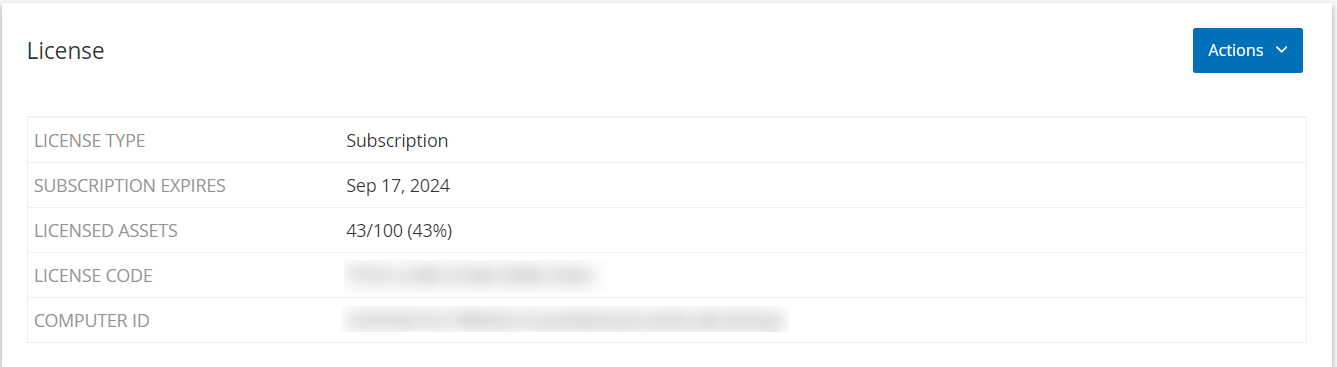
Go to Local Settings > System Configuration > License.
The License window appears.
-
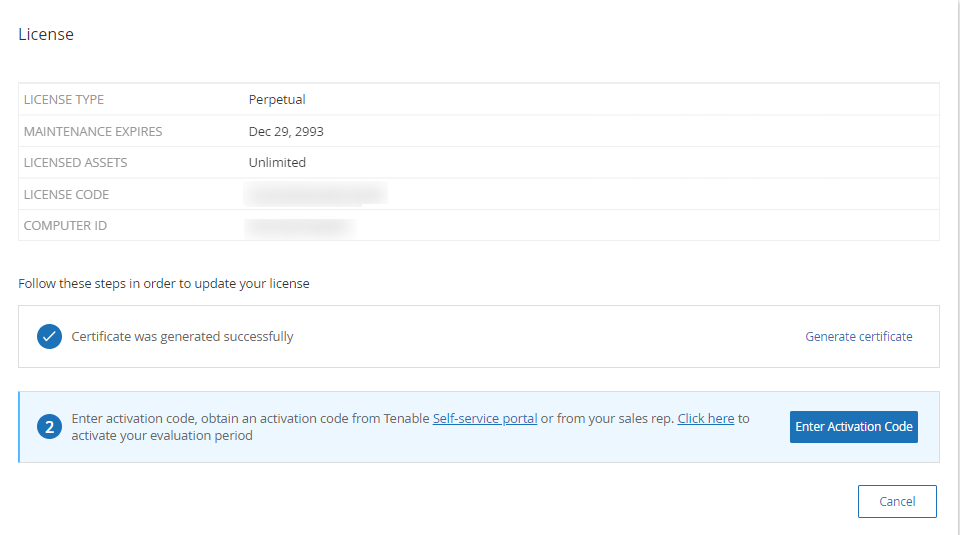
From the Actions menu, select Update license.
The Generate Certificate and Enter Activation Code steps appear.
-
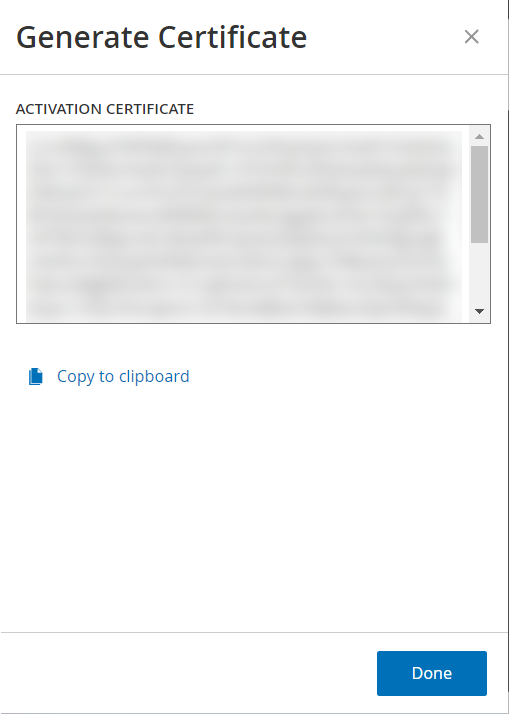
In the (1) Generate activation certificate box, click Generate Certificate.
The Generate Certificate panel appears with the Activation Certificate.
-
Click Copy text to clipboard, then click Done.
The side panel closes.
-
Edit the site details in the Tenable Provisioning portal:
-
In the Tenable Provisioning portal, navigate to the Tenable One OT Exposure Provisioning page and in the row of the site that you want to update, click the
 button.
A menu appears.
-
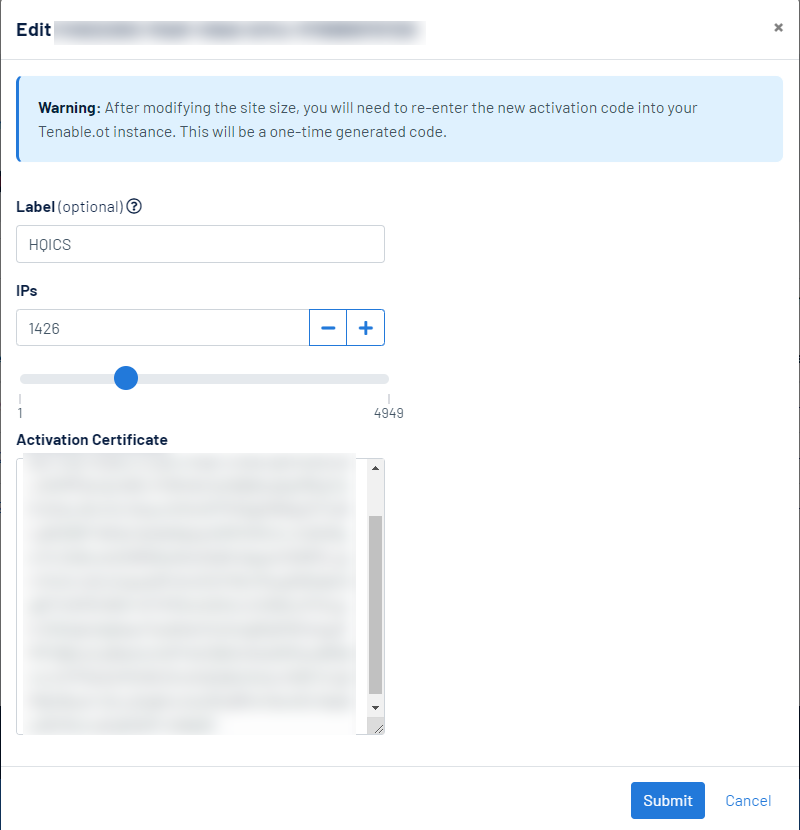
Click Edit Site.
The edit window for the site appears.
-
Adjust the details as needed.
-
In the Activation Certificate box, paste the certificate that you copied from the Generate Certificate window in Tenable One OT Exposure EM.
-
Click Submit.
The portal displays a dialog box with an activation code. This is a one-time generated code that you must copy to the Tenable One OT Exposure EM instance.
-
Click the
 button, then click Confirm.
-
-
Navigate back to the Tenable One OT Exposure EM instance.
-
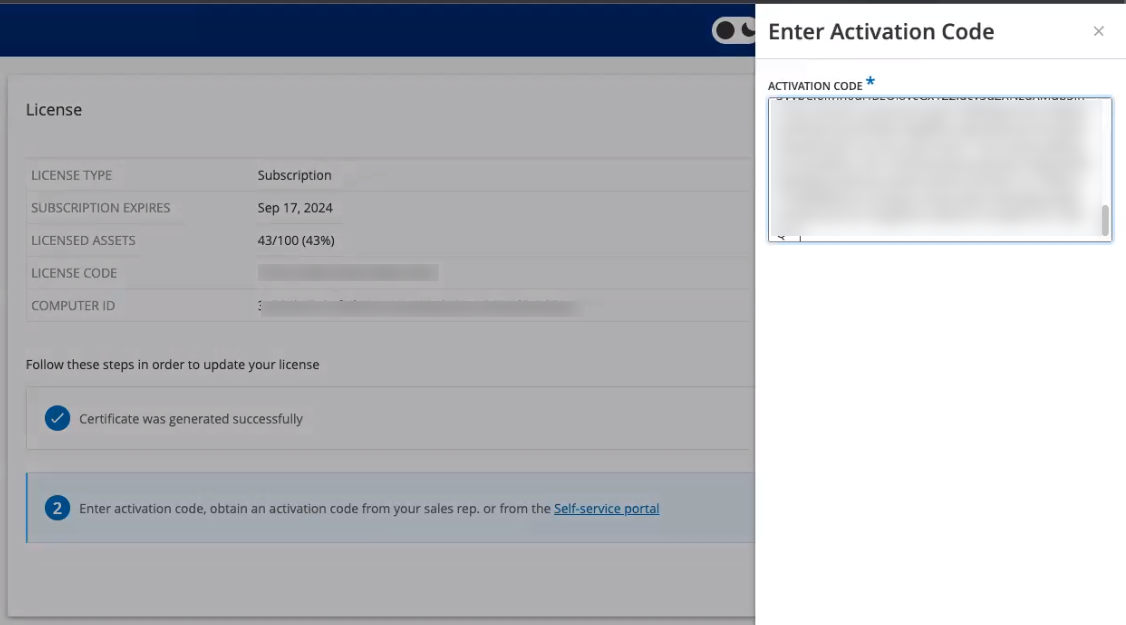
In the (2) Enter activation code box, click Enter Activation Code.
-
In the Activation Code box, paste the one-time generated code that you copied from the Tenable One OT Exposure Provisioning page.
-
Click Activate.
Tenable One OT Exposure EM shows a confirmation message that the system was activated successfully and the License page shows the updated license details.
 Update your license in offline mode
- Perform steps 1 to 4 as mentioned in the Update your license section.
-
In the (2) Enter activation code box, click the Self-service portal link.
The Activate Tenable One OT Exposure Offline window opens in a new tab.
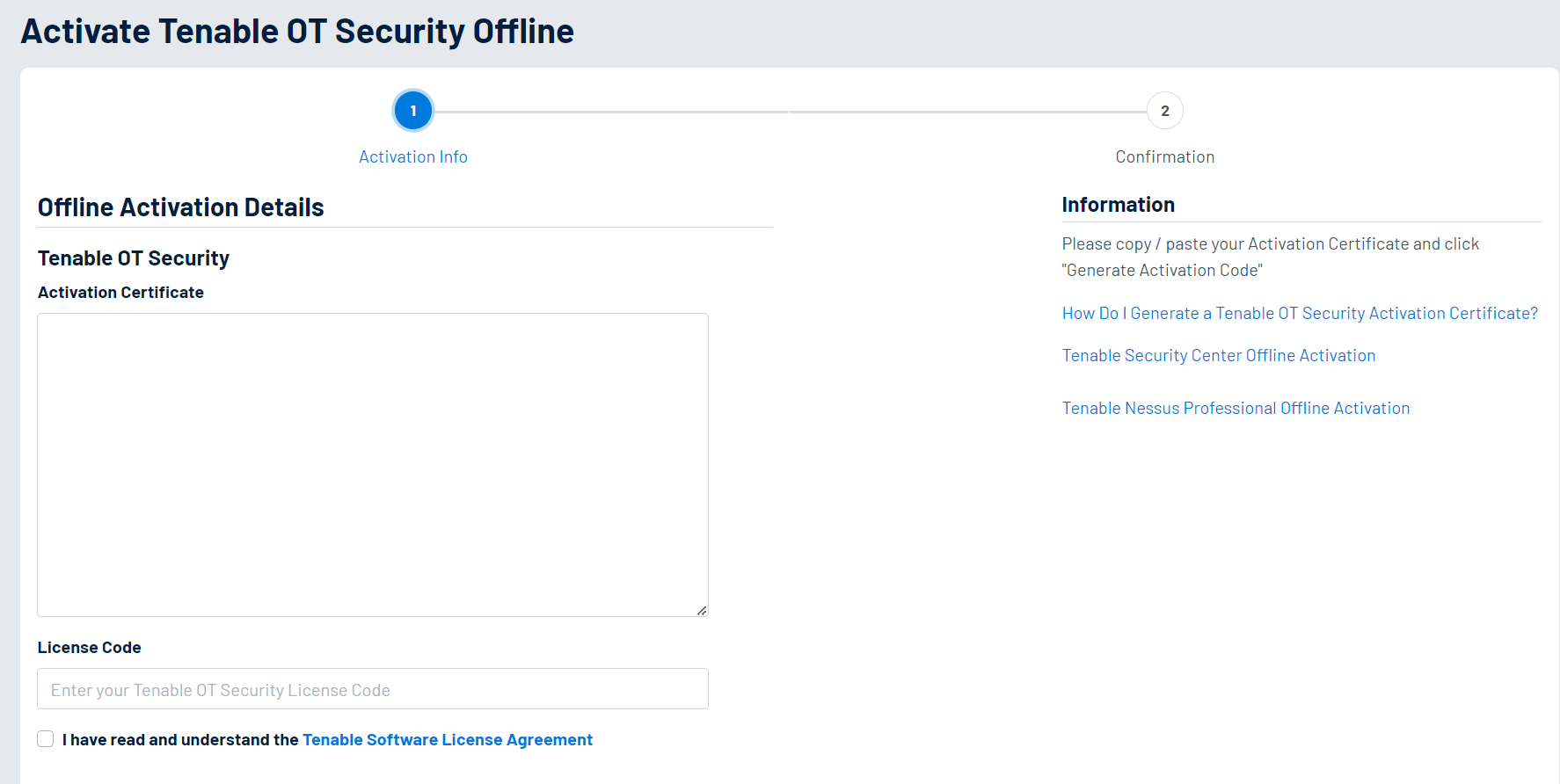 Note: You can access the Activate Tenable One OT Exposure EM Offline screen from an Internet-connected device using the following URL: https://provisioning.tenable.com/activate/offline/tenable-ot.Note: If you are not logged in to tenable.com, you can log in using your email address and password. Use the email account where you received your License Code. If you do not have the login credentials, you can either click on Don’t remember your password (and follow the prompts) or reach out to your Tenable account manager.
 -
In the Activation Certificate box, paste the Activation Certificate.
-
In the License Code box, type your 20-character License Code (which you can copy and paste from the License screen).
-
Click the I have read and understand the Tenable Software License Agreement checkbox.
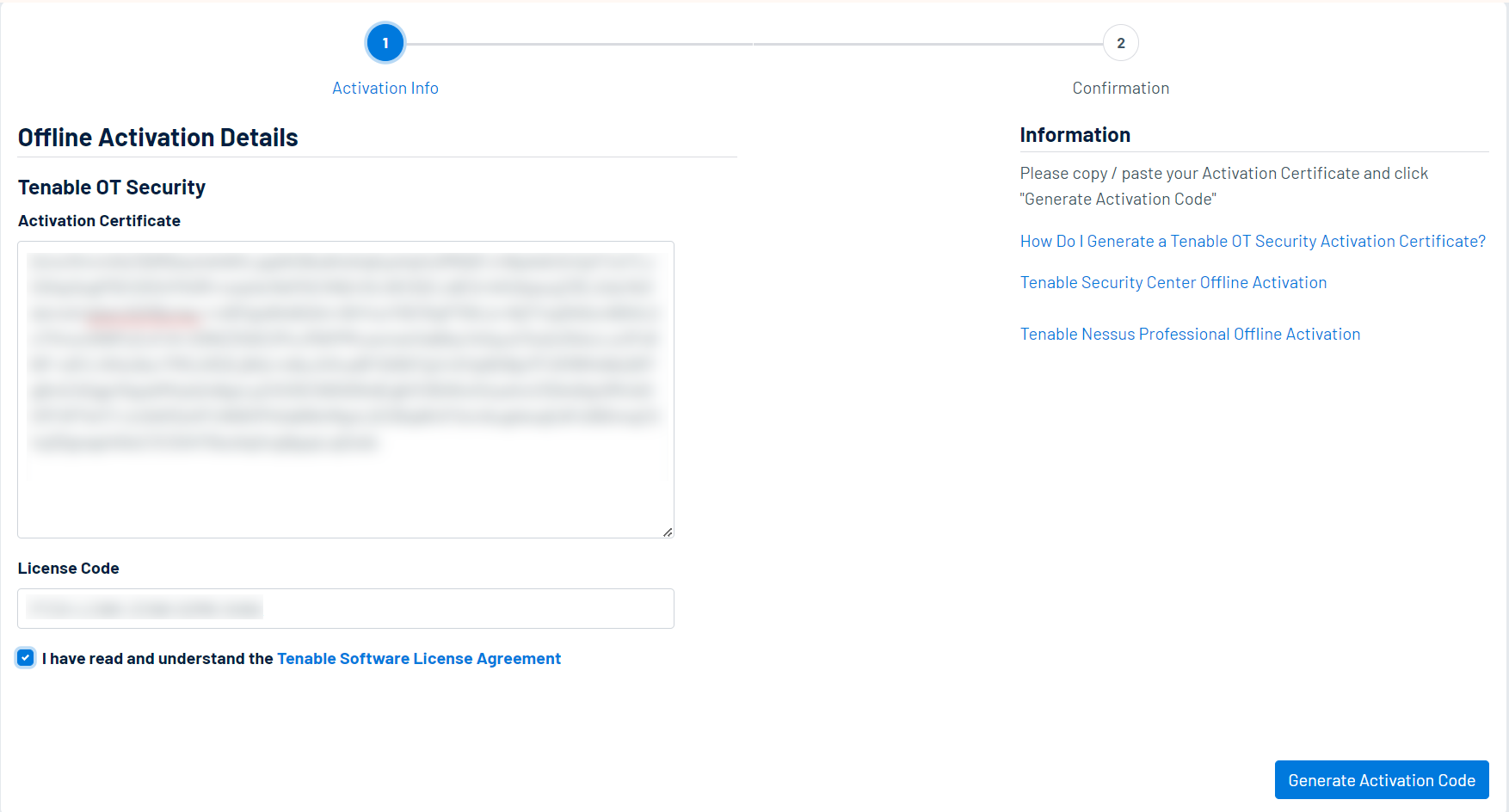 Note: To view the license agreement, click the Tenable Software License Agreement link.
 -
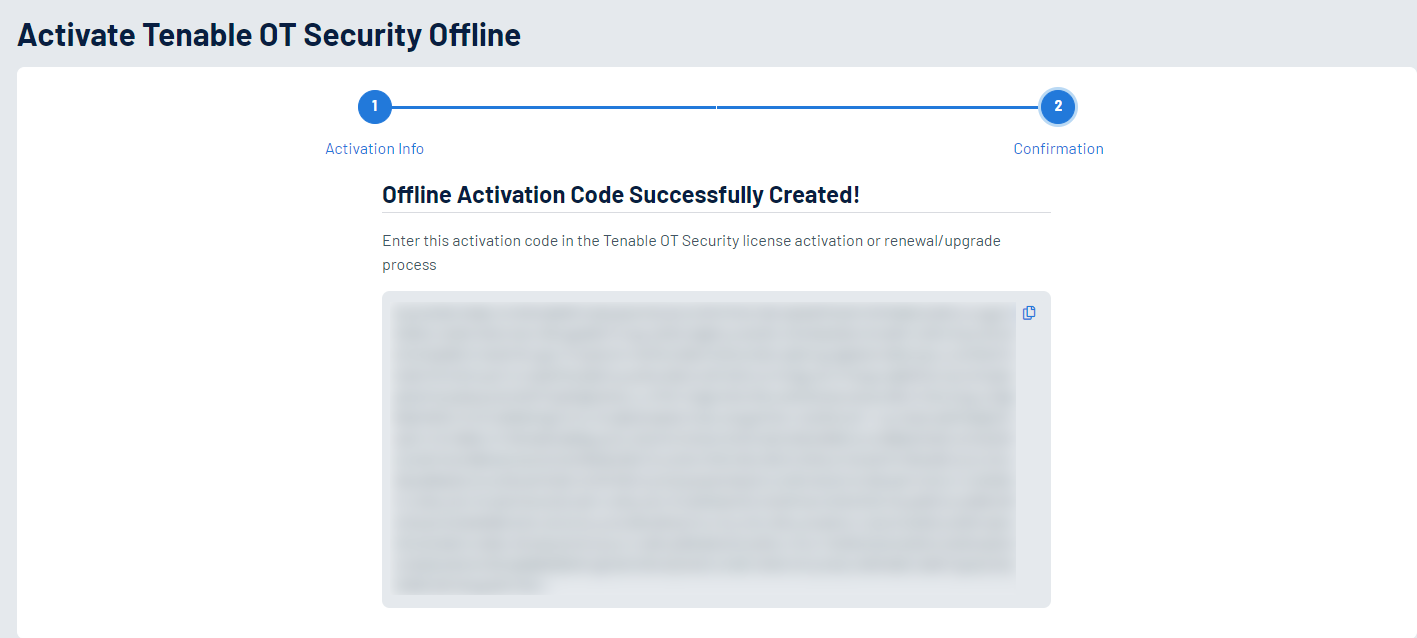
Click Generate Activation Code.
The Offline Activation Code Successfully Created! window appears.
-
Click the
button. -
Navigate back to the License tab, and click Enter Activation Code.
The Enter Activation Code side panel appears.
-
In the Activation Code box, paste your activation code and click Activate.
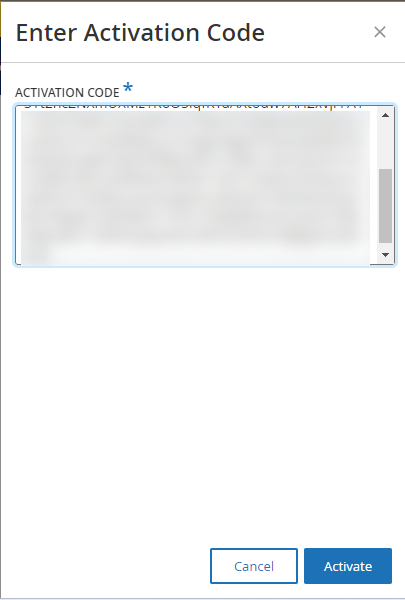
The side panel closes, and Tenable One OT Exposure updates the license.
Reinitialize your license
Reinitializing your license removes your current license from the system and activates a new license, similar to the license activation during your system startup. If you need to reinitialize your license (that is, if you are issued a new license), use the following procedure.
Before you Begin
-
Your Tenable account manager must have already issued your new license in their system and provided you with a License Code (20 characters letter/numbers).
-
You need access to the Internet. If your Tenable One OT Exposure EM device is not connected to the Internet, you can register the license from any PC.
To reinitialize your license:
-
Go to Local Settings > System Configuration > License.
-
From the Actions menu, select Reinitialize license.
A confirmation window appears.
-
Click Reinitialize.
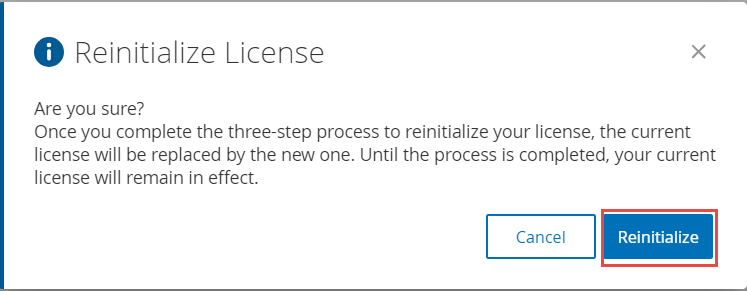
The License window appears with the three reinitialization steps.
-
Follow the system start-up steps for activating your license. See Activate your License.
After you provide your Activation Code, your new license replaces your current license.