Tenable One OT Exposure EM Management Console Elements
The Tenable One OT Exposure EM Management Console (user interface) provides easy access to enterprise-wide data that Tenable One OT Exposure appliances discover at the various sites. This data relates to asset management, network activity, and security events. Tenable One OT Exposure EM also enables you to configure and manage the Tenable One OT Exposure appliance for each of your sites.
Main User Interface Elements
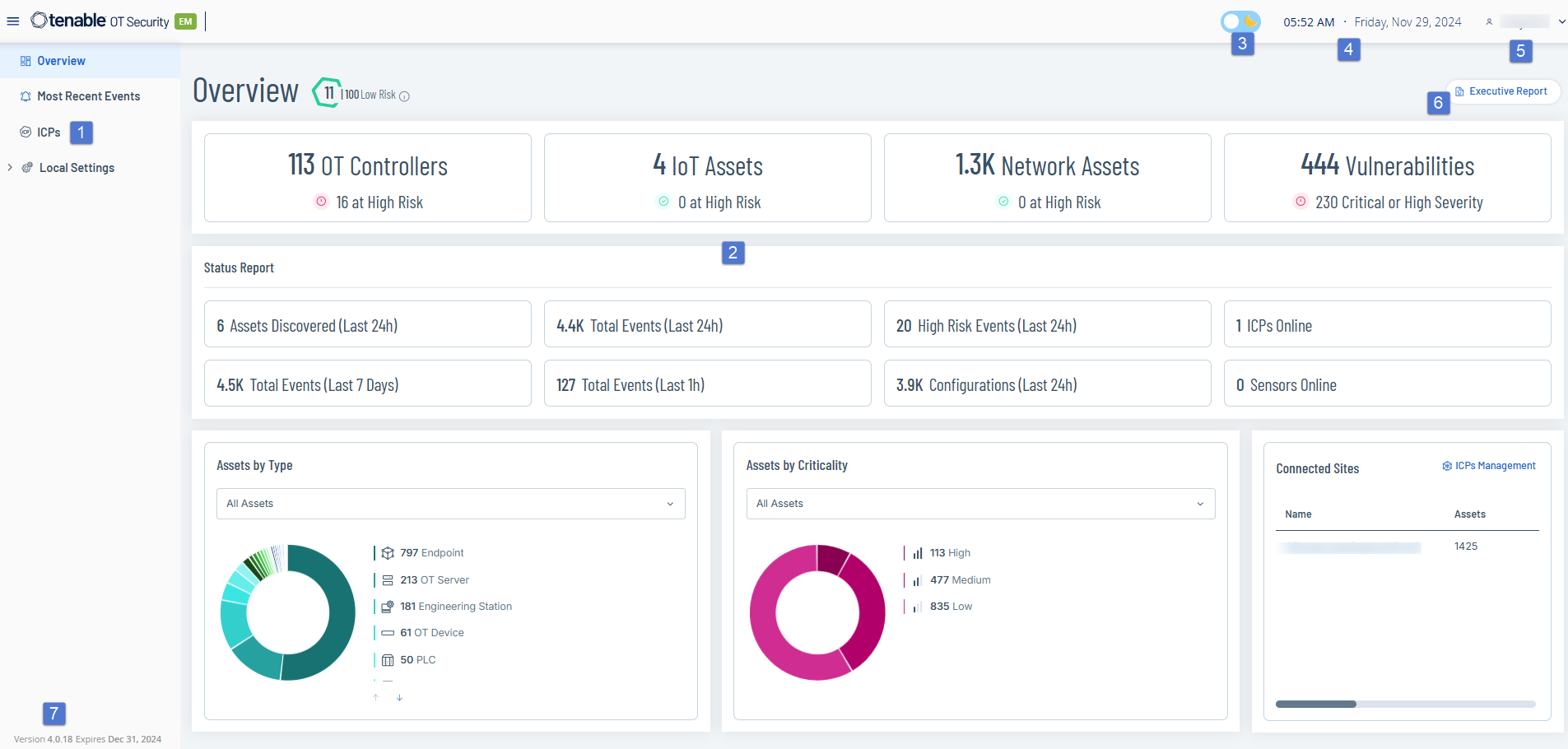
The following table describes the main user interface elements:
| Sl.No |
User interfaceElement |
Description |
|---|---|---|
| 1 |
Main Navigation |
Main navigation menu. Click the |
| 2 |
Current Date and Time |
The current date and time as in the system. |
| 3 |
Current User |
The name of the user currently logged in. Click the down arrow for a selection menu. Options are: About (shows software information) and Logout. |
| 4 |
Version Info |
The version of Tenable One OT Exposure EM. |
| 5 | Main Screen | The screen that you select in the main navigation. |
| 6 | Dark Mode/Daylight Mode | Change the display color scheme to Dark mode or Daylight mode. |
| 7 | Executive Report | Generates a risk assessment report in PDF format. |
| Resource Center | Tenable One OT Exposure EM resource center where you can access product announcements and Tenable resources. To access Resource Center, enable the Enable Usage Statistics toggle on the Settings > System Configuration > Device page. |
 button to show/hide the main navigation menu.
Enterprise Manager Navigation Pages
For Enterprise Manager (EM), the following navigation options are available:
-
Overview — View widgets that give an at-a-glance view of your entire enterprise’s inventory and security posture based on the aggregated data from your sites. See Tenable One OT Exposure EM Overview
-
Most Recent Events — Shows the list of events in your EM environment in the last 24 hours. See Most Recent Events.
-
ICPs — Displays all ICP systems paired with the EM. See ICPs.
-
Local Settings — View and configure the EM settings, and view and generate a certificate for secure HTTPS connections for the EM. See Settings.
-
User Management — View and configure users for the Tenable One OT Exposure EM. See Users Management.
-
System — Displays system-level options. For example: Factory Reset, Download Diagnostics Data, Restart, and Shut Down. See Syslog Servers.
Other Actions
Enable or Disable Dark Mode
You can use the Dark Mode color scheme on all pages by toggling the Dark Mode switch.
To enable or disable Dark Mode:
-
In the upper-right corner of the page, click the
 (Dark Mode) button to enable the Dark Mode.
Tenable One OT Exposure EM applies the setting to all pages.
-
To restore the Daylight Mode setting, click the
 (Daylight Mode) button.
Customize Tables
Tenable One OT Exposure displays the data in a table format with a record for each item. These tables have standardized customization features such as show / hide columns, filter, and sort results.
For more information about interacting with tables, see Customize Tables in the Tenable One OT Exposure User Guide.