AWS CloudTrail
As part of the monitoring process, Tenable One AI Exposure needs to read data from a CloudTrail that logs activity for the connected account. During the account connection process, you must choose a trail to use, and then grant Tenable access to the S3 bucket where the trail is located via an IAM role. Follow the guidelines in the account and organization connection steps.
During connection, Tenable identifies and displays a list of valid trails that are:
- Multi-region — See AWS FAQ for more information about why a multi-region trail is needed.
- Configured to log management read and write events.
- Enabled for logging.
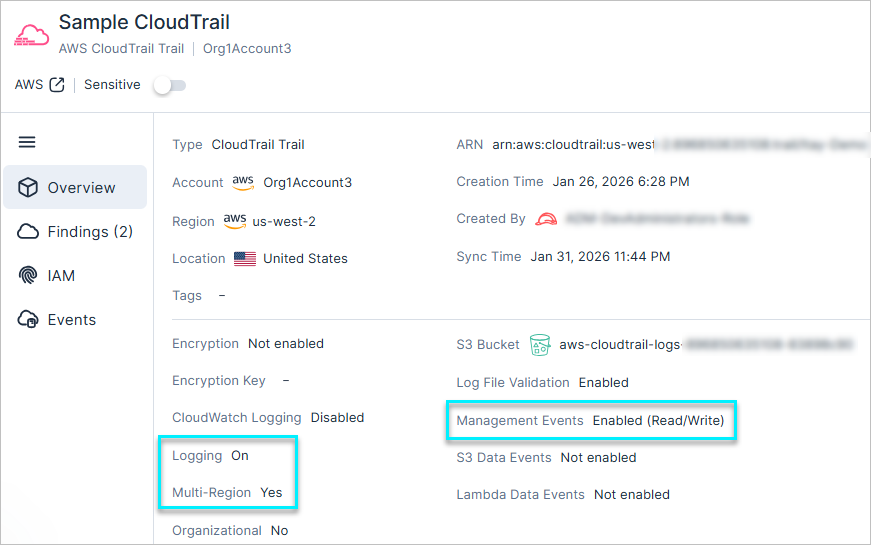
Each connected account generally has one associated CloudTrail, but there may be accounts with two or more trails.
If the S3 bucket where the CloudTrail files are stored is not in the same account as the account that you're connecting, you need to independently connect that account as well before you can choose it as a CloudTrail for the other account. If you use a separate AWS account as a “log archive account” to log activity for other accounts, Tenable recommends following this best practice:
- Connect log archive accounts with both Monitoring AND CloudTrail permissions, to provide full visibility into all of your AWS accounts. If, however, for some reason you don’t want AI Exposure to scan such accounts for security monitoring, you can connect it with CloudTrail permissions only.
Benefits of Granting CloudTrail Access
It is recommended to always grant Tenable access to the S3 bucket containing your CloudTrail when connecting accounts. Doing so provides several important benefits, including:
- Cloud Threat Detection:
- Visibility into activity performed by identities within your cloud environment (Cloud Events).
- Continuous risk analysis that checks for anomalies against behavioral baselines (Anomaly Detection).
- Visibility into effective use of permissions based on activity (used permissions).
- Fine-grained least-privilege recommendations based on usage. See Enable Granular Recommendations Based on Data Events for details.
Enable Granular Recommendations Based on Data Events
To enable action- and resource-granular recommendations within AI Exposure, enable CloudTrail data read/write event logging for S3 buckets/objects and Lambda functions, and then select the relevant trail/s in AI Exposure.
This ensures that, in addition to viewing generic information about access to a given AWS service, you can also analyze much more valuable information about:
- when a given identity used a specific action in the service
- exactly which resource within the service the identity used
In turn, this allows AI Exposure to provide specific, least-privilege recommendations related to this data. For example, Tenable can provide least-privilege recommendations down to the specific S3 bucket used by an application.
You can configure AI Exposure to work with your CloudTrail in one of the following ways, depending on whether you have data events enabled:
- If you use a single CloudTrail with both management events AND data events (either S3, Lambda, or both) enabled, select that trail from the Management events dropdown. The S3 Data events and/or Lambda Data events field will be automatically populated with the CloudTrail information that you select here.
- If you use separate trails for management events and data events (either S3, Lambda, or both), select the CloudTrail with management events enabled from the Management events dropdown, and the data event trail/s in the respective field.
CloudTrail Deployment
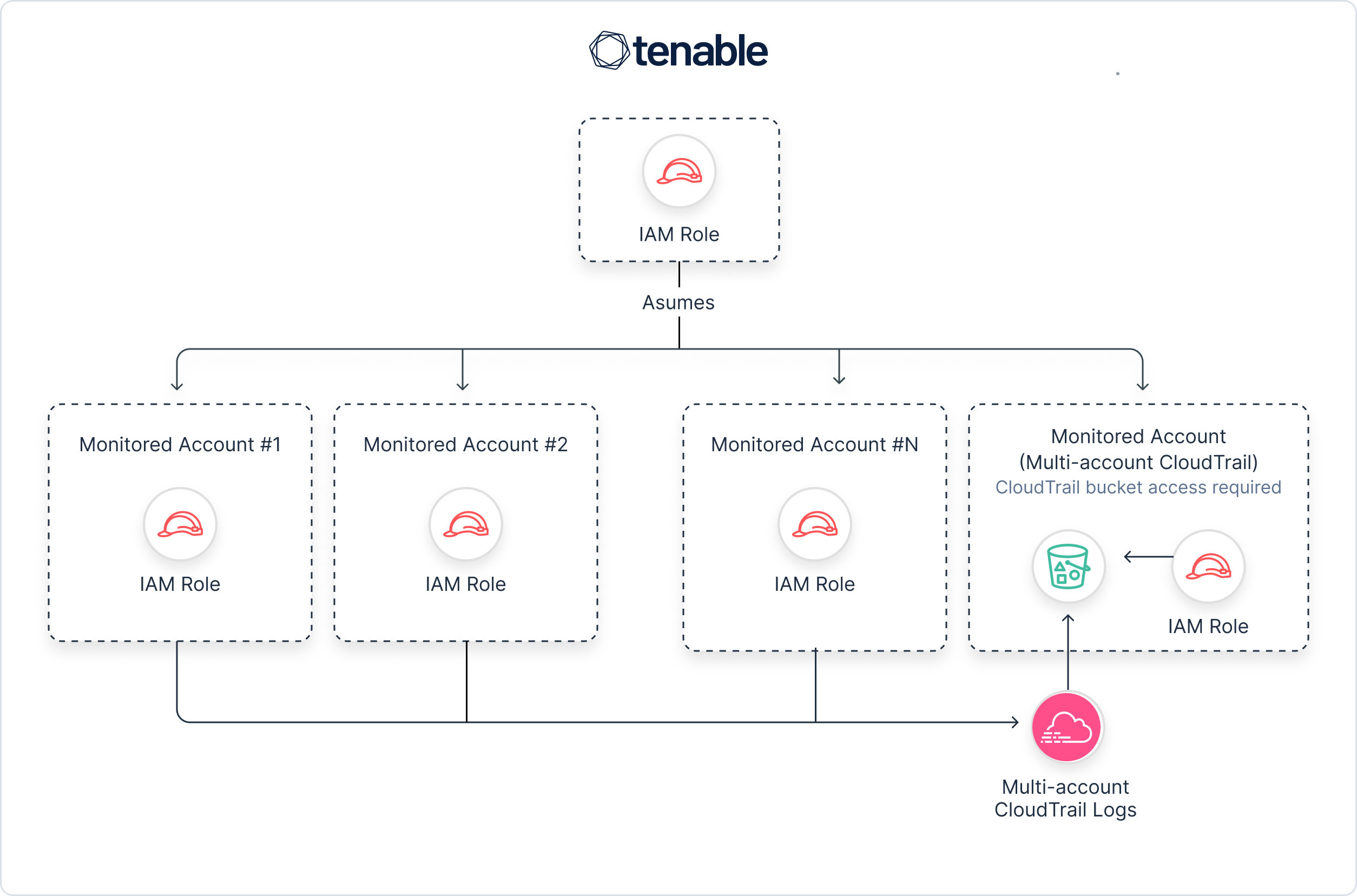
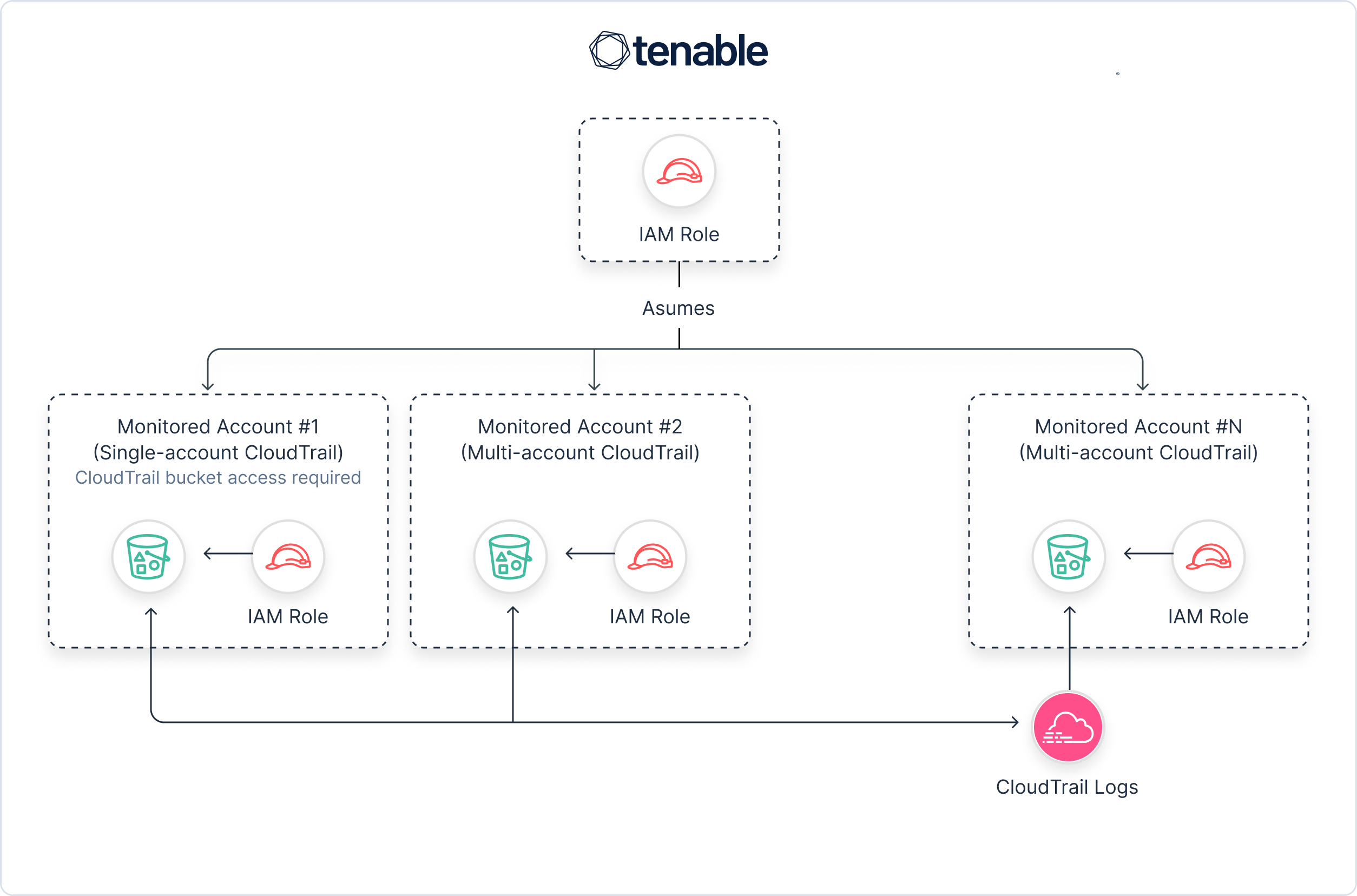
The following diagrams show how CloudTrail can be deployed in environments with multiple accounts, highlighting the differences between environments that maintain a dedicated CloudTrail (organizational trail) for multiple accounts, and those that have individual CloudTrails for each account.
Dedicated Organization Trail for Multiple Accounts
In this scenario, a separate, dedicated AWS account is used as a log archive account, containing an organizational trail which logs activity for other accounts. This dedicated account should be independently connected to AI Exposure with Monitoring permissions, and its organizational trail can then be used as the shared CloudTrail for other accounts that you connect to Tenable. If you are connecting an entire organization, complete the process, and then edit the relevant account and grant Tenable CloudTrail permissions via the IAM role.
Single CloudTrail Bucket per Account
In this scenario, each connected account connects to an independent CloudTrail (identically named across accounts).
KMS Key in Different Account
If the KMS key for the CloudTrail is located in a different AWS account than the one you're currently adding, you need to grant AI Exposure access to the key.
To grant access to a KMS key located in a different account:
- Navigate to the AWS account where the CloudTrail KMS key is located.
- Navigate to KMS > Customer managed keys and open the relevant KMS key.
-
Edit the key policy and add the following statement to the "Statement" section:
CopyJSON
{
    "Sid": "Allow an external account to use this KMS key",
    "Effect": "Allow",
    "Principal": {
        "AWS": "{ErmeticRoleARN}"
    },
    "Action": "kms:Decrypt",
    "Resource": "*"
}
Where ErmeticRoleARN is the Role ARN of the role you created earlier in this wizard.
- Click Save Changes.