Telegram (via Webhook)
Integrate with Telegram to send Tenable One AI Exposure findings to Telegram via webhooks. Perform the following steps to complete the integration, using AWS as an intermediary to translate Tenable data so that it is readable by Teams.
What to do next:
-
To start sending data for findings, you need to also configure automation rules or manually trigger an action after you add the integration. Successfully completing all integration steps doesn't trigger the sending of any data on its own.
Create a New Telegram Bot with BotFather
Create a Telegram bot with BotFather before connecting your bot to Telegram.
- In Telegram, start a new conversation with the BotFather.
-
Send the following message to create a new Telegram bot:
/newbot
-
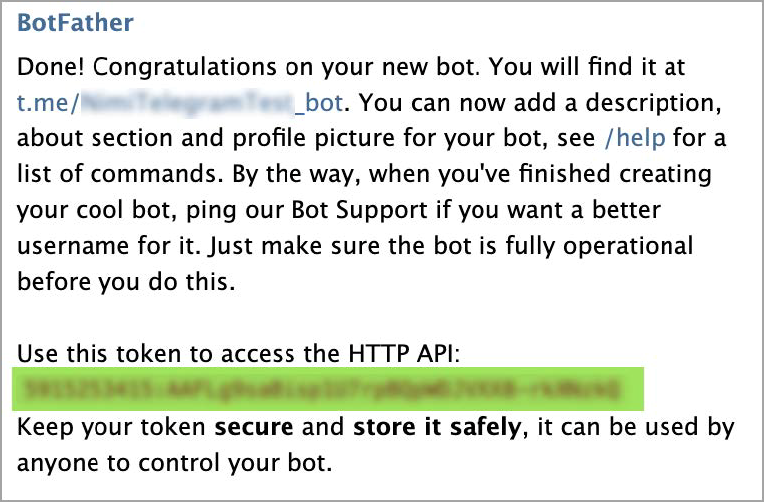
When prompted, enter a name for the bot. Give the Telegram bot a unique username.
Note: The bot name must end with the word "bot" (case-insensitive). -
Copy and save the Telegram bot's access token for use in later steps.
-
(Optional) Set a profile picture for the bot (for example, using the Tenable logo):
- Send the message /setuserpic to BotFather.
- Select the bot you created for Tenable.
- Send the profile picture.
- Create a new group in Telegram.
- Select the bot you created earlier, and add any relevant users.
- (Optional) Give the group a name and add a picture, and then click Create.
-
In Telegram Web, click on the new group that you created. In the browser URL, identify and save the chat ID (the numbers that appear after the letter ‘g’). Save this value for later.
Note: Although you can perform the previous steps in the Telegram App, you will need to use Telegram Web for this step.

Use AWS to Create a CloudFormation Stack
Use AWS to parse the finding payload from Tenable to a format suitable for Telegram notifications by performing the following steps:
Configure the SSM Parameter
To configure the SSM parameter:
- In the AWS Console, navigate to Systems Manager > Parameter Store.
-
Click Create parameter, and then enter the following details:
Name: TelegramErmeticToken
Important: The name must be entered exactly as is for the integration to work.- Tier: Standard
- Type: SecureString
- KMS key source: Leave the default value
- Data type: text
- Value: Enter the Telegram bot access token you configured earlier
- Click Create parameter.
-
Click Create parameter to add another parameter, and then enter the following details:
Name: TelegramErmeticChatID
Important: The name must be entered exactly as is for the integration to work.- Tier: Standard
- Type: SecureString
- KMS key source: Leave the default value
- Data type: text
- Value: Enter the Telegram chat ID you configured earlier
- Click Create parameter.
Create a CloudFormation Stack
Contact Technical Support to obtain the following files required in this procedure:
- CloudFormation template file
- .zip file deployment package for a lambda function
To create a CloudFormation stack:
- In the AWS Console, navigate to CloudFormation > Stacks and and then click Create Stack (With new resources – standard). The Create stack wizard opens.
- In the Prerequisite - Prepare template section, select Template is ready.
- In the Specify template section, select Upload a template file and then click Choose file to upload the template file provided by Technical Support.
- Click Next.
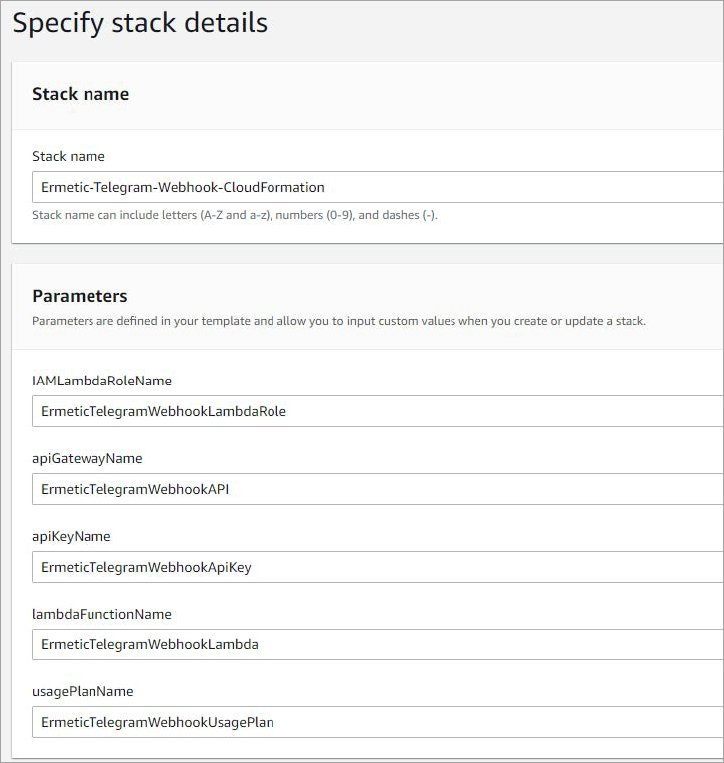
- Enter a Stack name for the cloud formation stack. For example, Tenable-Telegram-Webhook-CloudFormation.
-
(Optional) The stack creates several resources (Lambda function, API gateway, IAM Role, API Key). You can rename the resources, or use the default names. Click Next.
- On the Configure stack options page, click Next (There are no fields on this page that are mandatory for completing the task at hand).
- On the Review page, acknowledge the checkbox at the bottom of the page (I acknowledge that AWS CloudFormation might create IAM resources with custom names), and then click Submit.
- After completing stack creation, navigate to the Resources tab and click on the lambda function Physical ID link.
- Navigate to the Code tab and in the Code source section, click Upload from > .zip file, and then upload the Ermetic_Telegram_lambda_code .zip file provided by Technical Support.
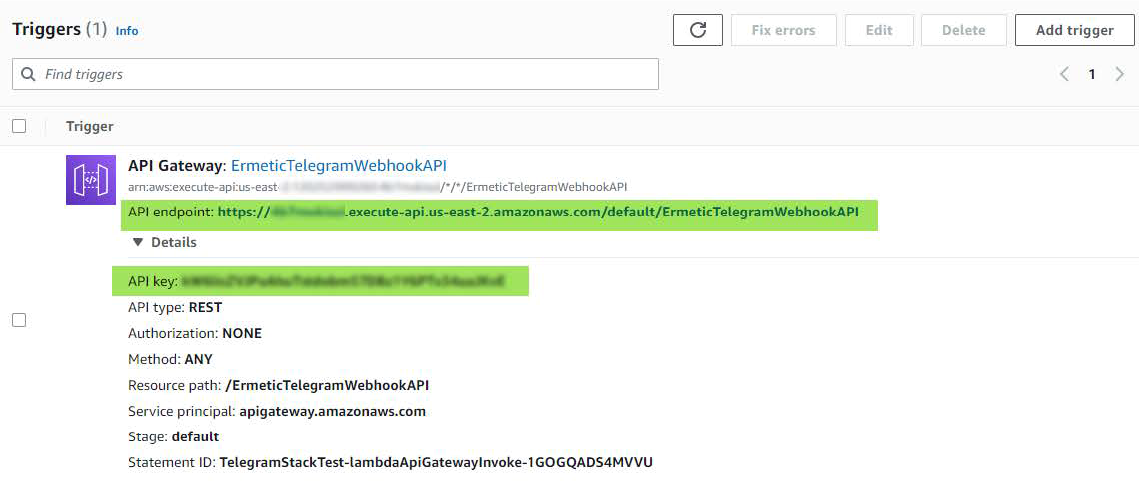
- Navigate to the Configuration tab. You will need to enter lambda trigger information from this tab in the next step.
-
Find the API Gateway trigger and click Details to see additional information. Copy and save the API endpoint and API key, as you will need them when you create a webhook integration in Tenable in the next step.
Create a Telegram Webhook Integration in Tenable
To create a webhook integration:
- In the AI Exposure Console, navigate to Settings > Integrations and click on Webhook.
- Click Lets Start.
- Enter a Display name for the webhook in Tenable. For example, Telegram Webhook.
- For the Webhook URL, enter the API endpoint URL of the API Gateway for the lambda trigger that was created when you created a CloudFormation stack.
-
For HTTP Headers, enter the following details:
- Name: x-api-key
- Value: Enter the API key of the API Gateway for the lambda trigger that was created when you created a CloudFormation stack.
-
Click SAVE.
You can now create automation rules or manually trigger actions to send AI Exposure finding data to Telegram via webhook.