Filter Data
You can filter data throughout the Console in various ways to help you find the specific resource, finding, activity, or other data that you're looking for.
Filter Data in Tables
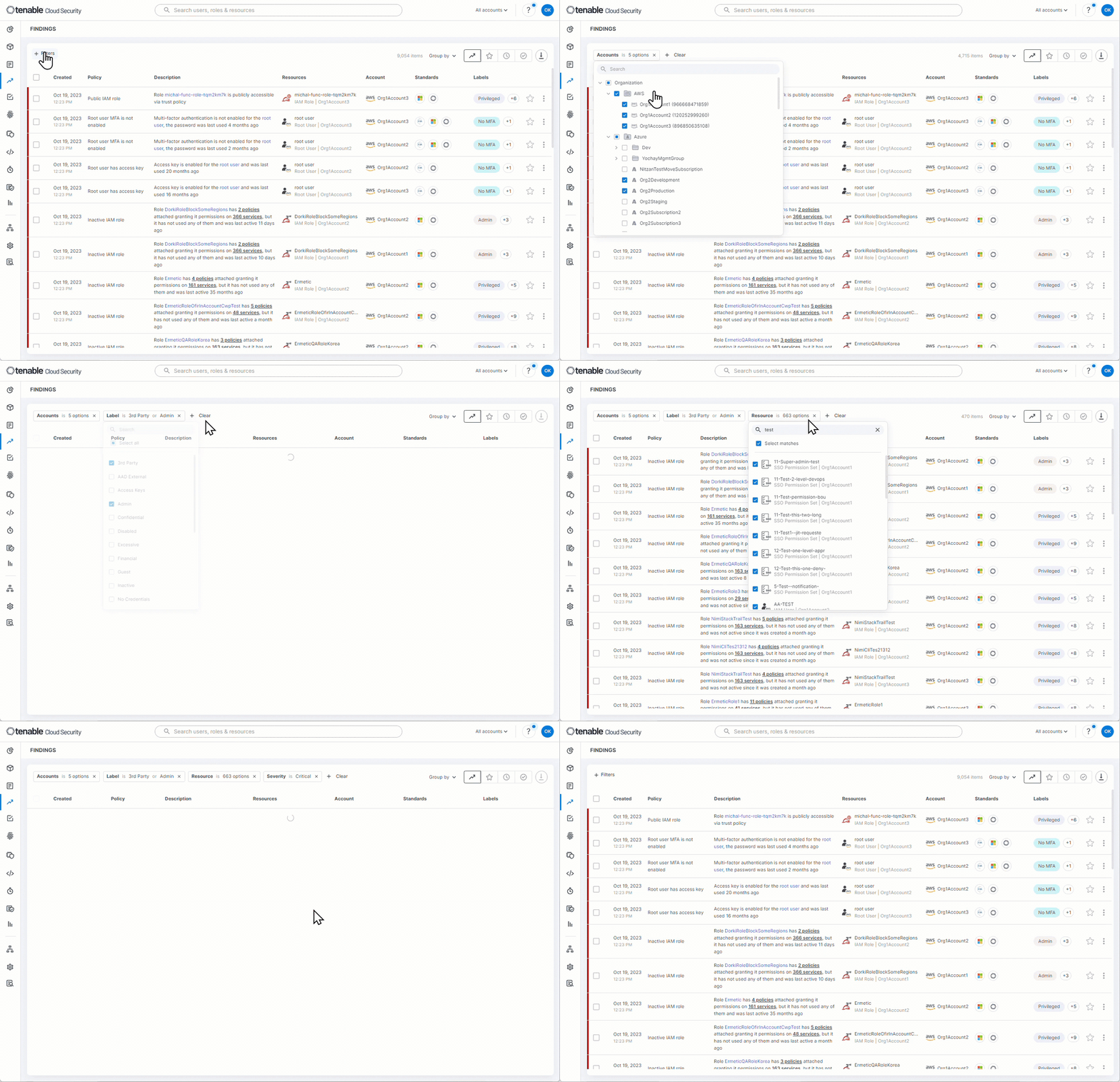
Use the filters at the top of tables throughout the Console to narrow the scope of the visible data:
- Each Console page has a set of filters that are displayed by default, based on common usage for each page.
- To add a filter, click on the
 button and choose an item/s or type a relevant search term.
- When you add or remove filters, your changes are saved, and those filters will appear by default the next time you navigate to the page. Only the filters themselves will be saved. Any values selected for the filters will not be saved when you leave the page.
-
To filter the table by entries that don't have a value for a particular field (empty values), select either:
- (Blanks) — For example: You can filter for all findings that dont have any tickets (e.g. Jira issue).
- Not set (used for date fields, which sometimes contain values which are not dates). For example, you can filter for all Ignored findings without an Ignored Until date (i.e. that are ignored permanently). Or for entities with an Expiration time of Never/Null.
- To filter the table by entries that match the search term, click Select matches. This option supports up to 65,000 returned entries. If more entries are returned, the option is disabled, and you will need to narrow down the search to use it.
- For some filters that generally contain many values, you can click Only to the right of a value to only filter by that value, effectively clearing any other previously selected values.
- Some entities may not have a value for a particular filter/column. To filter the table by all entities that have any value for the filter, click Select all.
- When you select items from filters, and then navigate back to the filter, any selected items appear on top.
- Click Clear to remove any selected filters.
- Compliance standards which have been disabled will not appear in relevant reports. See Compliance Column Data for more information.
Filter Data by Account Scope
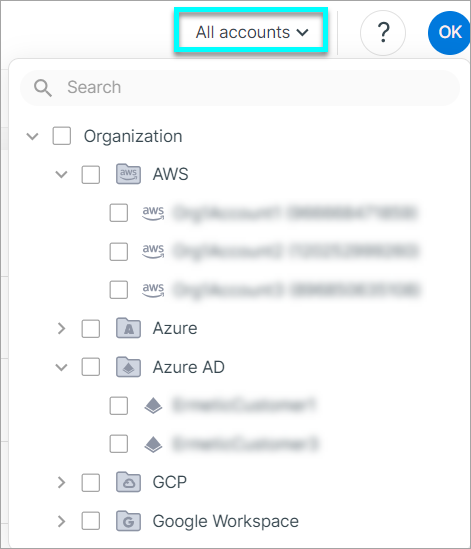
You can filter data by account scope (including IdPs) throughout the Console using the All accounts dropdown at the top right of the Console. See Account Hierarchy and Folders to learn more.