Account Hierarchy and Folders
Tenable One AI Exposure displays your account hierarchy throughout the Console. This hierarchy affects how you manage and interact with the following entities within Tenable (see Account Scopes):
- Projects
- Cloud accounts
- Identity providers
- Code repositories
- Container registries
Tenable automatically creates a top-level Organization folder, which contains all other folders in your organization. Underneath the Organization folder, additional folders are automatically created when you add your first account belonging to each respective cloud provider (or identity provider).
If your organization has a large number of accounts, it's important to maintain a structured account hierarchy within AI Exposure, using folders. You can create this structure in the following ways:
- (Recommended) Automatically Update Folder Structure in Tenable based on the cloud folder structure of the onboarded organization.
- Manually create folders in Tenable to group your onboarded cloud accounts together logically.
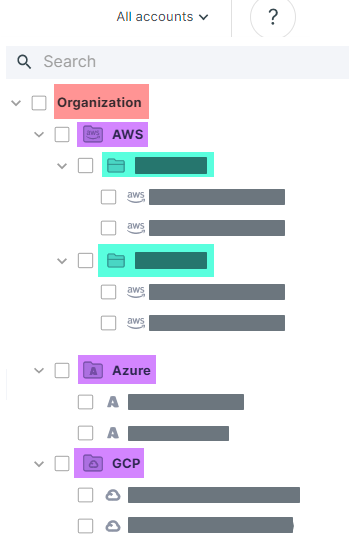
Automatically Update Folder Structure
During onboarding for cloud providers, identity providers, and code repositories, you can choose whether to automatically update the folder structure in AI Exposure. When this option is enabled:
- The folder structure of the onboarded organization is copied into the platform, keeping your account hierarchy intact and continuously synchronized. For example, within AWS, if you move an existing account to a newly-created folder, that change will then be reflected in Tenable.
- Account structure changes are reflected in AI Exposure the next time data is synchronized in your environment.
- Any folders that don't exist in your environment are deleted.
- Any empty folders in your environment are deleted.
- You can't move, edit, or create folders/accounts in the organization within AI Exposure.
- You can only manually add new accounts to the root, Organization folder, but not to the specific organization.
-
If an account is moved to a different organization in your cloud provider:
- If the other organization is NOT onboarded to Tenable, the account remains in its current location in Tenable. You can choose to delete the account.
- If the other organization IS onboarded to Tenable, the account moves to its new location in Tenable.
- AI Exposure user permissions are connected to the account scope they were defined on. For example, if your user has Collaborator permissions that were granted on a specific folder-level scope (Folder 1), and then Folder 1 moves to a new location in the cloud, you still retain the same permissions. See Advanced Use Case Examples for more information.
Account Moves and Parent Folder Dependencies
When you enable the automatically update folder structure option, AI Exposure moves an account or subfolder when it moves to a different parent folder in your cloud environment. Whether the move goes ahead depends on how the account or subfolder uses configuration defined on its previous parent folder:
- Custom Policies and Exclusions — The move goes ahead, and the configuration stops applying to the moved account or subfolder.
- Automations, scheduled reports, custom compliance, role assignments, and JIT eligibilities. The move is blocked if the account or subfolder depends on configuration defined outside its new location.
Custom Policies and Exclusions
A custom policy or exclusion on the previous parent folder does not block the move. After the move, it no longer applies to the moved account or subfolder:
- Custom policies. Tenable deletes the findings of the custom policy on the moved resources. Custom policies defined on the moved account or subfolder, or on its new parent folders, continue to apply. Findings of built-in policies are not affected.
-
Exclusions — Findings that the exclusion ignored reopen. Findings whose severity the exclusion changed return to their original severity.
Note: After a move, some custom policy findings can disappear, and some excluded findings can reopen. Both results are expected. - Example - Custom policy:
- Folder X has a custom policy that generates findings on Account A.
- In your cloud environment, you move Account A from Folder X to Folder Y.
- Result: Account A moves to Folder Y in AI Exposure. The custom policy on Folder X no longer applies to Account A, so Tenable deletes its findings on Account A.
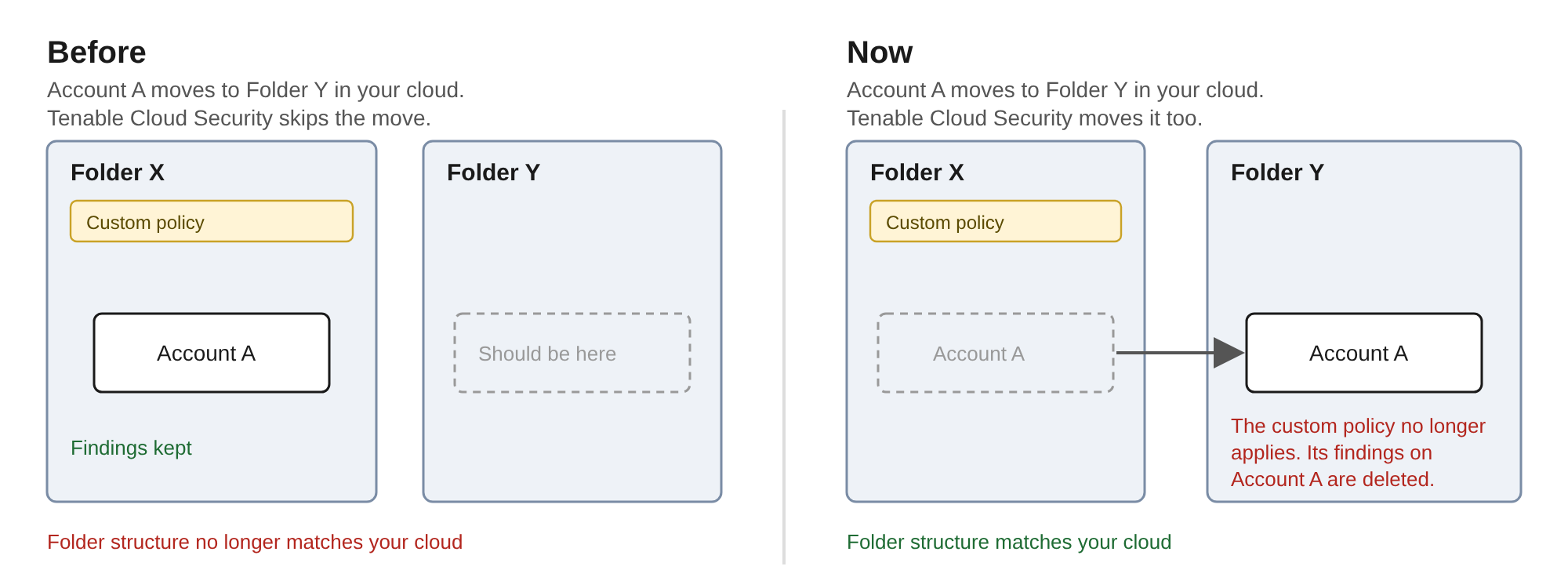
Automations, Scheduled Reports, and Other Dependencies
Tenable blocks a move that would break an existing setup. A move is blocked when an item on the moved account or subfolder uses an integration, policy, or role defined outside its new location. A configuration is defined outside the new location when it sits on a folder that is not inside the moved account or subfolder and is not above it after the move.
The following table describes the items that can block a move.
| Item | Blocks the Move When |
|---|---|
| Automation | An automation rule that targets the moved account or subfolder is defined outside its new location. Or an automation rule on the moved account or subfolder uses an integration defined outside its new location. |
| Scheduled report | A scheduled report on the moved account or subfolder uses an integration, a custom compliance, or a custom policy defined outside its new location. |
| Custom compliance | A custom compliance on the moved account or subfolder includes a custom policy defined outside its new location. |
| Role assignment | A user, group, or service account has a custom role on the moved account or subfolder, and the custom role is defined outside its new location. Or a service account has a role on the moved account or subfolder, and the service account is defined outside its new location. |
| JIT eligibility | A JIT eligibility on the moved account or subfolder uses an integration defined outside its new location, for example, to send approval requests to Slack. Or a JIT eligibility defined outside its new location targets the moved account or subfolder. |
When Tenable blocks a move, the account or subfolder stays in its current folder, and AI Exposure does not display a message in the Console. Until you resolve the dependency, your folder structure in AI Exposure does not match your cloud environment for that account or subfolder. See Example #1 in Advanced Use Case Examples.
Advanced Use Case Examples
- Example #1 - Automation:
- You configured an integration (Slack) on a specific folder-level scope (Folder 1) that contains multiple children accounts.
- In one of the children accounts (Account 1), you defined automations that use this Slack integration.
- Afterwards, in your AWS environment, you moved Account 1 to a different folder (Folder 2).
- Result: Tenable doesn't move the account to the new folder, so as not to break the existing automation flow.
- Example #2 - Permissions:
- Your AI Exposure user has Collaborator permissions that were granted on a specific folder-level scope (Folder 1) that contains multiple children accounts.
- Afterwards, in your AWS environment, you moved Account 1 to a different folder (Folder 2).
- Result: Your user will no longer have permissions to Account 1, since your permissions were defined on the parent-level scope (Folder 1), and not the account itself.
FAQ
 Why is my organization structure not synced with the cloud?
- Account structure changes are reflected in AI Exposure the next time data is synchronized in your environment.
- See Example #1 in Advanced Use Case Examples
- An automation, scheduled report, custom compliance, role assignment, or JIT eligibility depends on a folder outside the new location. See Automations, Scheduled Reports, and Other Dependencies.
Why can't I edit/delete/move a folder or account in Tenable?
If you enabled the automatically update folder structure option during cloud organization onboarding, you can't edit/delete/move folders or accounts in Tenable, since these entities are synchronized from your cloud environment.
Create Account Folders
Create account folders to manually group your onboarded cloud accounts together logically, based on, for example:
- Development or production environments
- Product
- Business units with unique owners
These folders let you nest accounts (and other folders) like you would in existing hierarchies within cloud service providers:
- AWS organizational units (OUs)
- Alibaba Cloud organizations
- Azure management groups
- GCP folders
- OCI tenancies
Custom folders are marked in the tree structure with a folder icon, and accounts are marked with the respective icon of the cloud provider.
To work with folders:
-
In the AI Exposure Console, navigate to Settings > Accounts and then choose one of the relevant providers.
Any existing folders appear in the tree on the left-hand side of the page.
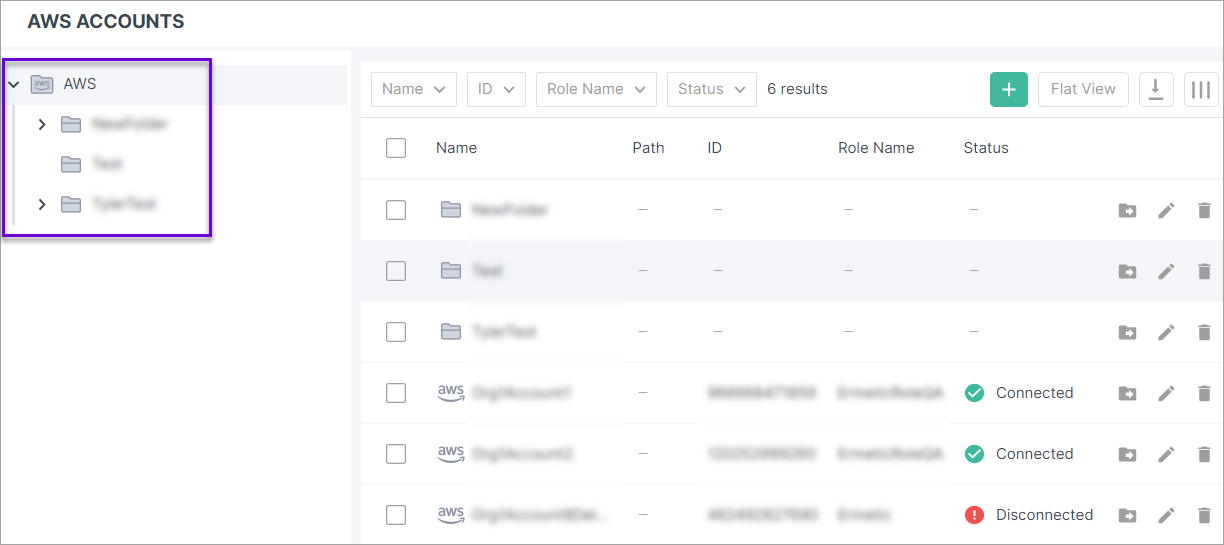
-
Navigate to the location where you want to add the folder. For example, if you want to add it under the root AWS folder, select the AWS folder in the tree.
When you select a folder, all accounts (and any nested folders) that belong to the folder appear in the main table.
- Click
 and then Create folder.
-
Enter a unique name for the new folder, and then click CREATE FOLDER.
The folder appears in the tree hierarchy on the left, and in the main table of accounts and folders.
- To rename a folder, click the Edit button next to the folder and then enter a new name.
- To delete a folder, click the Delete button next to the folder and confirm deletion.
- To move a folder, click the Move button next to the folder and then choose a new location for it by selecting the relevant folder.
Account Scopes
An account scope represents an onboarded cloud account, identity provider tenant, or IaC repository, or a group of such accounts, and can be any of the following:
- The entire Organization (all accounts onboarded to AI Exposure).
- A group of accounts. For example, all accounts belonging to a specific cloud provider (all AWS accounts) or identity provider (all Microsoft Entra ID tenants), or a group of accounts within a specific cloud provider (grouped by folder).
- A specific account/identity provider tenant.
- A project.
- All IaC organizations, or a subset of individual repositories. This grants access to view code scan results for a specific scope.
You can filter Console data and configure features in the AI Exposure Console on specific account scopes.
Filter Console Data and Configure Features by Account Scope
View and configure specific features in the AI Exposure Console within a specific account scope. For example, you can create a custom policy to monitor violations in a specific Azure account.
- The account scope you select will persist as you navigate across Console pages. It will remain set to your chosen scope, and won't revert to a default unless you manually change it.
-
The account scope filter supports selecting a single scope at any given time. This filter does not support selecting multiple account scopes at once. What can you do instead?
- Create a project that includes the desired scopes, and then filter by the project.
- Within relevant Console pages, you can use the Account/s filter to filter for multiple account scopes at once. For example, in the Findings page, and across the Data/Workload pages. Be aware that you may need to add the filter if it doesn't appear by default.
To view/configure features by account scope:
-
From any page in the Console, click on the account scope dropdown and select a scope.
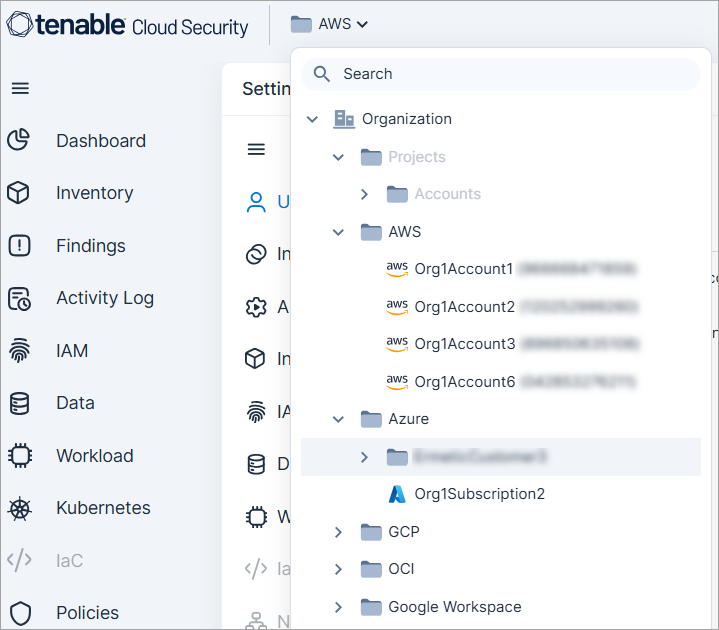
The scope you choose impacts the actions you can perform in various ways. For example, consider the following:
- Custom policies — You can only enable or disable a custom policy from the original folder/account that you created it from. For example, if you created a custom policy from the top-level AWS folder, you won’t be able to enable/disable it from any children folders/accounts within the AWS folder. See Custom Policies for more information.
Supported Features
You can view and configure most Console features by account scope, including, for example, the following:
- Add AI Exposure users
- Add integrations
- Create reports
- View license usage data
- View Kubernetes clusters
- Add JIT eligibilities (cloud accounts only)
- Configure Workload Protection settings (cloud accounts only)
- Enable/disable policies (cloud accounts only)
- Create automation rules (cloud accounts only)
- View Compliance scores (cloud accounts only)
- View IaC code scan results (IaC organizations only)
Account Inheritance
Entities created on the organization level or within a group of accounts (folder) are inherited to all children accounts, including to any children accounts created at a later time. For example, Console users.