Cloud Policies: Custom
This is a how-to guide for creating custom cloud policies.
- To manage policies, see Cloud Policies.
- To view and manage cloud findings, see Cloud Findings.
- To learn about finding statuses and the finding lifecycle, see Finding Lifecycle.
- To learn about how finding severity works, see Finding Severity.
- To write, test, and manage Rego-based custom policies, see Custom Rego Policies.
Create custom policies to address specific issues relevant to your organization. Custom policies can be based on:
Custom policies created on the organization level or within a group of accounts (folder) are inherited to all children accounts, including to any children accounts created at a later time. You can only enable or disable a custom policy from the original folder/account that you created it from. For example, if you created a custom policy from the top-level AWS folder, you won’t be able to enable/disable it from any children folders/accounts within the AWS folder. In this case, the status you define in the top-level AWS folder is propagated to all children folders/accounts. See Account Hierarchy and Folders for more information about folders.
If you created an automation rule and chose to apply it to All policies, any automation targets (actions) that you selected will also apply to custom policies that you create.
Choose a Policy Type
| Policy Type | Use It When |
|---|---|
| Template | A template already covers the check, such as which principals have which permissions on a resource. No code required. |
| Explorer query | The condition spans several resources, such as a public virtual machine that can reach a sensitive bucket, or an identity with access to sensitive data. |
| Rego | You need fine-grained control over one resource's own configuration, you want to adapt a built-in Rego policy to your environment, your team already has OPA skills to reuse, or you want policy-as-code control. |
Add a Custom Policy
Required Cloud Exposure User Role: To create, edit, and delete a custom policy, you need the Collaborator or Administrator role, or a custom role with the Manage permission for Policies, on the scope where you create the policy. See Users and Groups.
To add a custom policy:
- (Optional) Select an account scope in the Organization dropdown to limit the scope of the custom policy to a specific subset of cloud accounts. By default, the entire organization (all accounts) is selected.
- In the left navigation pane, click Policies > Cloud Policies.
- Select the Custom tab.
- Click + Create Custom Policy. The Create Custom Policy wizard opens.
-
Select the policy type.
 Query
Convert an Explorer query into a custom policy. For example, create a policy for tracking publicly exposed EC2 instances with sensitive tags. To use a query, either choose an existing query by clicking Select query, or build one from scratch.
- You can't delete or make private the query of a policy that is linked to a saved query. You can edit the query in the Explorer, but you can't add a Join or Group by, or change the main object to something other than a resource or identity.
- If you select an existing query and want to edit it, open the three-dot menu and click Unlink to modify the filters. The policy will no longer be synced with the original query.
Template
Easy-to-use templates to address specific issues relevant to your organization.
- Select the template that you want to use for this policy and then click Select.
-
Depending on the template you chose, you will need to select the conditions that define when the policy applies. For example, if you chose Monitor Permissions > These principals should not have these permissions on these resources, you will need to select the principals, permissions (either specific actions, or broad categories), and resources that the policy applies to. For any given condition, you can select one or more entities.
Explorer-based templates: Some templates use the Explorer query editor instead of individual parameter pickers. For these templates, a pre-built query appears in the right panel. You can refine the query using the Explorer query editor. For more information, see Explorer. -
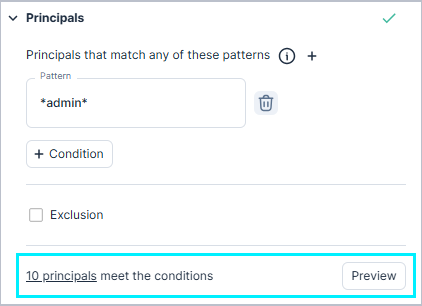
Click the Preview button before you create the policy to see the counts of matching Principals and Resources. Click a count to view the specific entities that match.
Logical operators for multiple selection
- Tags/labels — If you select multiple tags or labels (for example, in Resource with these tags), an ALL logical operator is applied, meaning that the policy is only triggered if all specified tags or labels are identified. To apply ANY logic to tags/labels in this context, you can create multiple custom policies, each configured with the specific tag/label that you want as your trigger.
- All other conditions — If you select multiple entities/resources, an ANY logical operator is applied, meaning that the policy is triggered if any of the specified resources are identified.
-
For the following templates, you can choose whether to apply either the ALL or ANY operators. Also, you can define exclusions for these templates.
- Only these principals should have these permissions on these resources
- These principals should not have these permissions on these resources
- These principals should not have these roles on these resources
Rego
Write an attribute-level check against a resource's raw provider JSON, in standard Rego v1 syntax. Best for managing policies as code, and for advanced logic that templates and queries can't express. For the full guide, see Custom Rego Policies.
- Select the resource type the policy will evaluate.
- Author a new policy, or click Import Rego from existing policy to search for and select a built-in or custom Rego policy to start from.
- Click Helper Functions to copy a pre-built check, such as data.infrastructure.is_true, into your policy.
- To test the code, select Single or Batch in the Test Data section to choose one or more existing resources, and then click Run in the Output section.
- Enter a meaningful name and an optional description.
- Assign the policy a severity, which determines the severity level of any findings triggered by the policy.
- (Optional) Enter custom remediation steps to provide clear guidance for security teams.
- When finished, click Create.
Write a Policy with Hexa AI
If Hexa AI is available in your organization, you can describe a policy in plain language and let Hexa AI write it. This works for both query-based and Rego-based custom policies.
Hexa AI prefers Explorer queries. When a check can be expressed as a query, Hexa AI creates a query-based policy, which is easier to read and maintain if you don't know Rego. Hexa AI writes Rego only when the check can't be expressed as a query, or when you ask for Rego explicitly.
To write a policy with Hexa AI:
- Open Hexa AI and describe the check, for example Write a Rego policy that fails any S3 bucket without an owner tag ending in @acme.com.
- Hexa AI identifies the resource type, reads a sample resource from your environment, and writes a policy that validates. The card shows the proposed name, description, resource type, severity, remediation, and the query or Rego code.
- Click Create Policy. The editor opens prefilled with what Hexa AI wrote. The policy isn't saved yet.
- Test the policy, adjust it if needed, and then create it. For a Rego policy, test it with Single and Batch. See Test a Policy.
Always test a policy that Hexa AI wrote before you create it, the same as one you wrote yourself.
Custom Policy Templates
Cloud Exposure provides a number of templates that you can use to create custom policies. These templates provide a flexible way of defining exactly which resources you want to monitor, and how. For example, you can use the Monitor any activity of these identities template to create a custom policy that monitors activity in a break glass account (used for emergency purposes) to ensure that it’s not being used by unauthorized identities. Or, for example, you can use templates that monitor changes in buckets/keys/secrets to monitor critical, “crown jewel” assets in your environment.
The following templates, divided by category, can be used to create custom policies that address specific use cases:
| Category | Cloud | Template | Potential Use Case |
|---|---|---|---|
| Monitor Permissions | AWS | Only these principals should have these permissions | Protecting crown jewel data. Prevent specific identities from accessing sensitive resources. |
| AWS | For these resources, only these principals should have these permissions | Segregation of duties. Only specific identities should have access to this resource(s). | |
| Azure | Only these principals should have these permissions on these resources | Segregation of duties. Only specific identities should have access to this resource(s). | |
| AWS/Azure/GCP | These principals should not have these permissions on these resources | Protecting crown jewel data. Prevent specific identities from accessing sensitive resources. | |
| Azure/GCP | These principals should not have these roles on these resources | Impersonation. Monitor changes in access to sensitive roles. | |
| AWS | These roles should have policies that match this reference role Note: If you use organizational roles, and want per-account instances of the roles to conform to a pre-defined template, you can use this template to alert when the set of attached policies deviates from the chosen reference role. |
||
| AWS | Monitor policy, ACL, and Block Public Access setting changes in these buckets | Protecting crown jewel data. Get alerts on changes to sensitive bucket configuration. | |
| AWS | Monitor permission changes in these keys | Protecting crown jewel data. Get alerts on changes to key policies. | |
| AWS | Monitor policy changes in these secrets | Protecting crown jewel data. Get alerts on changes to specific secret policies. | |
| AWS | Monitor changes on identity-based policies attached to these principals | IMonitor policy changes on high-impact principals to prevent privilege escalation. | |
| AWS | Monitor trust policy changes in these roles | Impersonation. Monitor changes in access to sensitive roles. | |
| Monitor Activity | AWS/Azure/GCP |
Monitor any activity of these identities Important Notes:
|
Monitor break glass accounts. Monitor identity activity for use of break glass accounts. |
| Monitor Sensitive Data | AWS/Azure | This sensitive data should not reside in these resources | Detects sensitive data that is stored within restricted boundaries where it should not reside. Use to monitor data sprawl and enforce data boundary compliance. Learn more. |
| Monitor Resources | AWS | Monitor rule changes in these security groups | Network security. Monitor changes to sensitive security groups. |
| AWS | Monitor policy, ACL, and Block Public Access setting changes in these buckets | Protecting crown jewel data. Get alerts on changes to sensitive bucket configuration. | |
| AWS | Monitor permission changes in these keys | Protecting crown jewel data. Get alerts on changes to key policies. | |
| AWS | Monitor policy changes in these secrets | Protecting crown jewel data. Get alerts on changes to specific secret policies. | |
| AWS | Monitor these IAM principals of these types that are created | Monitoring access. Monitor newly created identities. | |
| AWS | Monitor trust policy changes in these roles | Impersonation. Monitor changes in access to sensitive roles. | |
| AWS | Monitor when these permission sets are assigned to users or groups | Monitoring access. Monitor AWS Identity Center permission set changes. | |
| AWS | Monitor when these permission sets are created or updated | Monitoring access. Monitor AWS Identity Center permission set changes. | |
| AWS | Monitor rule changes in these security groups | Network security. Monitor changes to sensitive security groups. | |
| AWS/Azure/GCP |
Resources should not allow inbound internet connection from these IPv4 address ranges to these ports Note: This policy applies to the following resources:
|
Network security. Limit access from external networks. | |
| AWS | These security groups should not allow inbound internet access from these IP address ranges to these ports. | Network security. Limit access from internal or external networks. | |
| AWS | These security groups should allow inbound internet access from these IP address ranges to these ports. | Network security. Limit access from internal or external networks. |
For a worked example of building a custom data type and a custom sensitive data policy, see Governing Proprietary Sensitive Data.