Finding Severity
Different colors/icons are used to indicate the various risk severity levels that resources and identities pose to your organization. The following table maps these icons to their respective severity levels, and describes their implications within your cloud environment.
| STATUS | DESCRIPTION | EXAMPLE |
|---|---|---|
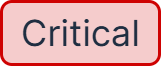
|
Immediate action required | Administrative user with permissions to sensitive data, which aren't in use. |
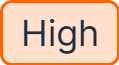
|
Handle as soon as possible | Non-admin user with permissions to sensitive data, which aren't in use. |
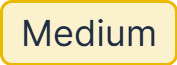
|
Potential risk | User with permissions to sensitive resources such as bucket lists, but without permissions to read the bucket contents. |
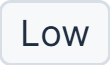
|
Monitor for escalation | User with limited use of assigned permissions. |
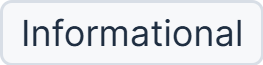
|
Useful information | A new GCP project was added to your organization. |
Dynamic vs. Static Severity
Each policy has a severity level associated with it. This severity level determines the severity level of any findings triggered by the policy.
Although some policies have a static severity level (either Critical, High, Medium, Low, or Informational), most policies have a dynamic severity level  . This means that the severity level of any findings triggered by the policy will be dynamically determined according to the specific circumstances and context of the finding. For example, a policy that detects IAM users with unused credentials may trigger a Critical/High severity finding if the user has Admin permissions, but only a Low severity finding if the user has a few permissions that aren't sensitive.
IAM Finding Severity
Tenable One Cloud Exposure calculates and displays the risk severity for findings associated with overprivileged identities. This section explains how that calculation is made across different cloud providers (AWS, Azure, GCP). The severity for such findings is displayed in the Cloud Exposure Console in the following locations:
- The Finding page, under the Severity column and within the respective finding.
- The IAM > Excessive Permissions page, in the IAM Finding Severity column. See Excessive Permissions and Inactive Identities for more information.
- The Inventory page, within the respective finding of the selected resource.
For more information about permission analysis for overprivileged identities, including activity categories and category risk levels, see Permission Analysis and Risk Levels.
AWS
This section explains how the risk severity calculation is made for findings associated with overprivileged AWS identities. Each table relates to a different identity type.
Permission Severity
The following table shows how AWS permission severity levels are derived from action criteria, and relates to all identity types in this section:
| Criteria | Permission Severity |
|---|---|
| Impersonation action | Critical |
| Severe action | High |
| Sensitive resource + sensitive action | High |
| Identity can assume another identity | Dynamic2 |
| Wide-scoped resource + sensitive action | Medium/High3 |
| Wide-scoped resource + action is in risky category1 | Medium |
| Everything else | Low |
1 Access management or infrastructure write
2 Based on severity of the other identity
3 Based on action severity
AWS Severity per Finding Type
Users and Groups
This table shows how risk severity is calculated for findings associated with overprivileged AWS users and groups. Calculations are based on the risk severity of the user's permissions (See Permission Severity for more information), in conjunction with credential-related factors. For example, for a given user, if the permission severity is High, and the user has a password with MFA configured, the finding severity is Medium.
| Permission Severity | No Password/Keys | Password with MFA | Access Keys | Password with MFA and Access Keys | Password without MFA1 |
|---|---|---|---|---|---|
| Low | Low | Low | Low | Low | Medium |
| Medium | Low | Low | Medium | Medium | Medium |
| High | Low | Medium | High | High | High |
| Critical | Low | Medium | High | High | Critical |
1 With or without access keys
Roles
This table shows how risk severity is calculated for findings associated with overprivileged AWS roles. Calculations are based on the risk severity of the role's permissions (See Permission Severity for more information), in conjunction with other factors. For example, for a given role, the finding severity is Critical if the permission severity is High, but the role is publicly exposed.
| Permission Severity | None or Trusted External | 3rd-Party Role Defined by Tenable/Customer | Unknown Account | Public Compute | Public Role | Vulnerable Compute |
|---|---|---|---|---|---|---|
| Low | Low | Medium | Medium | Medium | Medium | Medium |
| Medium | Low | Medium | High | High | High | High |
| High | Medium | High | High | High | Critical | Critical |
| Critical | Medium | Critical | Critical | Critical | Critical | Critical |
SSO Permission Sets
This table shows how risk severity is calculated for findings associated with overprivileged AWS SSO permission sets. Calculations are based on the risk severity of the permission set (See Permission Severity for more information), in conjunction with the risk severity (non-excessive) and number of assignments/accounts. For example, for a given permission set, if the permission severity is High, but the permission set has less than 10 assignments and 10 accounts, all of which have medium severity permissions, the finding severity is Medium.
Findings associated with permission sets that have no assignments are assigned a severity of Low.
Up to 10 assignments and up to 10 accounts
| Assignment/Account Severity → (Remaining Permissions) |
Low | Medium | High | Critical |
|---|---|---|---|---|
| Permission Severity ↓ (Removed permissions) |
||||
| Low | Low | Low | Low | Low |
| Medium | Low | Low | Low | Low |
| High | Medium | Medium | Medium | Low |
| Critical | High | High | High | Medium |
More than 10 assignments or more than 10 accounts
| Assignment/Account Severity → (Remaining Permissions) |
Low | Medium | High | Critical |
|---|---|---|---|---|
| Permission Severity ↓ (Removed permissions) |
||||
| Low | Low | Low | Low | Low |
| Medium | Medium | Medium | Low | Low |
| High | High | High | High | Low |
| Critical | Critical | Critical | Critical | Medium |
SSO Users and Groups with Unused Permission Set Assignment
This table shows how risk severity is calculated for findings associated with AWS SSO groups and users that have unused permission set assignments. The calculation is based on the permission severity of roles that can be assumed by users through both used and unused AWS SSO permission set assignments (see Permission Severity for more information), along with the number of assignments. For example, if a group or user has unused High severity permission set assignments, which can be removed, but the used assignments, which are the remaining permissions, allow users to assume roles with Medium severity permissions, and the group or user has fewer than 10 assignments, the finding severity is Medium.
If the removed permission set assignments (unused permission set) do not grant any effective permissions to groups or users, the finding severity is Informational.
Up to 10 assignments
| Remaining Permissions → | Low | Medium | High | Critical |
|---|---|---|---|---|
| Removed permissions ↓ | ||||
| Low | Low | Low | Low | Low |
| Medium | Low | Low | Low | Low |
| High | Medium | Medium | Medium | Low |
| Critical | High | High | High | Medium |
More than 10 assignments
| Remaining Permissions → | Low | Medium | High | Critical |
|---|---|---|---|---|
| Removed permissions ↓ | ||||
| Low | Low | Low | Low | Low |
| Medium | Medium | Medium | Low | Low |
| High | High | High | High | Low |
| Critical | Critical | Critical | Critical | Medium |
Azure
This section explains how the risk severity calculation is made for findings associated with overprivileged Azure identities.
Permission Severity
In Azure, permission severity levels are determined based on a combination of action-based criteria. These criteria include factors such as whether the action or resource is sensitive, whether the permission has a broad scope, and whether the service is commonly used. Additionally, if Entra ID users are found without MFA enabled, the permission severity level will increase. The table below provides examples of how critical and high permission severity levels are derived from these criteria.
| Action Is sensitive1 | Resource Is sensitive2 | Permission Granted to Wide scope3 | Service Supported in inventory4 | Privilege Escalation actions5 | Severity |
|---|---|---|---|---|---|
| ✔ | - | ✔ | - | ✔ | Critical |
| ✔ | - | ✔ | - | ✗ | High |
| ✔ | ✔ | - | ✔ | - | High |
1 Actions that relate to data read, data write, infrastructure write, access management, or impersonation (~4,300 actions)
2 Based on whether the user marked the resource as sensitive, or Cloud Exposure has identified sensitive data within the resource.
3 Wide scope: root management group, management group, subscription
4 Commonly used Azure services, according to those services in the Cloud Exposure Inventory
5 Microsoft.Authorization/classicAdministrators/write or Microsoft.Authorization/roleAssignments/write
Azure Finding Severity
This section explains how the risk severity calculation is made for findings associated with overprivileged Azure identities. In Azure, the overarching principle is that finding severity is calculated based on the severity of the permissions that can be removed in conjunction with the severity of the permissions that would remain after removal. For example, if a user has Low severity permissions that can be removed, but even after removal, the user will still have High severity permissions, the finding severity is Low, since the impact of the change is low.
This table shows how the logic works:
| Remaining Permissions → | None (Inactive) | Low | Medium | High | Critical |
|---|---|---|---|---|---|
| Removed permissions ↓ | |||||
| Low | Low | Low | Low | Low | Low |
| Medium | Low | Low | Low | Low | Low |
| High | High | High | Medium | Low | Low |
| Critical | High | High | High | Medium | Low |
Note: The following conditions elevate the baseline severity by one level:
- Application is a 3rd party
- Identity tied to public compute instance
- Identity tied to compute instance with an exploitable vulnerability
- Internal members or guests with accepted invitations who do not have MFA enabled
For example, a finding which would otherwise have Low severity, would be assigned Medium severity if it relates to a 3rd party application.
Irrespective of the above logic, in all of the following scenarios, the finding severity is Low:
- Application is disabled
- Microsoft application
- 1st party application with no valid secret or certificate
GCP
This section explains how the risk severity calculation is made for findings associated with overprivileged GCP identities.
Permission Severity
In GCP, permission severity levels are derived from combinations of various action criteria. These criteria include, for example, whether the permission has wide scope. This table shows examples of how permission severity levels are derived from action criteria.
| Sensitive Resource /Service account1 | Non-Sensitive Resource/Service account1 | Sensitive Projects Folders and organizations2 | Non-Sensitive Folders and organizations2 | |
|---|---|---|---|---|
| Wide Scope permission management permission 3 | - | - | Critical | Critical |
| Special sensitive permission4 | High | High | High | High |
| Sensitive permission5 | High | Medium | High | Medium |
1 When a service account is treated as a resource and another principal has permissions to act on it, the highest severity level of the service account's permissions will be applied.
2 When a service account, Project folder or organization has the GcpActions.GcpIam.ServiceAccounts.ImplicitDelegation permission, it will inherit the highest indirect permission severity from all principals it can impersonate.
3SetIamPolicy permission for projects folders and organizations.
4List of less than 20 permissions related to data leakage, infrastructure write, access management and impersonation that are defined as sensitive, such as GcpContainer.Clusters.GetCredentials.
5Actions that relate to data leakage, infrastructure write, access management, or impersonation (~1,800 actions).
GCP Finding Severity
This section explains how finding severity is determined for overprivileged identities in GCP. Severity is calculated based on the Permission Severity, as shown in the table below. Additional factors, such as whether accounts are external or have public access, may elevate the baseline severity.
| Excessive Permission Severity | Finding Severity |
|---|---|
| Critical | High |
| High | Medium |
| Medium | Low |
| Low | Low |
- External entities — The users, service accounts, or groups are external.
- Public access — Service accounts are enabled and internal, but have an originator with public access.
Irrespective of the above logic, in all of the following scenarios, the finding severity is Low:
- User is disabled
- Service account is disabled